Workshop 5.1: Setting up a Delivery Split
If you want to split delivery on the same date into several by selected criteria, create the Order Split setting for this purpose.
-
As a criterion, use any field on Order Line Item or its parent objects that do not include in the external logic, such as formulas, roll-up summary, process builder, and Apex.
-
To use custom fields for splitting a delivery, create them on the Delivery object, for example, Brand__c, Warehouse__c.
In Workshop 5.1, we create the Split Setting record to split a single delivery in several based on the unique combination of product brand and family.
To set up the split:
-
Go to Setup → Object Manager → Delivery → Fields & Relationships and click New.
-
Create two fields:
-
The Family__c field with the Picklist type that is similar to the CTCPG__Family__c field and has the same values.
-
The Brand__c field with the Picklist type that is similar to the CTCPG__Brand__c field and has the same values.
-
-
Go to the OM Settings tab and click New.
-
Select the Split Setting record type and click Next.
-
Enter the following:
-
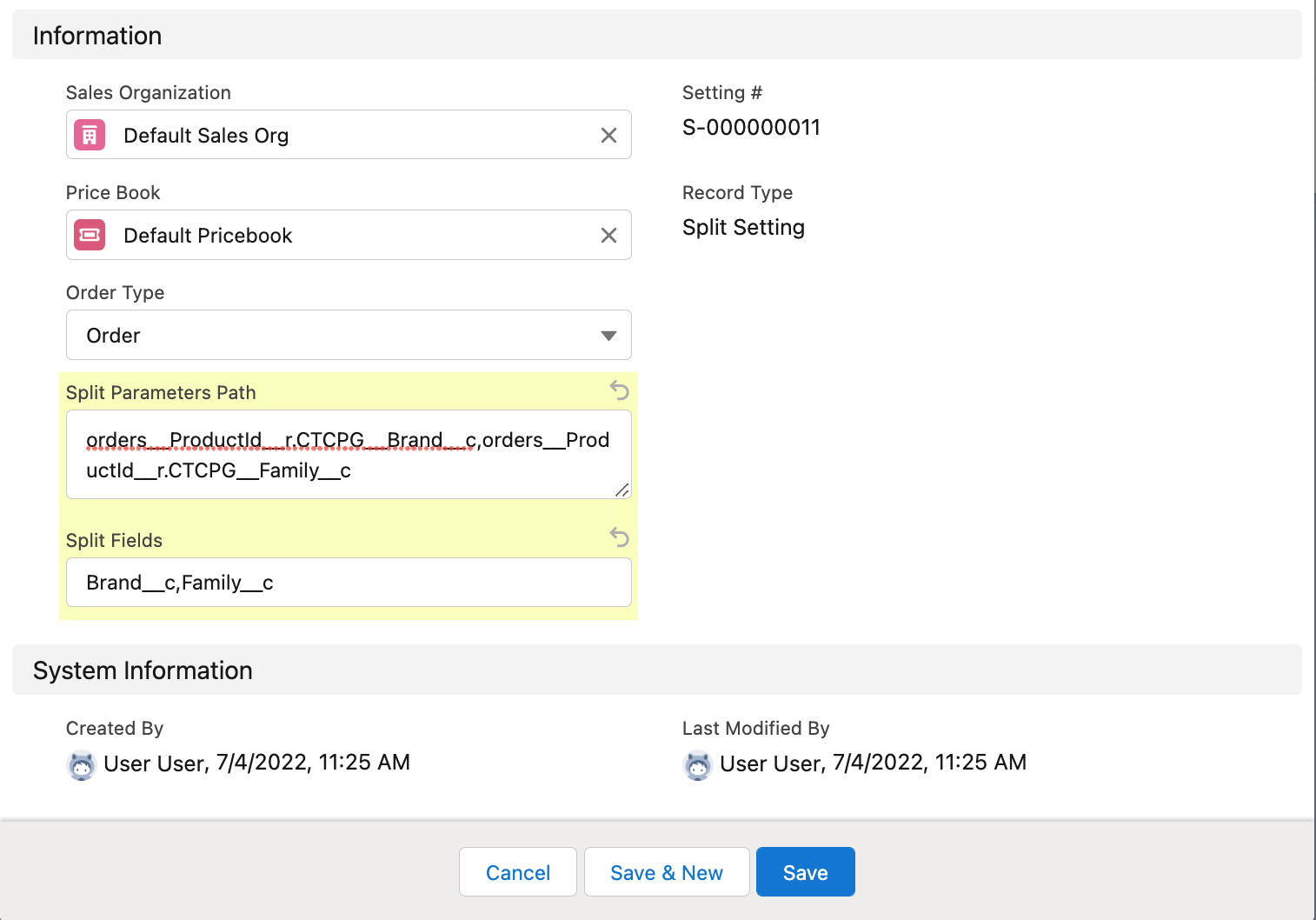
Sales Organization: Default Sales Org.
-
Price Book: Default Pricebook.
-
Order Type: Order.
-
Split Parameters Path: add the path to the CT Product fields that are used for splitting a delivery:
orders__ProductId__r.CTCPG__Brand__c,orders__ProductId__r.CTCPG__Family__c.
When managing bundles, make sure that the Split Parameter Path value is the same for both the bundle header and its components. Otherwise, the split settings might work incorrectly. -
Split Fields: add API names of the created custom fields on the Delivery object: Brand__c,Family__c.
-
-
Click Save.
The setup is complete.
Now, when you create an order and add products with different combination of the brand and family, the system automatically splits a delivery according to the Split Setting record. Freebies distribution is based on the quantity of the appropriate product, so this product and its freebies will be added in the same delivery.
If you configured the Delivery Summary window, you can view the created deliveries when clicking Finalize in the order cart. The empty values on Order Line Items are also considered during splitting.
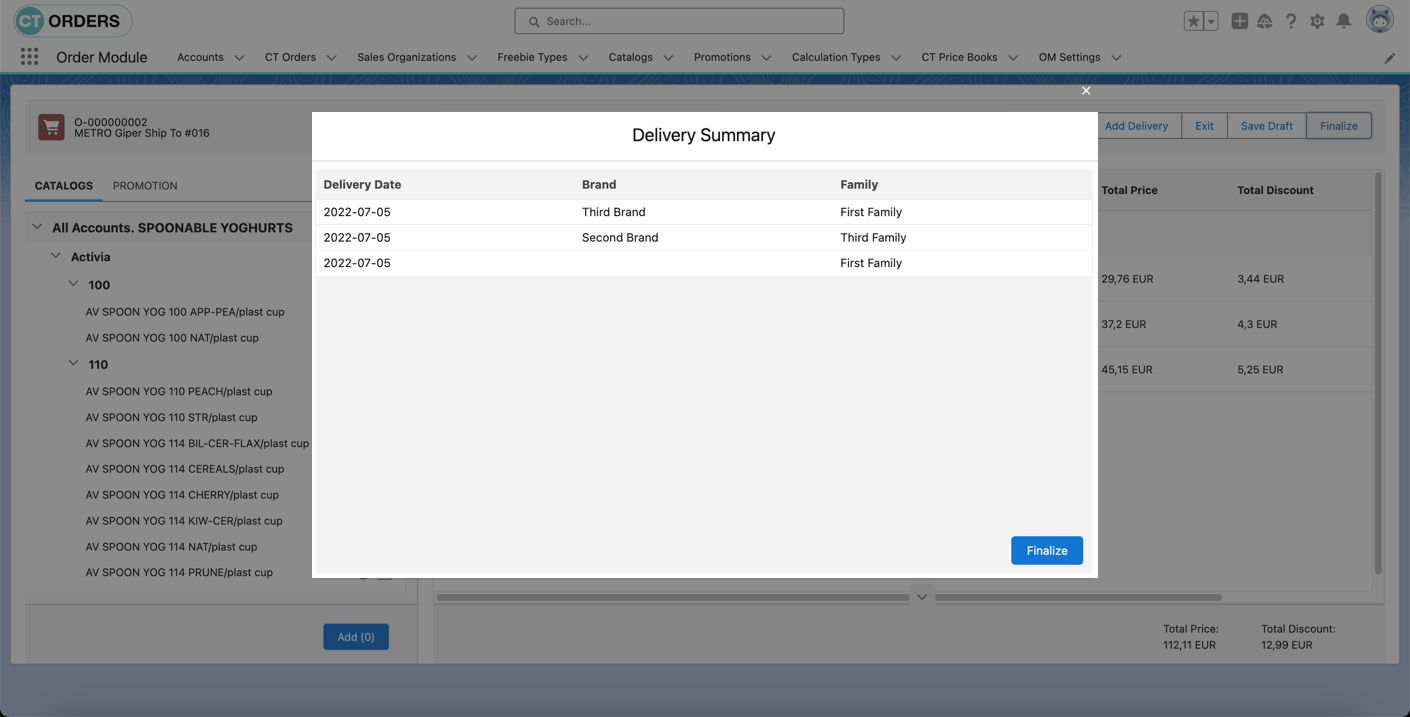
Or check deliveries on the corresponding CT Order record.
