Promotions
Promotion is a particular type of discount that uses specific syntax and is effectively managed via the user-friendly web interface while allowing to cover difficult discount calculation scenarios.
The Promotion page is implemented as a Lightning component with four tabs:
-
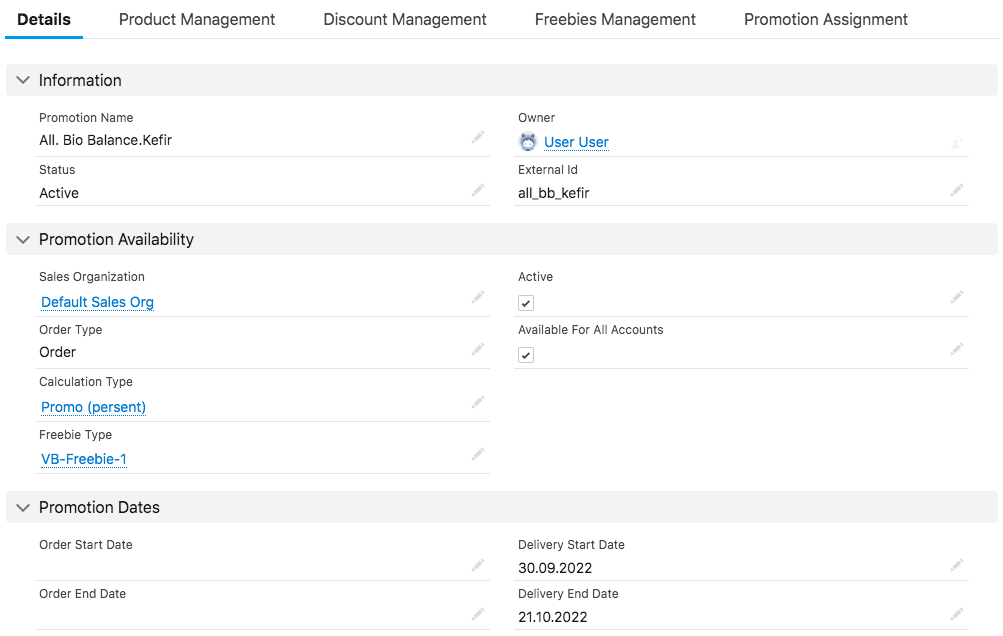
The Details tab with the main promotion info, such as status, promotion availability, order dates, and delivery dates.
-
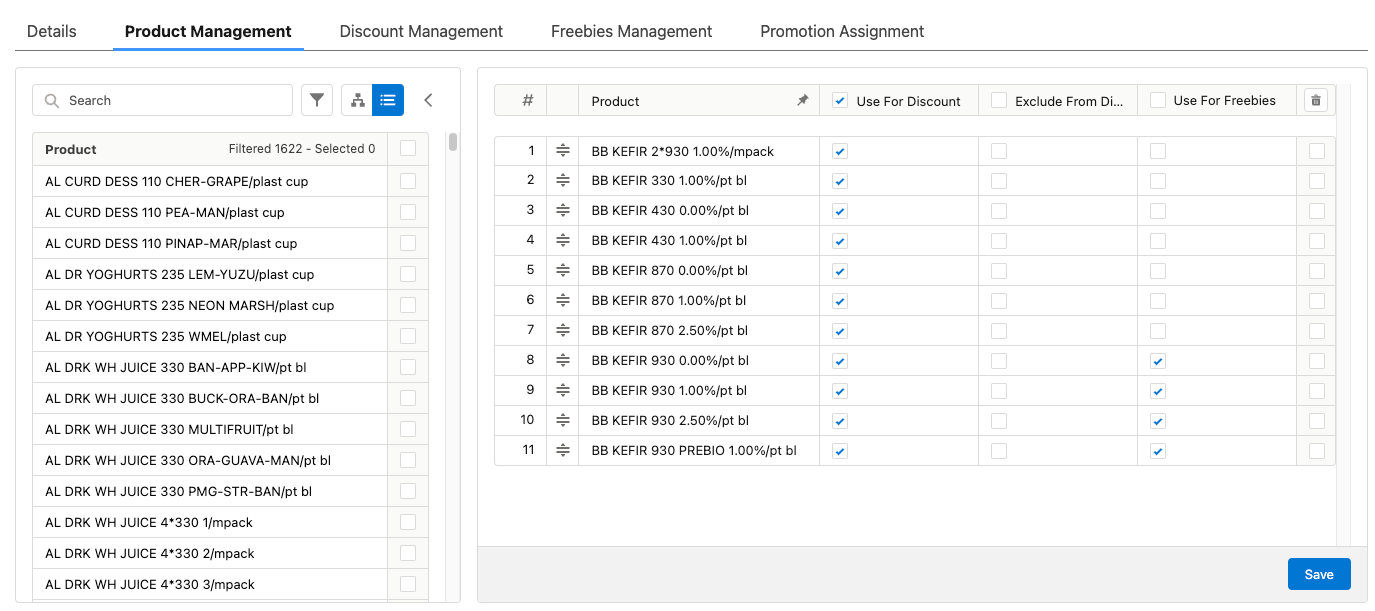
The Product Management tab consists of two sections. The left list section displays a list or hierarchy view of products available for adding to a promotion. The right list section displays products added to a promotion, which are represented as the Promotion Line Item records.
-
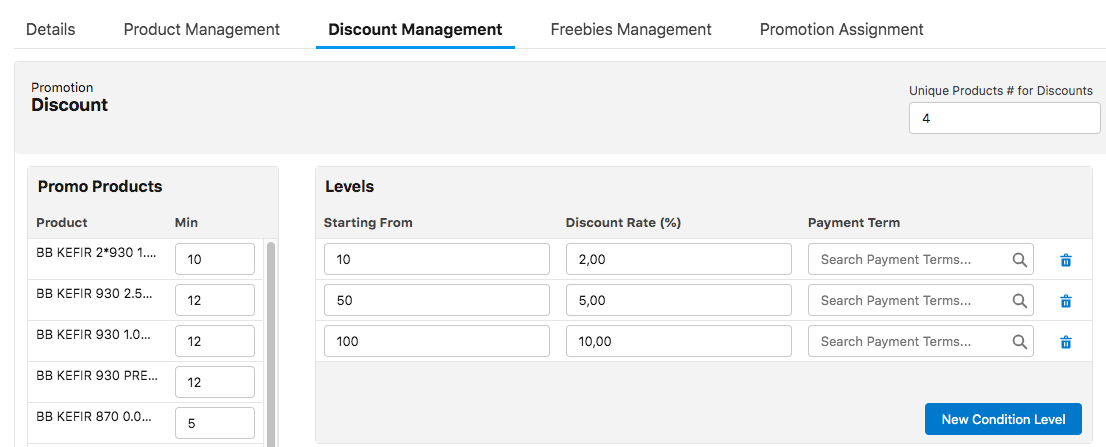
The Discount Management tab is used for the discount level assignment for the selected promotion products.
-
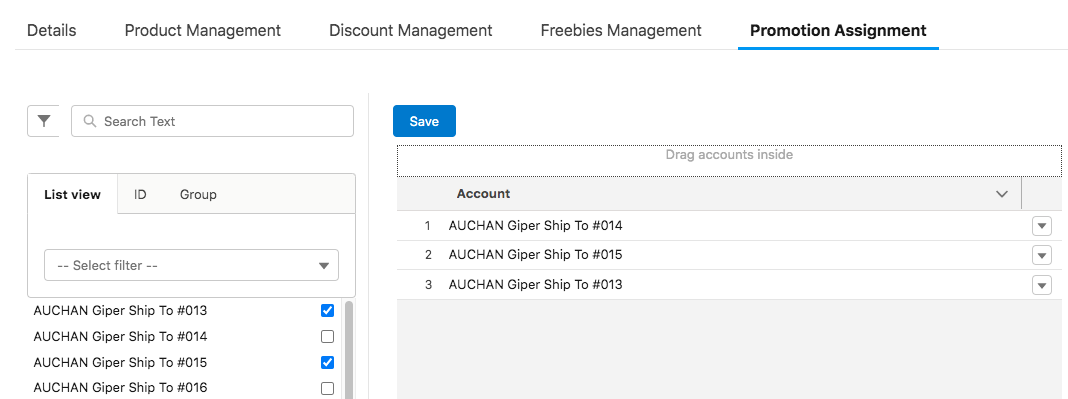
The Promotion Assignment tab consists of two sections. The left list section displays a list of promotions. In the right list section, assign promotions for accounts.
Details
On the Details tab, you can see and edit the following:
-
Specify the promotion status:
-
Draft is the default status for the newly created promotion. Promotion is not available for users.
-
Active means that promotion is available for all users.
You cannot change settings for active promotion. Set it to draft to introduce changes.
-
Closed means that the promotion is expired and is no longer active. It will not be displayed for CT Mobile users.
Promotion is automatically set as Closed when the current date is later than the Delivery End Date.
-
Canceled is set for invalid promotions or promotions canceled by the administrator.
-
-
It is necessary to specify the Calculation Type for a promotion.
-
Specify order and delivery promotion dates.
-
Order Dates must not be later than Delivery Dates.
-
If a sales rep changes delivery dates to incorrect dates in the CT Mobile app, the number of eligible promotional products in the order cart will be reset and blocked.
-
-
Specify the long-term discount dates.
Product Management
The Product Management tab on the Promotion record page allows you to create promotions that include products and product bundles.
-
On the left side, the available promotions are displayed as a list (
 ) or according to hierarchy (
 ). Use the toggle to the appropriate view and the
  button to sort and search.
Click
 to hide the left side.
 -
On the right side, specify products for the discount by dragging and dropping them from the left side. To pin the Product column, hover mouse pointer and click
 .
.For the Lightning component to work properly with the drag‑and‑drop functionality, make sure that Lightning Web Security is enabled in your org’s Session Settings.
Filtering Options
Search is carried out in the fields that are listed on the product Search Results search layout (including the Name field). If you select multiple filters, the products will be displayed that match the selected criteria.
You can search:
-
in list views of general products;
-
in dynamic groups;
-
by External IDs;
-
by a product name.
Create the SKU checkbox for the target Product object and specify it in the Object Setting record for the Salesforce organization. This property signifies that this product is a stock-keeping unit that can be added to catalogs.
Promotion Products
To add products to catalogs, it is necessary to create a Layout Setting record for the Promotion Line Item object. If a Layout Setting for the object is not found or no field is specified, the record ID will be displayed instead of a product name.
Unlike catalogs, promotions do not support product hierarchy and are always listed consecutively.
-
To add a product, drag and drop selected products to the empty box on the top of the right section.
-
Select Use For Discount for Promotion Line Items that you want to add to the promotion products list.
-
Select Exclude From Discount for Promotion Line Items that you want to exclude from the discount calculation for this certain product.
-
Click Save so that selected products will be displayed in the Discount Management list.
-
Added product is represented as the Promotion Line Item record.
If the products are not added to the list, try refreshing the page.
Discount Management
The Discount Management tab on the Promotion record page allows you to assign discount levels according to rates for the selected promotion products.
-
The Discount Rate unit of measure is automatically obtained from the assigned calculation type for a promotion (amount or %).
-
Discounts for promotions are saved as the Condition record with linked Condition Level records. You can also add new levels directly on the related Calculation Type page in the Condition section.
Freebies Management
Once you have selected products to use for freebies in the Product Management tab and set up Freebie type, you can configure Freebies in the Freebies Management tab. See detailed description here: Freebies Management Tab.
Promotion Assignment
A created promotion can be available for a specific set of accounts or to all accounts in your instance by applying the Available for all accounts checkbox on the Details tab of the Promotion record page. In the latter case, the Sales Org selection field in the promotion settings will be inactive. Otherwise, you need to assign a promotion to accounts, which means creating a Promotion Assignment record.
To display the Promotion Assignment tab on the layout, you need to configure a Layout Setting record for the Promotion Assignment object. Drag and drop promotions to assign them to the selected Account record.
| If you selected multiple filters, accounts will be displayed that match all the selected criteria. |
Dynamic Promotions Assignment
CT Orders allows filtering promotions available for a selected account dynamically.
To apply dynamic search logic:
-
Define the Group and Group Member objects of the target package in the Object Settings.
-
Create a lookup to the Group object of the CT package on the Promotion object.
-
Make sure the promotion is not available for all accounts (checkbox is not selected).
-
Create a dynamic group.
-
Assign a dynamic group, create a new Settings record with the Object Setting record type, and specify the referenced objects in Group Object and Group Member Object fields.
Process Path
The following steps must be performed by the administrator in order to make promotions available for discount calculation:
-
Create the Object Setting record for the SF Instance.
-
Add lookups to a CT Product object.
-
Configure Layout Settings for Promotion Line Item and Promotion Assignment objects.
-
Create and configure Calculation Type for a promotion.
Promo Related checkbox must be selected. -
Create and manage promotions.
-
Assign promotions if required.
See also: