Product Management
Administrators set up products that are assembled into Catalogs and Promotions, and sales representatives used them for creating orders. You can use the standard Salesforce Product object as your products, or set up CT Orders integration with the CT CPG or CT Pharma target package to enrich your product management process.
Workflow Overview
First, define a Product object to use in the system.
-
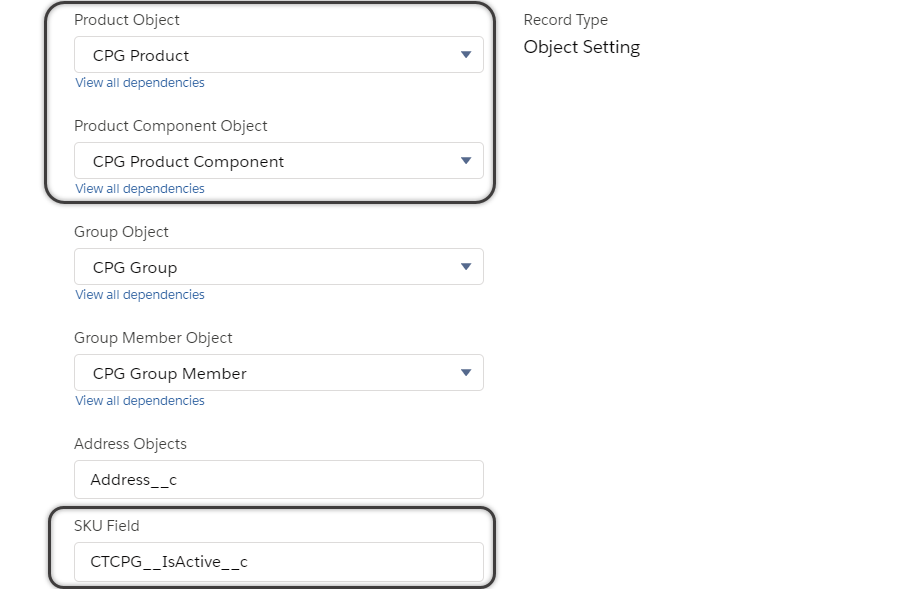
Determine an SKU property of the Product object by creating a Settings record with the Object Settings record type. This attribute signifies that a product is the smallest stock unit for sale that can be used to comprise higher-level items (product bundles) and compile orders.
-
Specify Units in Package—a ratio that defines the quantity of product to add in the order by one tap.
-
Set up bundles and a ratio for multiplying a component quantity in the bundle if needed.
The Product Component object is required for this feature and available in case of integration with CT CPG or CT Pharma package. -
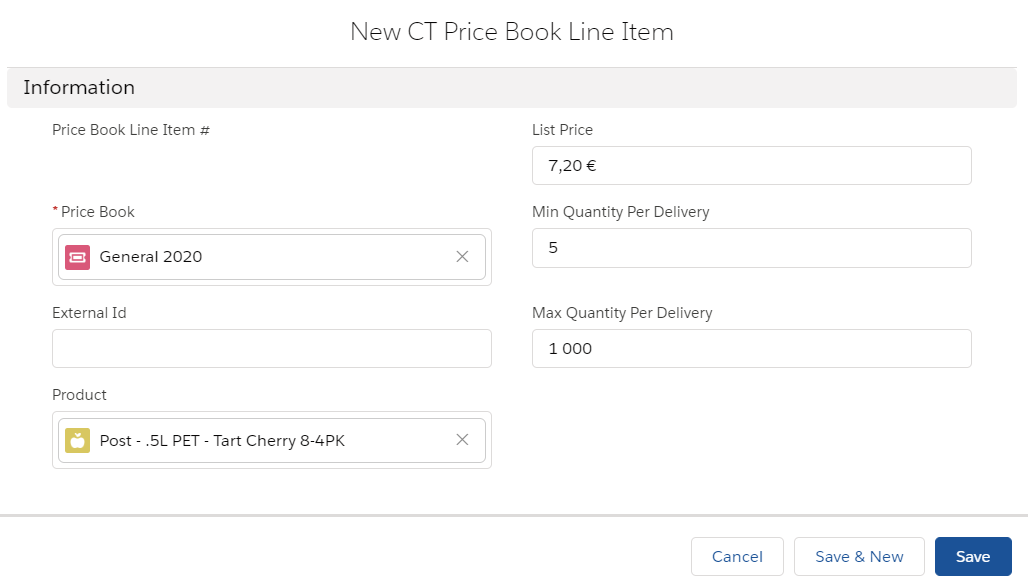
Set up CT Price Books and List Prices for each product—CT Price Book Line Item.
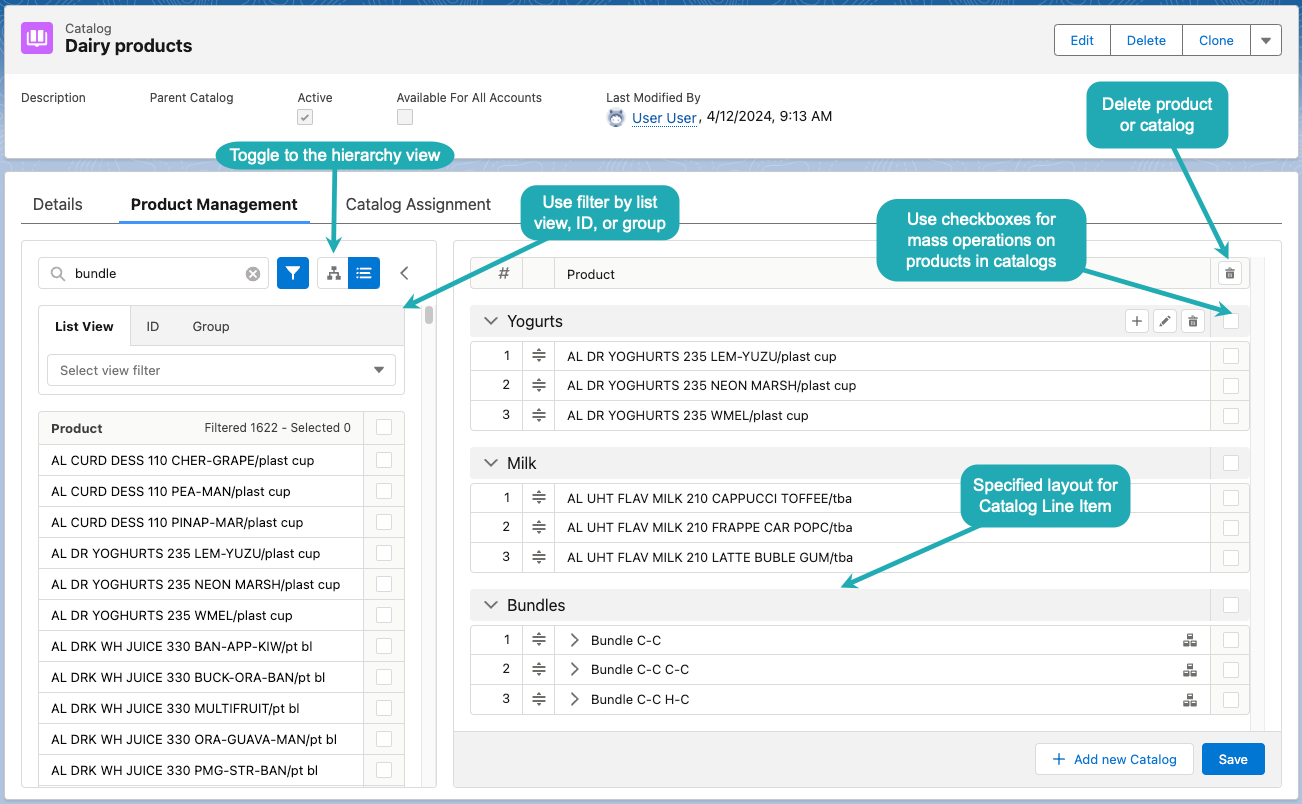
The list of products is managed in the Product Management section on the Catalogs and Promotions tabs. Here you can add products and build a catalog hierarchy with products and bundles:
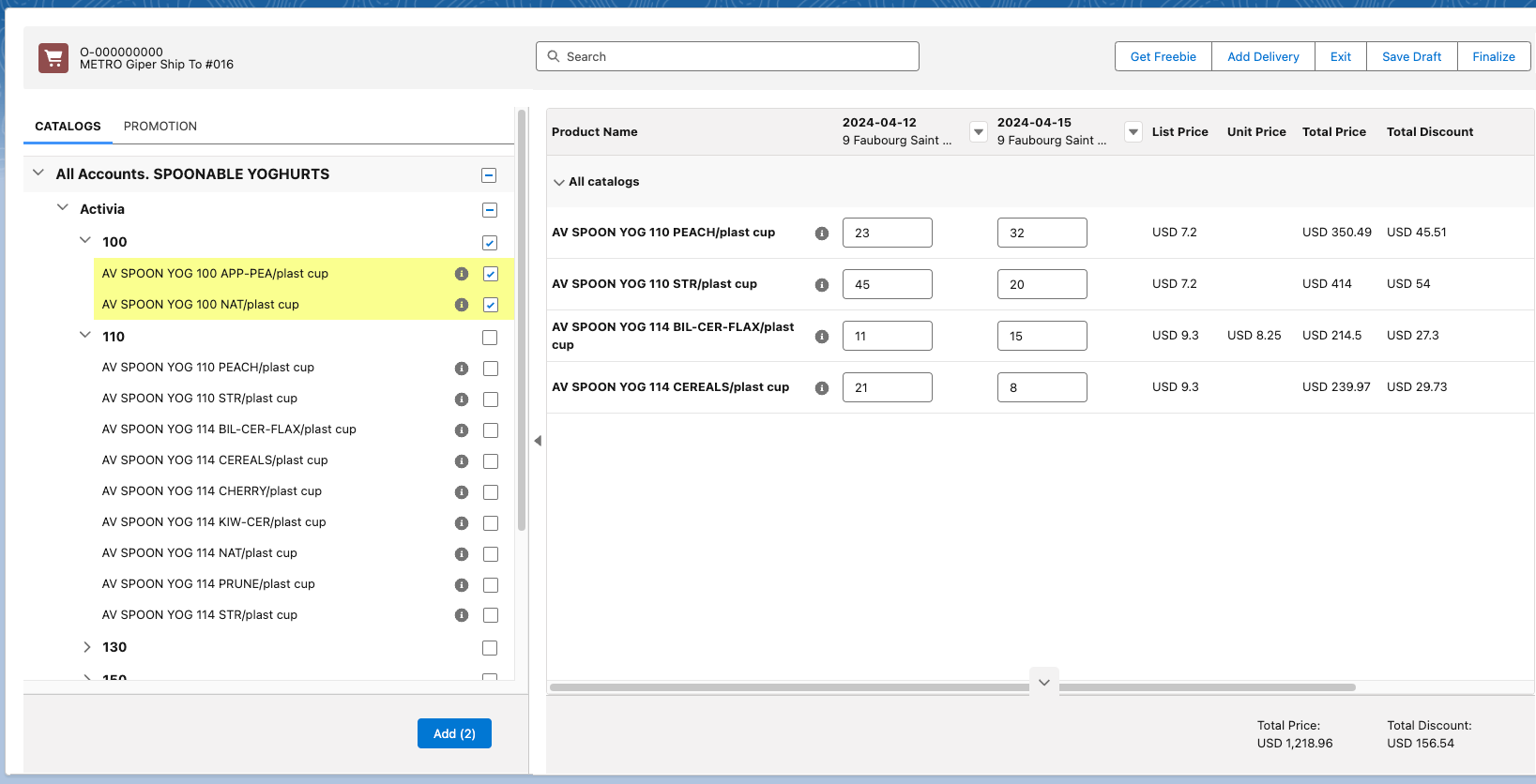
Created catalogs and promotions are then used by sales representatives for filling in the order cart:
Managing Products Quantity
To manage quantity per delivery for each paid product, add Min Quantity Per Delivery, Max Quantity Per Delivery, and Multiplier fields to the Product and Price Book Line Item page layouts.
| Min/max values specified on a Price Book Line Item object are prioritized over a Product object record. |
-
If the values are set, when you add a product to the order cart, the minimum quantity value will be displayed automatically. If you enter a value outside the specified range, the system will automatically round the number to the value either Max Quantity Per Delivery or Min Quantity Per Delivery field.
-
The same rules are applied for products in bundles in the case when the Set Quantity Level field is set to Product Component.
For more information, refer to Managing Bundles.
Multiplying Product Component Quantity
The Multiplier field is added to the Product Component layout to specify a ratio for multiplying a component quantity in the bundle when a bundle is added to the order cart. For example:
| Input Data | Operation | Result |
|---|---|---|
Set Quantity Level = Header A bundle has:
|
Add 2 bundles to the order cart. |
Bundle = 2
|
Managing Product List Prices
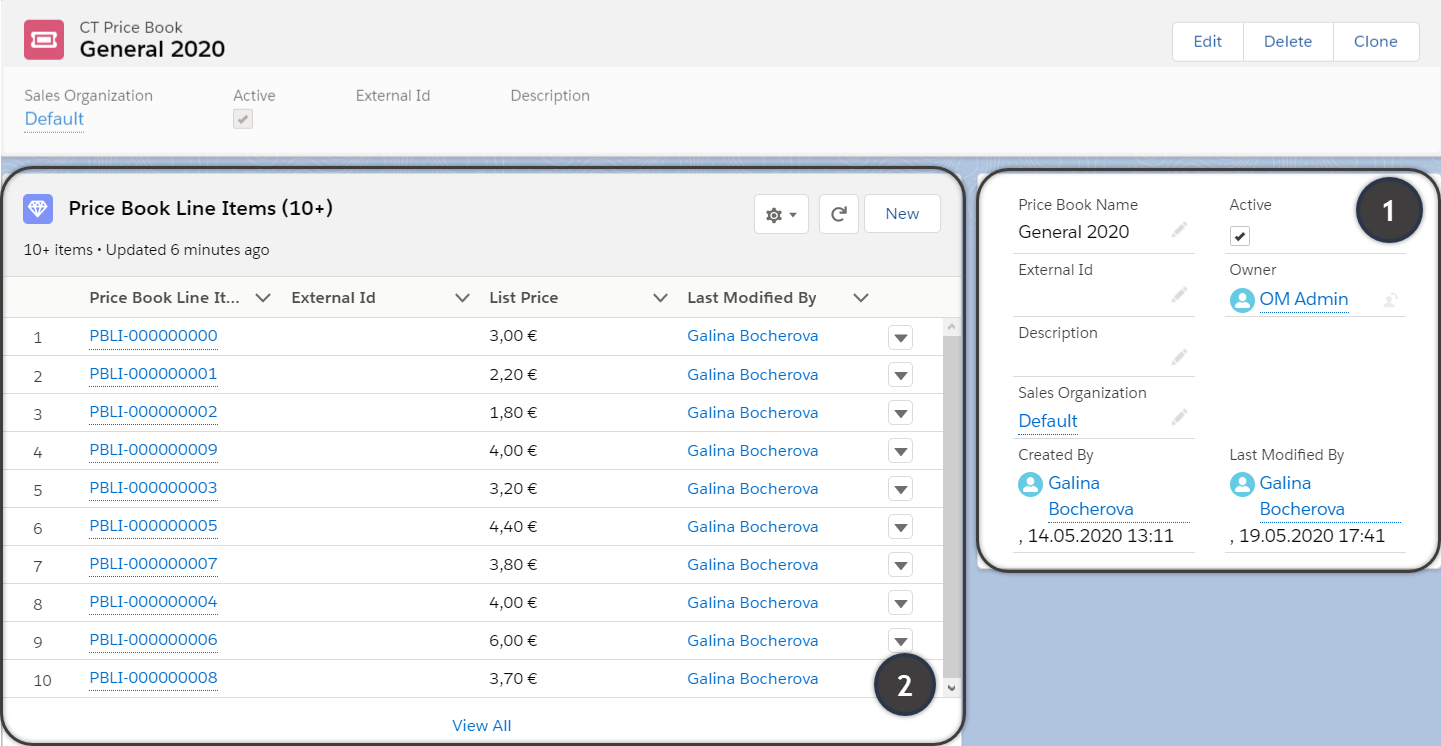
Each Product record must be assigned to a CT Price Book and get a List Price.
-
A single product can be available in several CT Price Books and has different list prices.
-
A CT Price Book can be assigned to the specific Sales Organization or Order Type.
On the CT Price Book tab, add new CT Price Book List Items for products that you are going to add to your catalogs or promotions.
-
Products without List Prices are not displayed in the list on the Catalog Product Management tab and cannot be added to the order cart.
-
You need to create CT Price Book Line Items with List Price for the bundle header, even if the price is calculated on bundle components. Otherwise, a bundle will not be added to the order cart.
Process Path
-
Set up the compact layout for the Product object. The title is the value of the first field in a compact layout, and the subtitle is the value of the second field in a compact layout.
-
Map objects in OM Settings:
-
Select the Product object in a system.
-
Select the Product Component object in a system.
-
Specify a field to be used as an SKU-defining attribute of a product record.
-
-
Create lookup fields for Product.
Prior to configuring products hierarchy and other product settings, you need to link the Product child records with a number of CT Orders objects by creating a lookup field for each of the following objects:
-
Catalog Line Item
-
Promo Line Item
-
Order Line Item
-
Freebie Line Item
-
Price Book Line Item
-
Delivery Line Item
-
-
Configure product quantity per delivery using the Max Product Per Delivery and Min Product Per Delivery fields for Product and CT Price Book Line Item records.
-
Set up product list price for CT Price Book Line Items.
See also: