Smart Order Assistant
| This feature is available starting from CT Orders 25 R1 package version and requires a subscription. |
Smart Order Assistant is an AI-powered tool designed to automate routine tasks with your CT Order workflow. Once enabled, it allows you to perform the following actions:
-
Create orders from a photo or screenshot
-
Clone orders
-
Use voice commands
-
Apply smart order templates
Enabling Permissions
-
Assign the following permission sets for your user profile:
-
Access Smart Order Assistant
-
Manage Smart Order Assistant
-
-
Assign the Allow Access To Smart Order Assistant custom permission for your user profile to enable Smart Assistant for the CT Mobile app.
Applies to CT Mobile iOS version starting from 3.0.
Enabling Smart Order Assistant
-
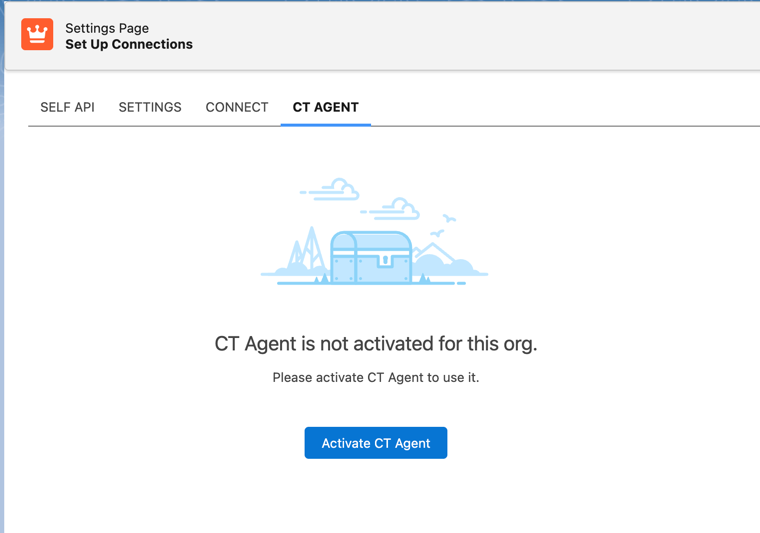
Go to CT Orders Control Panel and open the CT Agent tab.
-
Click the Activate CT Agent button.
-
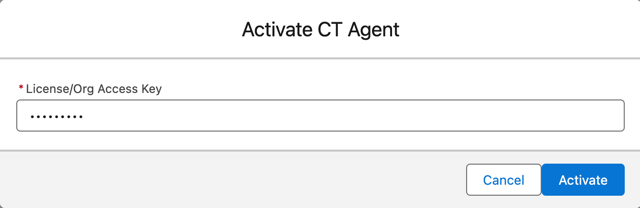
In the pop-up window, enter your License/Org Access Key and click Activate.
-
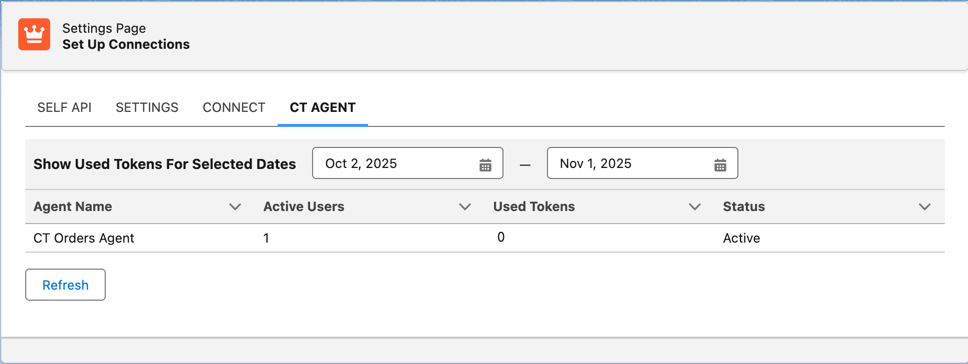
The CT Orders Agent status will be set to Active.
Adding CT Agent Component to an Object’s Details Page
To use Smart Order Assistant in Salesforce, add its component to the Details page of the desired object. The following example uses the Account object:
-
Open any Account object record and switch to the Details tab.
-
In the upper-right corner, click the
 icon and select Edit Page.
 -
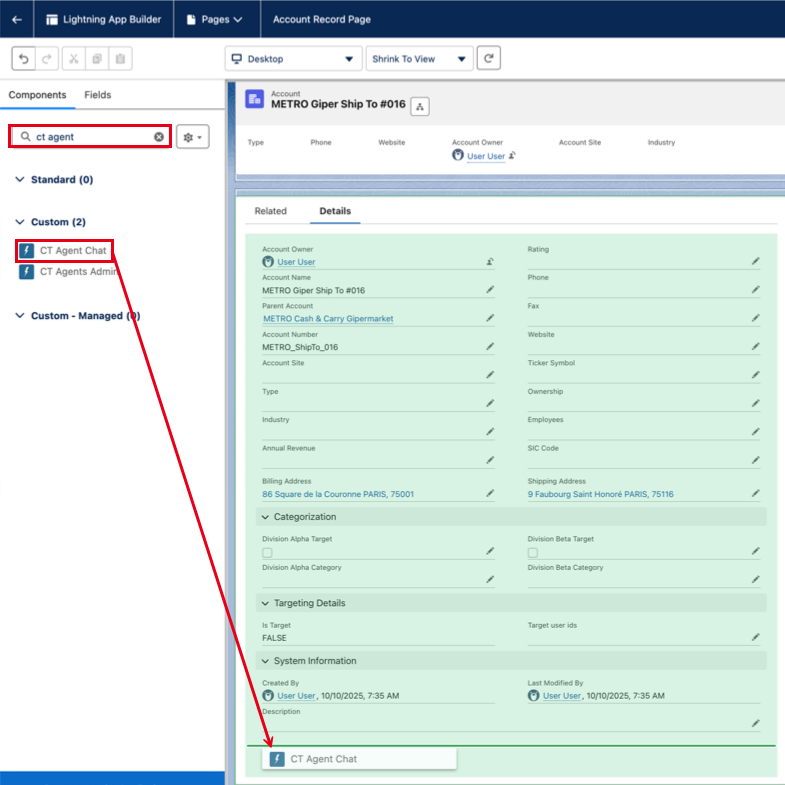
In the opened Lightning App Builder, click the Details tab.
-
In the Search field, type CT Agent, then drag and drop the component onto the Details page (e.g., at the bottom).
-
Click Save in the upper-right corner.
-
Open any Account object record and verify that the
 icon appeared in the lower-right corner and is clickable.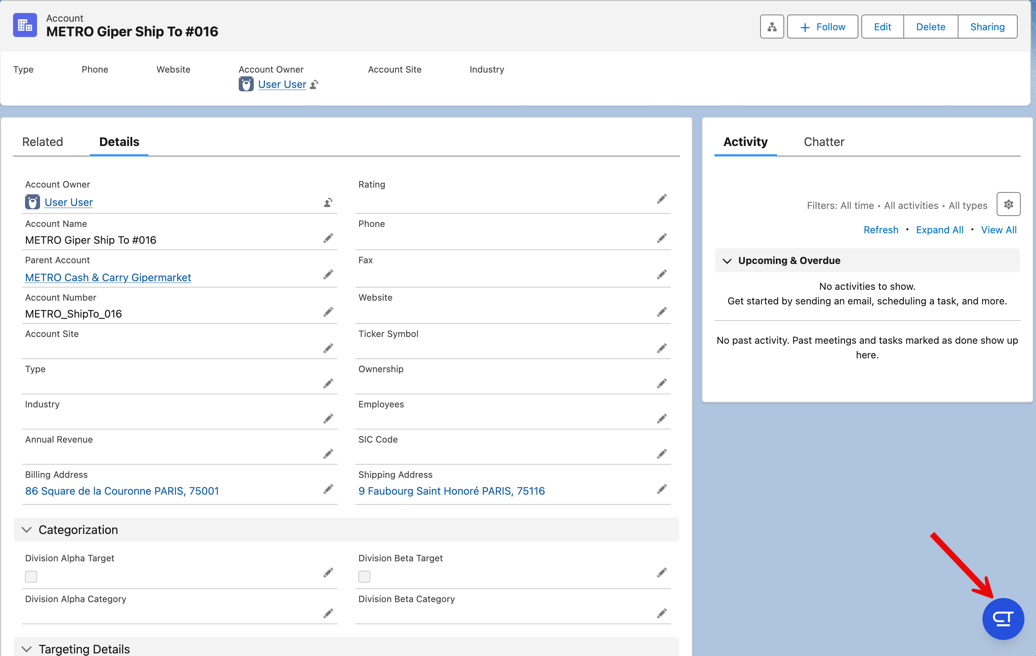
Using Smart Order Assistant in Salesforce
To start using the Smart Order Assistant, click the icon on a record of an object, for which the CT Agent component has been added.
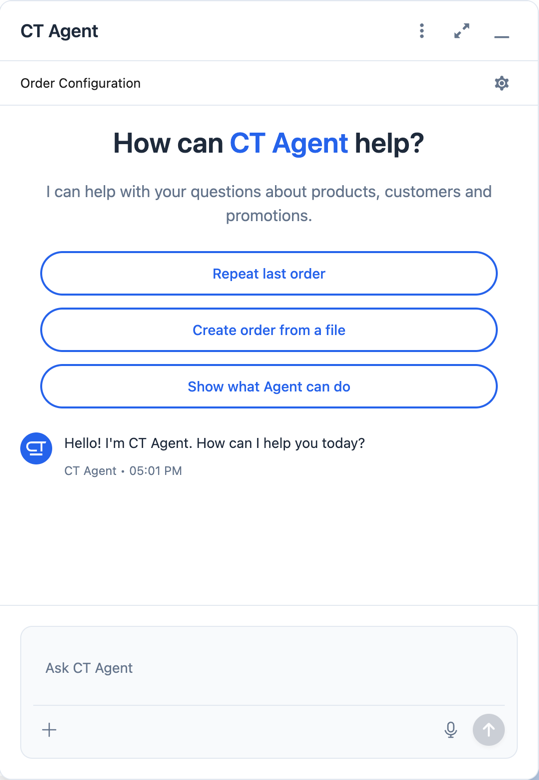
You can start chatting with Smart Order Assistant right away, or:
-
You can choose from three quick actions:
-
Repeat last order
-
Create order from a file
-
Show what agent can do
-
To configure the sales organization and order type for the current chat, click the
 icon in the Order Configuration section.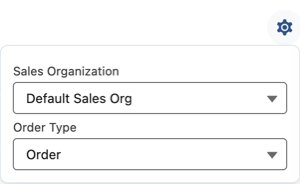
-
Click
 to add a file (image or PDF).
 -
Click
 to start voice input.
 -
Click
 to:
to:-
Open Settings
-
Clear chat history
-
Show guide
-
End chat
-
Using Smart Assistant in CT Mobile
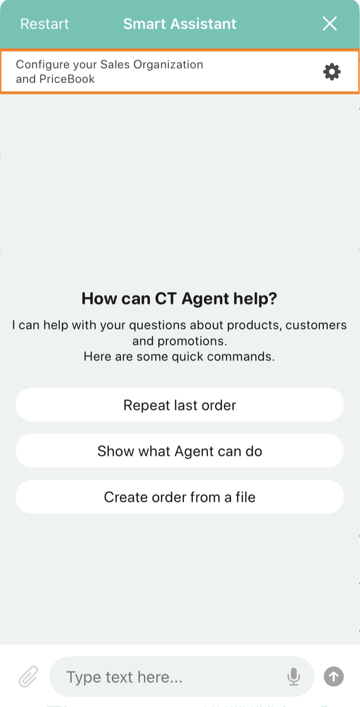
To start using the Smart Order Assistant, click the  icon on a record of an Account, Activity, Contact or Order objects.
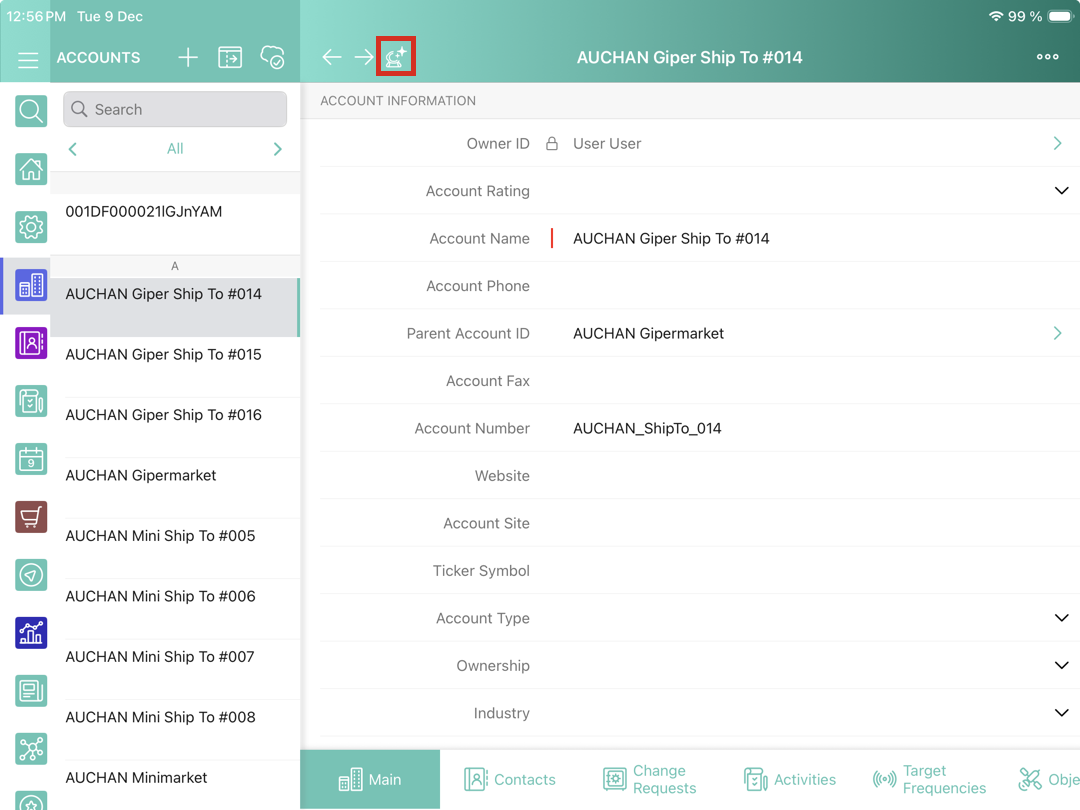
You can start chatting with Smart Assistant right away, or:
-
You can choose from three quick actions:
-
Repeat last order
-
Create order from a file
-
Show what agent can do
-
To configure the sales organization and order type for the current chat, click the
 icon in the Order Configuration section.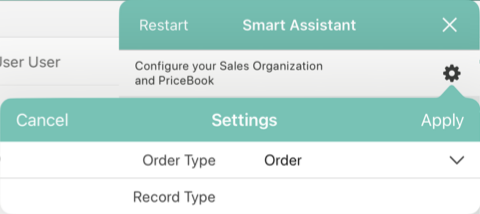
-
Click
 to add a file (image or PDF).
 -
Click
 to start voice input.