Online Order
Get familiar with the online order creation process and main features. Workshop 1.0 helps you to configure your first order and understand relationships inside the CT Orders data model.
Prerequisites
The conditions to view the Catalog records and have the ability to add CT Products from these catalogs to the current order:
-
The Catalog object must be available for the sales rep.
-
The Catalog record must be active and:
-
assigned to the current account;
Set the Available for All Accounts checkbox on the Catalog record to use it for any account. -
available for the current Order Type;
-
available for the current Sales Organization.
-
-
The Catalog Line Item records must be active and store the unique CT Product ID.
The conditions to view the Promotion records and have the ability to add CT Products from these promotions to the current order:
-
The Promotion object must be available for the sales rep.
-
The Promotion record must be active and:
-
assigned to the current account;
Set the Available for All Accounts checkbox on the Promotion record to use it for any account. -
available for the current Order Type;
-
available for the current Sales Organization.
-
-
The current date is within the promotion start and end dates. If one of the ordering dates is absent, the current date must match the promotion delivery dates.
-
The Promotion Line Item records must be active, have the Product record type, and store the unique CT Product ID.
Online Order Page
On the CT Order tab, click on one of the orders and then click Edit Cart to open the order cart:
-
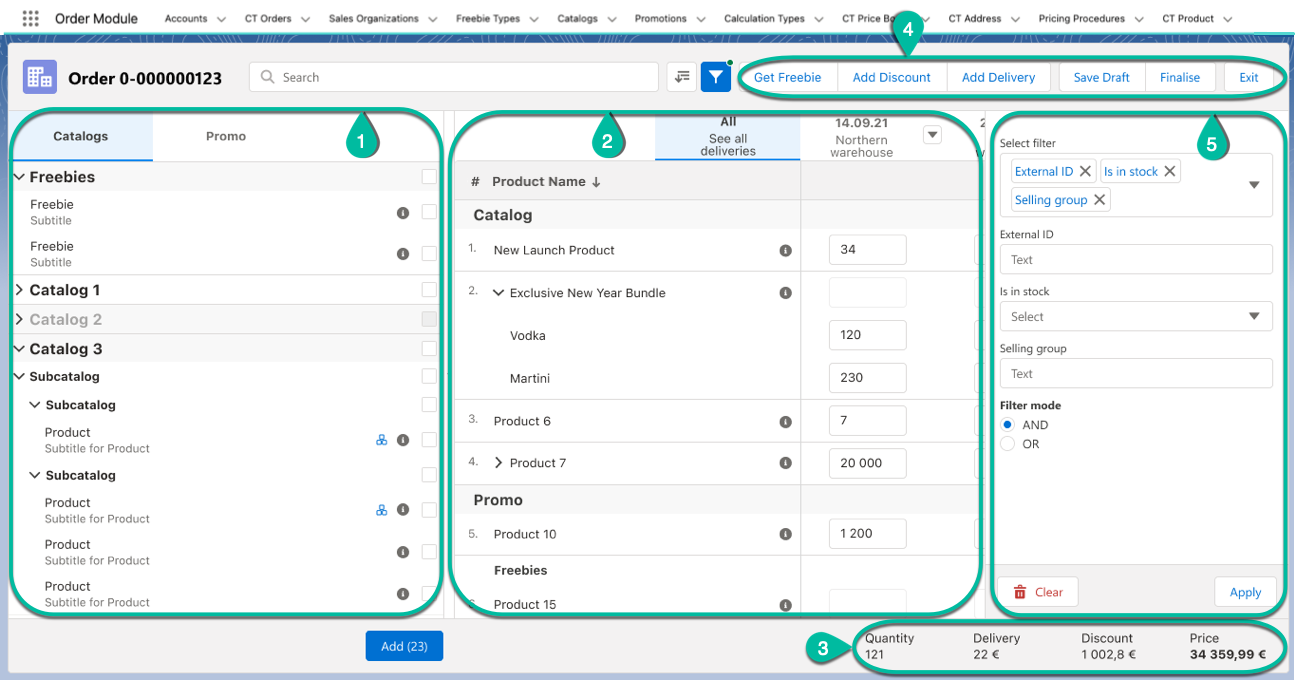
(1) On the left side, the catalogs and promotions available for the current Sales Organization are displayed. Products are arranged according to their order number (if given) or in alphabetical order.
The product is available for order only if a CT Price Book and a List Price are specified for the CT Product record. -
Search is carried out in the fields that are listed on the product Search Results search layout (including the Name field). If you selected multiple filters, the products will be displayed that match all the selected criteria.
-
(2) On the right side, the current order table with configured columns and delivery dates is displayed. Click on the Product Name column to sort the list of added products in alphabetical order (ascending or descending).
-
(3) The additional layout could be configured to show a total order price, discounts for all products in the cart, and other metrics.
-
(4) The CT Order button panel.
-
(5) The filter panel. Click
 to expand and hide it. The filter will be displayed only if the Filter Setting is configured.
Managing Products in Cart
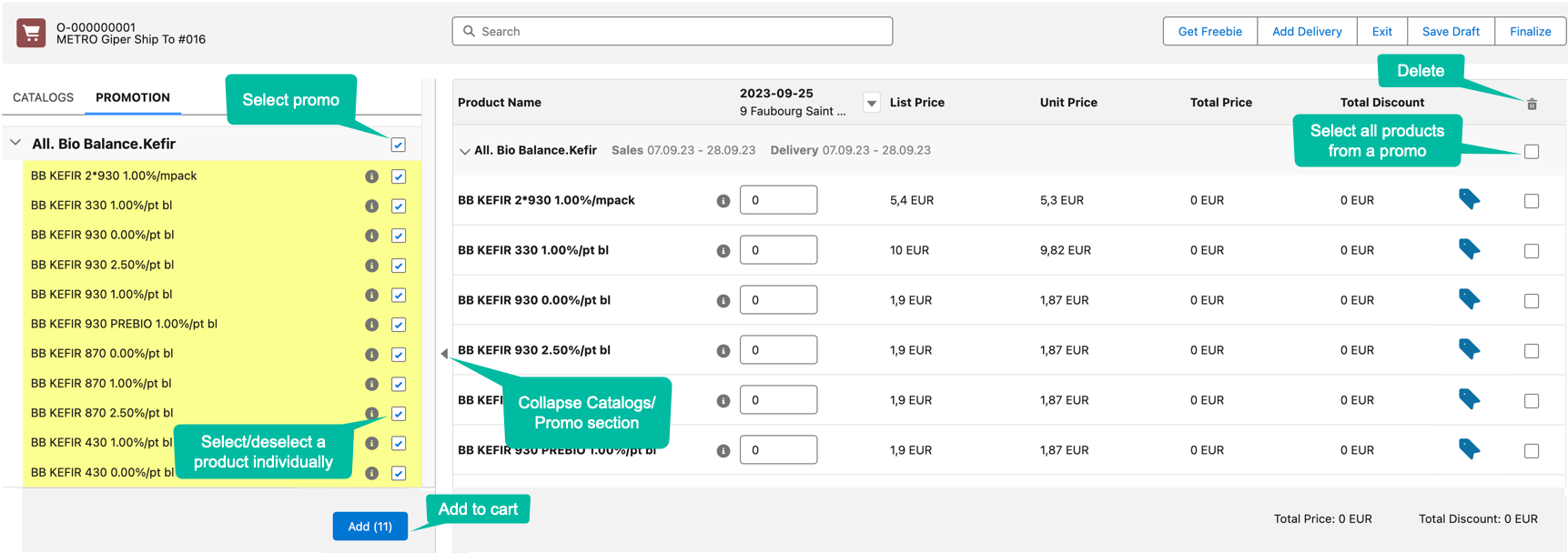
Switch between Catalogs and Promotion tabs to select products and add them to the order cart.
-
Add one product, several products, or the whole catalog / sub-catalog / promotions. The Disable Mass Adding option on a Catalog record defines whether a sales rep can add a whole catalog to the order cart.
-
Select products and click the Add button.
-
Use drag-and-drop to manage products in the catalogs, promotions, and order cart.
-
-
All products from the selected catalog or promotion will be automatically selected too.
-
All catalog products are gathered under the Catalogs section.
-
Promotion products are grouped separately under their respective Promotion names. The promotion sales and delivery dates are displayed next to the promotion. If the sales dates are empty, the delivery dates will be displayed instead of them.
When you add a product from a catalog, the product is no longer available for adding from any catalog. However, if you add a product from a promotion, it will still be available from other promotions, if those promotions' conditions match the order settings.
You can delete products from a cart:
-
each product individually;
-
all products added from catalogs;
-
all products from a selected promo.
Order Cart
Order Cart Layout
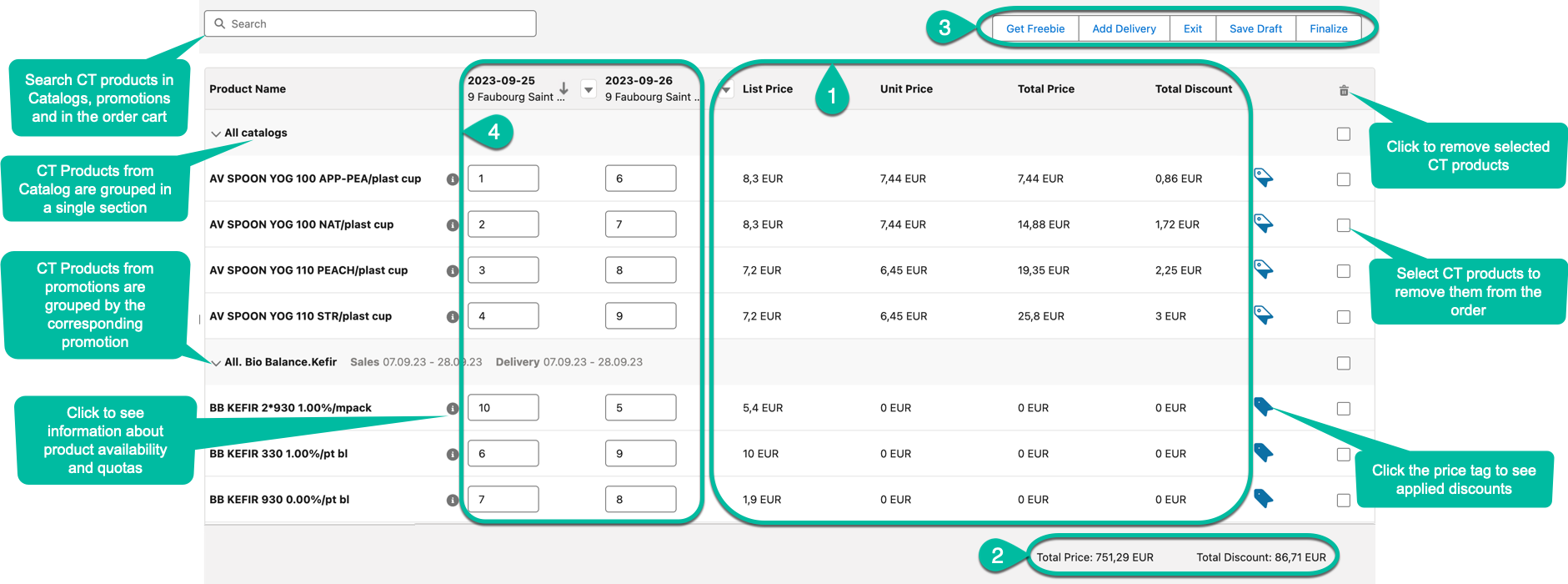
The Order Cart page consists of the following parts:
-
(1) The main cart area with the configured columns for Order Line Items contains read-only fields with the prices from the corresponding CT Price Book and applied discounts, additional fields that are configured using the layout setting.
To form an order, it is necessary to configure the Object Settings record with the Layout Setting record type. You can add read-only and editable fields affecting discount calculation on the layout. -
(2) The bottom panel with overview metrics (optionally). To add the desired fields, it is necessary to configure the Object Settings record with the Totals Panel Setting record type. The maximum number of displayed fields is 4. If the setting is not configured, the Total Price and Total Discount fields are displayed by default.
-
(3) The CT Order button controls.
-
Click Get Freebie to distribute freebies.
-
Click Add Delivery to split products in the current order per delivery dates and addresses.
-
If the order has 140 Delivery Line Items or more, the Calculate Discounts button appears to reduce the calculation time. Click the button to calculate discounts and the total price.
By default, there are only two available split criteria: date and address. You can add up to three more conditions for splitting an order.
-
Click Save Draft to save newly created order or changes in the editing one. By default, the On Hold stage will be set. Price calculations based on values in the formula fields will be performed after clicking Save Draft.
-
Click Exit if you do not want to save the current order or changes made in the existing order.
-
Click Finalize to restrict editing the current order. If the Delivery Summary window is set up, you can review and edit the delivery details after clicking Finalize. For more information, refer to Delivery Summary.
-
-
(4) The added delivery dates with the product quantity per delivery. Click
 or
or  on the delivery column header to sort by product quantity.
 -
To delete deliveries, click the drop-down arrow and select Delete delivery.
If a Delivery record was created for the order, you cannot delete all deliveries from the order, at least one delivery should exist.
Editable Fields
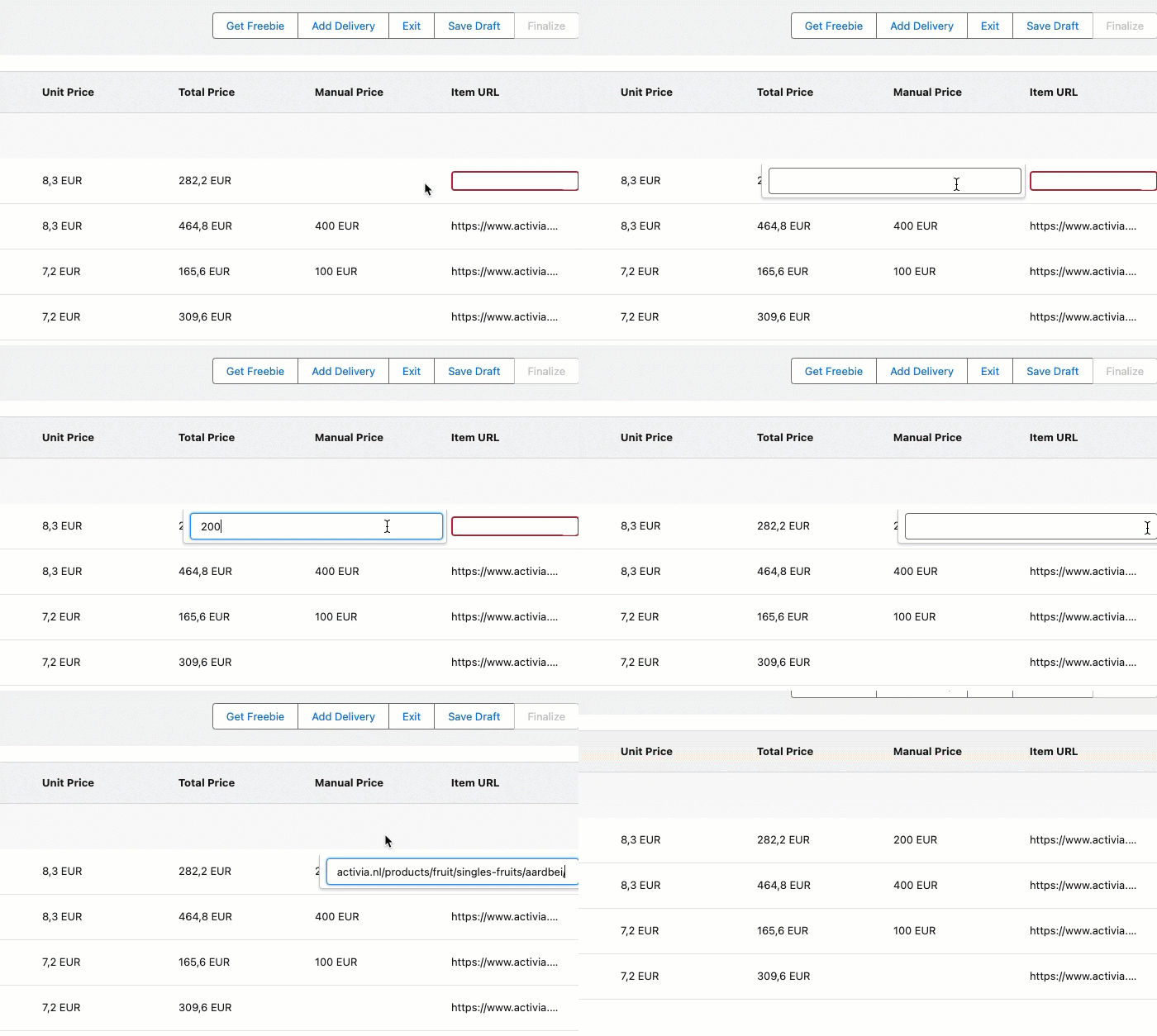
The editable fields were implemented to support the application of the manually set discounts and can be used in calculations or to display additional information. These fields should be first created on the Order Line Item object and then specified in the Settings record with the Layout Setting record type.
The processing logic displaying the fields goes as follows:
-
First, search the setting with the Record Type value matching the one that was specified in the pop-up window when the order was created.
-
Then goes the setting with the Sales Organization field value matching the one on the created order.
-
If no settings were found, then the setting without the specified Record type and Sales organization will be applied.
This logic takes into account the Read-Only and Required attributes that could’ve been checked when the field was created. In that case, these attributes will always come in higher priority regardless of the values specified in the setting’s Read-Only Attributes and Required Attributes.
When the Setting record is found, fields from the Fields to display field of this record will be displayed on the right side of the order cart layout. The attributes specified in the Required Attributes and Read-Only Attribute will define whether the displayed field will be mandatory to be filled before finalizing the order or have a read-only status.
See also: