Set up a Dynamiс Group Assignment
| The CT CPG or CT Pharma solution must be installed in your Salesforce instance. |
Dynamic groups help you to assign multiple accounts to catalogs and promotions and also keep records up-to-date.
Depending on the installed solution, see more information:
Create a Dynamic Group
To create a dynamic group, for example, with retail stores:
-
Go to Object Manager → CPG Group Member or Pharma Group Member → click New.
-
Follow one of the guides to create a dynamic group:
The dynamic group with the appropriate records is created.
Set up CT Orders package for Dynamic Group Support
Create the required lookups:
-
Create a lookup from the Catalog object to the Account object. For example, GroupId__c.
-
Create a lookup from the Catalog Assignment object to the dynamic group object. For example, GroupId__c.
-
Repeat steps 1—2 for the Promotion and Promotion Assignment object if necessary.
The setup is complete.
| We advise using only one lookup field to the Group object on the Catalog/Promotion object. If the Catalog/Promotion object contains more than one lookup to the Group object, make sure to fill in all lookup fields with identical IDs. Otherwise, the Dynamic group feature may not work correctly. |
Next, set up the layouts.
-
For catalogs, follow the Catalog Assignment Layout Setting guide.
-
For promotions, follow the Promo Assignment Layout Settings guide.
Assign to a Dynamic Group
In order to assign either a Catalog or a Promo to a Dynamic group:
-
Create a lookup from the Catalog to the CPG Group. For example, CPG_Group__c.
-
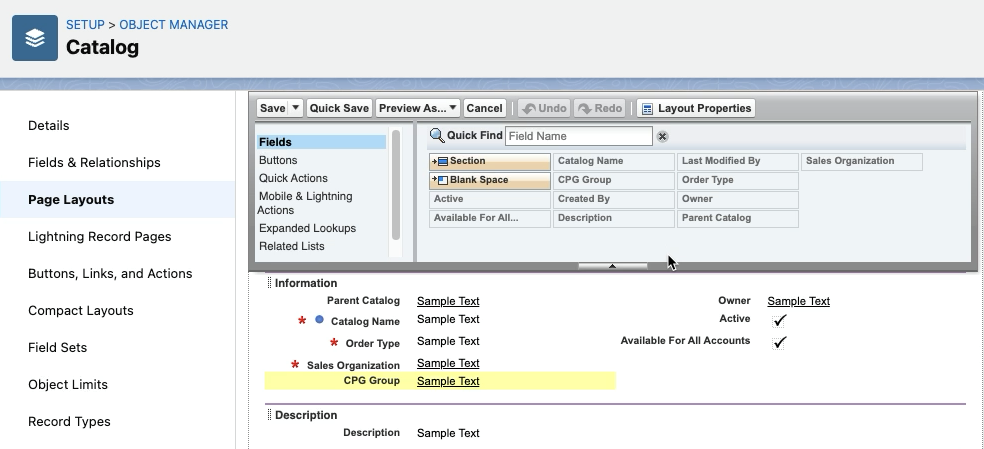
Go to the Page layouts settings for the Catalog object and bring up created lookup to the dynamic group to the selected layout.
-
Go to Order Module → Catalogs and select the catalog you want to assign to a Dynamic Group.
-
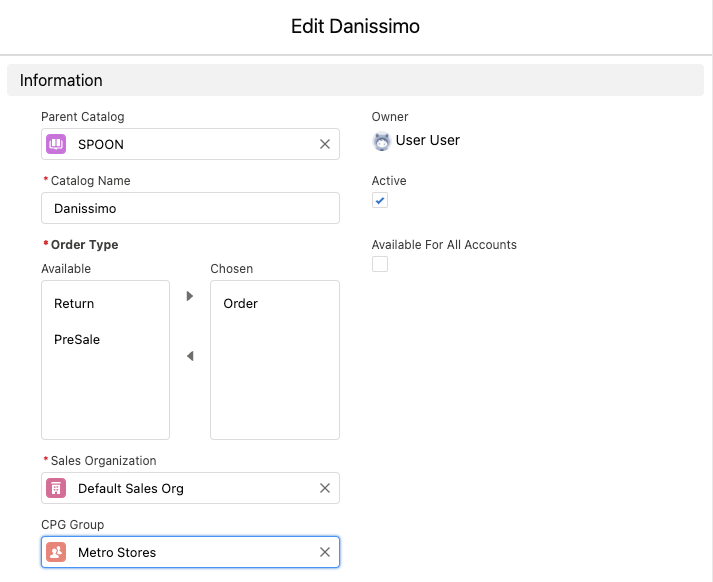
On the selected catalog’s Details tab, click Edit and in the added field specify the Dynamic Group.
-
To assign a Promo, repeat steps 1—4 creating a lookup from the Promotion to the group object.
The setup is complete.