Pharma Groups Management
| These settings are optional. |
In this section:
-
Get familiar with the Pharma Group and Pharma Group Member objects;
-
Have a look at the difference between static Pharma groups and dynamic Pharma groups;
-
Learn the SOQL builder options to create criteria for a group.
Configure CT Pharma groups for managing Contacts, Accounts, CT Products, Users or your custom object per single tasks or scheduled processes.
Group Types
The limit is equal to 500 thousand records per group. If there are more records, a warning is displayed.
Static Group
A static group is a snapshot of records per specific time. It can be used to send ad hoc emails such as:
-
announcements;
-
invitations to the events;
-
special offers of products;
-
etc.
Dynamic Group
Use dynamic groups to keep the lists of record per different objects up to date, e.g.:
-
to create a group of users for the onboarding process;
-
to create a group of clients who meet specific criteria, for example, were not visited during the last 2 weeks but have orders for more than $100 000;
-
to derive the list of the most popular products based on product sales or numeric distribution;
-
etc.
SOQL Builder to Filter Pharma Group Records
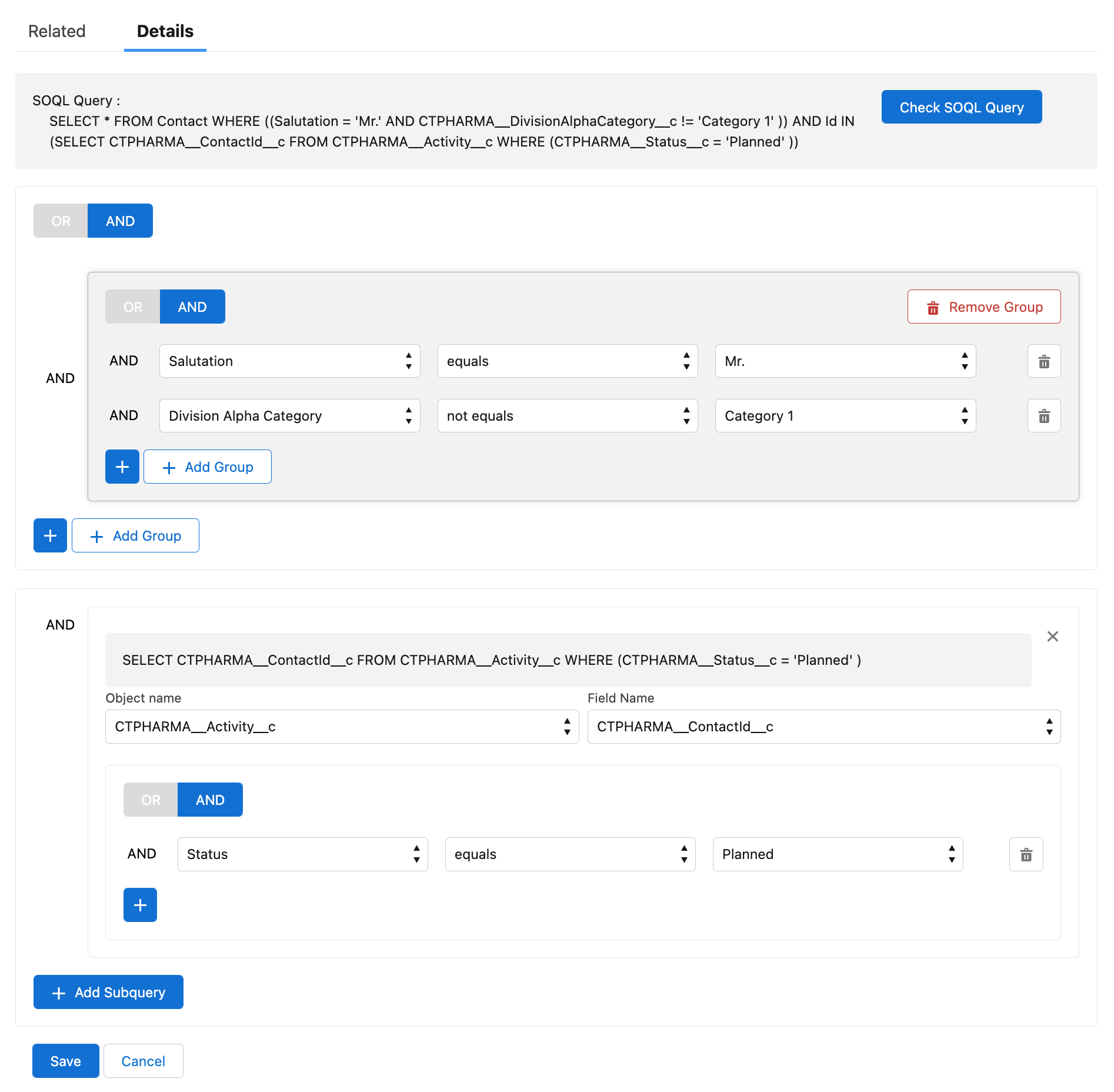
SOQL Builder is used for creating a SOQL query to filter records in a Pharma group.
-
On a high level, set up a query based on the parent object.
-
Add up to a maximum of two subqueries applied to children’s records if needed.
| We do not recommend to use different fields with the same names in the SOQL queries. The reason is that Dynamic SOQL in the Managed Package uses the default package field and ignores the field with the same name, but with the package prefix. |
The SOQL builder buttons:
-
Click
 to add criteria based on the fields of the object’s record;
 -
Click
 to add criteria in the brackets;
 -
Click
 to add criteria based on the fields of the child object record;
 -
Click
 to launch validation of the query.
Configuring Pharma Groups
Pharma Groups are intended to store objects' records in alignment with SOQL filters applied to these objects and their child objects. Use Pharma Groups to assign tasks per clients' segment, run promotions for not popular products, or set up an onboarding procedure for new users.
Follow the guidelines to configure Pharma Groups:
-
If needed, specify a custom object to use in groups.
-
Create static groups for ad hoc tasks, such as e-mail newsletters.
-
Create and update dynamic groups for scheduled procedures, such as a group of users for the onboarding process.