Next Call Settings
Use Next Call Settings if you have a purpose:
-
To add some data from the previous visit to the next one on a routine basis.
-
To create a visit based on the previous one.
Next Call Settings
Use Next Call Settings If you want to copy some data from the parent visit to the next ones on a regular basis.
The first step is to create the required next call.
To create the next call:
-
Go to Setup (1) → Custom Code → Custom Settings (2) → Next Call Settings.
-
Click Manage (3) next to Next Call Settings.
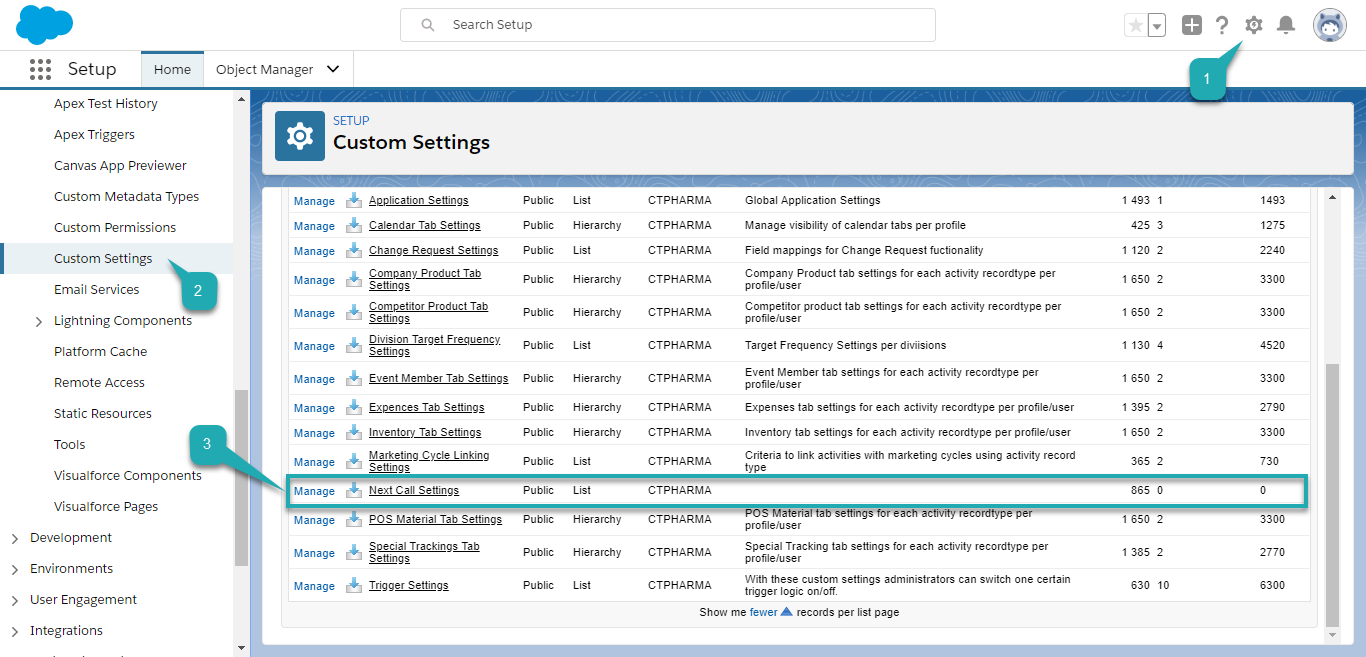
The Next Call Settings page opens.
You can also click Next Call Settings and then click Manage (3) on the opened page.

-
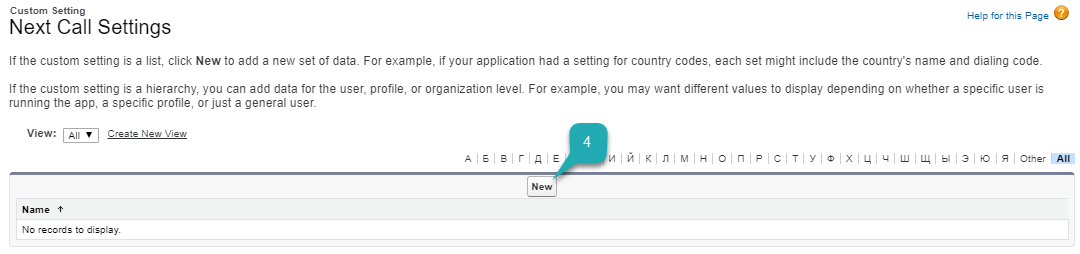
Click New (4) to create the next call.
-
Fill in fields:
-
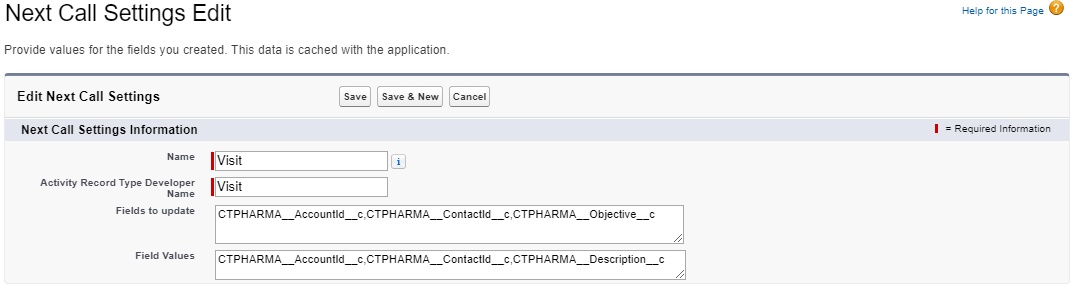
In the Name field, enter any name.
-
In the Activity Record Type Developer Name field, add the API Name of the corresponding record type.
-
In the Fields to update field, add the Objective, AccountId, and ContactId fields to populate. To multiple fields, use a comma delimiter without spaces.
-
In the Field Values field, add a value that will be populated in the Objective field, AccountId, and ContactId. To multiple fields, use a comma delimiter without spaces.
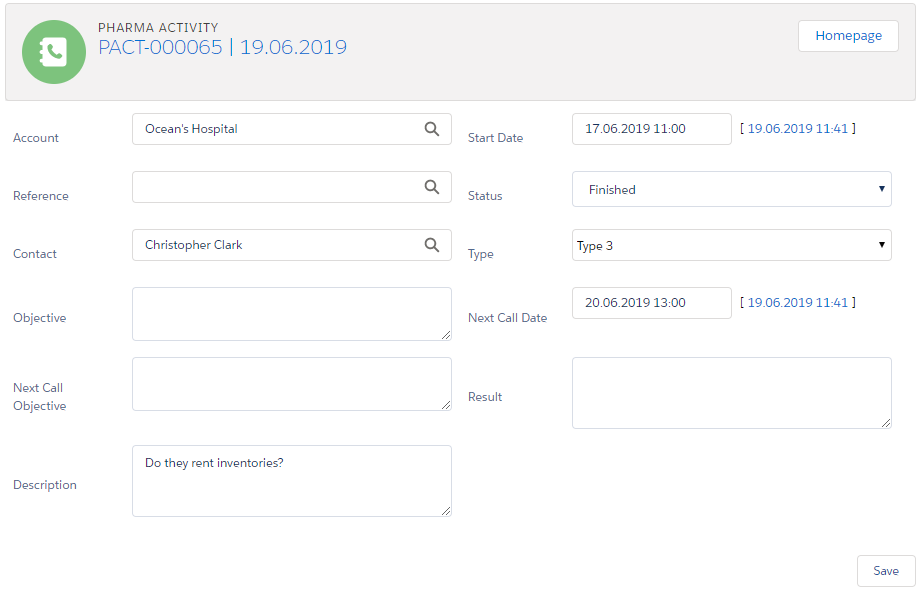
In the example below, the value from the CTPHARMA__Description__c field will populate the CTPHARMA__Objective__c field on the next Activity record.
 #
#
-
-
Click Save.
The next call is created.
| Also, you can go to CT Pharma Control Panel: General to customize the Objective Settings and Next Activity Settings sections. |
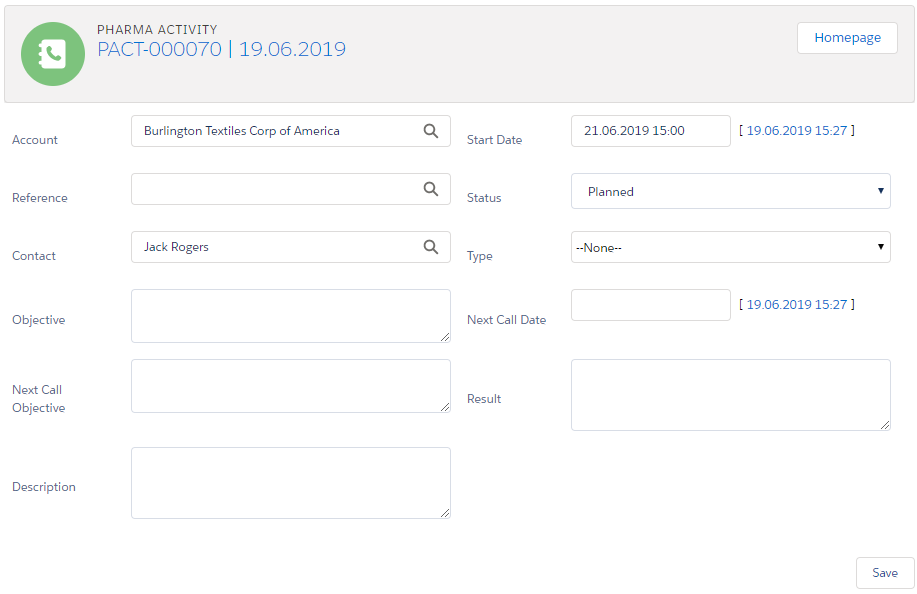
To create a visit using the Next Call Settings.
-
Create a visit in the CT Pharma Calendar.
-
Open the Activity Report.
-
Add the value to the field mentioned in the Values field of the created next call.
-
Add the required date to the Next Call Date field.
-
Change the Status field to Finished.
-
-
Click Save.
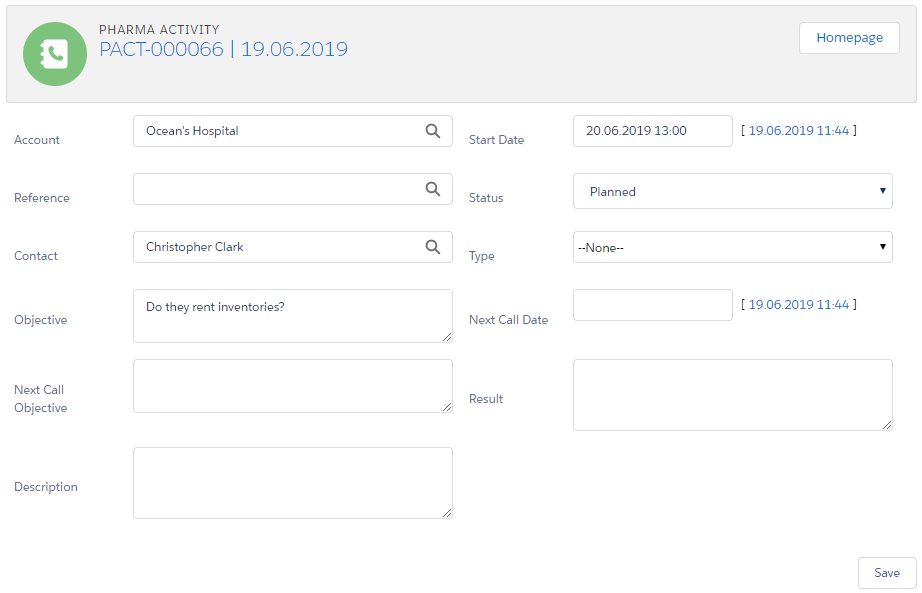
The next visit is automatically created on the selected date from the Next Call Date field.
On the Activity Report page, the value from the Values field of the next call is in the Objective field.
Next Call Date
Next Call Date is intended to automatically create a visit on the specific date when the Status of the previous visit changed to Finished.
If you didn’t create the next call in Next Call Settings, the account and contact of the activity will be automatically populated in the new Pharma Activity Report. When you create at least one next call, you should manually map fields that must be populated on the activity of the next call date, including the AccountId and ContactId fields.
To create the next visit:
-
Create a visit via CT Pharma Calendar.
-
Open the related Activity Report.
-
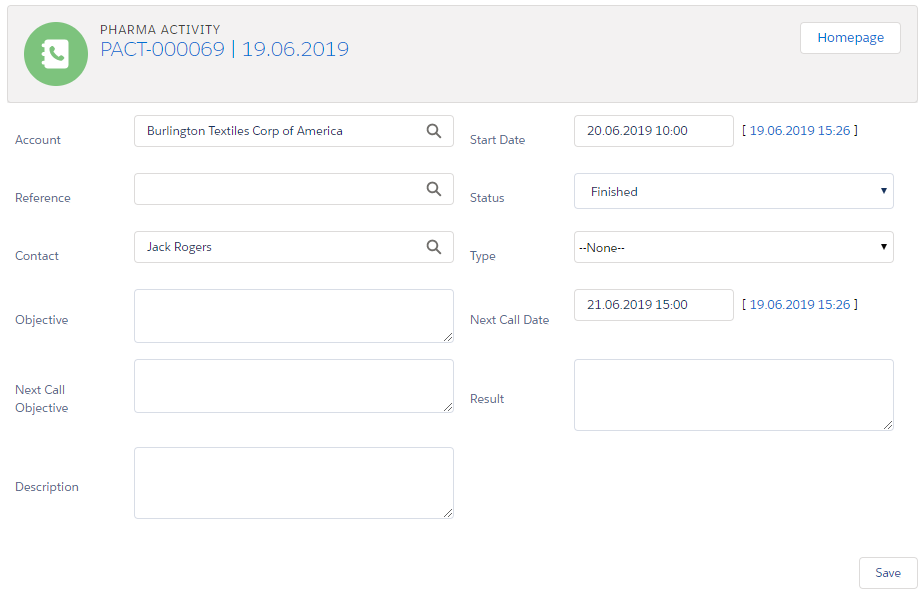
Add the required date to the Next Call Date field.
-
Change the Status field to Finished.
 *
*
-
-
Click Save.
The next visit is automatically created on the selected date in the calendar grid.