Marketing Detail Tracking: Categories
Tasks
-
Associate required record types of products with the desired categories.
-
Map new categories with record types of the Marketing Detail Tracking object.
To map categories with record types:
-
Add new values to the Category field.
-
Map the new values for the specific record types.
Adding Category Values
To add new values to the Category field of Marketing Detail Tracking object:
-
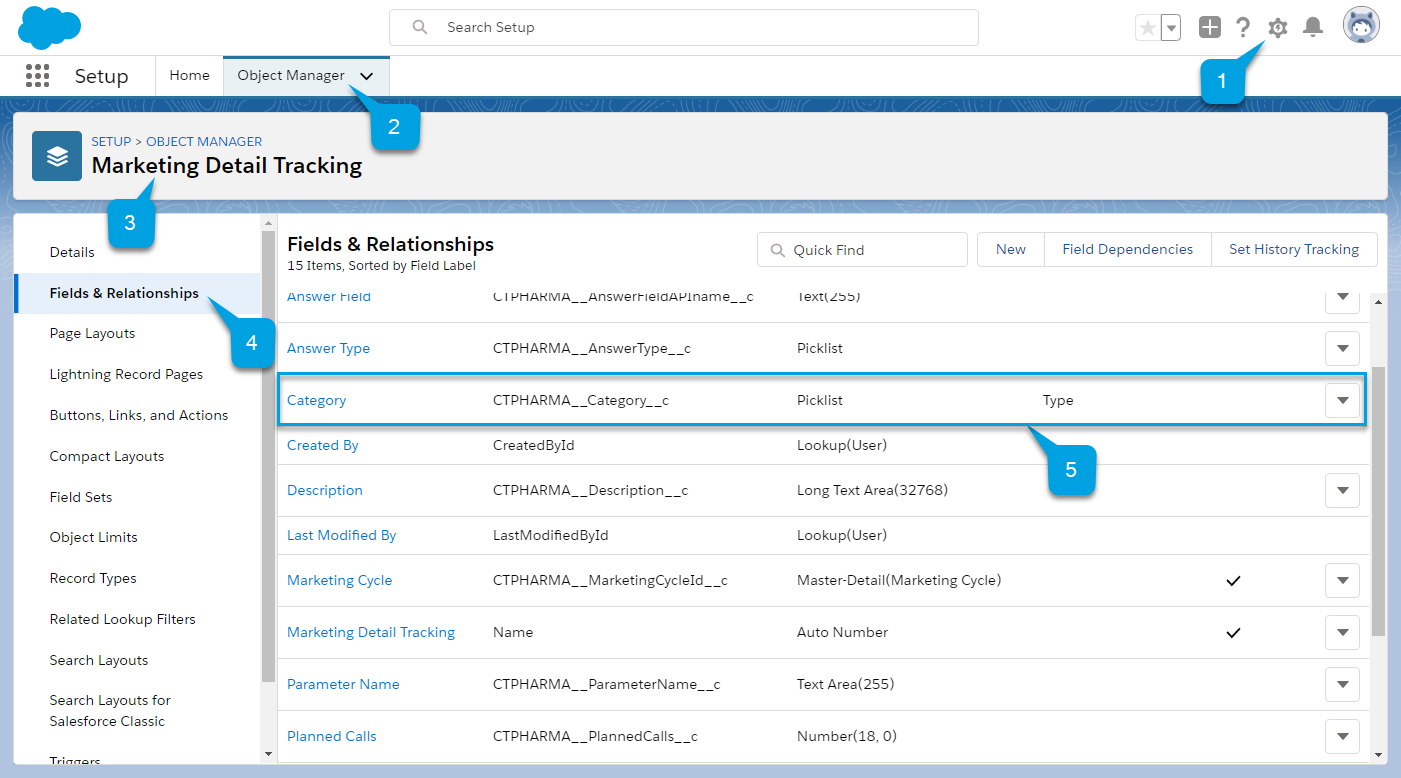
Go to Setup (1) → Object Manager (2) → Marketing Detail Tracking (3) → Fields & Relationships (4) → Category (5).
-
Navigate to the Values section and click New.
-
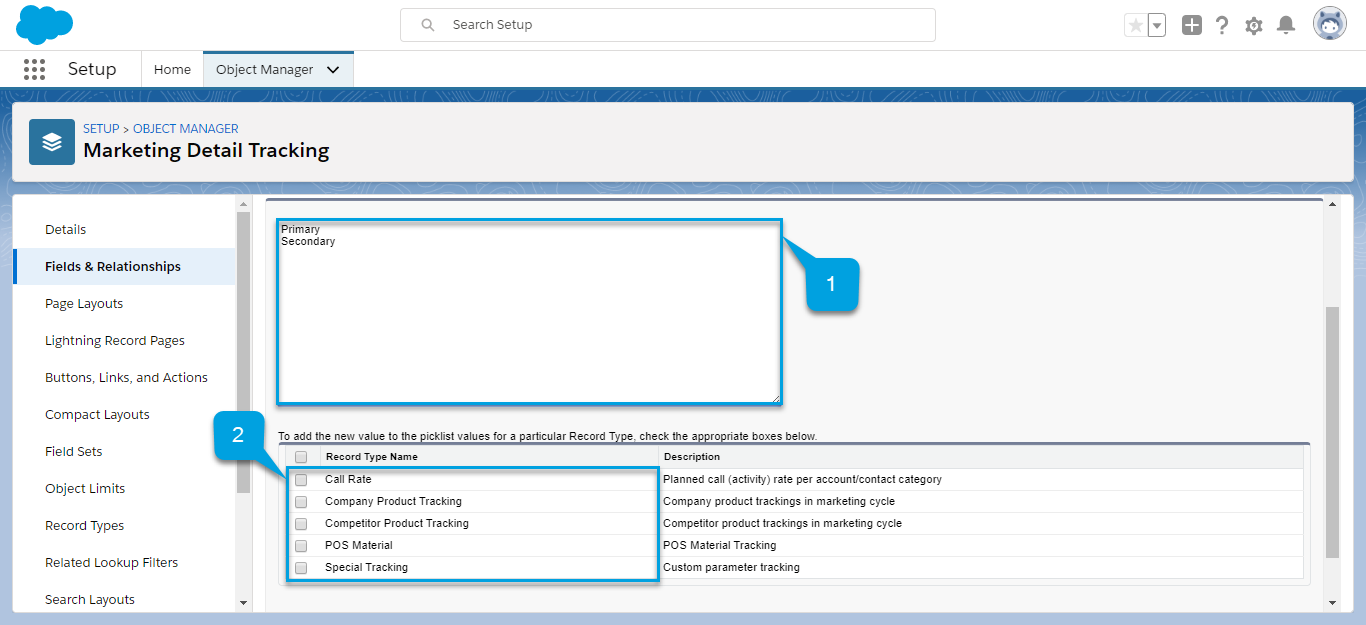
Add Primary and Secondary picklist values (1). Each value should be on a separate line.
-
To map newly created values to the picklist of existing Record Types, select Record Types names in the table below (2).
-
Click Save.
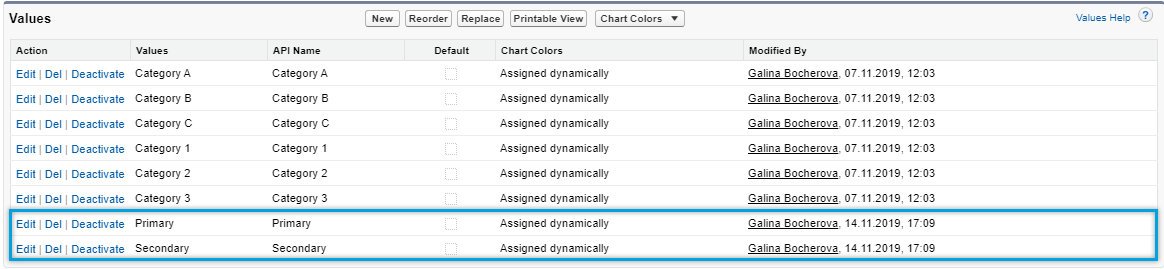
New values are added to the Category custom field.
Manual Category Mapping
To map new values or change the set of values mapped before to the specific record types on Marketing Detail Tracking object:
-
Go to Setup (1) → Object Manager (2) → Marketing Detail Tracking (3) → Record Types (4).
-
Click the required record type.
The Record Type details page opens.
-
Click Edit next to the Category field.
The Category details page of the Record Type opens.
-
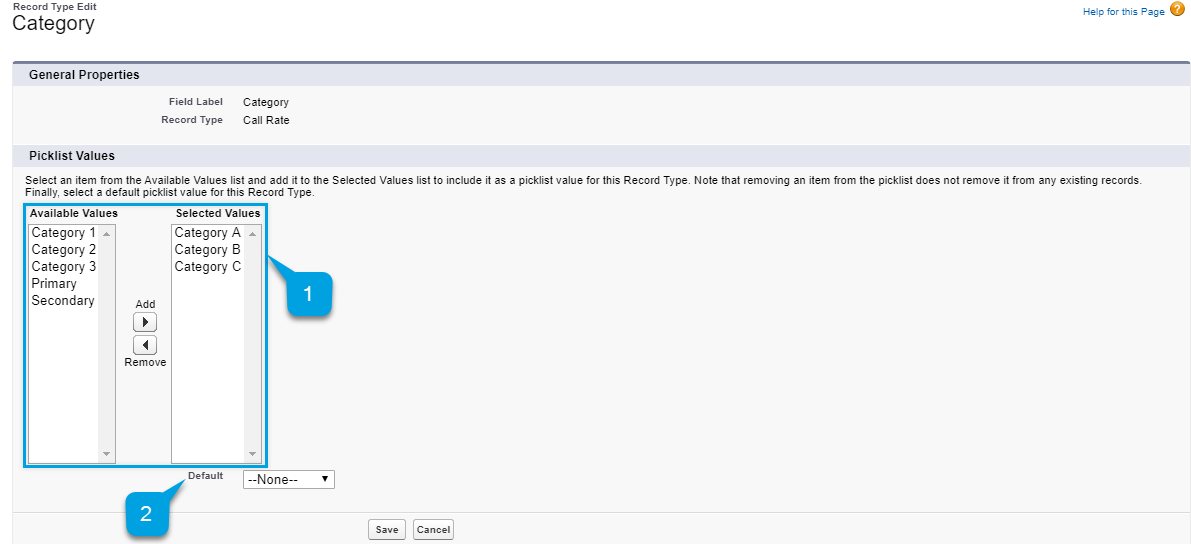
Add or remove values (1) using the arrow buttons between the Available values and Selected Values lists.
-
You can set any value as a default one for this particular Record Type by selecting a value from the Default (2) picklist.
-
Click Save.
The values are mapped with the selected record type.
See also: