Manage Activities on the Hierarchy View Tab
When the administrator customized the Pharma Activity display on the Settings tab and created the list views on the List View tab, a representative can create a Pharma Activity record related to the Account or Contact record on the Hierarchy View tab.
Planning Pharma Activities with a Left-click
|
Enable the left-click action in the Calendar Settings: Calendar Setup section. |
To create a Pharma Activity:
-
Go to Calendar → Hierarchy View.
-
Left-click on a cell in the Calendar grid.
-
In the open pop-up, select a record type from the picklist and click Select.
-
If customized, fill out fields in the Pharma Activity Creation pop-up and click Create.
-
Click Save on the Hierarchy View tab.
The Pharma Activity is created.
-
According to the Invert click logic checkbox and the specified layout, click/double-click the Pharma Activity record to open the Pharma Activity details page.
-
According to the Invert click logic checkbox, click/double-click the Pharma Activity record to delete it.
-
If enabled, drag-and-drop the Pharma Activity on another day.
-
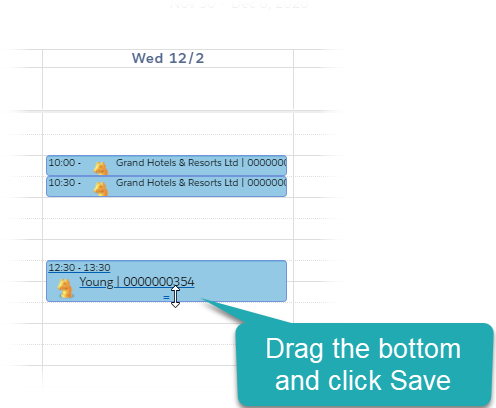
Drag the bottom border of the Pharma Activity record to change its duration.
Planning Pharma Activities with a Right-click
|
Add available record types in the Calendar Settings: Customize Context section. |
To create a Pharma Activity:
-
Go to Calendar → Hierarchy View.
-
Right-click on a cell in the Calendar grid.
-
Click the appropriate record type from the actions.
-
If customized, fill out fields in the Pharma Activity Creation pop-up and click Create.
-
Click Save on the Hierarchy View tab.
The Pharma Activity is created.
-
According to the Invert click logic checkbox and the specified layout, click/double-click the Pharma Activity record to open the Pharma Activity details page.
-
According to the Invert click logic checkbox, click/double-click the Pharma Activity record to delete it.
-
If enabled, drag-and-drop the Pharma Activity on another day.
-
Drag the bottom border of the Pharma Activity record to change its duration.
Planning Pharma Activities with a Drag-and-drop
|
Allow a drag-and-drop action for the user profile in the Calendar Settings: Drag & Drop Settings section. |
To create a Pharma Activity:
-
Go to Calendar → Hierarchy View.
-
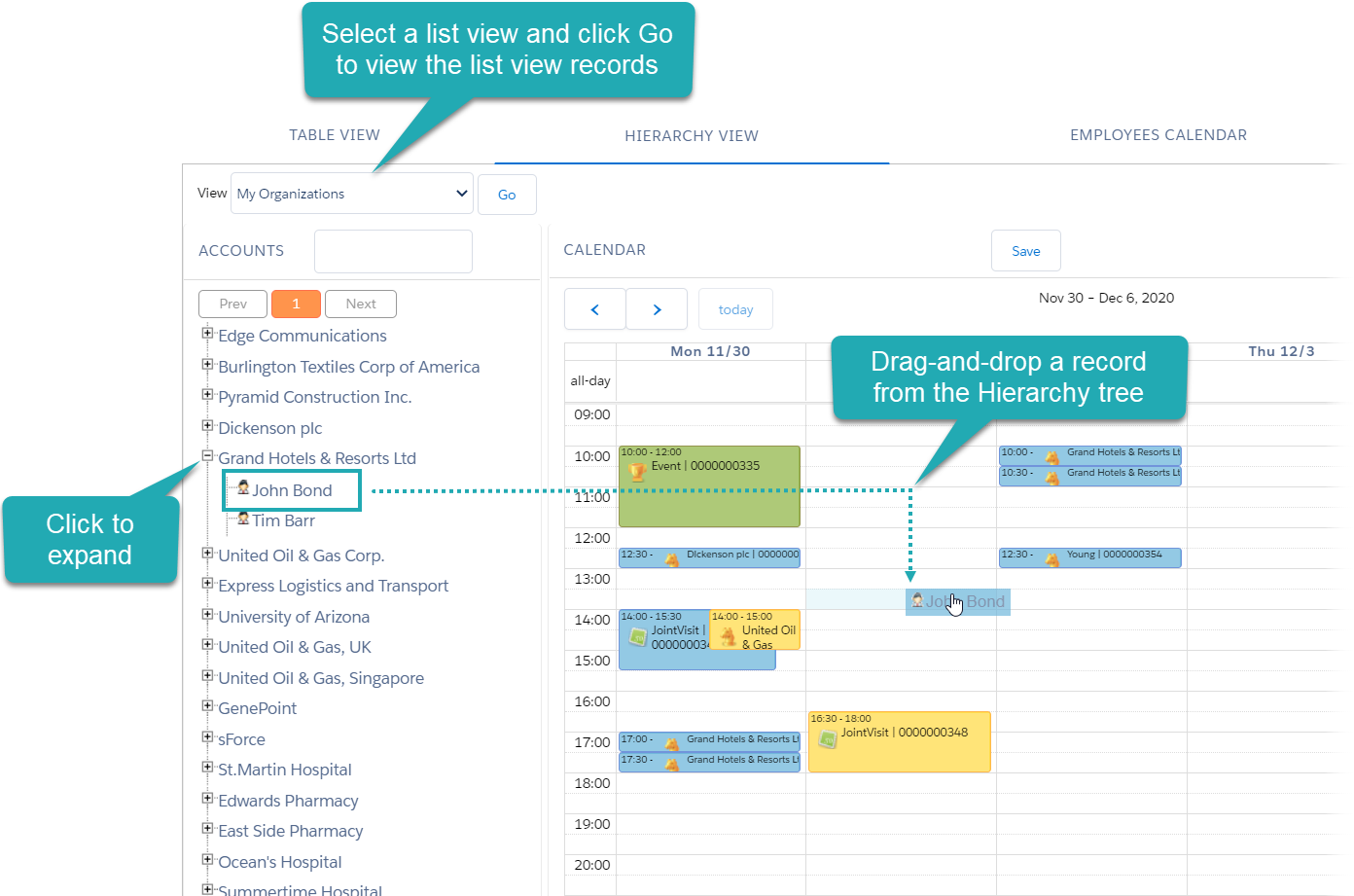
In the View field, select a list view and click Go.
-
Drag-and-drop the appropriate Account or Contact record to the cell in the Calendar grid.
-
Click the Plus button next to Account record to open the list of its Contact records.
-
-
If customized, fill out fields in the Pharma Activity Creation pop-up and click Create event.
If the Use target frequency option enabled and the representative drag-and-dropped an Account record that has an assigned Target Frequency record, the Pharma Activities will be created for Contacts of this Account. -
Click Save on the Hierarchy View tab.
The Pharma Activity is created.
-
According to the Invert click logic checkbox and the specified layout, click/double-click the Pharma Activity record to open the Pharma Activity details page.
-
According to the Invert click logic checkbox, click/double-click the Pharma Activity record to delete it.
-
If enabled, drag-and-drop the Pharma Activity on another day.
-
Drag the bottom border of the Pharma Activity record to change its duration.
Planning Pharma Activities with a Mass Action
|
Allow mass actions for the user profile in the Calendar Settings: Mass Actions section. |
Mass Actions: Copy and Move
To manage Pharma Activity using a mass action:
-
Go to Calendar → Hierarchy View.
-
Right-click a cell on the Calendar grid.
-
Click the appropriate mass action from the actions:
-
Copy to copy activities of the day (where you click the cell) or of the whole week if enabled.
-
Move to move activities of the day (where you click the cell) or of the whole week if enabled.
-
-
If the Day and Week option enabled, click Day or Week in the pop-up to apply the mass action for Pharma Activities of a single selected day or of the whole week started from the selected day.
-
In the next pop-up, select a day to copy or move Pharma Activities to that day or to the week started from the selected day, and click Copy events/Move events.
-
Click Save on the Hierarchy View tab.
Pharma Activities are copied or moved.
Mass Actions: Delete
To manage Pharma Activity using a mass action:
-
Go to Calendar → Hierarchy View.
-
Right-click a cell on the Calendar grid.
-
Click the Delete action from the actions.
-
If the Day and Week option enabled, click Day or Week in the pop-up to delete Pharma Activities of a single selected day or of the whole week started from the selected day.
-
Click Delete events.
-
Click Save on the Hierarchy View tab.
Pharma Activities are deleted.