Creating a Targeting List
Target selected customers and filter list views of Accounts or Contacts.
Prerequisites
In order to target customers from the Accounts or Contacts list, add the Manage targets button to the layout of the Account and Contact object. Add the Manage Targets button in Lightning Experience to the Accounts and Contacts tabs.
To add the button:
-
Go to Setup → Object Manager → Account (Contact) → Search Layouts for Salesforce Classic → click Edit next to List View.
-
Go to the Custom Buttons section and add the Manage Targets button to the Selected Buttons list.
-
Click Save.
The button is added.
Target Customers
In order to add a customer to the list of targets:
-
Go to the Accounts or Contacts tab depending on your targeting strategy.
-
Select an appropriate List view.
-
Mark all the records that you want to target.
-
Click on the picklist icon and select Manage targets. In the Targeting management window, select an option:
-
Add as targets button.
An active record assigned to the active Marketing Cycle is added to the Target Frequencies related list on the customer record page.
The Target flag will be checked for the corresponding user division on the client record page.
-
Remove from targets button.
Deactivates Target Frequencies record.
The Target flag becomes unchecked for the corresponding field on the Target Frequency record.
-
-
Click the Add as Targets button.
Information that is displayed on the Target Frequency page depends on the Marketing Detail Tracking that is specified in the Marketing Detail Trackings related list on the Marketing Cycle record page. The Marketing Detail Tracking record with the Call Rate record type is segmented with reference to the client (Account/Contact) Category. For the client with Category A, a record of Target Frequency is created, corresponding to Marketing Detail Tracking for Category A.
Filter Account and Contact records
To filter records and see only targeting Accounts or Contacts:
-
Go to Accounts (or Contacts) (1).
-
Click Show Filters (2).
-
Click Add Filter (3).
-
In filter settings, specify the criteria Is Target equals True.
-
Select Is Target in Field.
-
Select equals in Operator.
-
Enter true in Value.
-
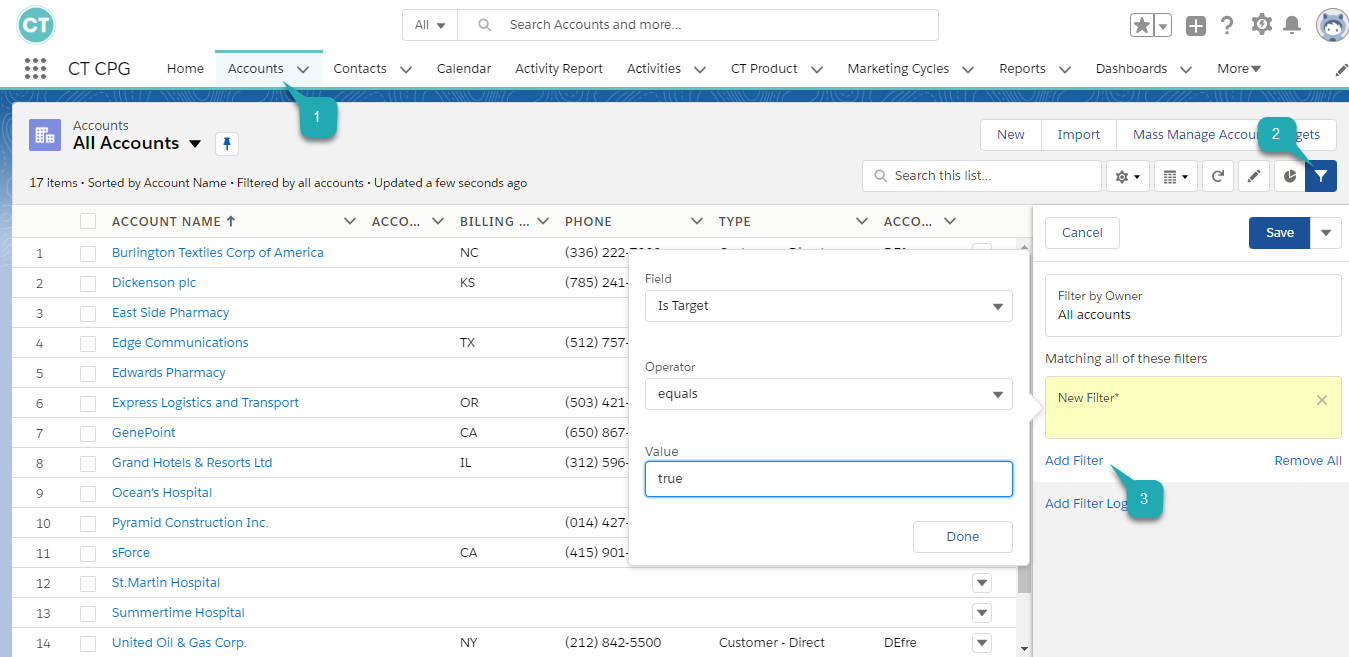
The targeted objects are displayed.