Configuring Activity Sync
Use Activity Sync to:
-
Automatically synchronize the standard and custom Activity objects' records.
-
Generate a record of the standard Activity object when creating entries for the custom Activity object in one-way or both-way synchronization.
-
If you have a few Activity Sync settings, make sure that active settings are not crossed with each other. It can cause failures in creating a record according to these settings.
-
-
Synchronize changes in the record.
-
Map configuration of additional fields that are required to update when synchronizing.
-
Use Fields to update and Fields values for mapping additional fields.
-
Some field values synchronize automatically, and there is no need to add them to a new Activity Sync record. Check these field values here.
-
Read the article to set up standard objects and create new Activity Sync:
Set Up Task and Event
For the correct operation of Activity Sync, the Type field should be specified on the Event and Task objects as well as the EventProcess and TaskProcess settings in Trigger Settings.
|
If you create a new Activity Sync setting with the Standard or Custom object record criteria, the Type field will not affect Activity Sync. |
By default, the Type field is absent on the page layout of the standard Event and Task objects. Add this field to the objects.
-
Configure page layouts of the standard Event and Task fields.
Go to Setup → Object Manager → select Event / Task → Page Layout. Add the Type field to the page layout.
-
Check profile permissions to the Type field. A profile should have the View and Edit permissions to the Type field.
Go to Setup → Users → Profiles → select profile → go to the Field-Level Security section and click View next to Task → add Read and Edit access to the Type field.
-
Configure Global Quick Actions on the Account and Contact tabs.
Go to Setup → User Interface → Global Actions → click Layout next to New Event / New task → add the Type field to the layout.
Next, add the EventProcess and TaskProcess settings in Trigger Settings.
-
Go to Setup → Custom Code → Custom Settings.
-
Click Manage next to Trigger Settings.
-
Click New and create two settings. For the first one:
-
Enter EventProcess in the Name field.
-
Set a flag next to the Active.
-
Click Save & New.
-
For the second one:
-
Enter TaskProcess in the Name field.
-
Set a flag next to the Active.
-
Click Save.
The Trigger Settings are specified.
|
Check that the ActivityProcess setting is active in Trigger Settings. If not, create or edit it and then set a flag next to Active. |
Activity Sync Fields Description
| Fields Label | Data Type | Description | Example |
|---|---|---|---|
Information |
|||
Label |
Text (40) |
The Activity Sync name. |
|
Activity Sync Name |
Text (255) |
The unique name is used by the API and managed packages. The name must begin with letters and use only alphanumeric characters and underscores. The name cannot end with an underscore or have consecutive underscores. |
|
Sync Type |
Picklist |
Select a type of synchronization Both / Custom → Standard / Standard → Custom from the picklist. |
Both, Custom→Standard, Standard→Custom |
Active |
Checkbox |
If selected, the synchronization settings are active. |
|
Protected Component |
Picklist |
If a developer releases protected custom metadata records in a managed package, access to them is limited in specific ways. |
|
Details |
|||
Standard Object |
Picklist |
Select a standard Event or Task from the picklist. |
Event, Task |
Standard Activity Type |
Text (255) |
The Type field value of the selected standard Activity object. The filter will not be applied if Standard object record criteria are specified. |
Email, Meeting, Other, Call |
Standard object record criteria |
Text (255) |
Provide query criteria that standard activity object records will use to sync with custom activities. Left this field blank for proceeding with all records. Use a SOQL query to specify filters. The clause part of the query should be without WHERE word. |
Subject LIKE '%Call%' |
Activity Record Type |
Text (255) |
The name of the custom Activity record type. |
|
Custom object record criteria |
Text (255) |
Provide query criteria that custom activity object records will use to sync with standard activities. Left this field blank for proceeding with all records. Use a SOQL query to specify filters. The clause part of the query should be without WHERE word. |
CTPHARMA__Type__c LIKE '%Type 1%' |
Additional Fields Mapping |
|||
Fields to update |
Long Text Area |
Enumeration of the field API names for the update. Required format: ObjectApiName.FieldApiName Values should be separated by a comma without spaces. |
Event.Description |
Field values |
Long Text Area |
Enumeration of the API field names, whose values will be copied into the fields for updating. Required format: ObjectApiName.FieldApiName Values should be separated by a comma without spaces. |
CTPHARMA__Activity__c.CTPHARMA__Description__c |
Description |
|||
Description |
Text Area (255) |
Additional information about Activity Sync |
|
Create Activity Sync
To create an Activity Sync:
-
Go to Setup (1) → Custom Metadata Types → Activity Sync (2).
-
Click Manage Records (3) next to Activity Sync.
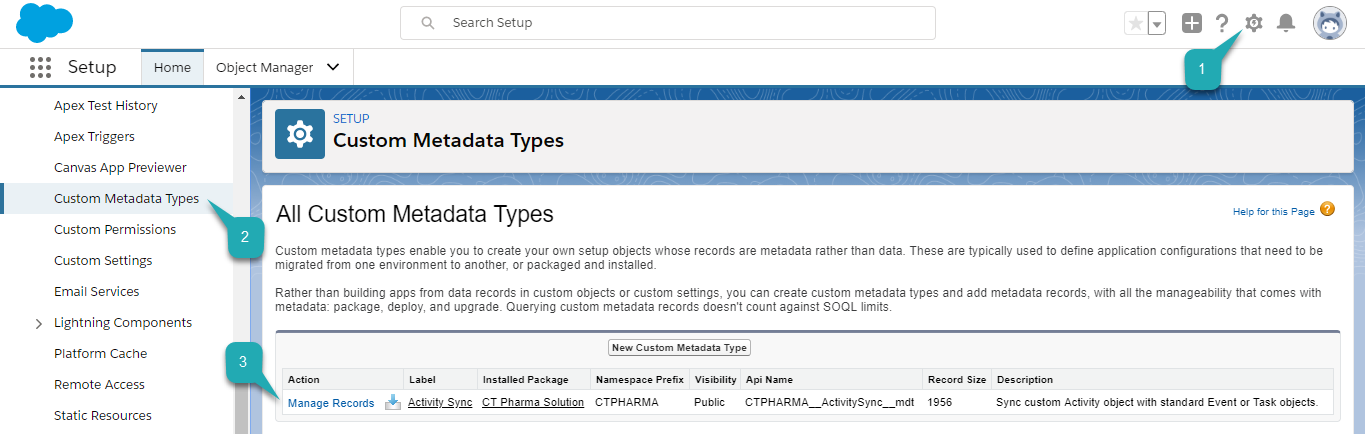
The Activity Sync page opens.
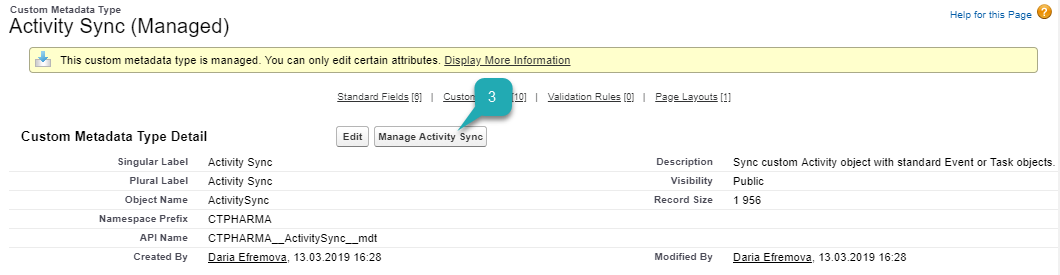
You can also click Activity Sync and then click Manage Activity Sync (3) on the Activity Sync page.
-
Click New (4) to create a new Activity Sync.

The Activity Sync Edit page opens.
-
Fill in the required fields.
-
Click Save.
Activity Sync is created.
One-way Synchronization
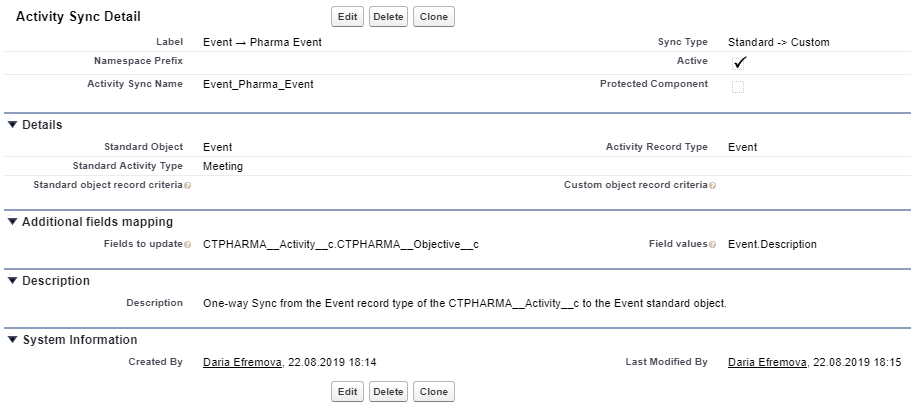
Here is an example of one-way synchronization with additional field mapping.
When a standard Event object with a value of Meeting in the Type field is created, an entry of the custom Activity object with the type of the Pharma Event record is created. Additionally, the value of the Description field from the Event record is copied to the Activity entry record in the Description field.
Both-Way Synchronization
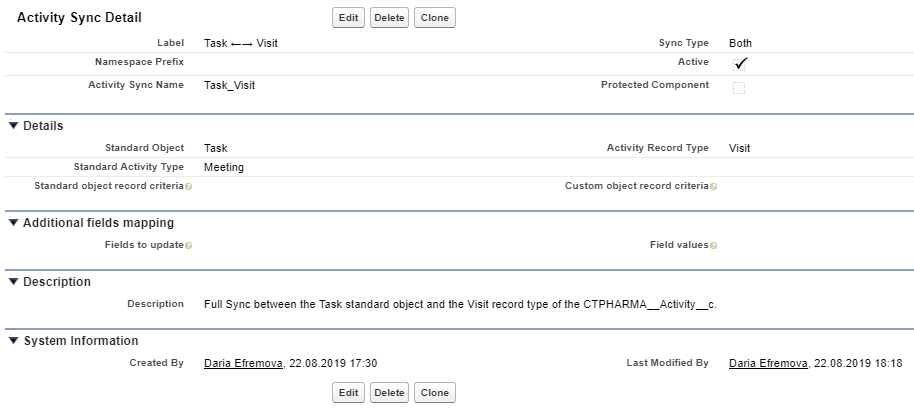
Here is an example of both-way synchronization using the Standard Activity Type field.
When creating a record of a standard Task object with the value of Meeting in the Type field, an entry of the batch Activity object with the type of the Visit record is created. Similarly, when you create an Activity record with the Visit record type, a Task object record with the value of Meeting in the Type field is created.
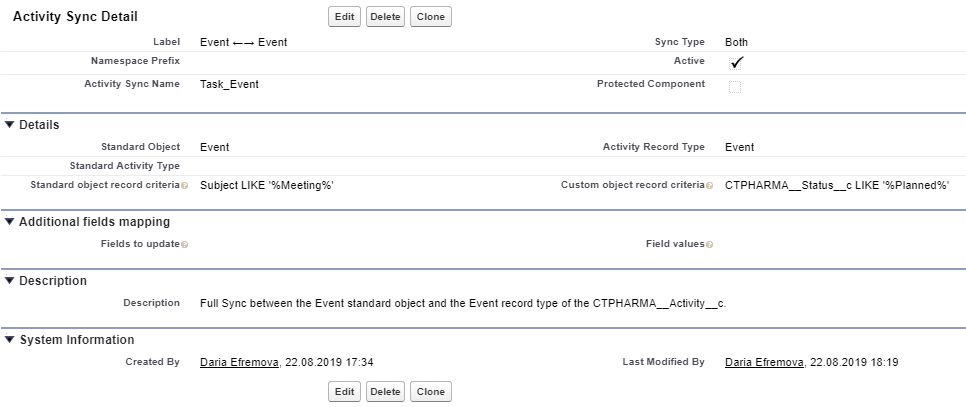
Here is an example of both-way synchronization using Standard and Custom object record criteria.
When a standard Event object with the specific Subject name is created, an entry of the custom Activity object with the type of the Visit record is created. Similarly, when you create an Activity record with the Visit record type and the specific Status, an Event object record is created.