CT Pharma Control Panel: General
For the correct functioning of the CT Pharma package, you should enter general system information. You can go to the Custom Settings tab and customize settings one by one, or go to the CT Pharma Control Panel with settings grouped by purpose.
| These settings are interchangeable. When you change something in a custom setting, the new data replaces the previous one in CT Pharma Control Panel and vice versa. |
On CT Pharma Control Panel, the General tab opens by default. Here you can see six sections.
Activity Settings
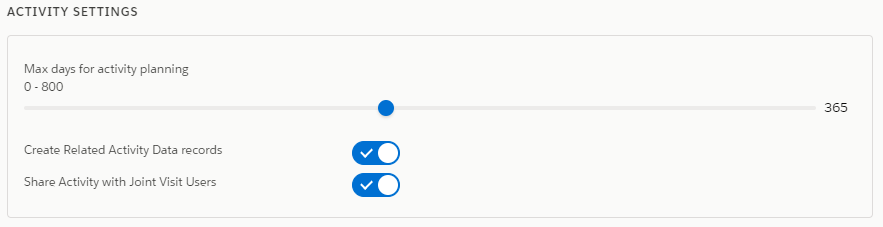
These settings are linked to the fields of Application Settings. You can configure activity settings in CT Pharma Control Panel, and the related changes will be applied in Application Settings.
-
Max days for activity planning
Up to 800 days. Drag the slider to specify the maximum length of marketing cycles. By default, the slider is on the 365 days mark. If you have a marketing cycle longer than 365 days, please change this value in these settings to the proper implementation of the marketing cycle.
-
Create Related Activity Data records
Use this setting to avoid the creation of the activities without Pharma Activity Data. Only records with completed Pharma Activity Data will be saved while a user saves an activity.
If selected, related Pharma Activity Data, which is based on parameters of an active marketing cycle, are created in related lists.
If unselected, related Pharma Activity Data will be displayed on the Pharma Activity Report page when you open the page.
-
Share Activity with Joint Visit Users
If selected, the access for a representative to view the manager’s Joint Visit Report is granted.
Next Activity Settings
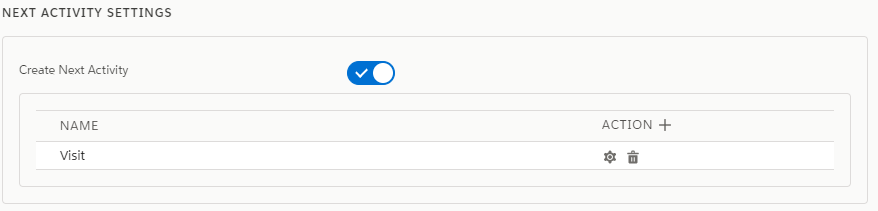
This setting is linked to Next Call Settings in Custom Settings. When you create the next call either in CT Pharma Control Panel or in Next Call Settings, the new setting appears in both places.
-
Enable Create New Activity if you want to create the next activity.
-
Create the next call.
To create the next call:
-
Click + next to Action.
The Next Activity Settings pop-up window opens.
-
Fill in the information:
-
Select the activity record type (1).
-
Click + (2) to add the new line with mapped fields.
-
In Field Name (3), add a field which is populated on the parent Activity and will be copied to the next call activity.
-
In Field Value (4), add a field that will be populated with the value from the field of the previous activity.
-
Click
 (5) to remove the line and the mapped fields.
 -
Click Add (6) to add the next call.
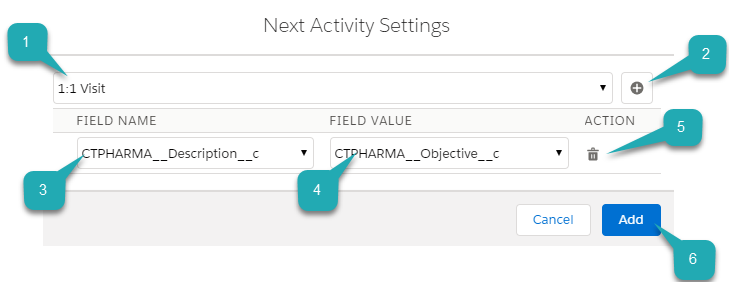
The next call is created and added to the list.
-
Click
 (1) to edit the setting
 -
Click
(2) to remove the setting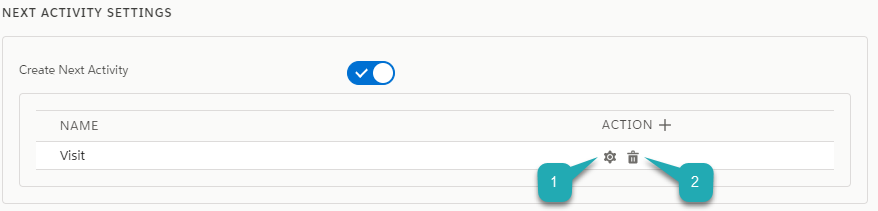
-
Target Frequency Settings
This setting is linked to the fields of Application Settings. You can set up activity settings in CT Pharma Control Panel, and the related changes will be applied in Application Settings.

-
Advanced TF Logic
This setting provides a possibility to define the list views based on the account or contact data. If selected, the data from records of the Target Frequency object will be copied to the account or contact.
-
Recalculate TF Records
If selected, the Target Frequency records will be deactivated for the previous marketing cycle and cloned for a new marketing cycle.
Marketing Cycle Settings
This setting is linked to the Marketing Cycle Linking Settings. As for the Marketing Cycle Linking Settings, you should previously create a new link on the Marketing Cycle object in the Fields & Relationships section.
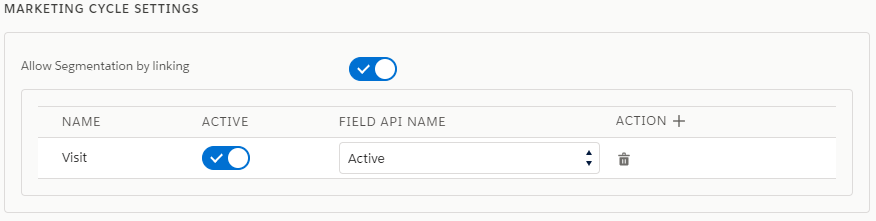
To add a new Activity Linking:
-
Click + next to Action.
-
Fill in the information:
-
Select the activity record type (1).
-
Select Active (2) to activate the linking.
-
Select the Field API Name (3) in the picklist.
-
-
Click Add (4) to add the new linking.
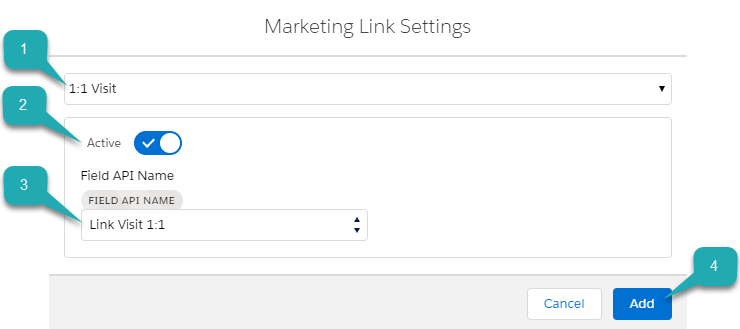
The new linking is created and added to the list.
Click
(1) to remove the setting.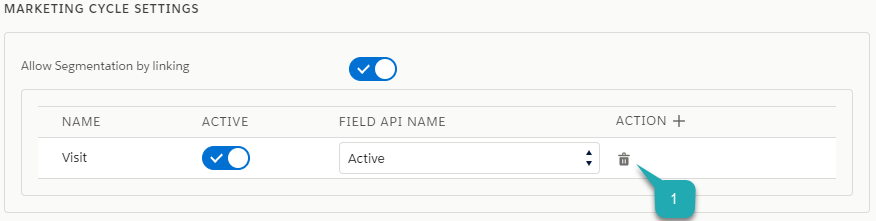
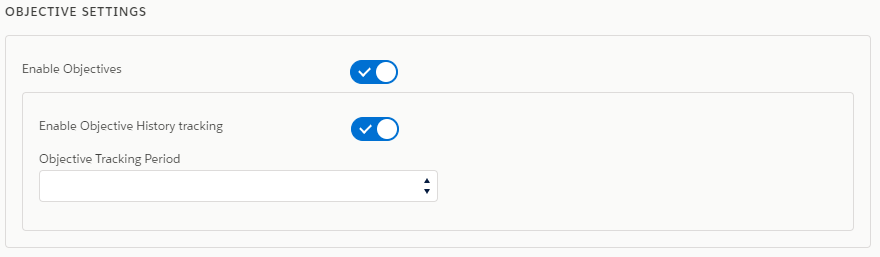
Objective Settings
This setting is linked to the fields of Application Settings. You can set up activity settings in CT Pharma Control Panel, and the related changes will be presented in Application Settings.
-
Enable objectives
Enable objectives creation on the Pharma Activity Report, Accounts, and Contacts tabs.
-
Enable Objective History tracking
-
If selected and if the user populates the Next Call objective field, a new active record is created, and the previous record will be deactivated in the Objective object.
-
If unselected, an existed record of the Objective object refreshes.
-
-
Select Objective Tracking Period in the picklist.
Keep objective history. Enter one of the values (month, quarter, year, a marketing cycle) to set up a tracking period.
Additional Settings
This setting is linked to the fields of Application Settings. You can set up activity settings in CT Pharma Control Panel, and the related changes will be presented in Application Settings.

Show Page Headers: If selected, headers with the standard Salesforce tabs are shown on the Calendar and Activity Report tabs.
Also, check Calendar Tab Settings to view the header setting to the Calendar.