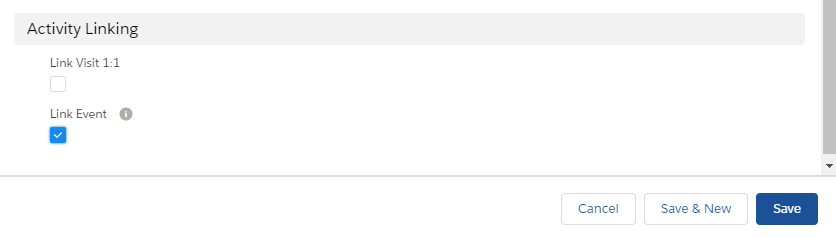
Linking Activity
Add the connection between Marketing Cycle and Activity.
-
Create the Activity Link field on the Marketing Cycle object.
-
Add Activity Link to Marketing Cycle Page Layout.
-
Create a connection with the help of Marketing Cycle Linking Settings.
After adding the connection to Marketing Cycle Linking Settings, tracking details from the Marketing Cycle will be transferred to the activity details with settings defined record type under such conditions:
-
Marketing Cycle is connected to the type of Activity with the Marketing Cycle Linking Setting.
-
The Activity start date is within the Marketing Cycle period.
-
User and Marketing Cycle divisions are the same.
-
Marketing Cycle is active.
| Activity Link for 1:1 Visit is added by default. |
Activity Link Field Creating
To create Activity xref:
-
Go to Setup (1) → Object Manager (2) → Marketing Cycle → Fields & Relationships (3).
-
Click New (4).
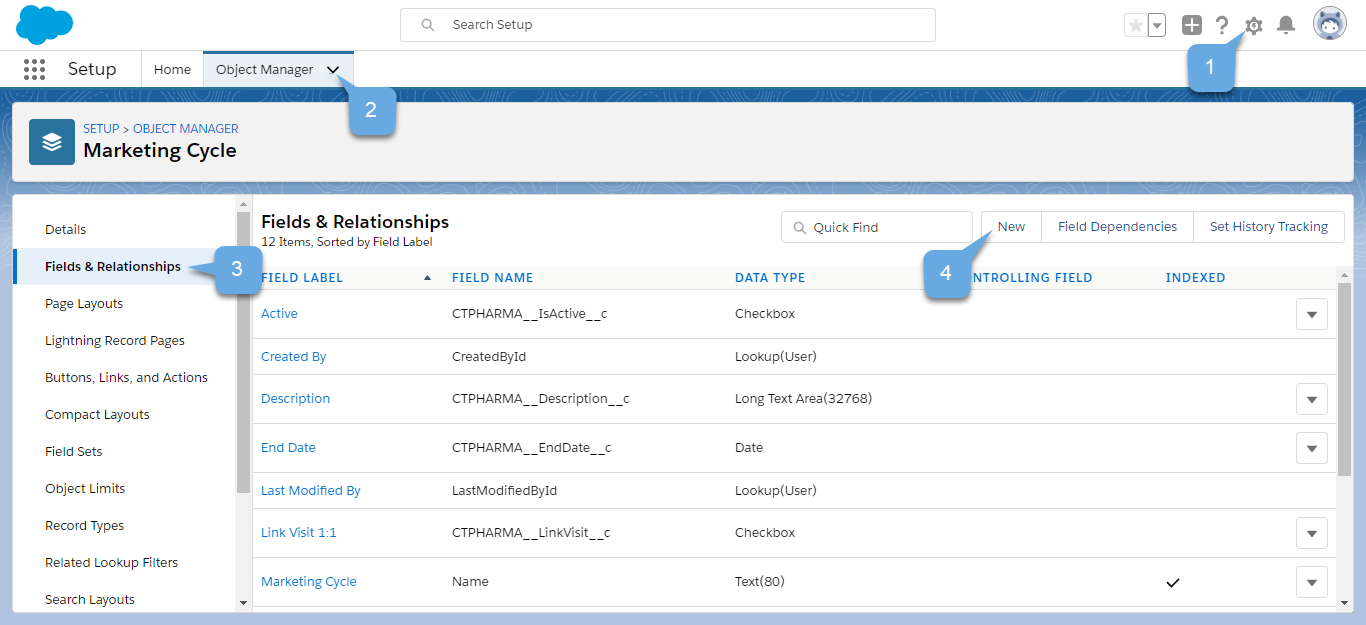 The New Custom Field Settings page opens.
 -
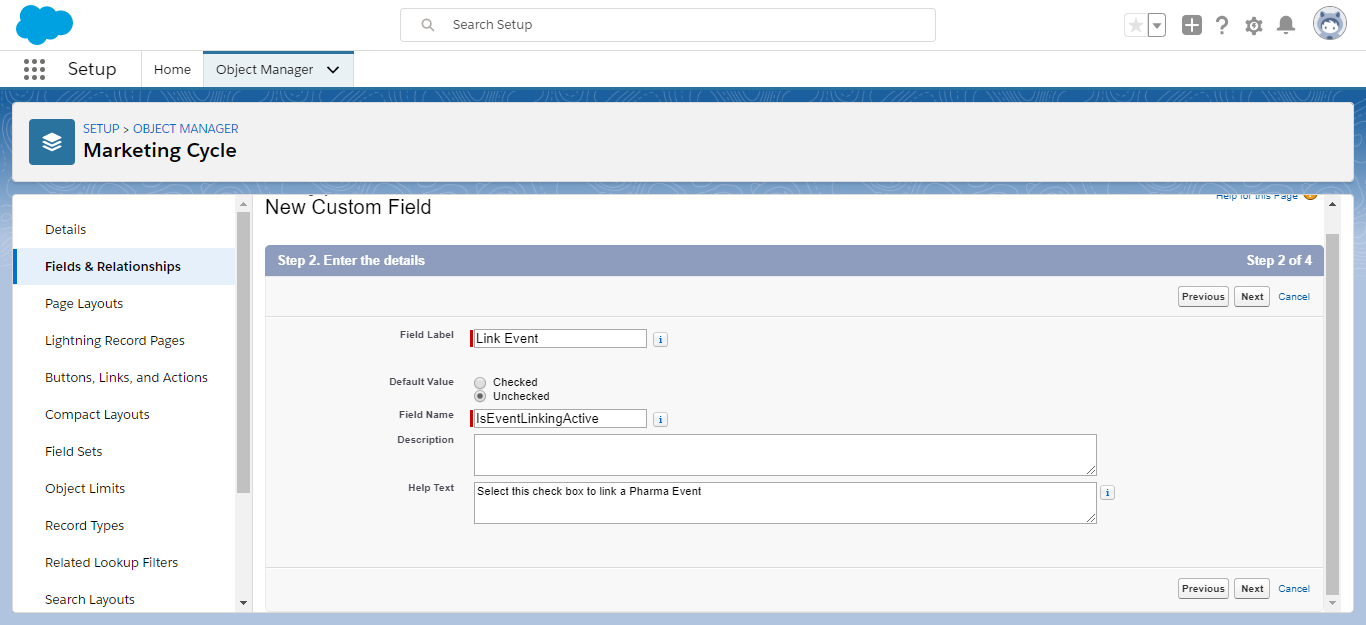
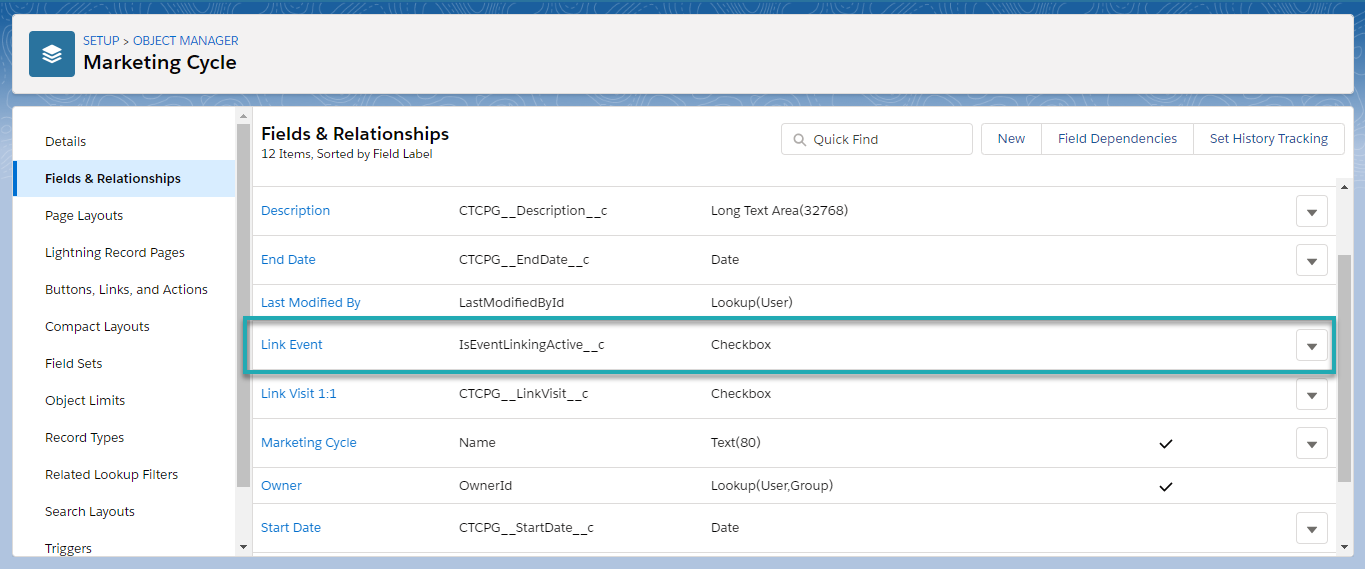
Create a Link Event checkbox.
-
Select the Data Type checkbox.
-
Enter Link Event in Field Label.
Name field according to the type of activity which you want to link. -
Select Default Value as Unchecked.
-
Enter IsEventLinkingActive in Field Name.
-
Additionally, enter Description and Help Text.
-
Select the profiles to which you want to grant edit access to this field via field-level security.
-
Select the page layouts that should include this field.
-
-
Click Save.
Marketing Cycle Page Layout
To add Activity Link to Marketing Cycle page layout:
-
Go to Setup (1) → Object Manager (2) → Marketing Cycle (3) → Page Layouts (4).
-
Click Marketing Cycle Layout (5).
The Marketing Cycle Layout Settings will be opened.
-
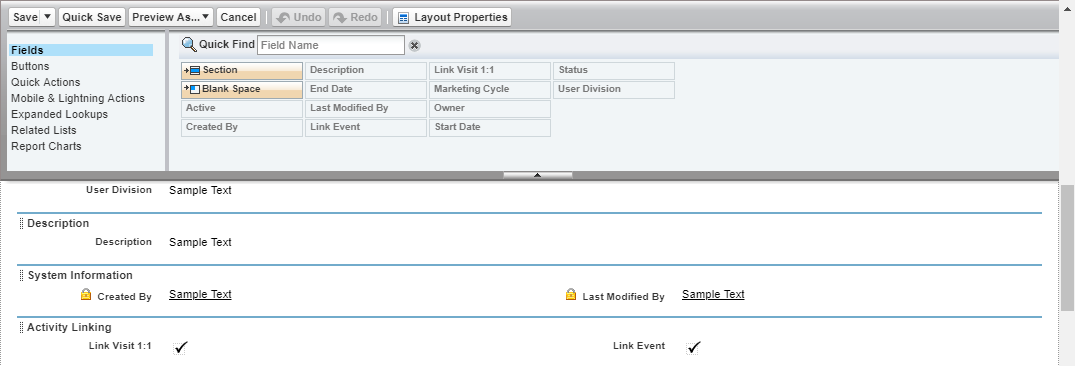
Add previously created Link Activity to Activity Layout section.
-
Click Save.
New Link Activity is added to Marketing Cycle Layout.
Marketing Cycle Linking Settings
To add automatic linking Activity with certain Marketing Cycle:
-
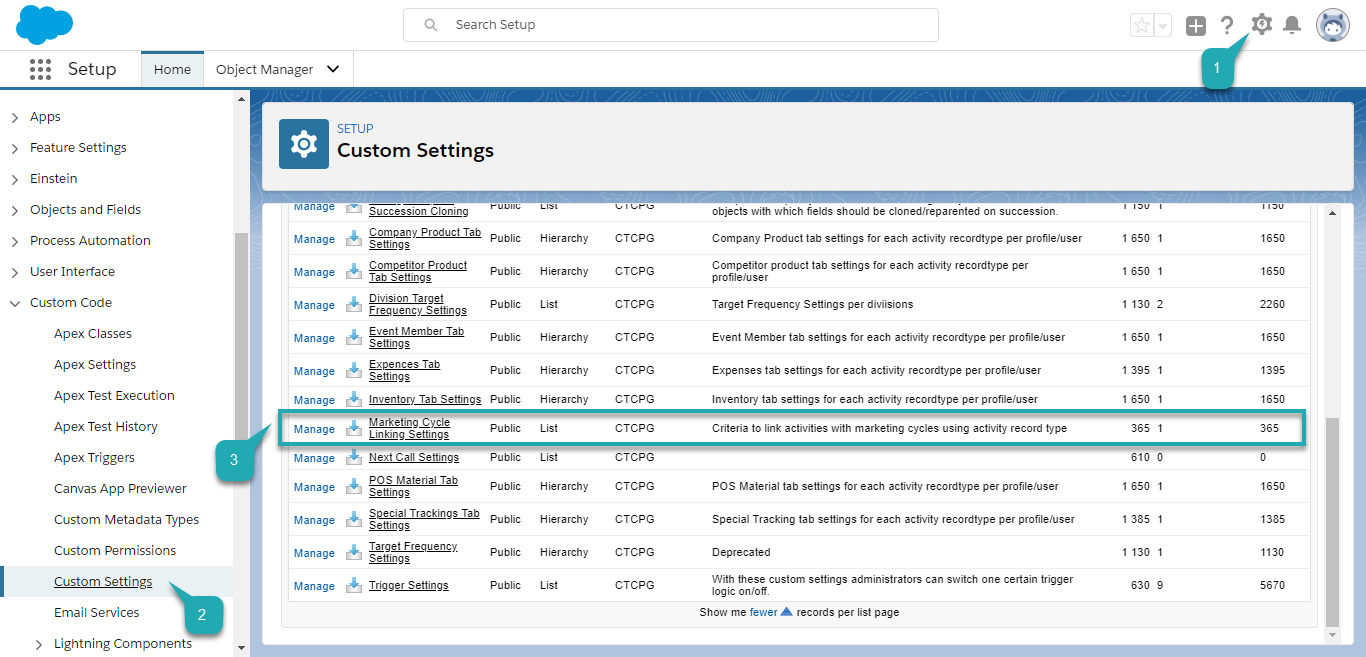
Go to Setup (1) → Custom Code → Custom Settings (2) → Marketing Cycle Linking Settings (3).
-
Click Manage next to Marketing Cycle Linking Settings (3).
You can also click Marketing Cycle Linking Settings and then click Manage (3) on the Marketing Cycle Linking Settings.
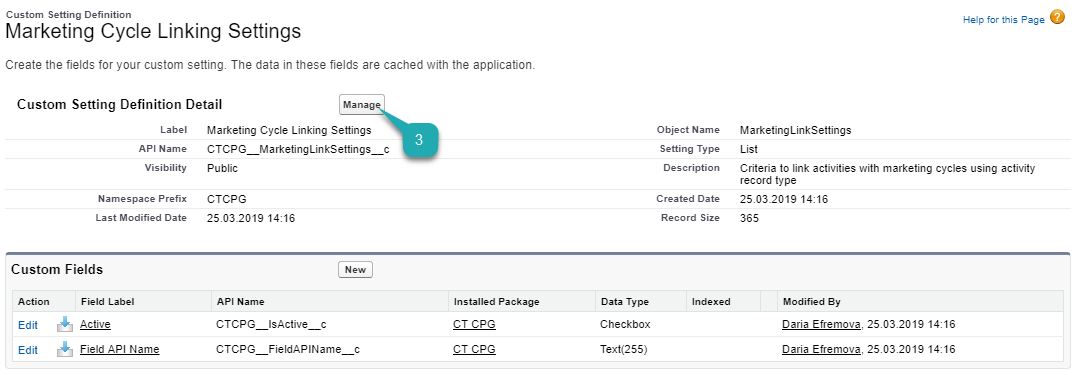
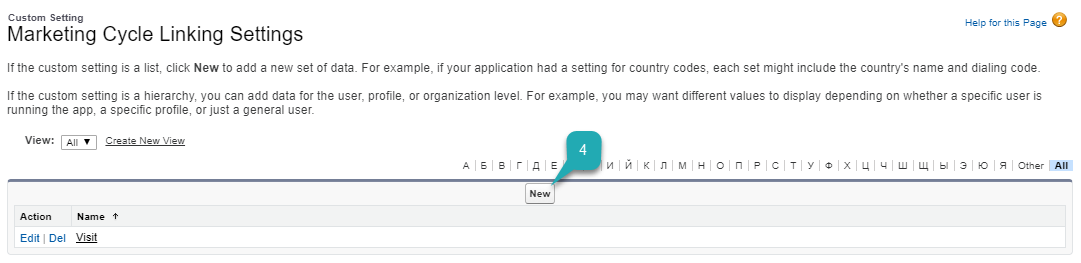
The Activity Links list will be opened.
-
Click New (4).
-
Edit the Marketing Cycle Linking Settings Information.
-
Enter the Name of the Activity record type.
-
Add Field API Name of the field you created for the Marketing Cycle object (IsEventLinkingActive__c).
-
Select the Active checkbox to allow linking.
-
-
Click Save.
Activity is linked to your Marketing Cycle.
Click the Marketing Cycles tab and then select Marketing Cycle from the list view. On the Marketing Cycle Details page in the Activity Linking section, you will see the Link Event checkbox.