Workshop 2.2 Checkpoint
Let’s create an order with a promo discount:
-
Go to CT Orders and click New.
-
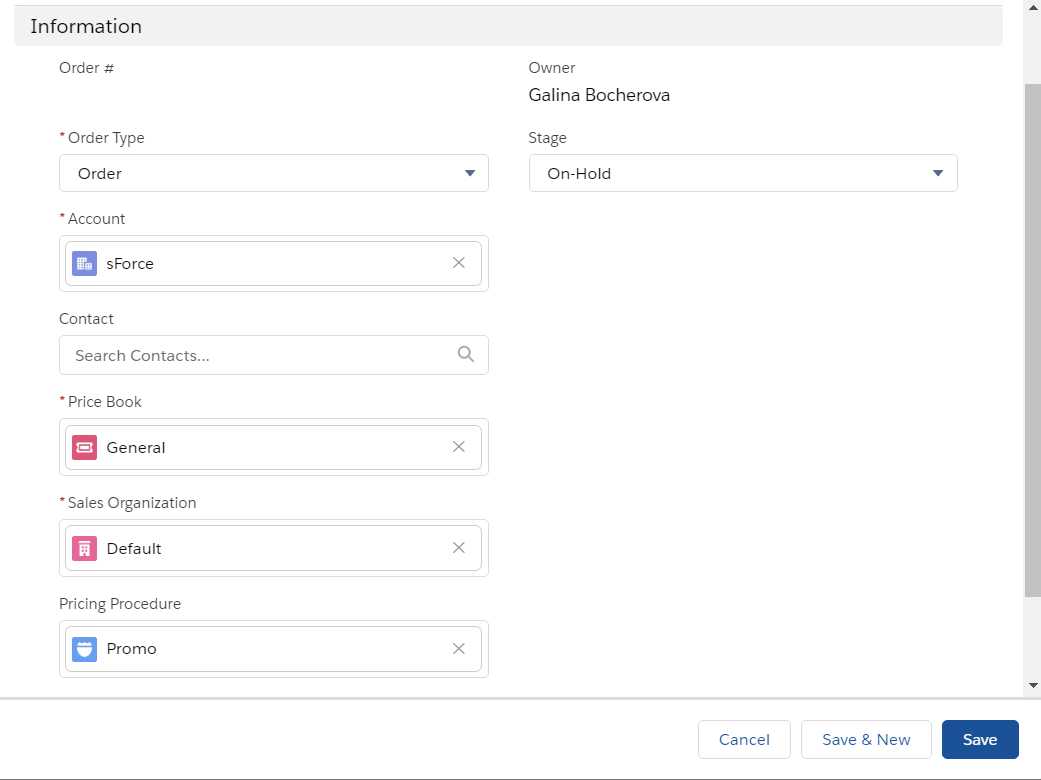
Complete the form as follows:
-
Order Type: Order.
-
Account: select an account, which is allowed to place orders.
-
Price Book: price book you created earlier.
-
Sales Organization: Default.
-
Pricing Procedure: Promo.
-
Stage: On-hold.
-
-
Click Save.
-
On the CT Orders tab, click on the newly created order.
-
On the selected CT Order page, click Edit Cart.
-
Open the Promotion tab and expand the SummerJam list of promo products on the left side.
-
Select three products that you specified earlier in the Promo Products section (marked by a red frame) and click Add (1).
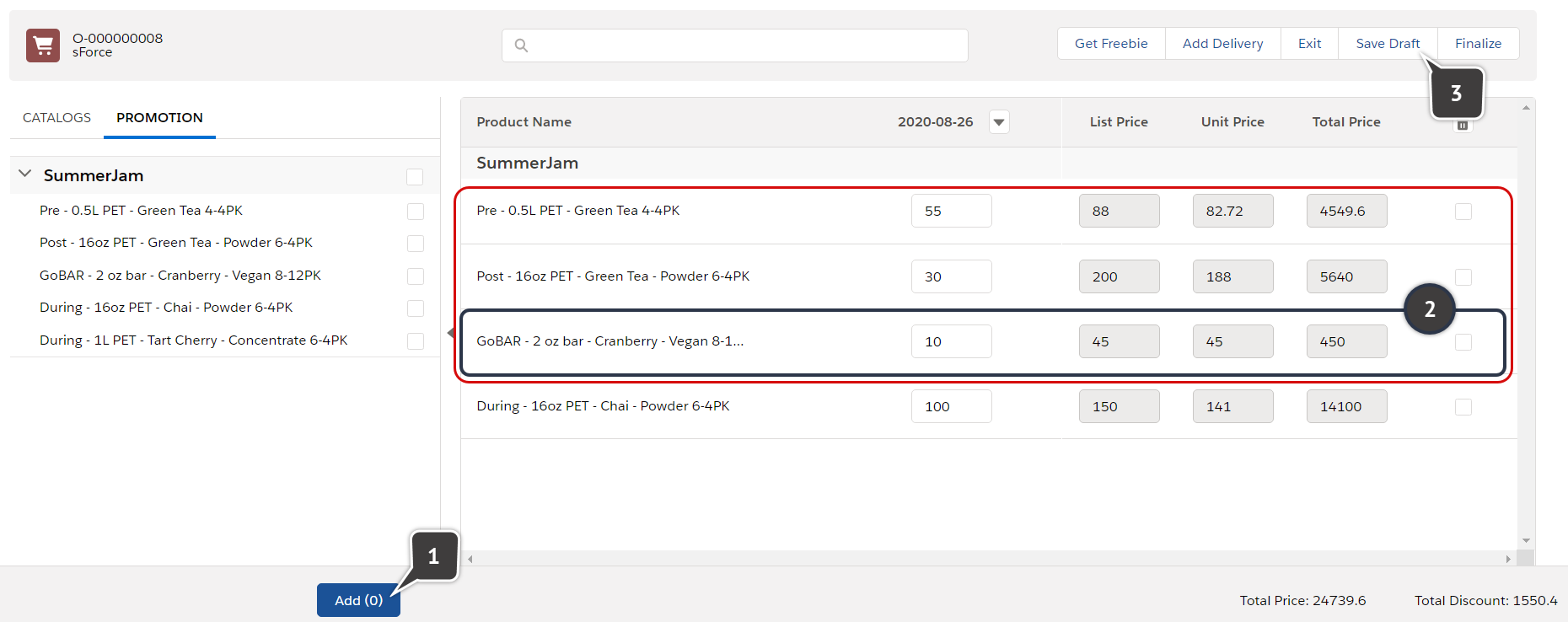
You can also add other products from the Promotion list, the discount will be automatically applied to each line item.
-
Fill out the Delivery window.
-
Set a different amount of items for each product to check the discount by level.
Notice, the product which was excluded from the discount calculation (2) does not have a discount. -
Click Save Draft.
The discount will be applied and the totals panel values updated.