Workshop 2.3 Checkpoint
When all settings are done, let’s create a new order and manually enter discounts for any of the added products in the cart:
-
Go to the CT Orders tab and click New.
-
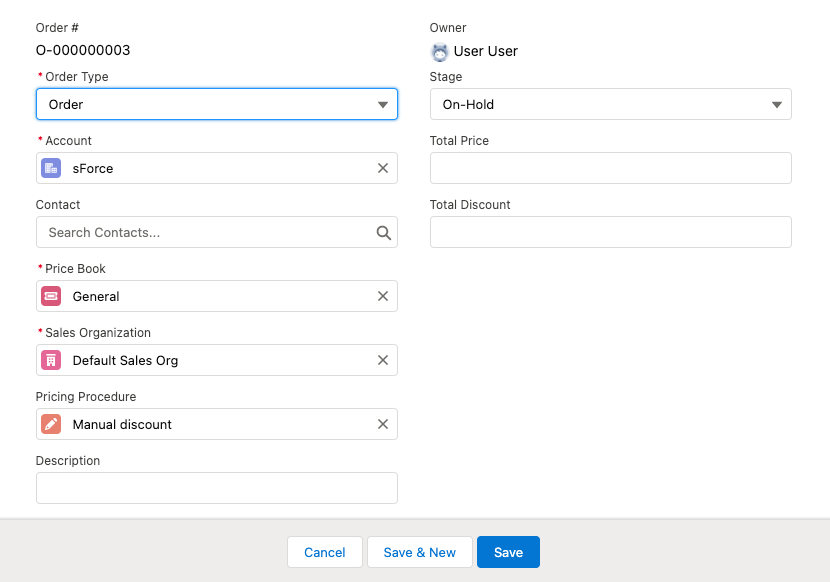
Specify the following:
-
Order Type: Order.
-
Select Account.
The Order Allowed checkbox must be selected on the Account details page. -
Price Book: select a price book that you have created earlier.
-
Sales Organization: Default Sales Org.
-
Pricing Procedure: Manual discount.
-
Order Stage: On-hold.
-
-
Click Save. The new CT Order is created.
-
On the created CT Order page, click the Edit Cart button.
-
On the left side, expand the Catalogs or Promotion in the corresponding section.
-
Select a catalog, promotion, or product, and click Add.
-
Complete the Delivery window that will pop up.
-
Set the quantity for each product.
-
Hover your cursor over the product’s row in the Manual Discount Percent column area for the edit
 icon to appear.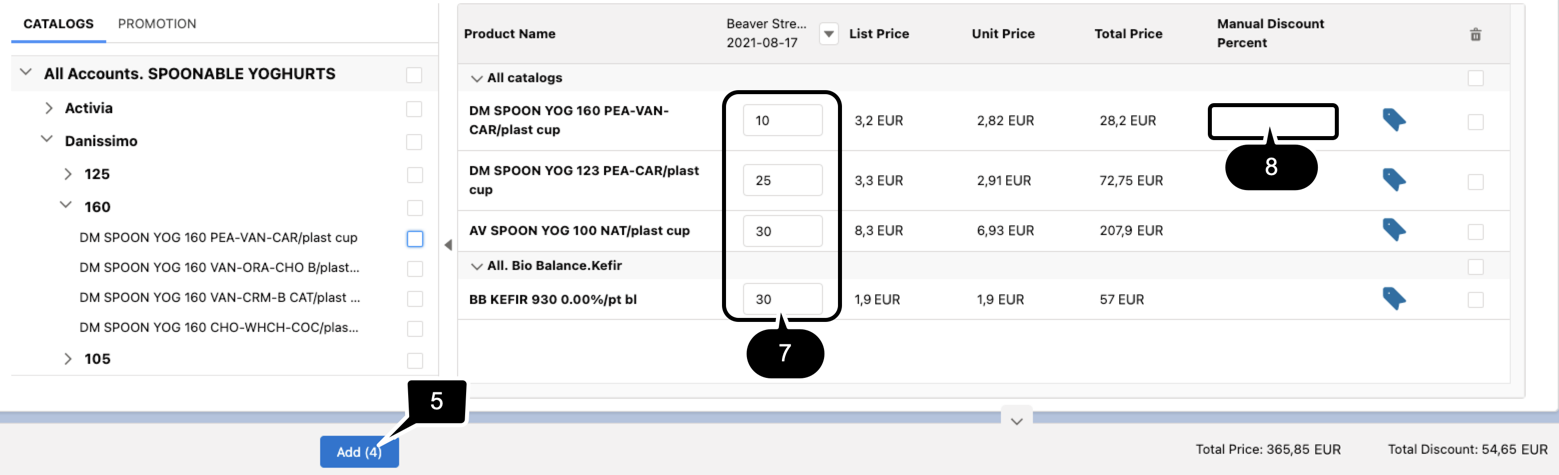
-
Click on the icon to manually enter the discount, and click out of the box to save it. The discount will be applied and the totals panel values will update automatically.
.gif)
-
Click Save Draft.
Now, you are able to additionally add discounts to any product in the cart by your hand if required.