Workshop 2.7 Checkpoint
When all settings are done, let’s create a new order to apply the configured discounts and fees:
-
Go to the CT Orders tab and click New.
-
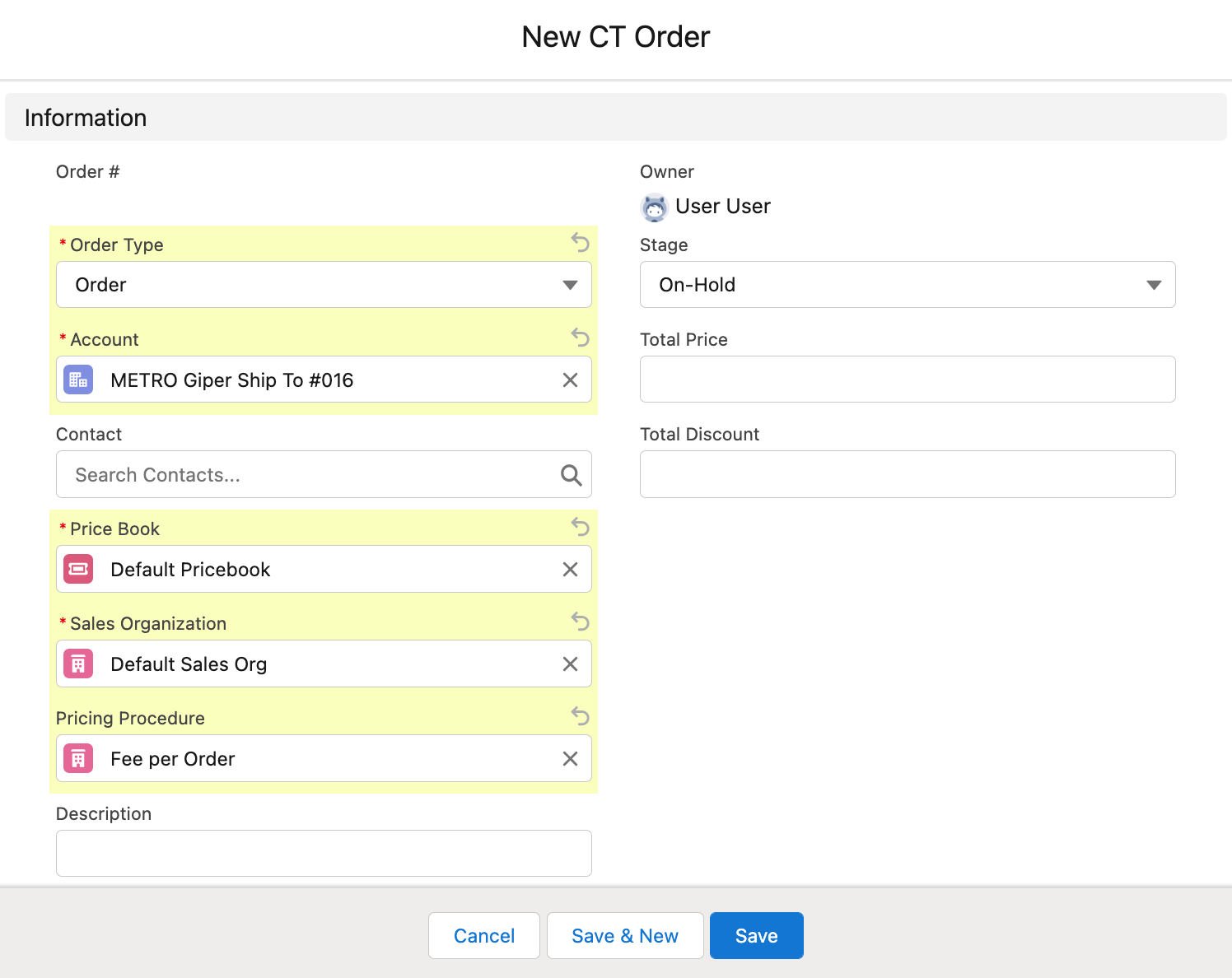
Specify the following:
-
Order Type: Order.
-
Select Account.
The Order Allowed checkbox must be selected on the Account details page. -
Price Book: select a price book that you have created earlier.
-
Sales Organization: Default Sales Org.
-
Pricing Procedure: Fee per Order.
-
Order Stage: On-Hold.
-
-
Click Save. The new CT Order is created.
-
On the created CT Order page, click the Edit Cart button.
-
On the left side, expand the Catalogs or Promotion in the corresponding section, select a catalog, promotion, or product, and click Add.
-
Create the first delivery in the Delivery window and click OK.
-
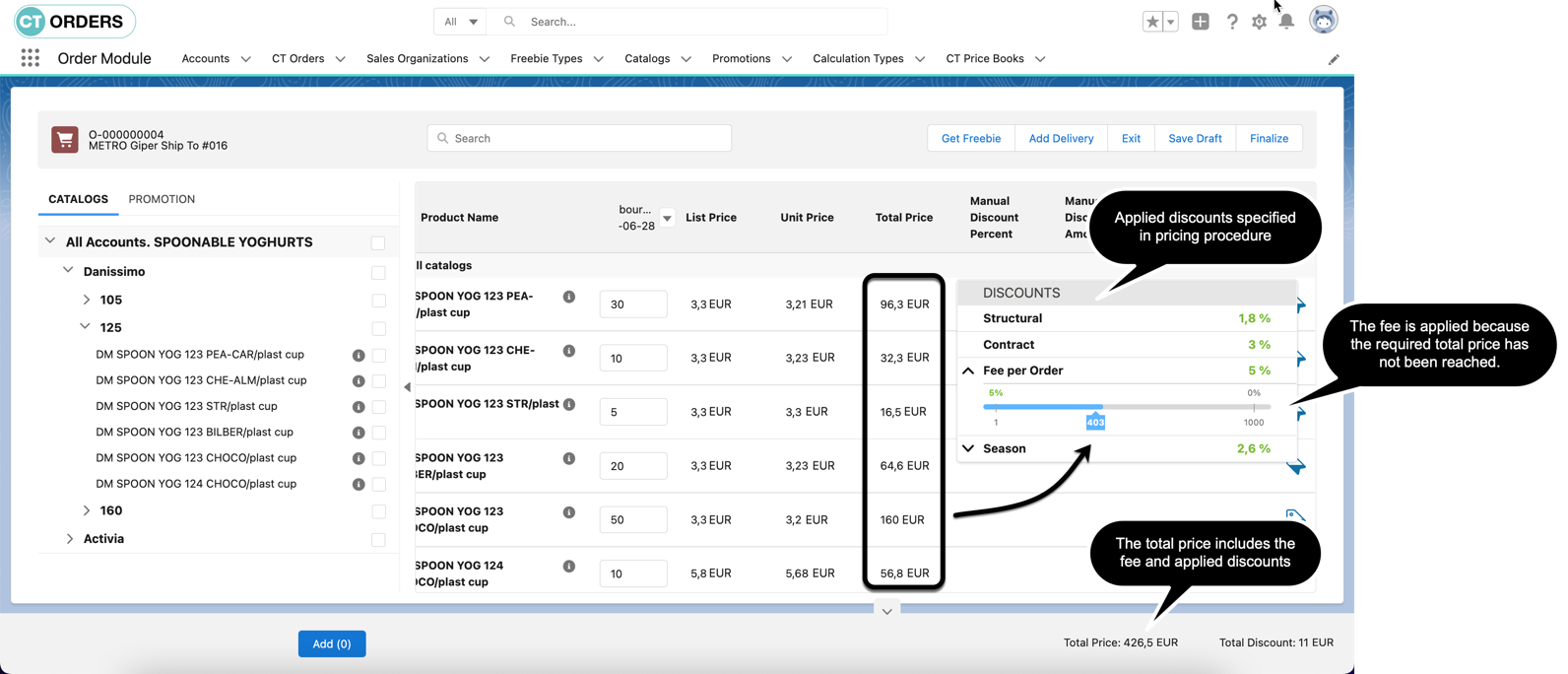
Set the quantity for each product and click the price tag to view the applied discounts. The totals panel values will be automatically updated.
-
If you do not reach the required total price for the whole order cart, the total fee per order will be applied.
-
-
Click Save Draft.
Now, you are able to additionally add discounts to any product in the cart by your hand if required.