Creating and Assigning a CT Price Book (1.0)
To create and assign a CT Price Book for the sales organization:
-
Go to CT Price Books and click New.
-
Enter the following data:
-
Enter your new Price Book Name. For example, Main PB '20.
-
Left blank the External Id field.
-
Add a short description in the Description field.
-
Select the default Sales Organization.
-
Make sure the Active checkbox is selected.
-
Specify Order Types for which the Price Book will be available (1).
This field is required if you want representatives to be able to create offline orders, as the Order Type is mandatory on the default mobile layout. 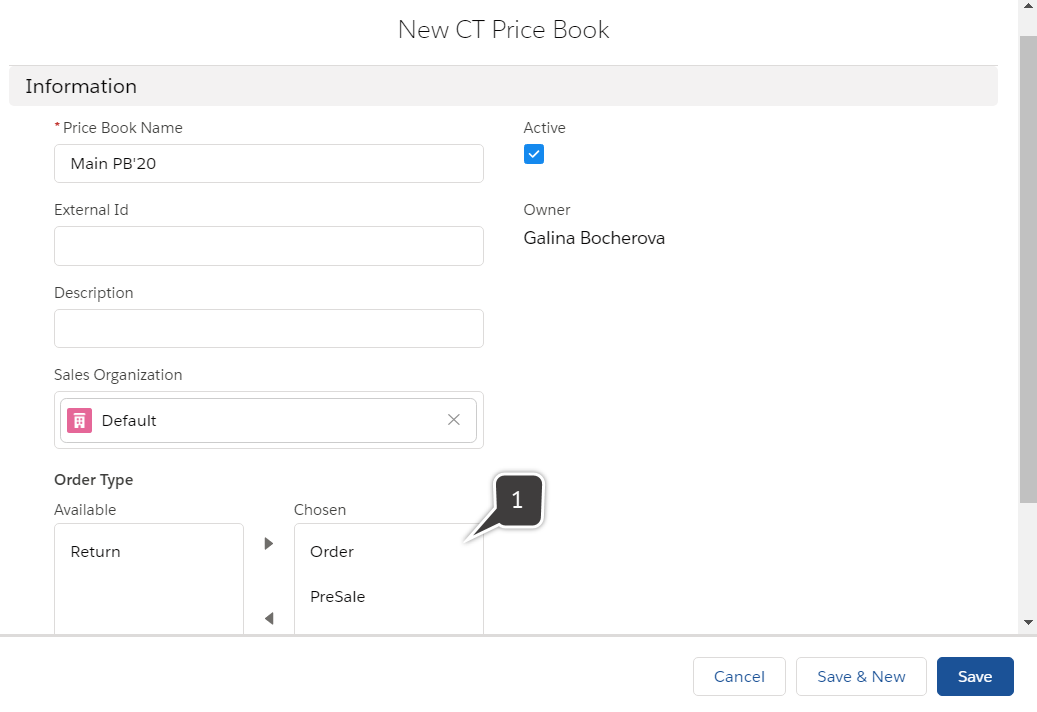
-
-
Click Save.
The CT Price Book is assigned.