Workshop 5.2: Setting up the Delivery Summary
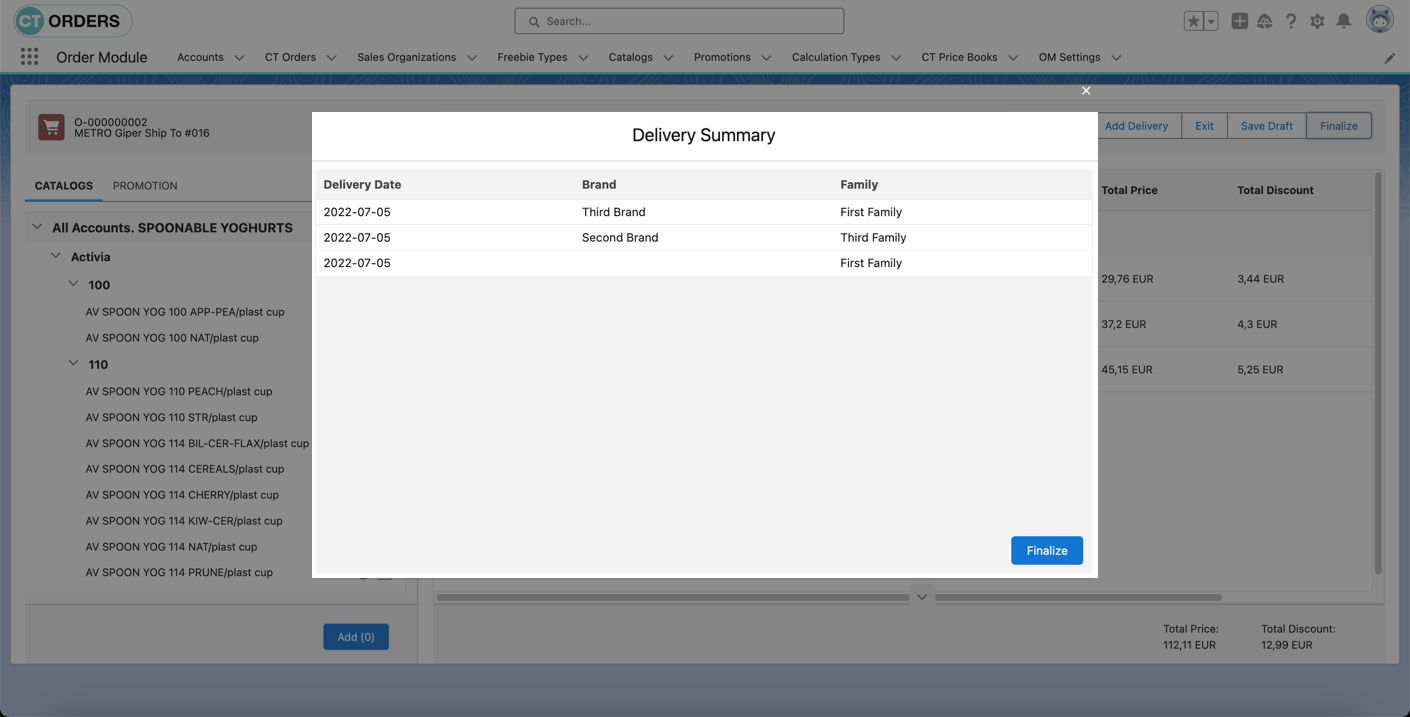
The Delivery Summary window may be used to review the delivery information and also to edit deliveries if permitted.
-
To use custom fields in Delivery Summary, create them on the Delivery object, for example, Brand__c, Warehouse__c.
-
Delivery Summary is available for both offline and online orders.
In Workshop 5.2, we create a Layout Setting record to display the Delivery Summary with the delivery date, product brand, and product family.
To set up Delivery Summary:
-
Go to Setup → Object Manager → Delivery → Fields & Relationships and click New.
-
Create two fields:
-
The Family__c field with the Picklist type that is similar to the CTCPG__Family__c field and has the same values.
-
The Brand__c field with the Picklist type that is similar to the CTCPG__Brand__c field and has the same values.
-
-
Go to the Settings tab and click New.
-
Select the Layout Setting record type and click Next.
-
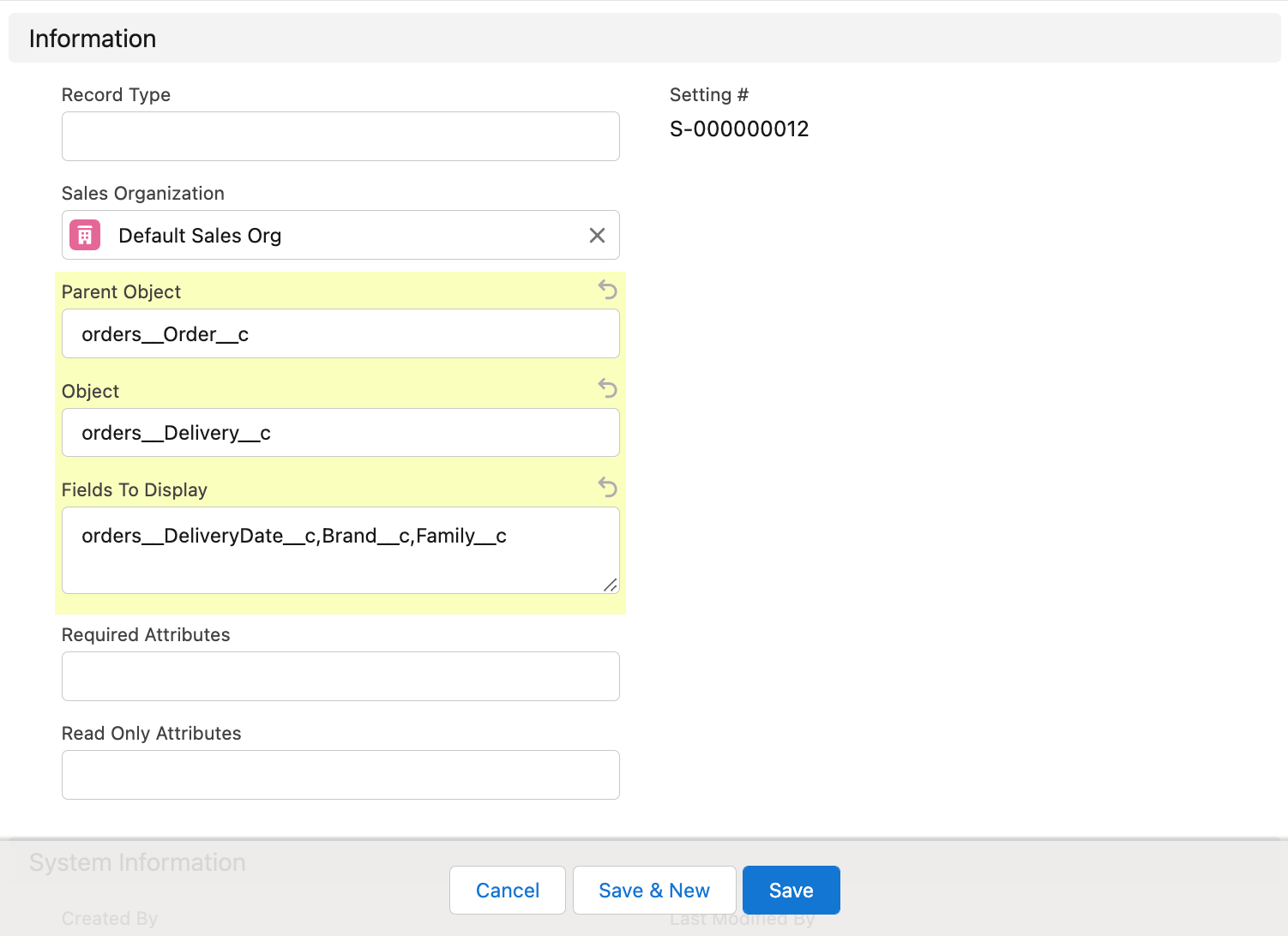
Enter the following:
-
Sales Organization: Default Sales Org.
-
Parent Object: orders__Order__c.
-
Object: orders__Delivery__c.
-
Fields to Display: enter API names of those fields that you want to view in the Delivery Summary window: orders__DeliveryDate__c,Brand__c,Family__c.
-
-
Click Save.
The setup is complete.
Now, when you create an order, add products, and click Finalize in the order cart, the Delivery Summary window will be displayed. Review information and click Finalize.
| In the Delivery Summary window, you can edit some fields if in the Layout Settings you enter false in the Read-Only Attributes for these fields. For more information, refer to Delivery Management. |