Adding CT Orders to the CT Mobile app (4.0)
| The CT Orders module is available offline since version 1.5 in the CT Mobile iOS 2.3 and higher or CT Mobile Windows 1.3 and higher. |
Add the CT Orders module in the CT Mobile app menu and follow the steps to display the Order button.
Add CT Orders to the CT Mobile app
To add the CT Order module to the app menu:
-
In CT Mobile Control Panel
-
In CT Mobile Control Panel 2.0
-
Go to CT Mobile Control Panel: App Menu tab.
-
Select the required profile in the Location picklist. General Settings will be applied to all the profiles without individual settings.
-
Click the
 button to open the Add menu item tool.
 -
Select the Orders item.
-
Click Add to close the Add menu item tool.
-
Specify the order of the CT Orders module in the app menu by dragging the items in the list. You can add other objects of the CT Orders package in the CT Mobile app menu if they were added in the offline objects.
-
Click Save.
-
Go to CT Mobile Control Panel 2.0: App Menu tab.
-
Select the required profile in the Profile picklist. To apply settings to all the profiles, select General Settings.
-
Click Show Module Menu.
-
On the All or Application Modules tab, select the CT Orders item.
-
Specify the order of the CT Orders module in the app menu by moving the items in the list.
-
Click Save.
The CT Orders module is now available in the CT Mobile app.
Display The Order button in the Actions menu
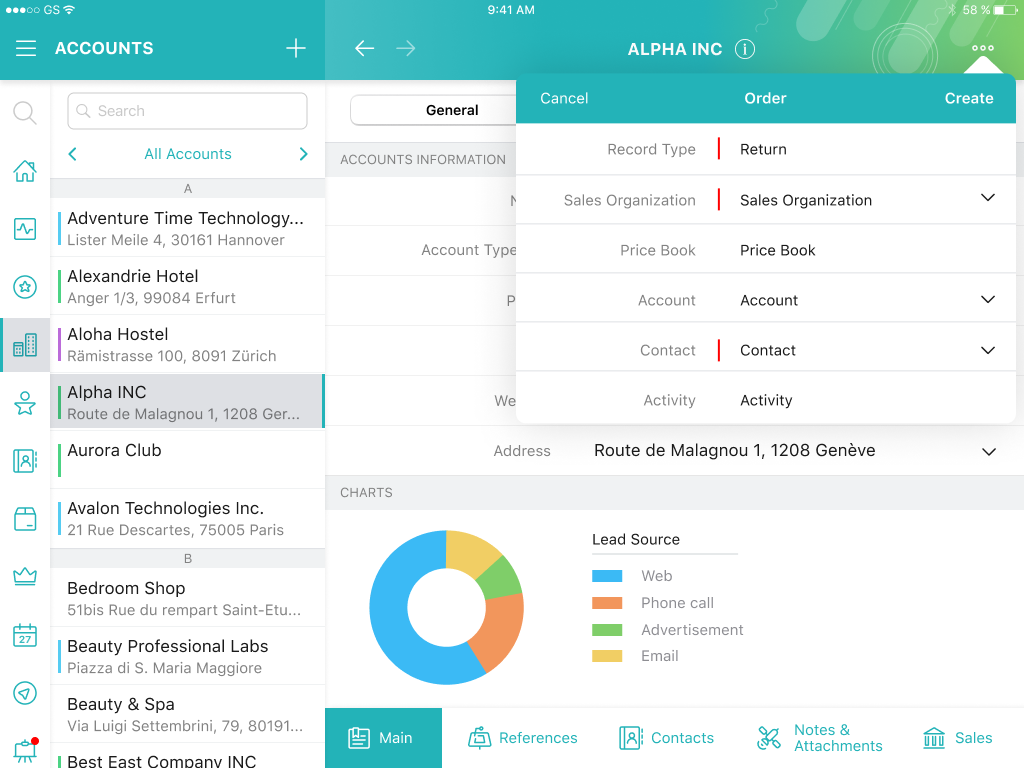
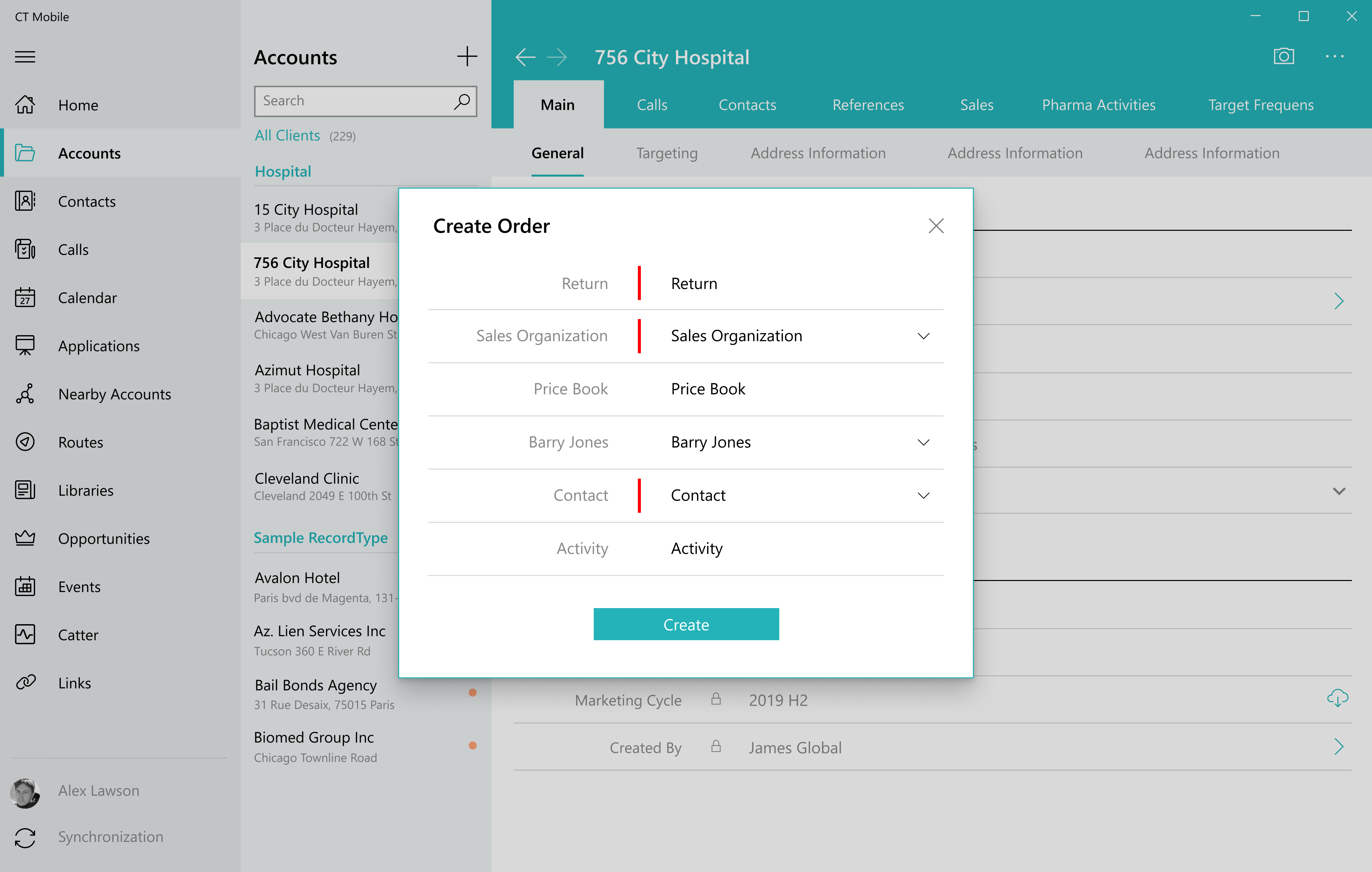
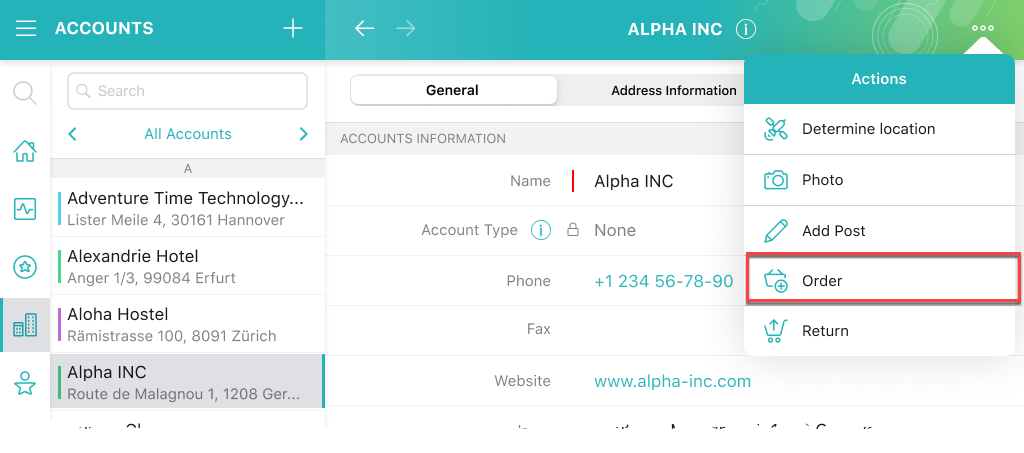
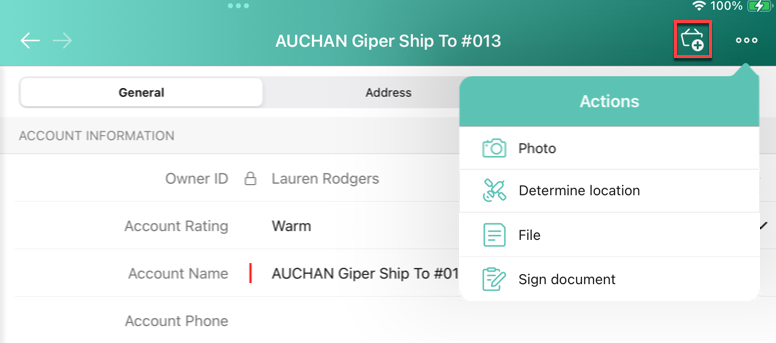
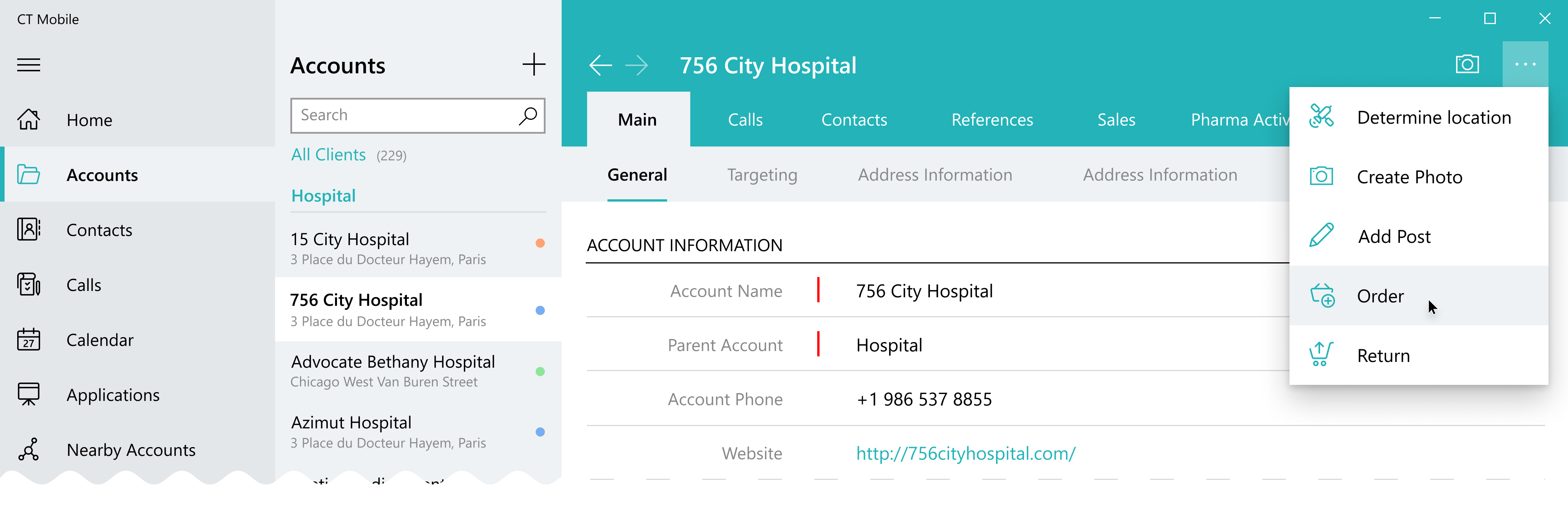
To create an order, the mobile user taps the Order button in the Actions combo-menu on the records of Accounts, Contacts, and Activity objects. To display the button:
| Since CT Mobile iOS 2.9, the Order button has its own place next to the Actions menu (see the image below). |
-
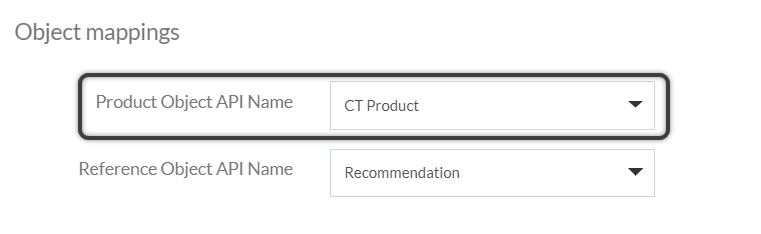
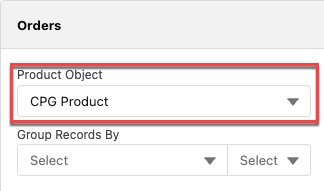
Specify the appropriate Product object on the CT Mobile Control Panel: General / CT Mobile Control Panel 2.0: App Menu tab:
-
In CT Mobile Control Panel
-
In CT Mobile Control Panel 2.0
-
-
Follow the steps to customize the Salesforce organization.
-
Specify the Activity object in the Object Settings record.
-
Allow the order creation for the Account object.
For the Contact and Activity records, the Order button will be displayed only if the Account record with allowed order creation is specified in the reference field of these records.
-
For CT Mobile iOS users
-
For CT Mobile iOS 2.9 users
-
For CT Mobile Windows users
Customize Mini Layout for Order Creation
The mini-layout is designed to allow the mobile user to quickly fill in the required data and check the pre-filled fields in a mini layout before opening the Order Cart screen.
Before setup, we recommend getting familiar with the Layout Settings fields.
-
These fields are displayed by default, cannot be removed from the layout, and will be filled if only one record fits the conditions, for example, if only one Sales Organization is available for the mobile user:
-
Sales Organization
-
Order Type
-
Price Book
-
Account
-
-
If the mobile user changes Sales Organization or Order Type, the pre-filled fields, such as Price Book or Pricing Procedure (if added), are cleared.
-
The mobile user can manually fill out fields with the available records.
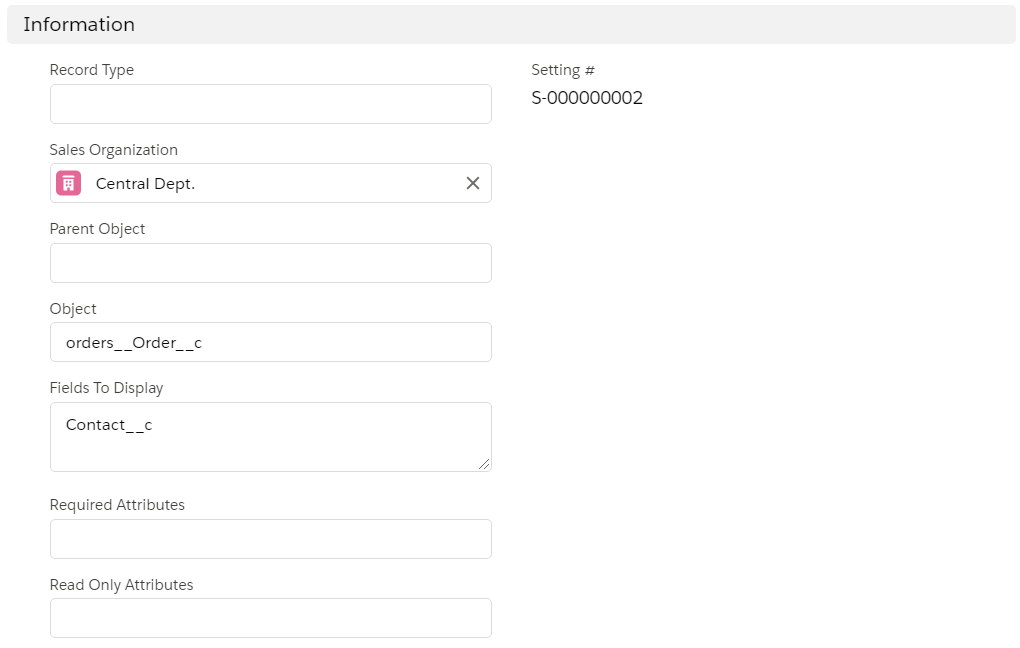
To customize the mini-layout and add additional fields, create a new Settings record with the Layout Setting record type:
-
Go to Settings and click New.
-
In the New Settings window, select Layout Setting.
-
Configure the settings as follows:
-
Enter Order in the Record Type field. In the case of more than one Order record type, it is possible to define the different mini layouts for each record type.
By default, CT Order has no Record Types and a set of Order Types. If you create record types, they will be hierarchically higher than the order types, and the combination of record types and order types allows you to perform the desired business logic. -
Select a Sales Organization.
-
Object: orders__Order__c.
-
Fields to display: API names of fields to add to the layout (separated by a comma, without a blank space).
-
If you want to make the additional field compulsory, enter True in the Required Attributes field.
-
-
Click Save.
The setup is complete.
So, when the mobile user taps the Order button, he selects the Order record type (if created), fills out the mini layout, and taps Create. Next, the Order Cart screen appears, where the mobile user adds products, specifies deliveries and manages freebies.
| The Create button is active when all data is validated. |
-
For CT Mobile iOS users
-
For CT Mobile Windows users