Freebie Management Tab
Prerequisites
To manage Freebies:
-
Add the Freebie type field to the Promotion page layout:
-
Go to Setup → Object Manager.
-
Search for orders__Promotion__c object and open it.
-
Go to Page Layouts and click Promotion.
-
In the Fields sections, drag and drop Freebie Type to the desired area.
-
Click Save.
-
-
Create the Freebie Line Item Layout Setting to display freebie products correctly in the Freebie Management tab.
-
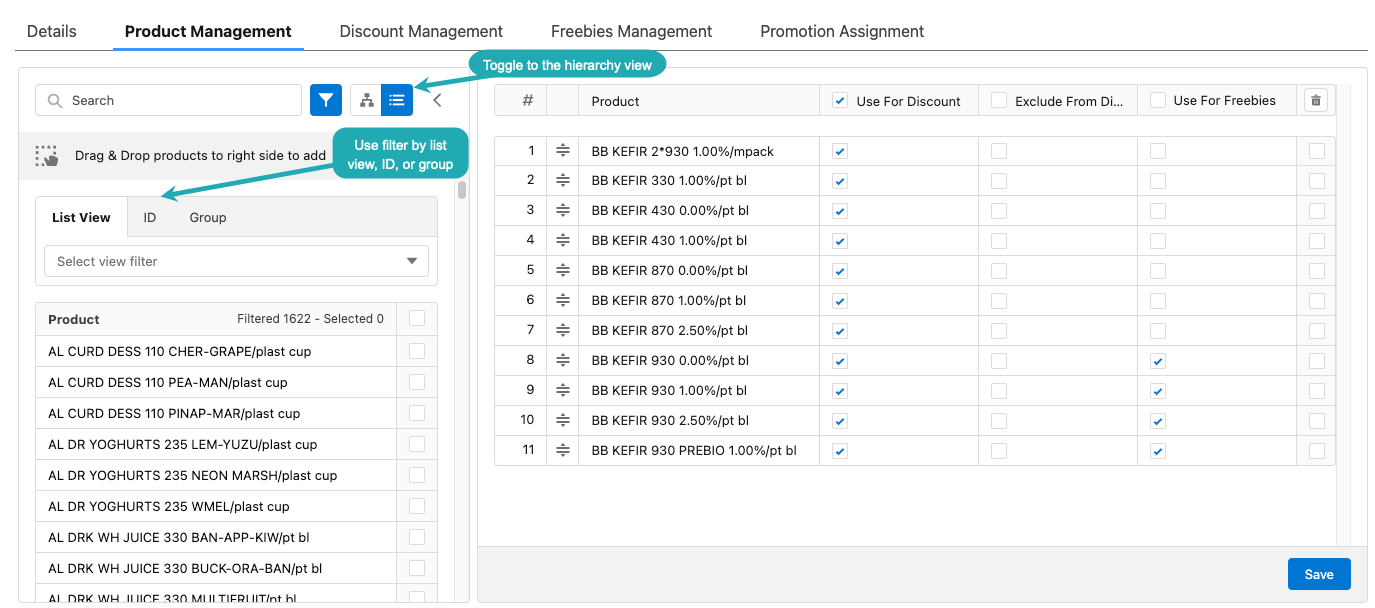
Set up a Promotion with a specified Freebie Type and at least one Product chosen to use for Freebies. If the Use for freebies column is missing, add it in the Promotion layout settings. Use search and filters to find products.
Search is carried out in the fields that are listed on the product Search Results search layout (including the Name field).
-
Search in list views of general products.
-
Search in dynamic groups.
-
Search by External IDs.
-
Search by a product name.
If you selected multiple filters, the products will be displayed that match all the selected criteria.
-
-
Select Freebies Management tab in your Promotion.
Configuration
To configure Freebies:
-
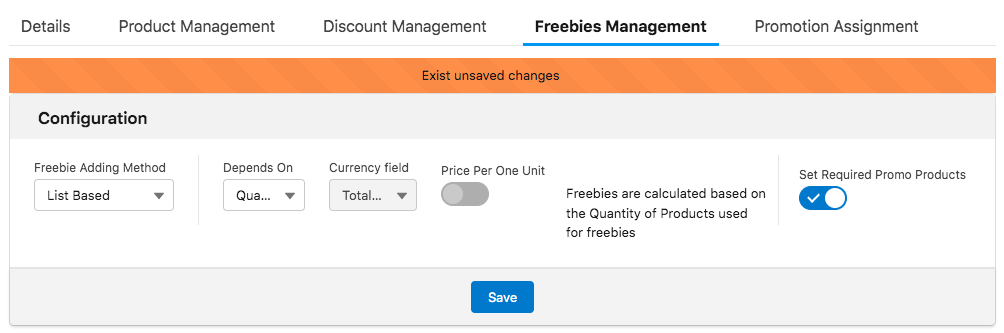
In the Configuration block:
-
In the Freebie Adding Method list, select:
-
Similar
The same product for which the condition is applied will be granted as a Freebie.
-
Criteria Based
Apply if you want to grant a product specified with SOQL filter considering all conditions for the selected Freebie Type record, for example, only products of a specified brand.
-
List Based
Apply when you want to grant a specific product selected on the Freebie Line Item record related to a Freebie Condition.
-
-
In the Depends On list, select Quantity (number of Paid Products) or Amount (price of paid products).
-
If at the step above you selected Amount, in the Currency field list select price type which is set for the Order:
-
List price
-
Total Discount
-
Total Price
-
Unit Price
-
Manual Discount Amount
-
Total for Discount
-
Manual Price
-
-
(Optional) turn on Price Per One Unit to check if the Freebies are applicable to any Freebie Level (see step 2 below). In this case, the formula of matching Freebies to Freebie level is Quantity* List Price, where Quantity is the value on the Order and List Price is the price selected in the step above.
-
(Optional) turn on Set Required Promo Products if you need to specify which products and in which quantity are required for the Freebie to be received on the next step. This option is available for Criteria Based and List Based adding methods only.
-
Click Save.
-
-
Setup Freebie parameters depending on Freebie Adding Method you previously set in the Configuration block (see step 1):
-
For Similar Freebie Adding Method
-
For Criteria Based Freebie Adding Method
-
For List Based Freebie Adding Method
-
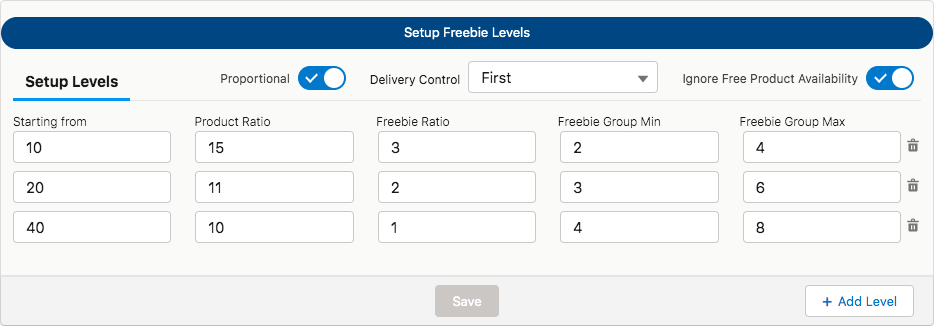
On the Setup Freebie Levels tab:
-
In the Starting From field, set the number of paid products in the order cart to grant a Freebie.
-
In the Freebie Group Min and Freebie Group Max set minimum and maximum number of Freebies for the Freebie Level.
-
Click Add Level to add more Freebie levels.
-
Turn on Proportional to set Product Ratio and Freebie Ratio.
Product Ratio is the number of products that are already in your cart, and Freebie Ratio is the maximum number of Freebies available for the Product Ratio.
-
-
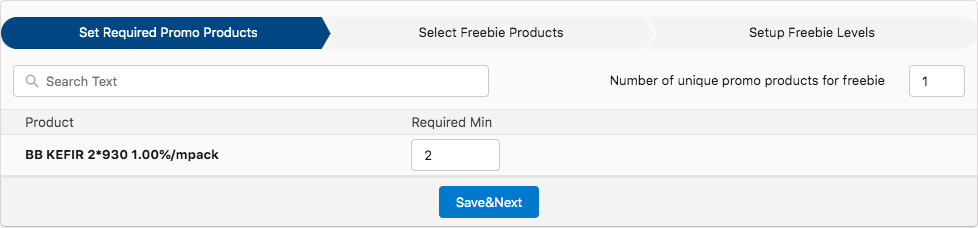
On the Set Required Promo Products tab (available if you turned it on in the Configuration block):
-
Set minimum amount of Promo Product in the Required Min field.
-
Set the Number of unique promo products for the freebie.
-
Click Save&Next.
-
-
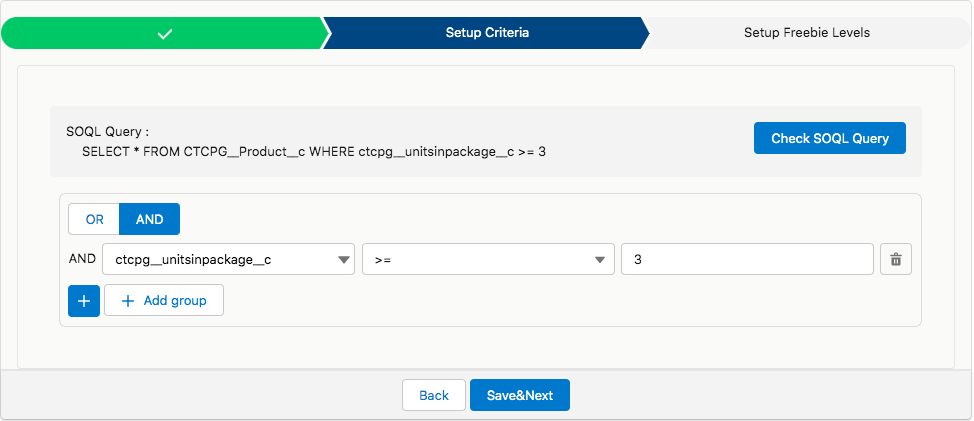
On the Setup Criteria tab:
-
Setup criteria in SOQL Query format using query instruments: OR, AND, + and Add group. Click Check SOQL Query to verify your criteria.
-
Click Save&Next.
-
-
On the Setup Freebie Levels tab:
-
In the Starting From field, set the number of paid products in the order cart to grant a Freebie.
-
In the Freebie Group Min and Freebie Group Max set minimum and maximum number of Freebies for the Freebie Level.
-
Click Add Level to add more Freebie levels.
-
Turn on Proportional to set Product Ratio and Freebie Ratio.
Product Ratio is the number of products that are already in your cart, and Freebie Ratio is the maximum number of Freebies available for the Product Ratio.
-
-
On the Set Required Promo Products tab (available if you turned it on in the Configuration block):
-
Set minimum amount of Promo Product in the Required Min field.
-
Set the Number of unique promo products for the freebie.
-
Click Save&Next.
-
-
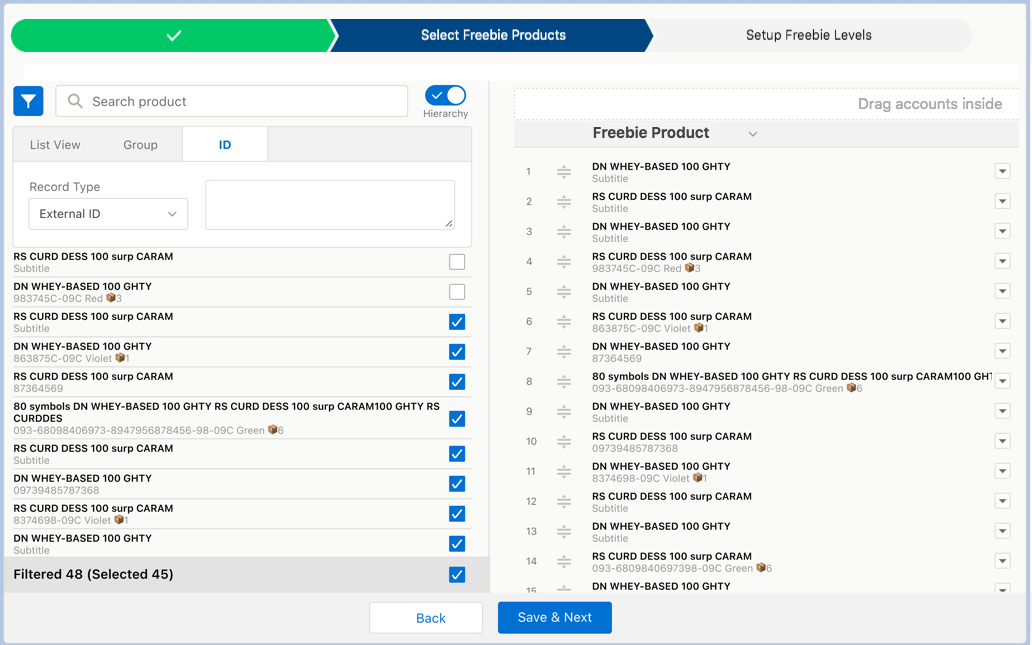
On the Select Freebie Products tab:
-
Drag and drop Freebie Products from the left list to the right one.
-
Click Save&Next.
-
On the Setup Freebie Levels tab:
-
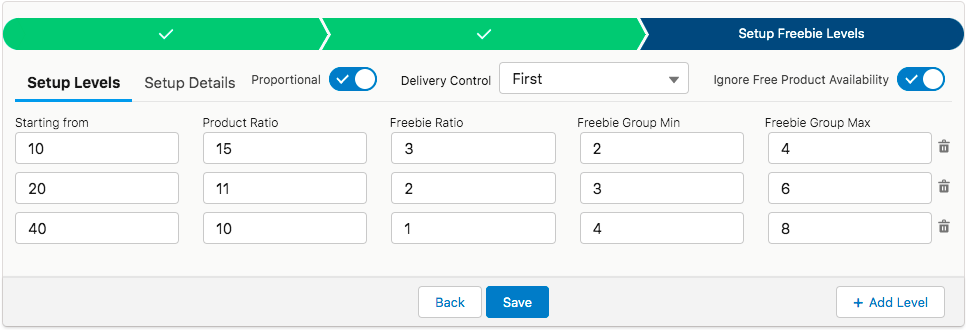
On the Setup Levels subtab:
-
In the Starting From field, set the number of paid products in the order cart to grant a Freebie.
-
In the Freebie Group Min and Freebie Group Max set minimum and maximum number of Freebies for the Freebie Level.
-
Click Add Level to add more Freebie levels.
-
Turn on Proportional to set Product Ratio and Freebie Ratio.
Product Ratio is the number of products that are already in your cart, and Freebie Ratio is the maximum number of Freebies available for the Product Ratio.
-
-
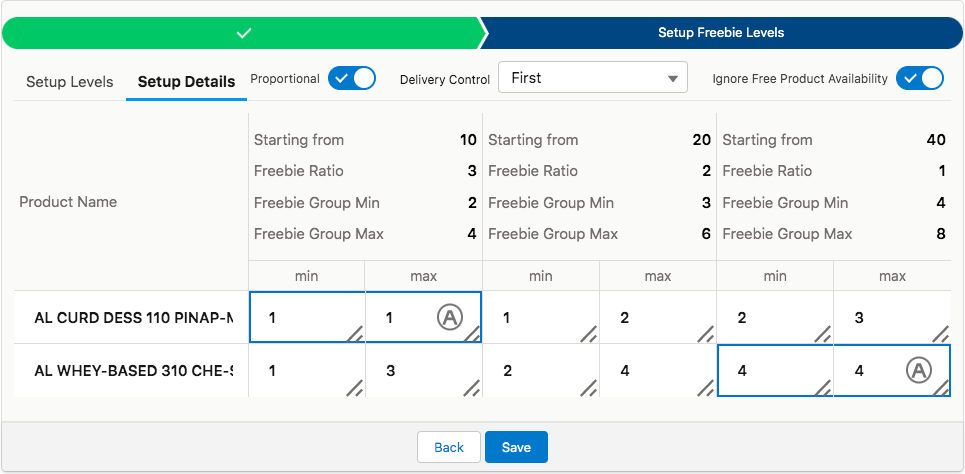
On the Setup Details subtab:
-
Set minimum and maximum number of Freebies for each product. Their sum must be equal to Freebie Group Min and Freebie Group Max values.
-
Set Delivery Control to automatically distribute freebies to the first or last delivery when deliveries are created or deleted.
-
Turn on IgnoreFree Product Availability to allow order to be completed if Freebies are out of stock and their minimum and maximum numbers are equal.
-
-
-
-
Click Save.
See also: