Workshop 6.0 Checkpoint
To make sure you have correctly configured the order validation options, let’s create an order with the appropriate conditions.
Create a Basic Order
When all settings are done, let’s create a new order to apply the configured discounts:
-
Go to the CT Orders tab and click New.
-
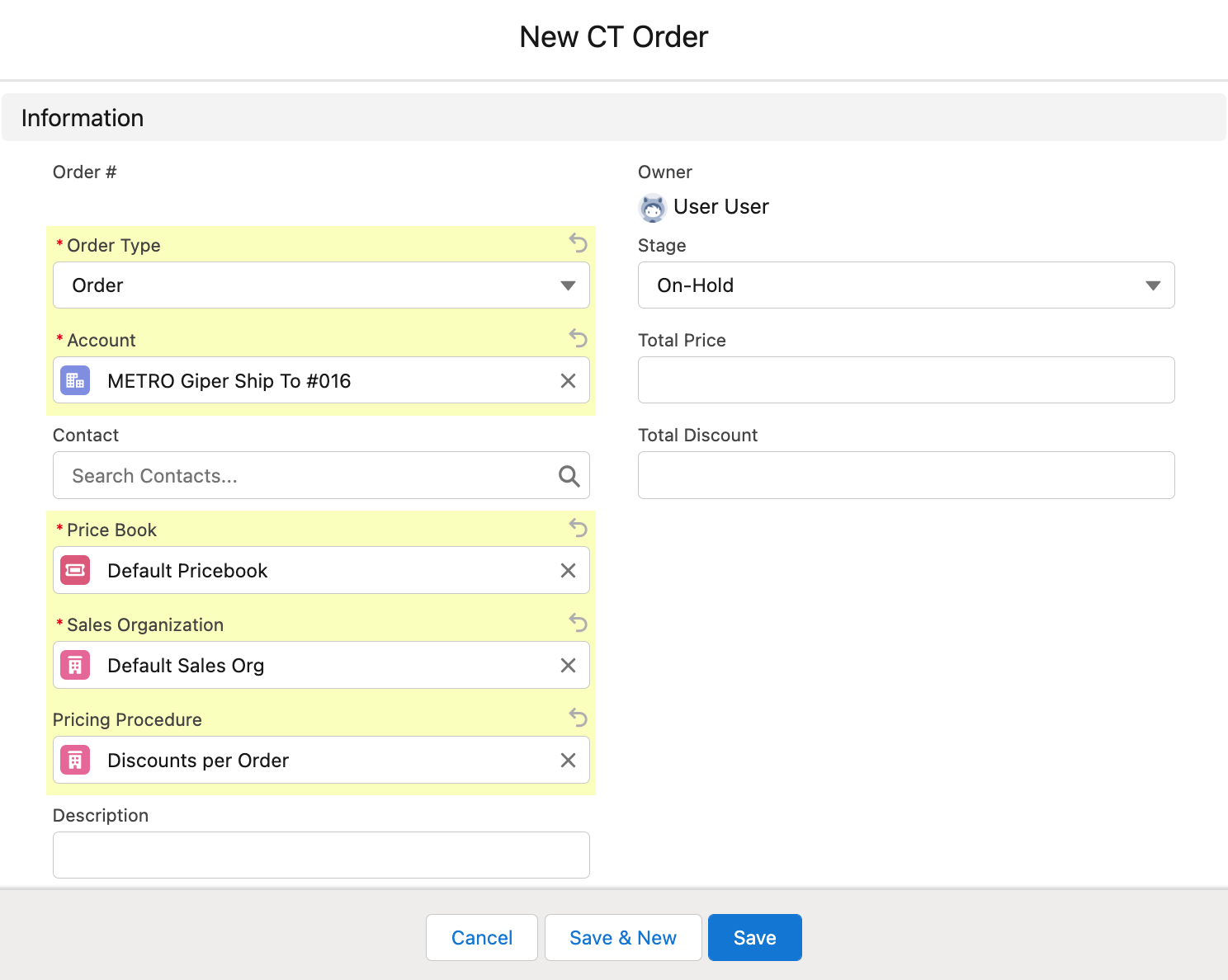
Specify the following:
-
Order Type: Order.
-
Select Account.
The Order Allowed checkbox must be selected on the Account details page. -
Price Book: select a price book that you have created earlier.
-
Sales Organization: Default Sales Org.
-
Pricing Procedure: select one of the created pricing procedures, for example, Total Discount (%) per Delivery.
-
Order Stage: On-Hold.
-
-
Click Save.
The new CT Order is created. On the created CT Order page, click the Edit Cart button.
Adding Products and Distributing Freebies based on their Availability
Product Availabilities are automatically applied to the products and freebies.
-
Click the info icon next to the product or freebie to see the availability dates if they are specified.
-
Cells of unavailable products and freebies will be automatically blocked.
-
Product Availability and Info Icons
-
Freebie Availability
-
Freebie Info Icon
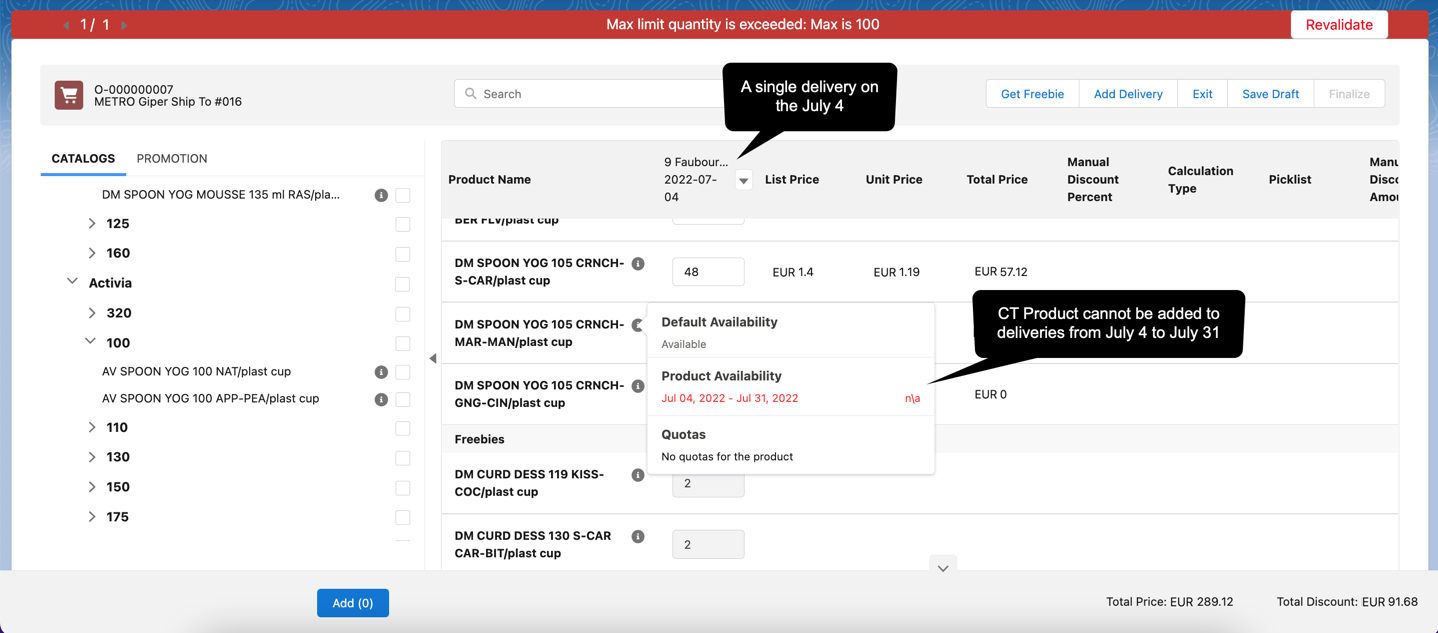
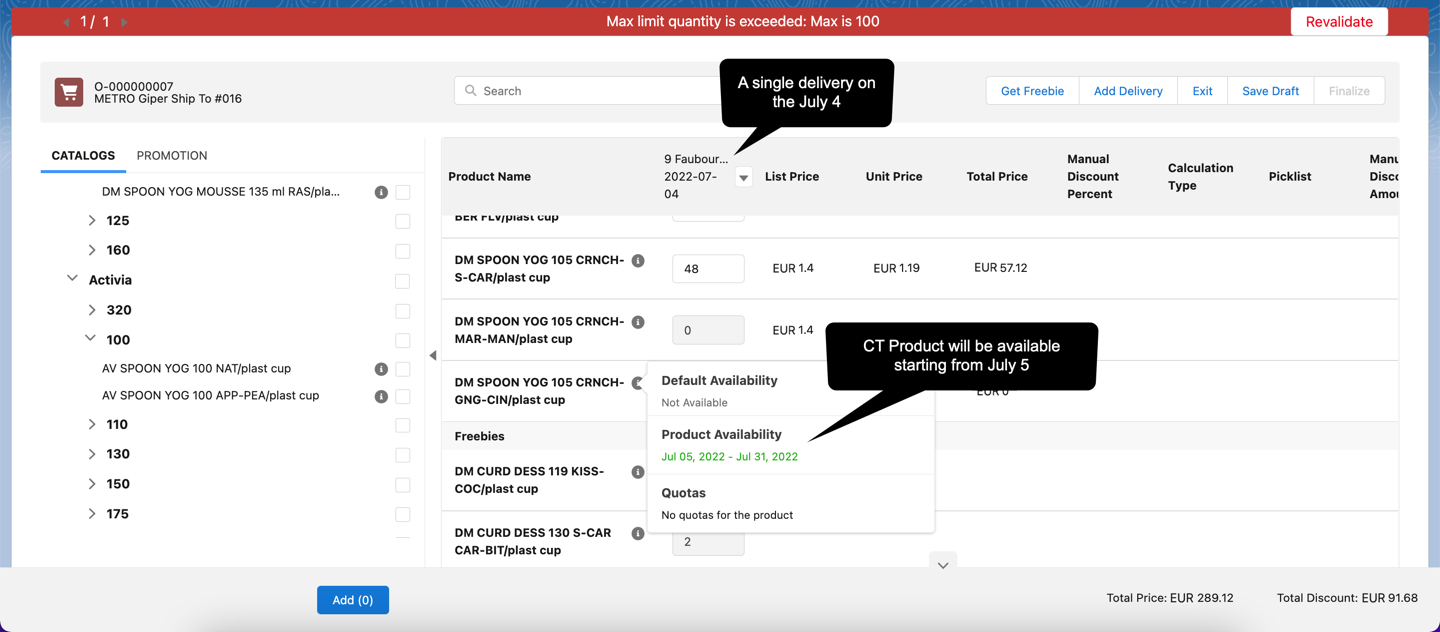
The cells are blocked for the products that cannot be distributed on the 4th of July.
CT Product is unavailable for the delivery date:
CT Product is unavailable due to availability dates are later than the delivery date:
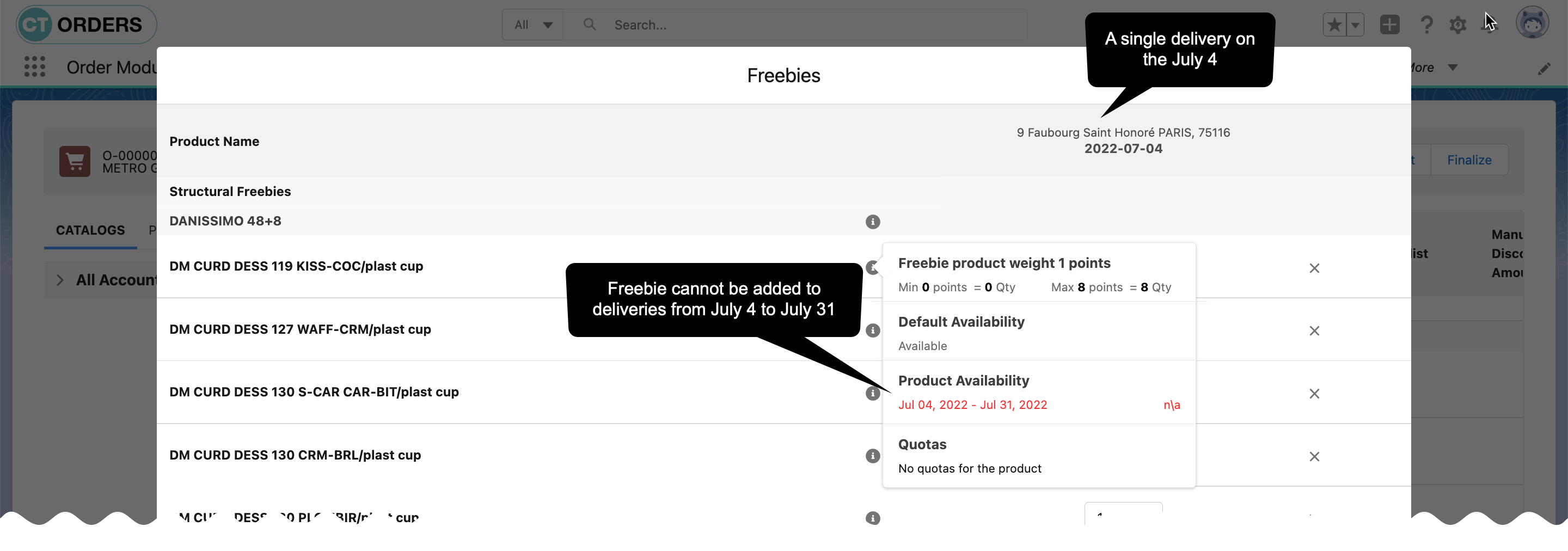
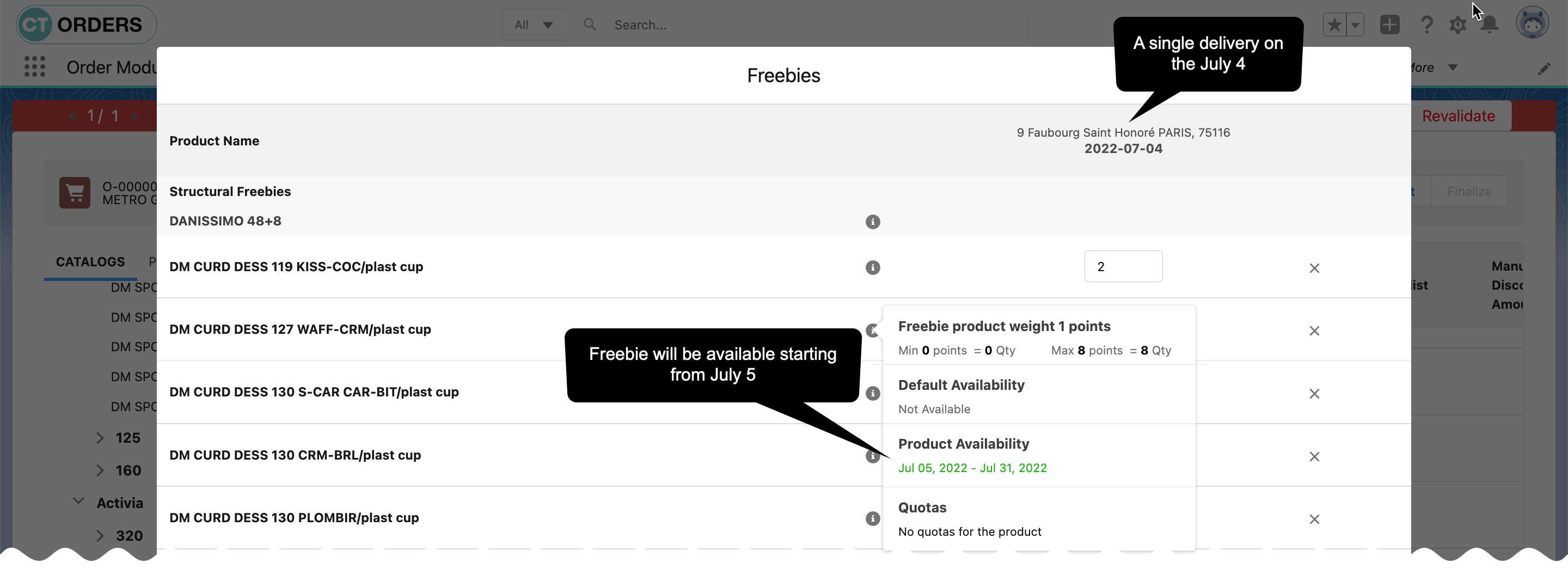
The cells are blocked for the freebies that cannot be distributed on the 4th of July.
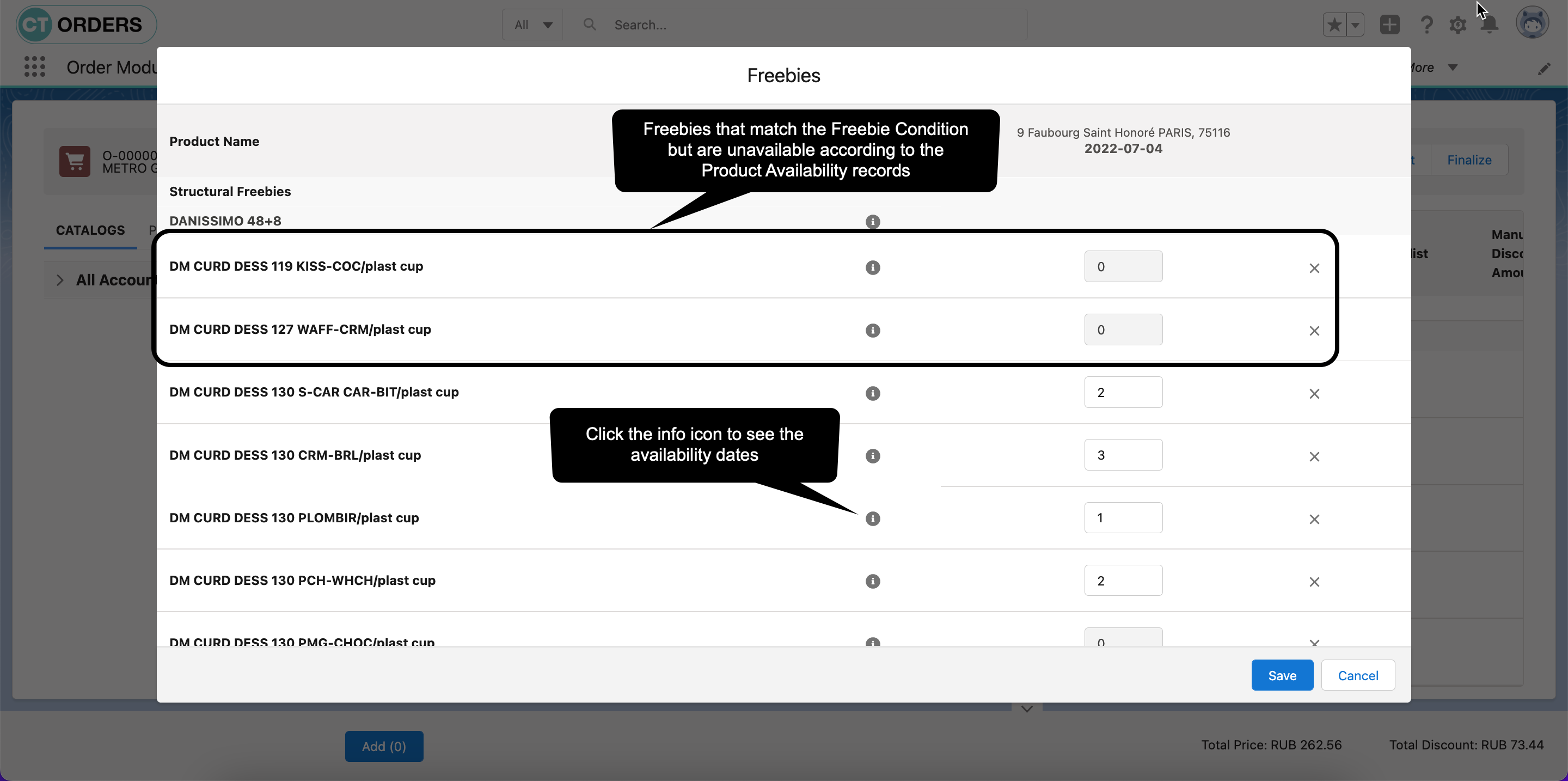
Freebie is unavailable for the delivery date:
Freebie is unavailable due to availability dates are later than the delivery date:
Applying Limit Rules
Limit Rules are automatically applied when you click Save Draft, Finalize, or Revalidate.
-
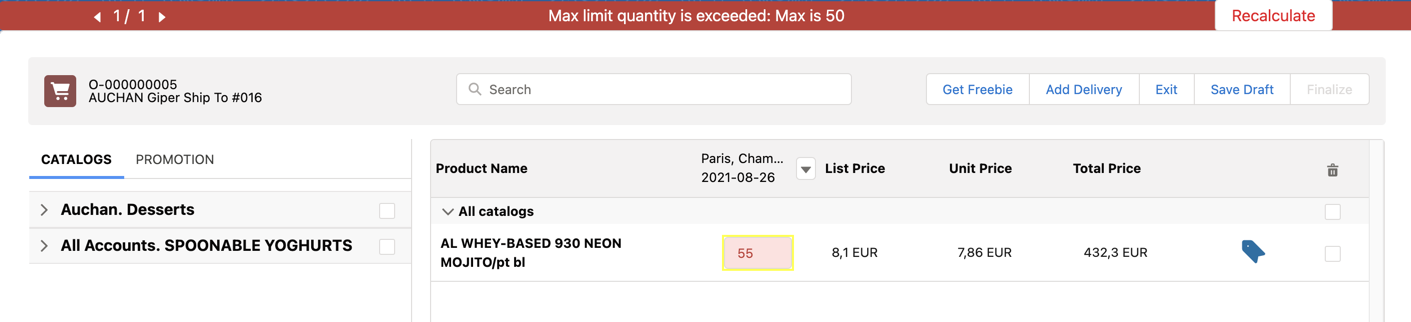
The cells with validation errors are highlighted in red color.
-
The validation error is displayed in the header of the order cart.
-
When you made changes that match the limit rules, click Save Draft, Finalize, or Revalidate to update the order.
-
Limit Rule per Delivery
-
Limit Rule per Order
-
Limit Rule with Condition
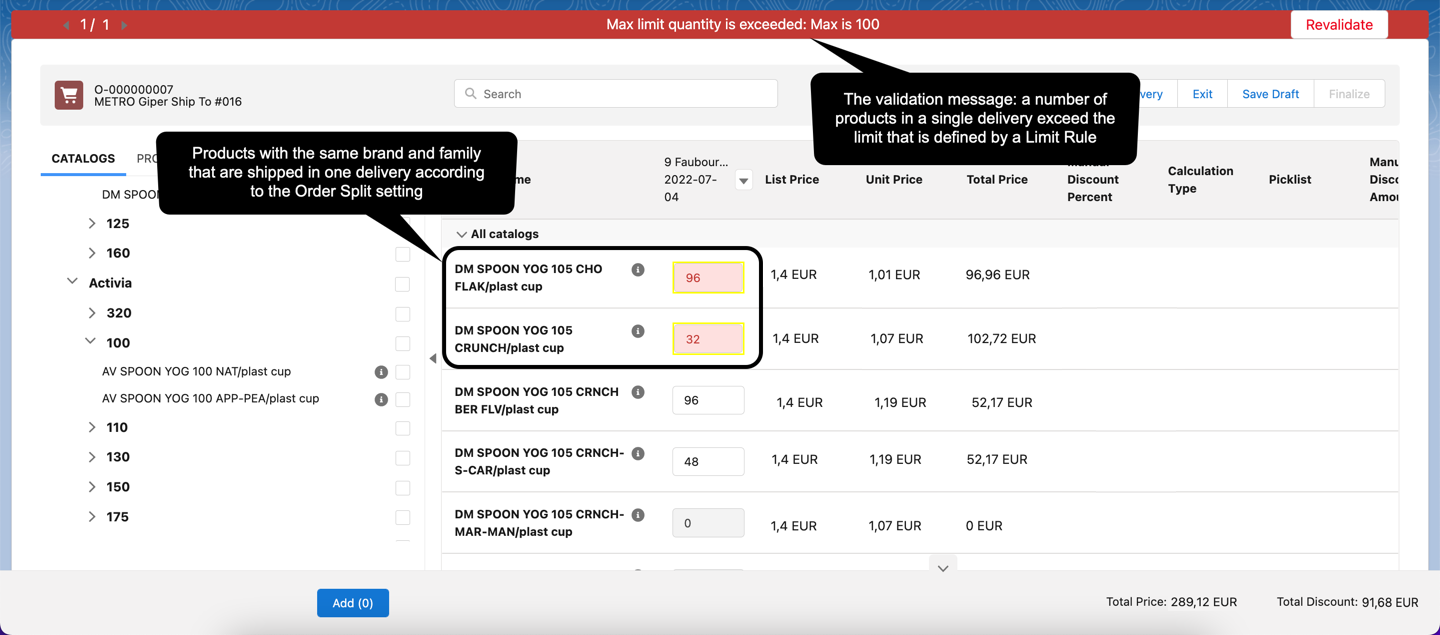
According to the Order Split record, products with the same family and brand will be placed in the same delivery, and, according to the Limit Rule record, if the total number of such products is less than the minimum quantity or higher than the maximum quantity, a validation error will be displayed.
-
The Order Split setting is responsible for dividing products according to the criteria. Here are 4 deliveries because there are 4 unique combinations of brand and family for added products.

-
The Limit Rule per Delivery: the maximum quantity for a single delivery is 100.
-
The applied discount: the highest condition level is met (starting from 150 products, you will get the 15% discount)
-
The distributed freebies: the prioritized freebie level is met (for every 48 products of a certain brand, you will share 8 freebies)
The total price for the whole order exceeds the limit.
-
The applied discount: the highest condition level is met (starting from 150 products, you will get the 15% discount)
-
The distributed freebies: the second freebie level is met (for every 12 products, you will share 1 freebie of the same product)
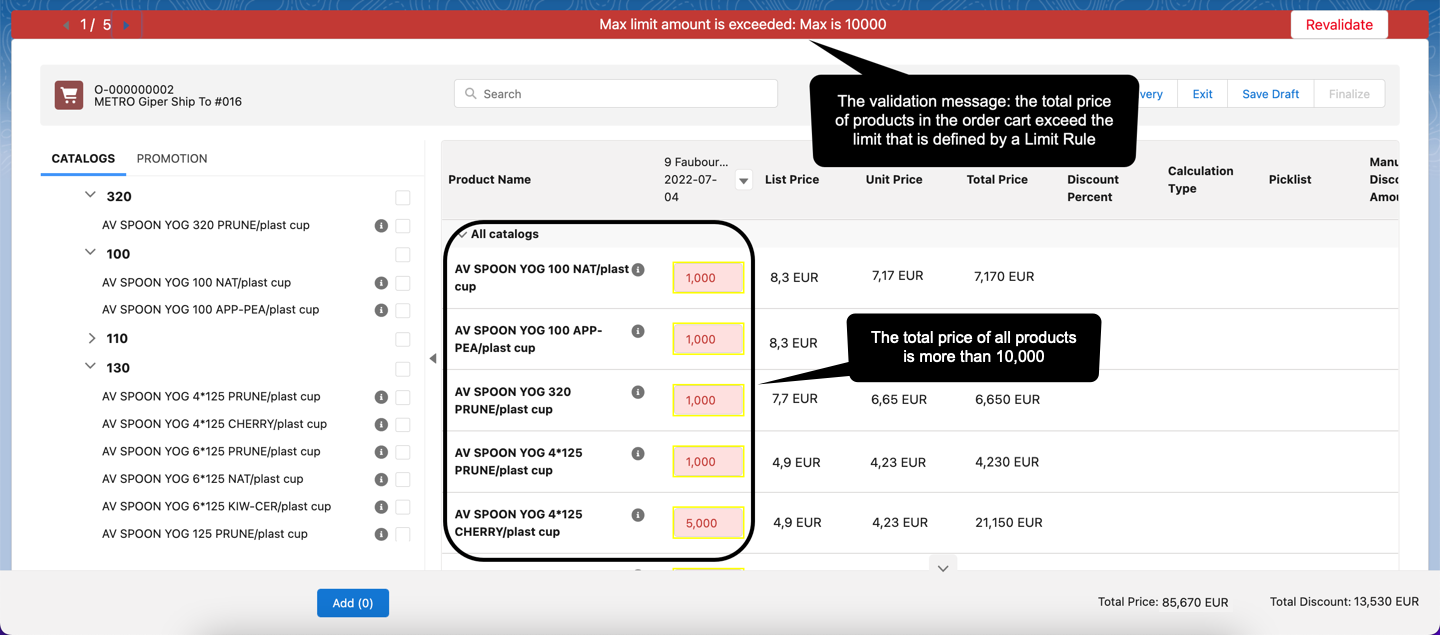
The total price for the whole order exceeds the limit.
-
The maximum number (50) of the specific product (Apply Condition) is exceeded.
Allocate Quotas
To understand the Quotas flow, let’s create two orders and fill them out with the specific products to allocate quotas and calculate freebies.
| Several quotes may be applied for an Order Line Item based on the delivery dates. In Workshop 6.0, we use one quota for the Order Line Item record. |
Allocate Quotas and Save the First Order
Create a basic order with the following:
-
Add DM SPOON YOG 105 CRNCH-S-CAR/plast cup: 50 products.
-
Add the All. Bio Balance.Kefir promotion: 2 products.
-
Click Get Freebie and add freebies.
When you click the info icon:
-
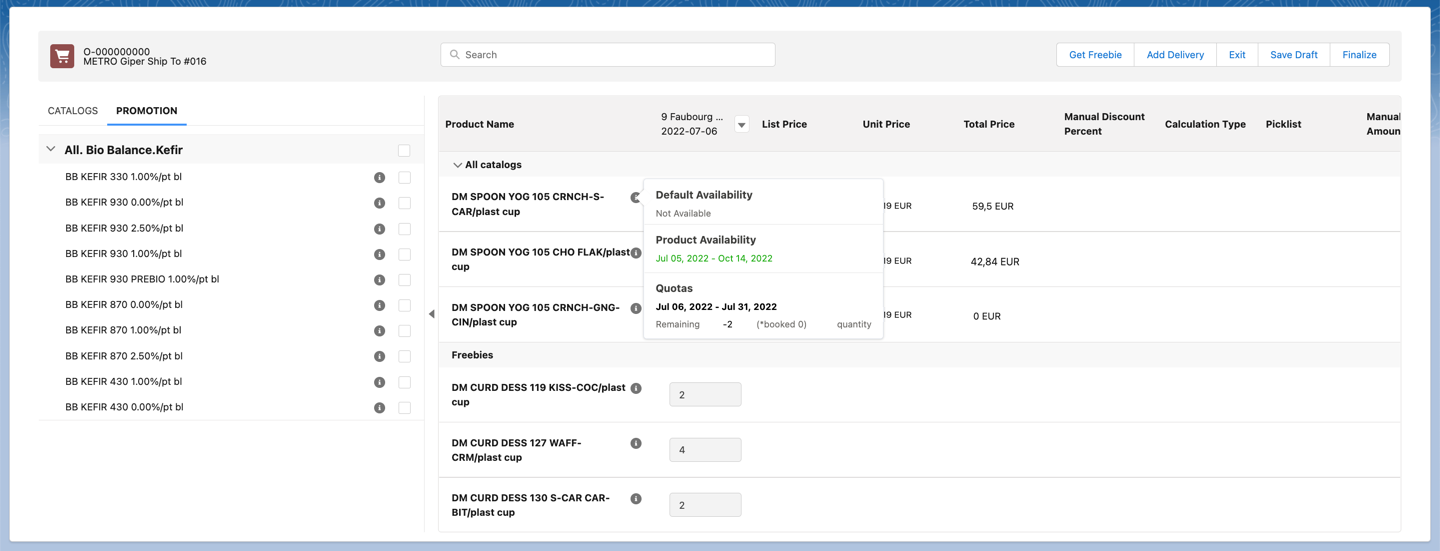
Quotas for a Product
-
Quotas for Promotion
-
Quotas for Freebies
Quotas for a product are calculated based on the created individual Quota record.
-
If you have added 50 products, you have exceeded your quota by 2 products, which is reflected in the Remaining line.
-
In addition, in the info icon, you see the unit of measure for the quota: quantity.
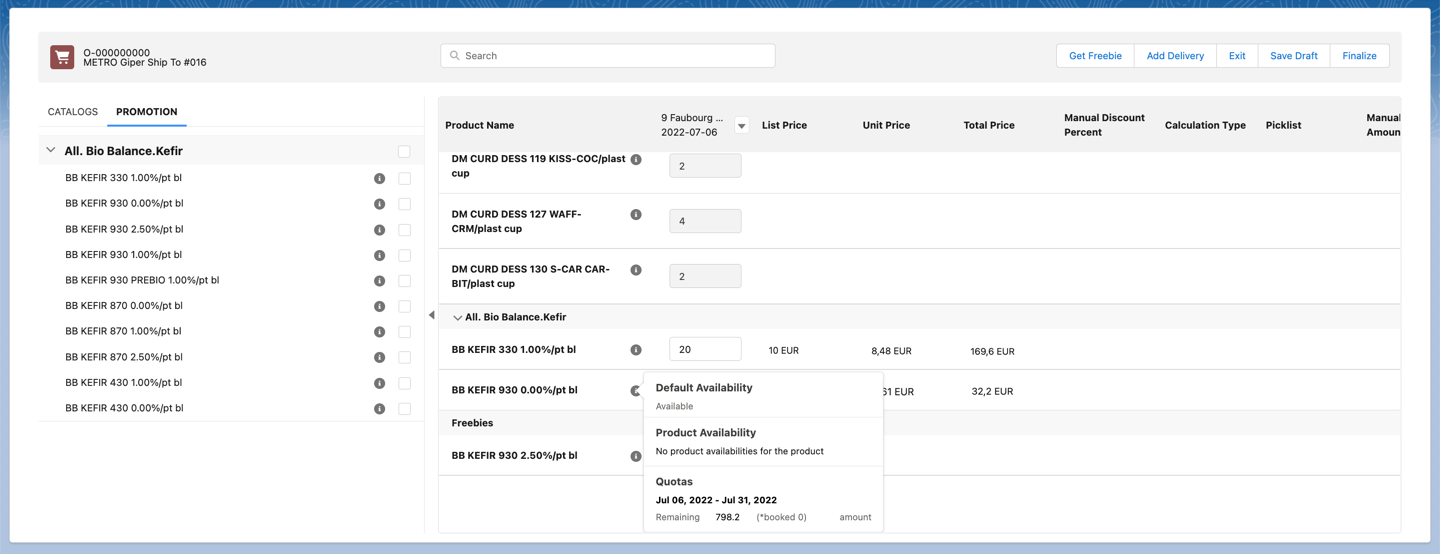
Quotas for promotion are calculated based on the created Quota record.
-
The individual Quota record is automatically created based on the found Quota record with the Template record type.
If there is an individual Quota and a [.object]#Quota Template on the same search level, the individual quota will be applied. For more information, refer to Quota Search. -
The quota will be counted for all products added from the specified promotion.
-
If you added 2 products from the promotion and set a quantity for each of them, the quota will be reduced by the total price of the 2 added products, and the remaining amount is reflected in the Remaining line.
-
In addition, in the info icon, you see the unit of measure for the quota: amount.
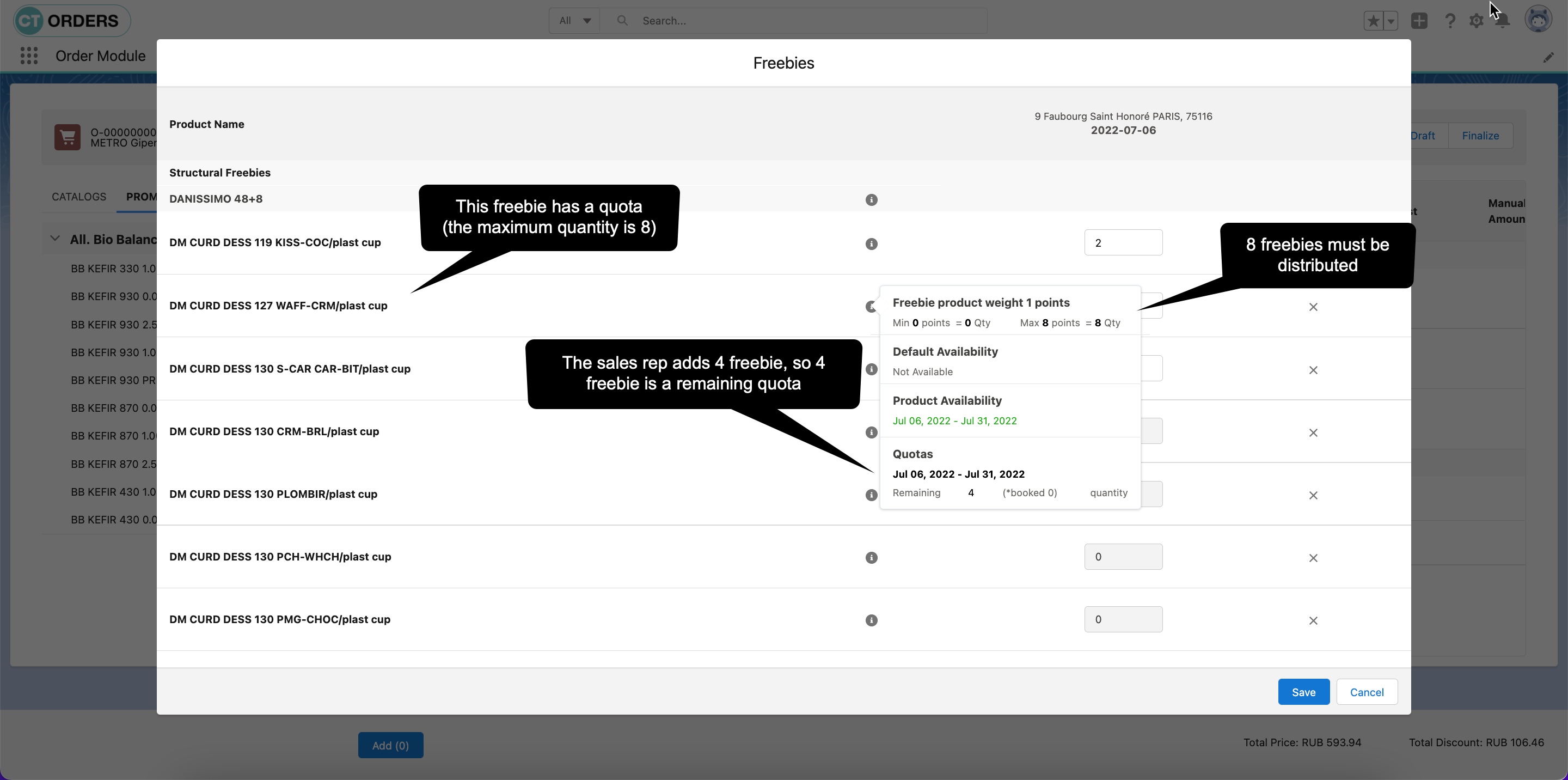
Quotas for a freebie are calculated based on the created individual Quota record.
-
If you have added 4 freebies, the remaining quantity is reflected in the Remaining line. In this case, the Certain Brand 48 + 8 condition is met, so you should add 8 freebies that match the criteria.
-
In addition, in the info icon, you see the unit of measure for the quota: quantity.
Click the Save Draft button.
-
The individual quota for a product will be updated, and in the Booked Quantity field the 50 value will be added.
-
The individual quota for a promotion will be created based on the Quota Template record for this promotion, and in the Booked Amount field, 203,8 will be added.
-
The individual quota for a freebie will be updated, and in the Booked Quantity field the 4 value will be added.
Allocate Quotas and Finalize the Second Order
Create a basic order with the following:
-
Add DM SPOON YOG 105 CRNCH-S-CAR/plast cup: 40 products.
-
Add the All. Bio Balance.Kefir promotion: 5 products.
-
Click Get Freebie and add freebies.
When you click the info icon:
-
Quotas for a Product
-
Quotas for Promotion
-
Quotas for Freebies
Quotas for a product are calculated based on the created individual Quota record.
-
The booked product quantity for the first order is written in the Booked line. Quotas that have been booked will not affect the number of remaining quotas until the order in which those quotas have been distributed is finalized.
-
If you have added 40 products, only 8 products will be available in the Remaining line.
The quota for other orders is placed in the Booked line while the quota for the current order is in the Remaining line. 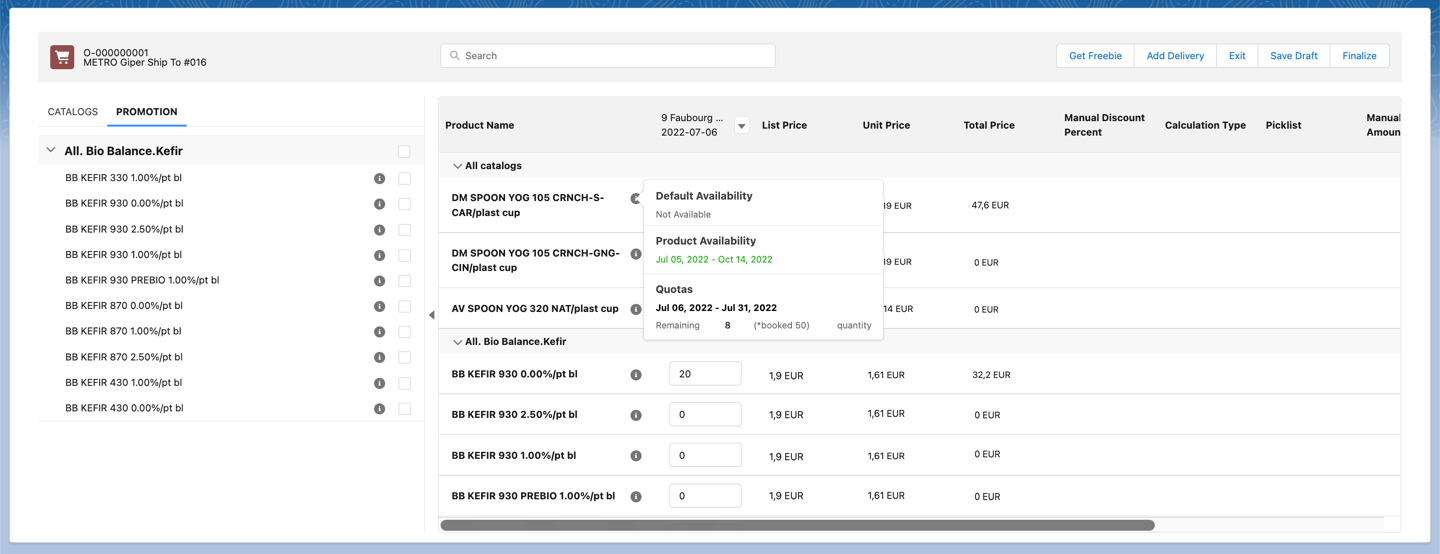
Quotas for promotion are calculated based on the individual Quota record that is created based on the found Quota record with the Template record type.
-
There are 5 different products (the number of each is 20).
-
The booked quota for the first order is written in the Booked line.
-
The remaining quota is written in the Remaining line.
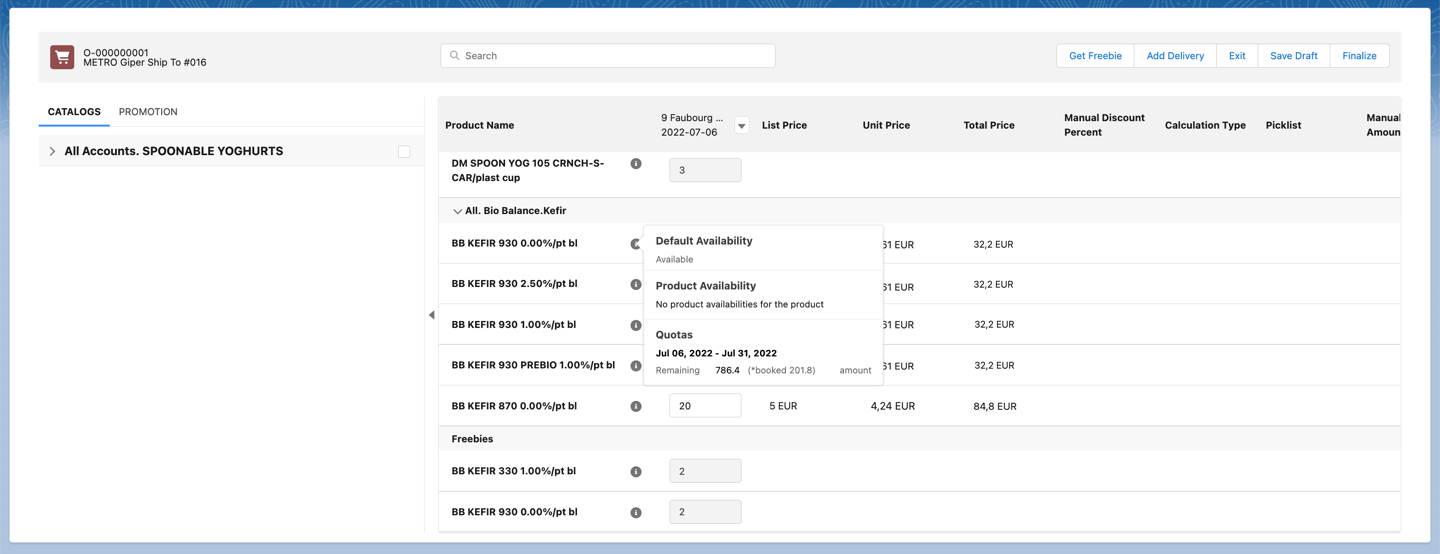
Quotas for a freebie are calculated based on the created individual Quota record.
-
The quota for a specific freebie will not be applied due to the condition is not met. For the quota, the Certain Brand 48 + 8 condition must be met. In this case, we have less than 48 products, so for products, the All 12 + 1 condition is applied, and for promotion, the Selective freebie type is applied.
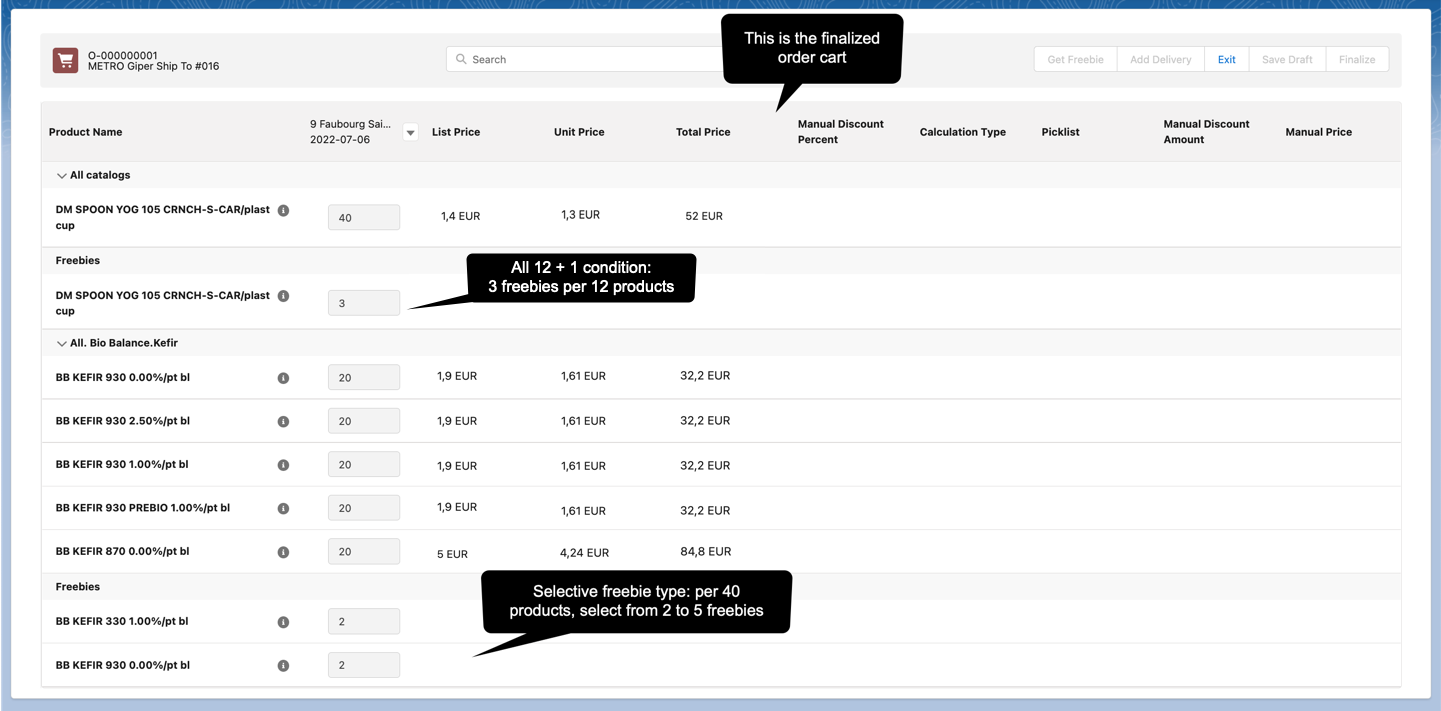
Click the Finalize button. All used Quota records will be updated.
-
Quotas for a Product
-
Quotas for Promotion
-
Quotas for Freebies
.png)
.png)
.png)
Finalize the First Order
Open the first order and click Finalize.
-
The validation message to recalculate freebies appeared.
-
The validation message in the header of the order cart says that the quota is exceeded.
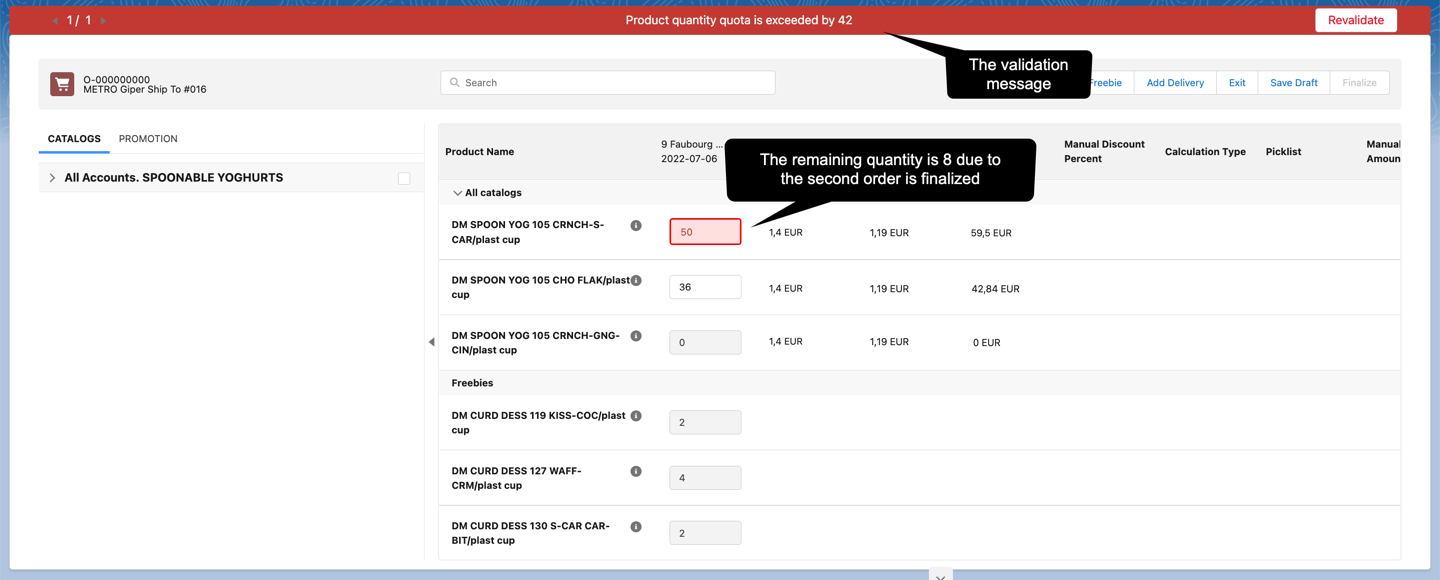
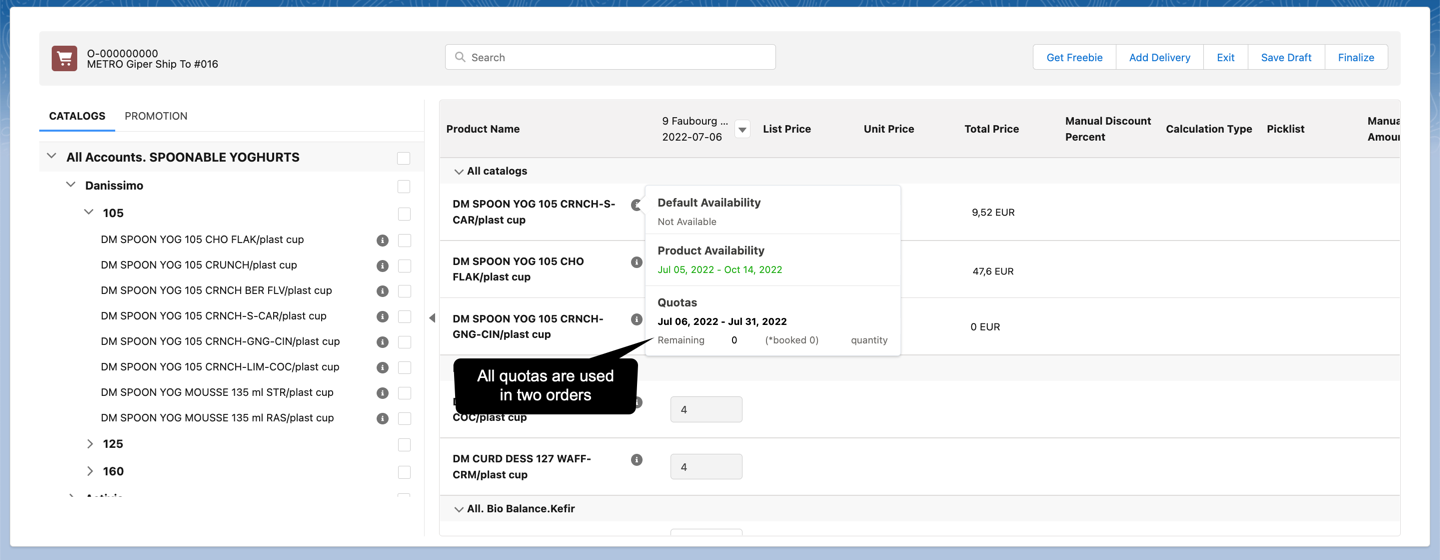
Update the product quantity to match the quota usage.
-
Quotas for a Product
-
Quotas for Promotion
-
Quotas for Freebies
Add 8 products to fully use up the quota.
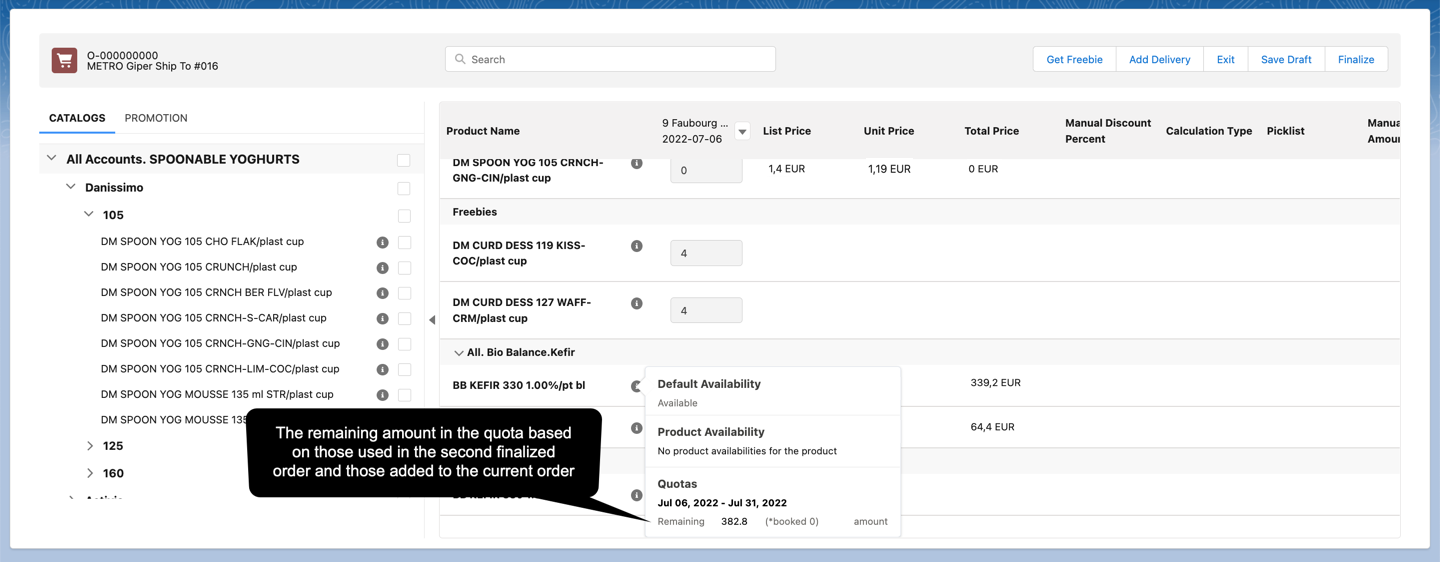
Add 20 items of 2 different promo products to leave part of the quota unused.
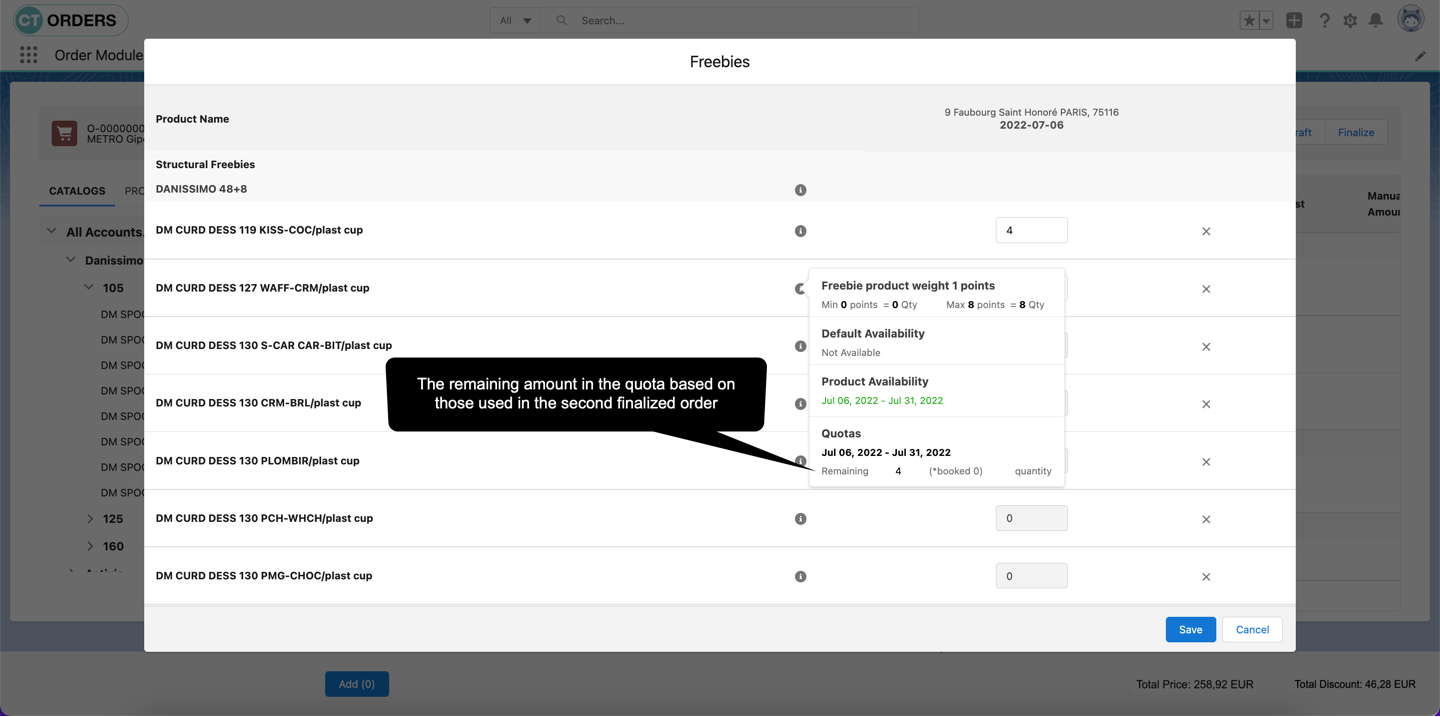
Open the Freebies window and click the info icon next to the product with quotas—the remaining quota quantity is displayed.
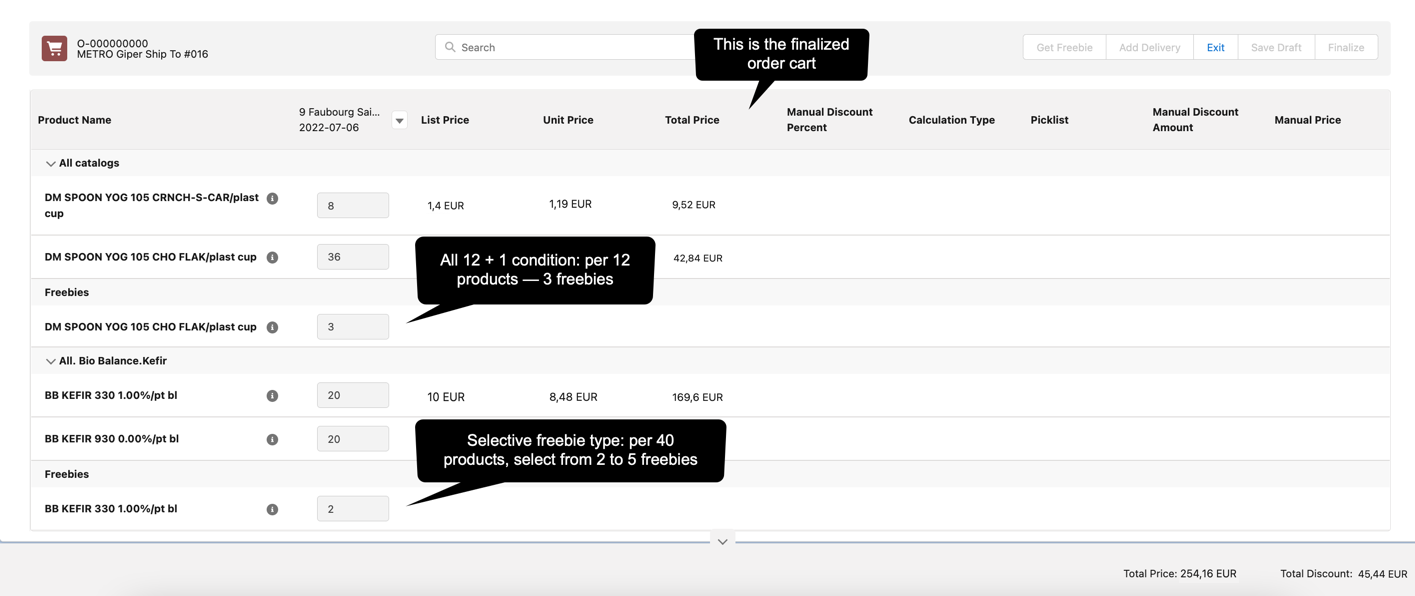
Click the Finalize button. All used Quota records will be updated.
-
Finalized Order Cart
-
Quotas for a Product
-
Quotas for Promotion
-
Quotas for Freebies
-2.png)
-2.png)
-2.png)