Workshop 3.0 Checkpoint
To make sure you have correctly configured the freebies distribution, let’s create an order with the appropriate conditions.
Create a Basic Order
When all settings are done, let’s create a new order to apply the configured discounts:
-
Go to the CT Orders tab and click New.
-
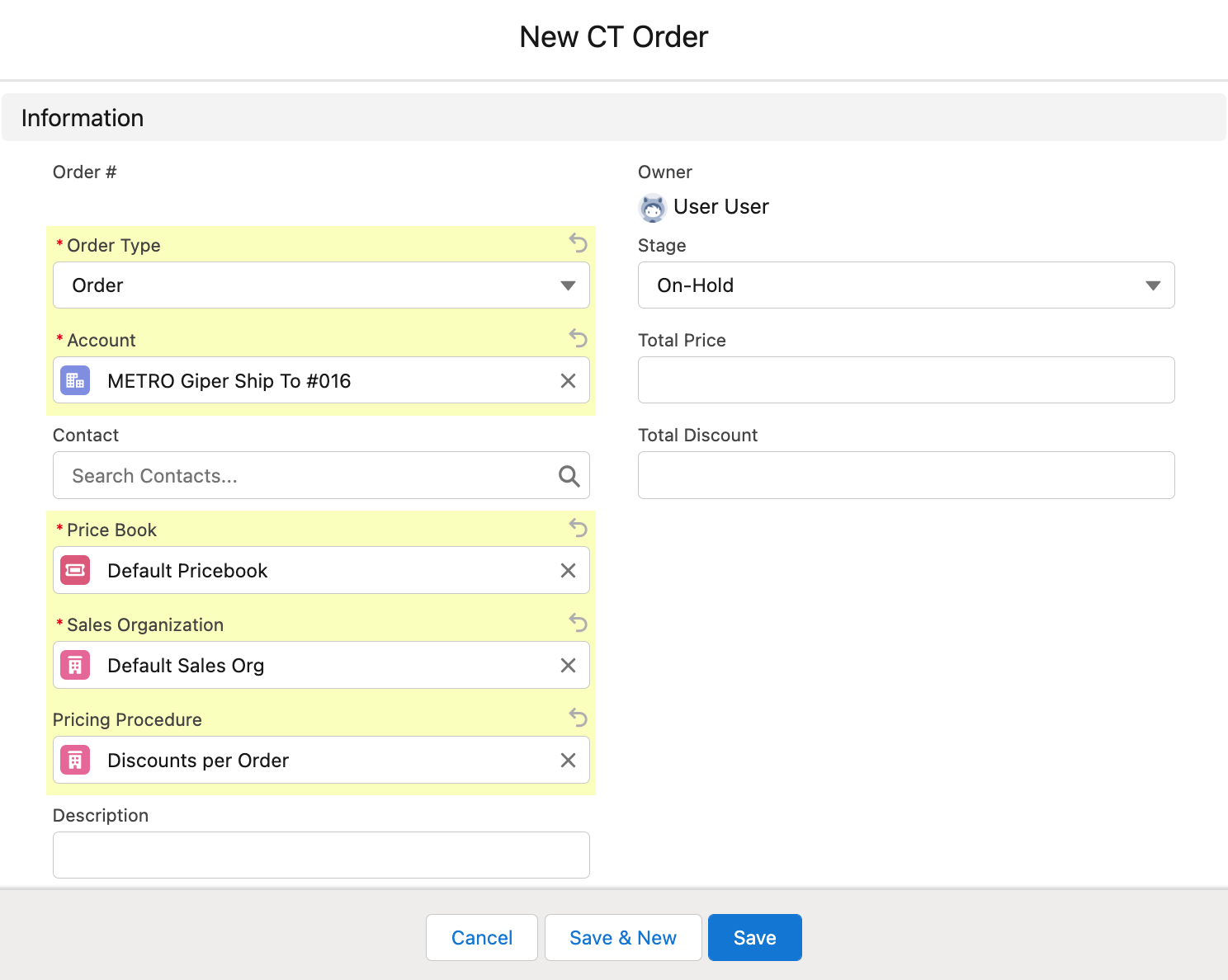
Specify the following:
-
Order Type: Order.
-
Select Account.
The Order Allowed checkbox must be selected on the Account details page. -
Price Book: select a price book that you have created earlier.
-
Sales Organization: Default Sales Org.
-
Pricing Procedure: select one of the created pricing procedures, for example, Total Discount (%) per Order.
-
Order Stage: On-Hold.
-
-
Click Save.
The new CT Order is created. On the created CT Order page, click the Edit Cart button.
Apply the Prioritized Freebie Type
To apply conditions from the prioritized Freebie Type record:
-
On the left side, expand one or more catalogs, select catalog(s), sub catalog(s), or product(s), and click Add to add them to the order cart.
-
Create the first delivery in the Delivery window and click OK.
-
Click the Add Delivery button and add two more deliveries in turn.
-
Set the quantity for products:
-
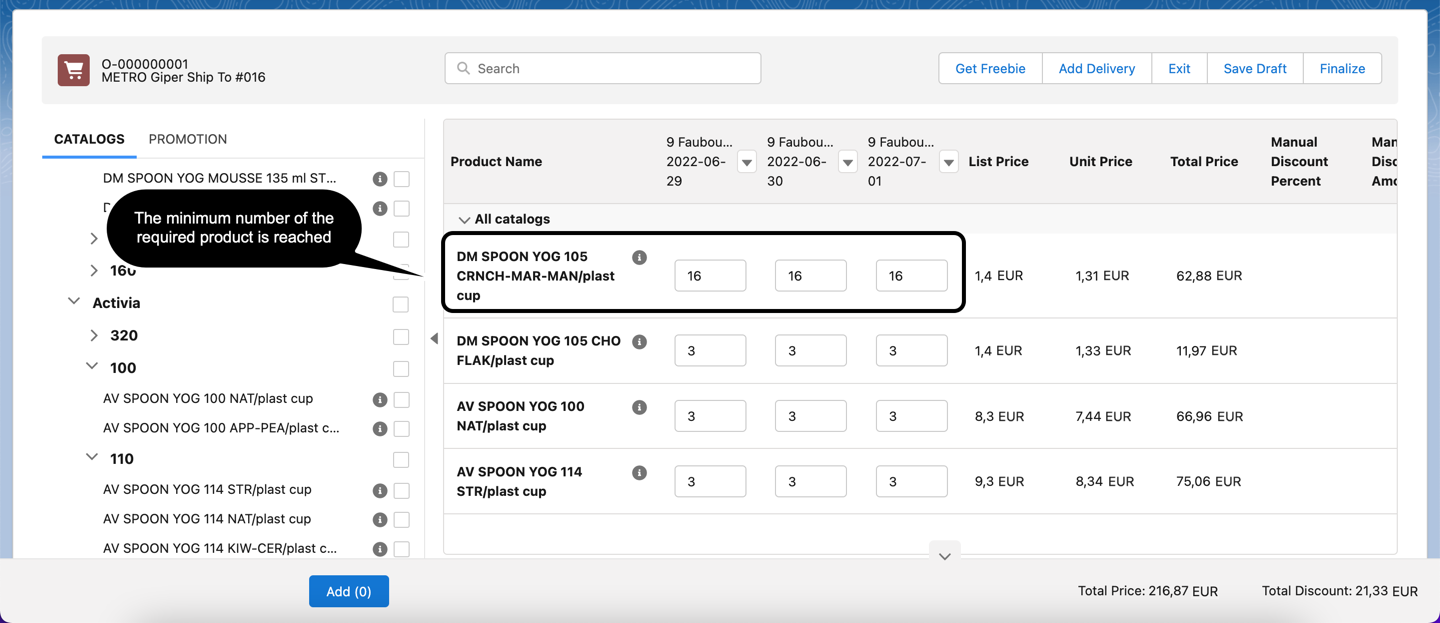
The first condition: Certain Brand 48 + 8
-
The second condition: All Brands 12 + 1
If you add 48 products of a certain brand, then the first condition will be applied over the second condition.
If you add 10, 12, or up to 48 products to the order cart, then the second condition will be applied.
This condition will be triggered for every product in the cart in quantities of 10 to 48 because the condition states that wemare giving the same product as a freebie. 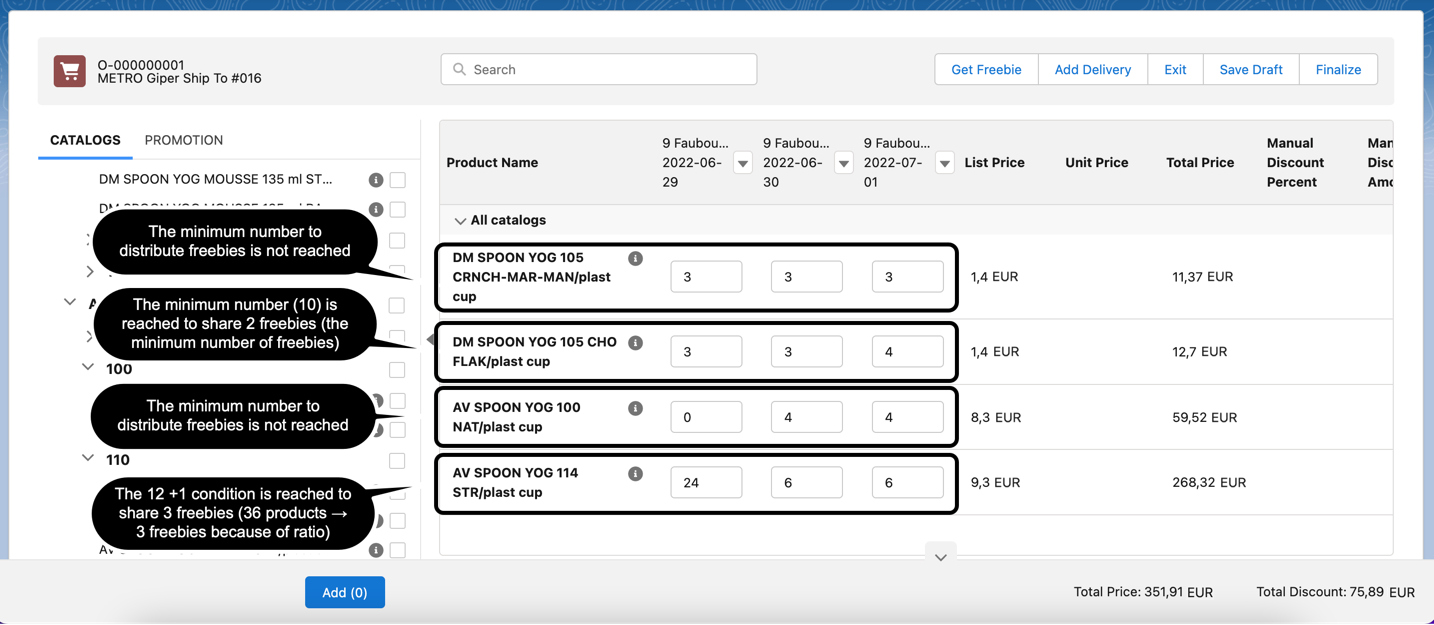
-
-
Click the Get Freebie button to open a Freebie window.
-
Wait a minute while the system calculates the distributed freebies.
-
If you click the Save button and then change the number of products in the order cart, when you open the Freebie window again, it will be redrawn according to the changes you made.
-
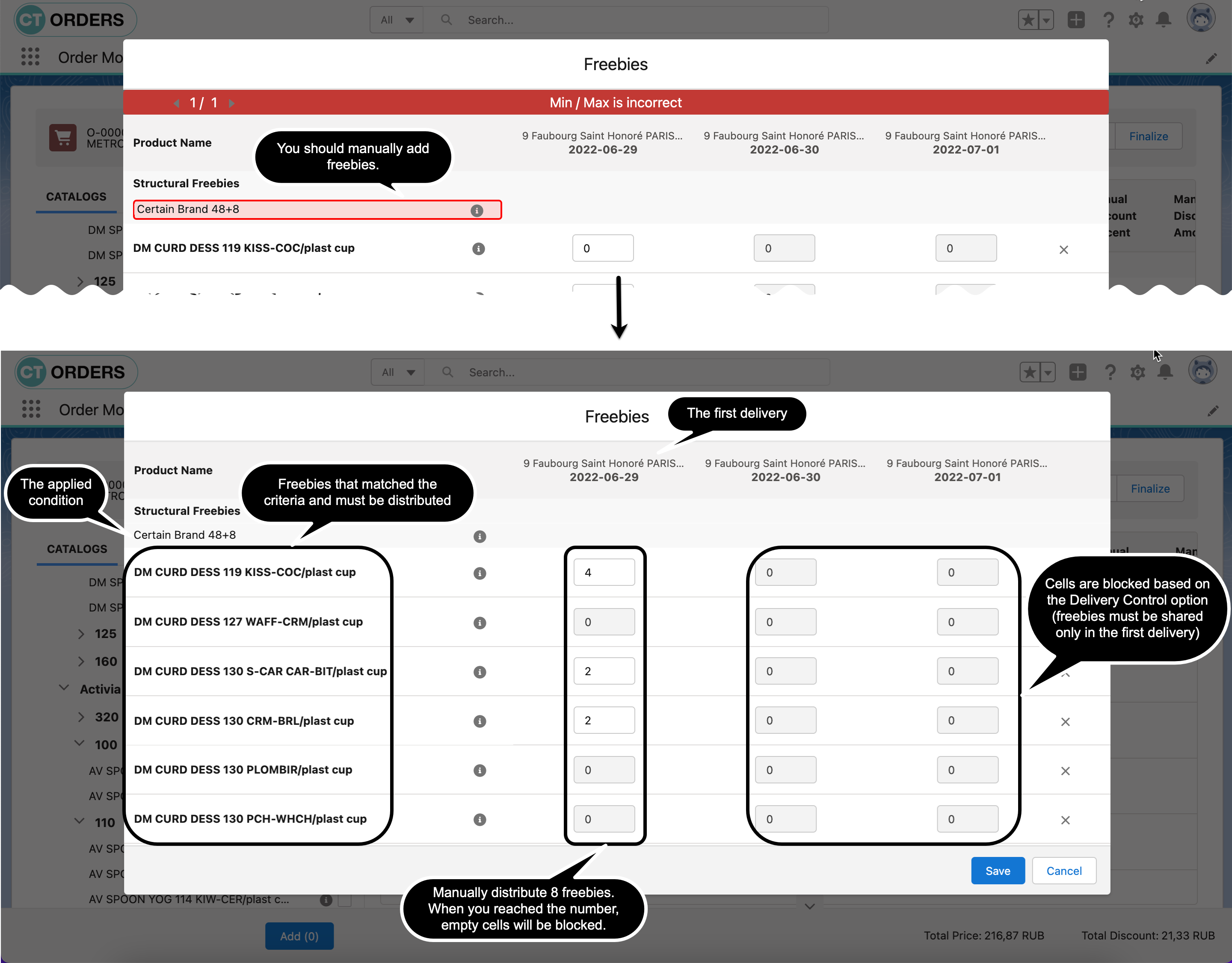
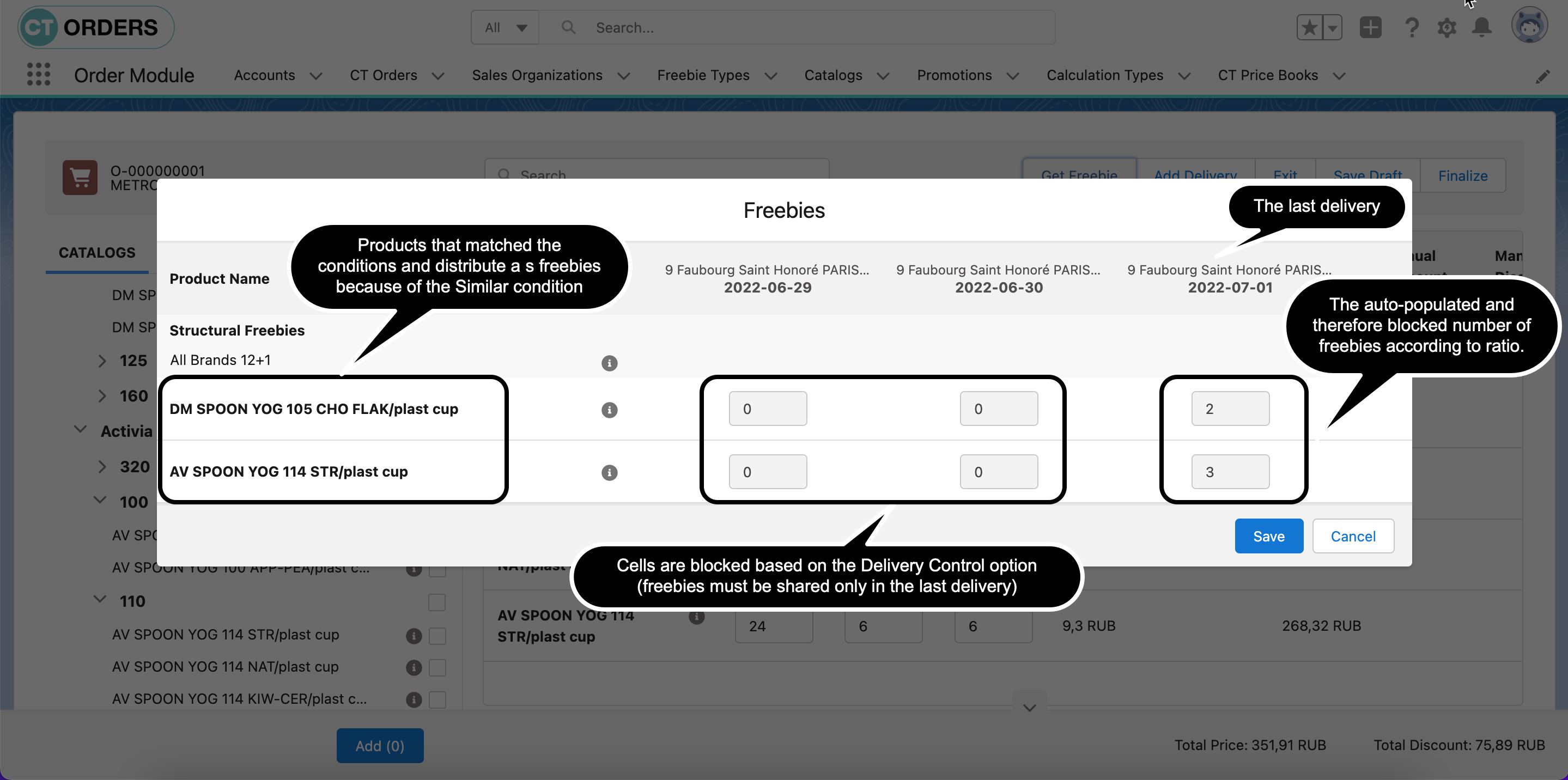
If only one combination of the number of freebies per product fits the changed conditions, the number of freebies will be automatically filled in, and all cells, including empty ones, will be blocked.
-
If several freebies fit the new conditions, you should manually allocate the number of freebies.
-
If the Delivery Control option is set, the cells of unavailable deliveries to distribute freebies will be blocked.
-
Click the
 icon to review the min and max possible quantity of freebies. The info on a header displays the overall quantity of freebies allowed by the condition, while the info for a particular product displays the possible min/max quantity of this product for the order.
-
The first condition: Certain Brand 48 + 8
-
The second condition: All Brands 12 + 1
If the condition is met, distribute 8 freebies because there are the same minimum and the same maximum number of freebies for one order.
-
If only one freebie matched the Criteria Based condition, the 8 number of the appropriate freebie will be automatically auto-populated.
-
If several freebies matched the Criteria Based condition, you should manually share 8 freebies. You will see the warning that the required number has not yet been reached.
If the condition is met, the number of freebies will be auto-populated, and all cells will be blocked.
-
-
-
-
Click Save.
-
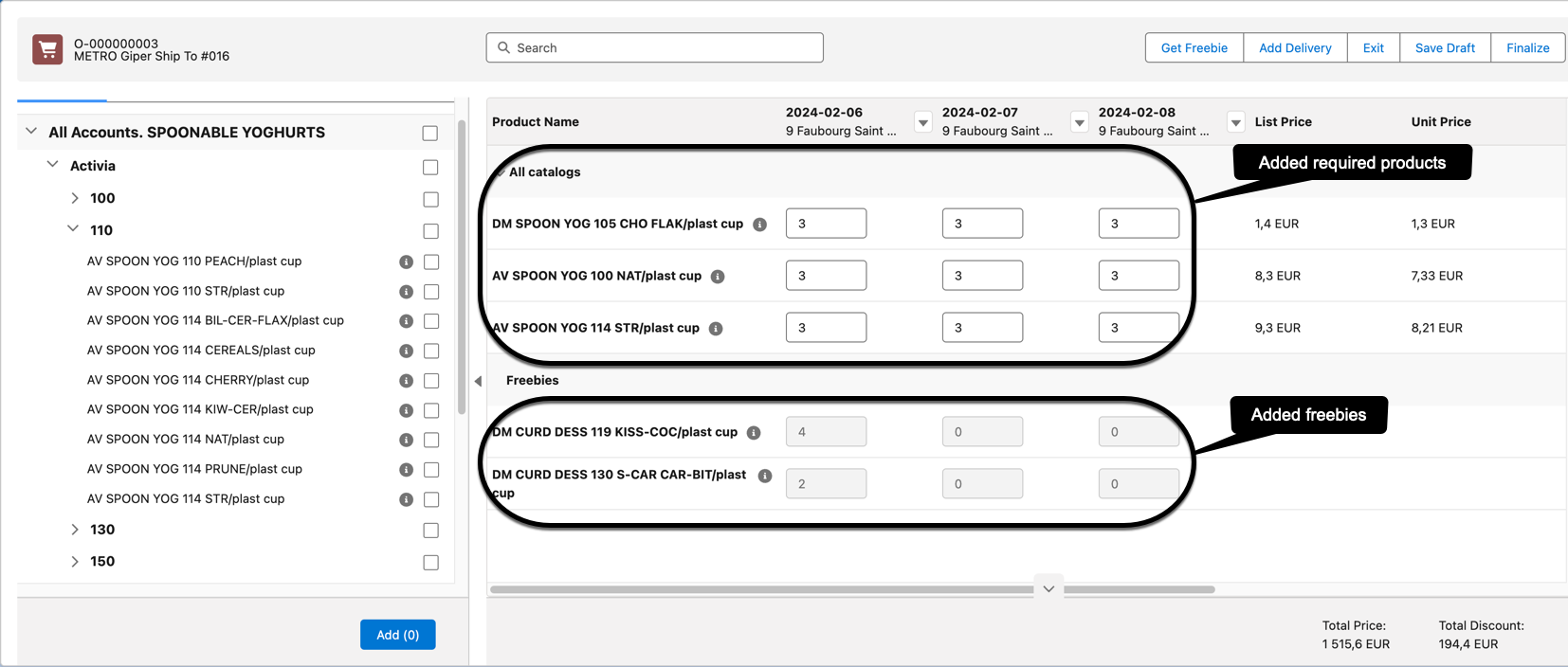
The added freebies will be shown in the order cart.
-
Scroll to view all added products and freebies.
-
-
Click Save Draft.
The order is created and freebies are distributed.
Apply the Selective Freebie type
To apply conditions from the selective Freebie Type record:
-
On the left side, go to the Promotion tab, select a promotion(s) or promotion product(s), and click Add to add them to the order cart.
-
Create the first delivery in the Delivery window and click OK.
-
Click the Add Delivery button and add two more deliveries in turn.
-
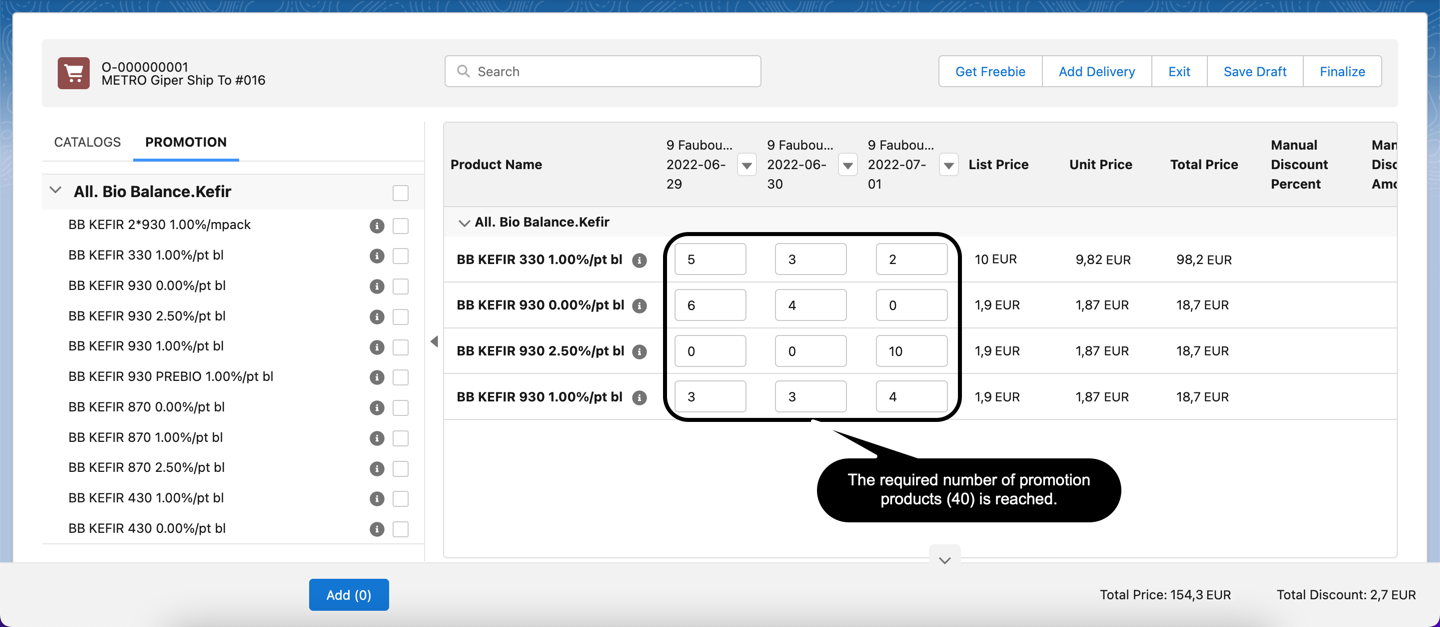
Set the quantity for added promotion products. According to the condition, you may either specify 40 and higher number of the same promotion product or different ones. If so, you can distribute freebies.
-
Click the Get Freebie button to open a Freebie window.
-
Wait a minute while the system calculates the distributed freebies.
If the condition is met, you should manually distribute the desired number (4 to 8) of specified freebies–Freebie Line Items. You will see the warning that the required number has not yet been reached.
-
Click the
icon to review the min and max possible quantity of freebies. The info on a header displays the overall quantity of freebies allowed by the condition, while the info for a particular product displays the possible min/max quantity of this product for the order.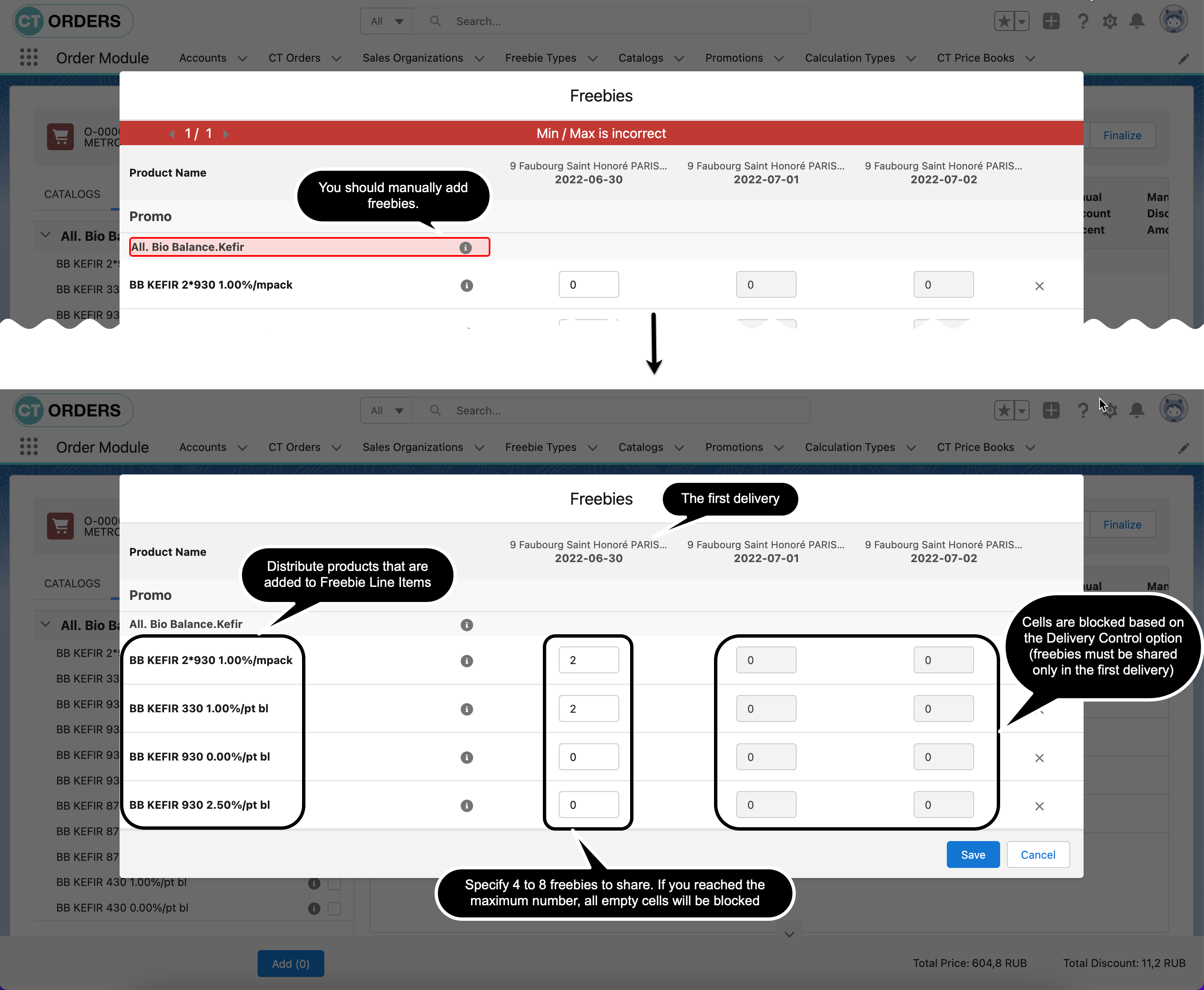
-
-
Click Save.
-
The added freebies will be shown in the order cart.
-
Scroll to view all added promotion products and freebies.
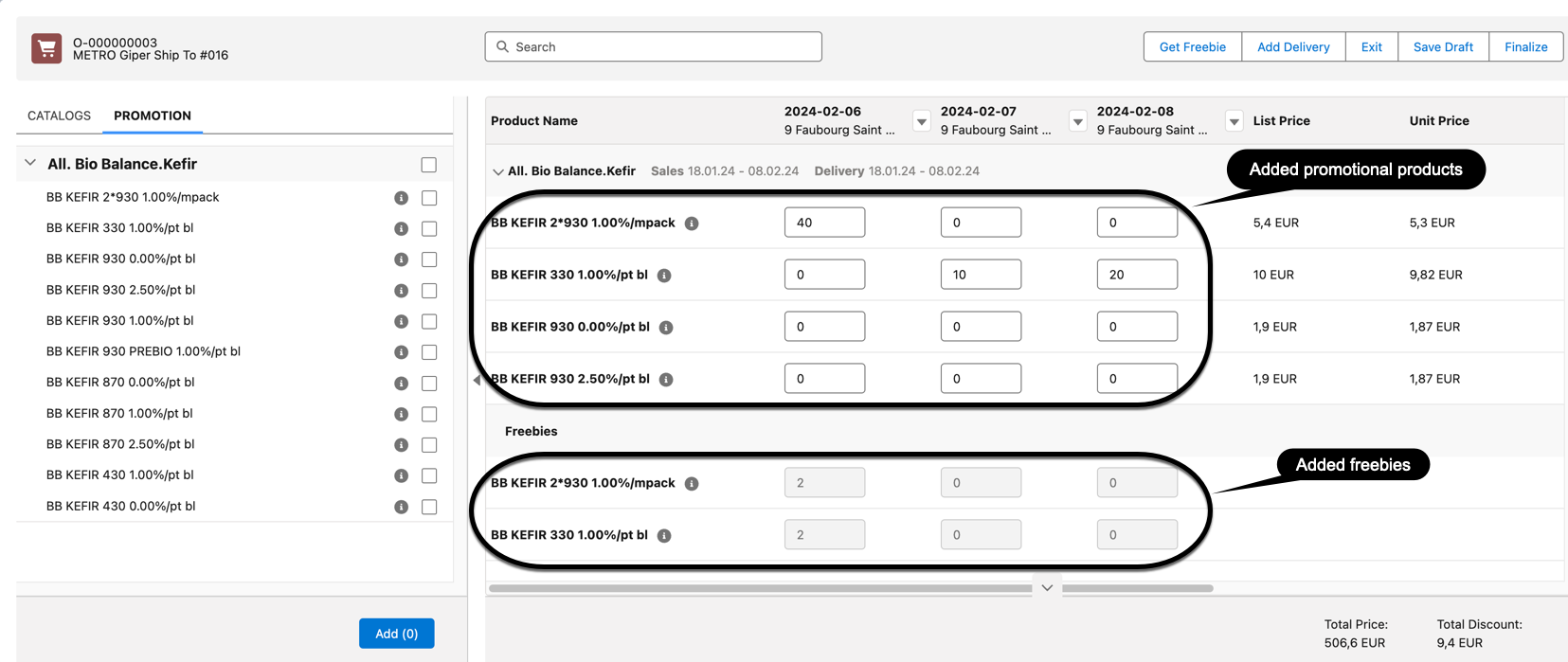
-
-
Click Save Draft.
The order is created and freebies are distributed.
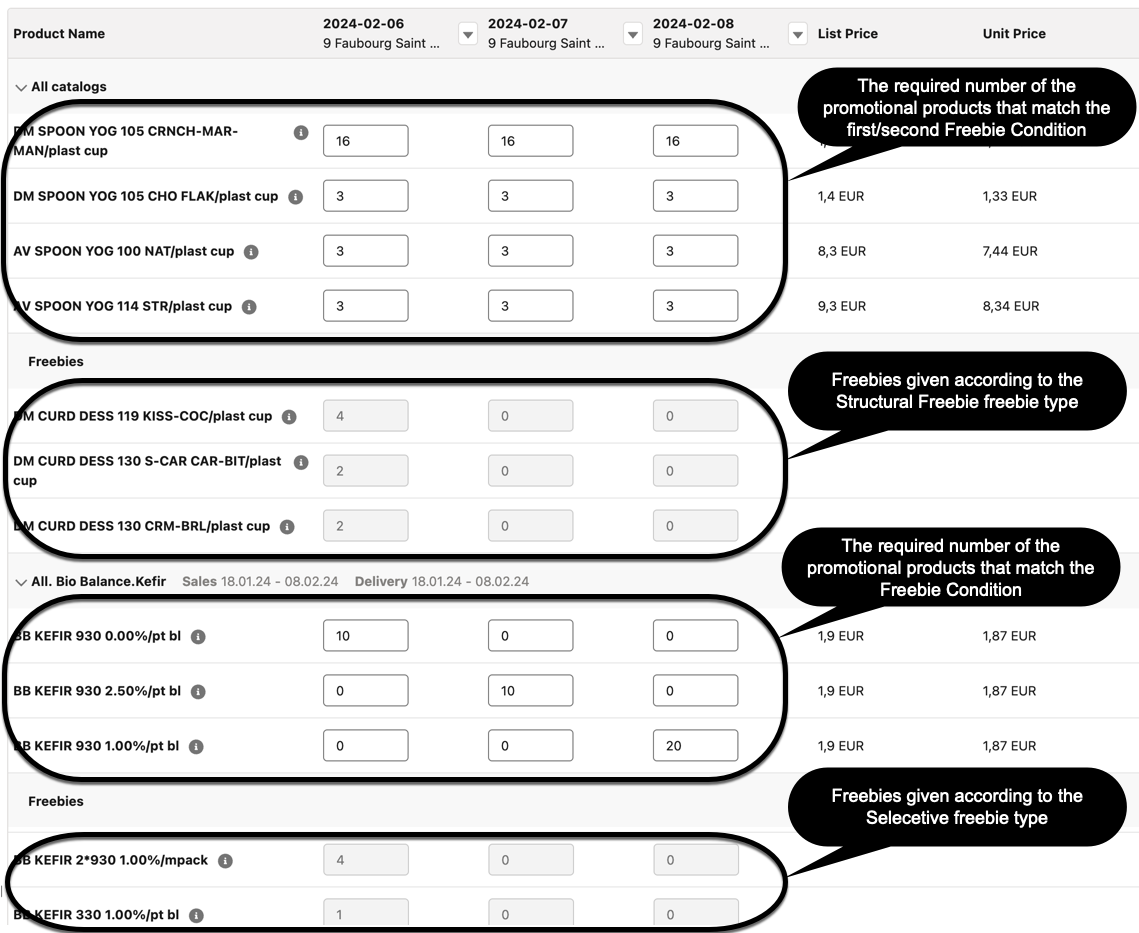
Apply Both Freebie Types
In this workshop, If you add catalogs and promotions to your rider cart, then you can specify freebies both for catalogs (Structural Freebies) and promotions (Selective). In the final order cart, freebies will be shown separately for products from catalogs and for promotions going right after each section.