Quotas
Quotas allow managers to regulate the sale by restricting sales reps from adding products to offline and online orders if a customer has a limited number of products available on the required delivery dates. Use quotas alone or in conjunction with product availability and limit rules.
Overview
| To learn more about the object model, refer to CT Order Data Model. |
Managers distribute quotas for regular paid products or freebies to sales reps. Managers can also limit products per quota and allocate them either by quantity or total amount in a single delivery.
Sales representatives determine how to allocate the quota allotted to them to one or more customers and, if necessary, reserve part of the quota or the entire quota for an order. Also, they can track quotas in the product info icons.
|
Use quota in the following cases:
-
Allocate products to points of sale for specific days. For example, deliver POS materials to promote products in several retail stores or the desired regions.
-
Launch sales of new products. For example, deliver a stand with new products for a single promotion.
-
Promote products of the desired brand for a selected client segment. For example, allocate the amount among sales representatives and (or) by the area to promote such products.
-
Return products that are not on sale to free up shelf space. For example, create a return order with a promotion that lists products for a commercial return. In this case, the amount of recalled products will be deducted from the quota assigned to the sales rep.
Quota Types
There are two quota types:
-
Quota with the Template type.
This type can be reused and helps admins save space in the Salesforce organization. If a quota template fits conditions, then based on it, an individual quota is created and linked through the Quota Usage record to the corresponding Order.
-
Quota with the Individual type.
This type can be automatically created based on a template or created by sales managers.
Working with quotas depends on the related order stage:
-
A quota is Booked if the related order is not Finalized or Completed.
A sales rep can allocate the whole quantity or amount of products according to the quota.
-
A quota is Used if the related order is not On Hold.
A sales rep can distribute only the remaining quantity or amount according to the quota.
Important notes:
-
The following fields on the Quota Template record cannot be changed if at least one individual quota is created based on the template:
-
orders__OrderType__c
-
orders__AccountId__с / RetailStore
-
ProductId__c / orders__Product2Id__c
-
orders__SalesOrganizationId__c
-
orders__ProductType__с
-
orders__StartDate__с
-
orders__EndDate__с
-
orders__PromotionId__с
-
orders__CatalogId__с
-
orders__UnitOfMeasure__с
-
orders__AmountField__c
-
RecordType
-
-
Also, these fields on the Quota record cannot be changed if it has at least one child Quota Usage record.
-
Values in these fields (except for RecordType) on the Quota record that is created based on the template must match values in the same fields on this template.
Quota Search
There are two steps to find the suitable quota for a specific product:
| In case of integration with CG Cloud solution, records will be searched by retail store instead of account. |
-
Search all individual quotas and quota templates assigned to the current sales rep. If a suitable quota template is found, an individual quota record will be created based on it.
-
An individual quota has a priority over a quota template.
-
Quote templates and individual quotas are created for a specific product, and the same Quota record cannot be used both for catalog and promotion.
Search is performed by Quota fields in the following order:
-
orders__SalesOrganization__c
-
orders__OrderType__c
-
orders__AccountId__c or RetailStoreId__c
-
orders__PromotionId__с
-
ProductId__c
-
orders__CatalogId__с
-
-
Search suitable Delivery Line Item records for quotas found in the first step in the following hierarchy:
-
orders__PromotionId__с, orders__ProductId__c, orders__ProductType__с, orders__OrderType__c, orders__AccountId__c or RetailStoreId__c
-
orders__PromotionId__с, orders__ProductId__c, orders__ProductType__с,orders__OrderType__c
-
orders__PromotionId__с, orders__ProductType__с, orders__OrderType__c, orders__AccountId__c or RetailStoreId__c
-
orders__PromotionId__с, orders__ProductType__с, orders__OrderType__c
-
orders__CatalogId__с, orders__ProductId__c, orders__ProductType__с, orders__OrderType__c, orders__AccountId__c or RetailStoreId__c
-
orders__CatalogId__с, orders__ProductId__c, orders__ProductType__с, orders__OrderType__c
-
orders__CatalogId__с, orders__ProductType__с, orders__OrderType__c, orders__AccountId__c or RetailStoreId__c
-
orders__CatalogId__с, orders__ProductType__с, orders__OrderType__c
-
orders__ProductId__c, orders__ProductType__с, orders__OrderType__c, orders__AccountId__c or RetailStoreId__c
-
orders__ProductId__c, orders__ProductType__с, orders__OrderType__c
-
orders__ProductType__с, orders__OrderType__c, orders__AccountId__c or RetailStoreId__c
-
orders__ProductType__с, orders__OrderType__c
-
Using Quotas
Add quotas for online orders in Salesforce and offline orders in the CT Mobile app. We do not recommend using quotas in the same online and offline orders simultaneously, as this can result in duplicate quota records, and any of them can be applied.
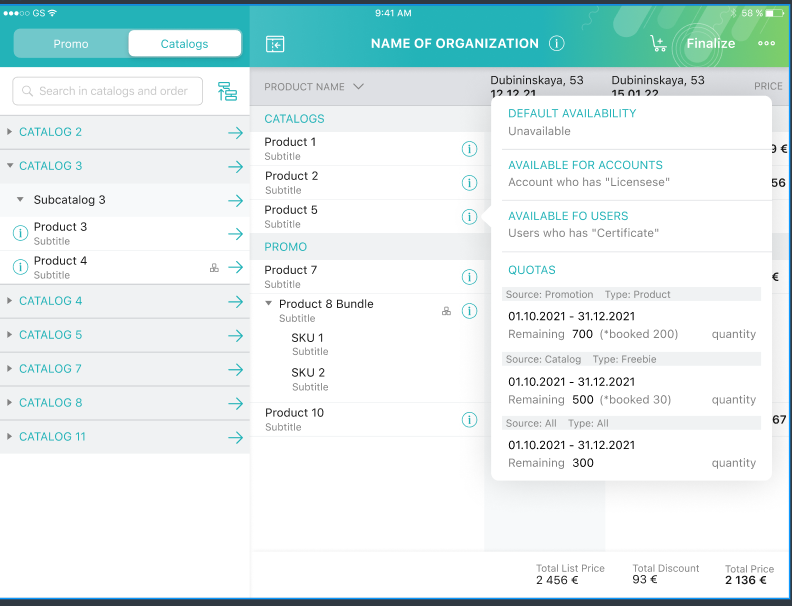
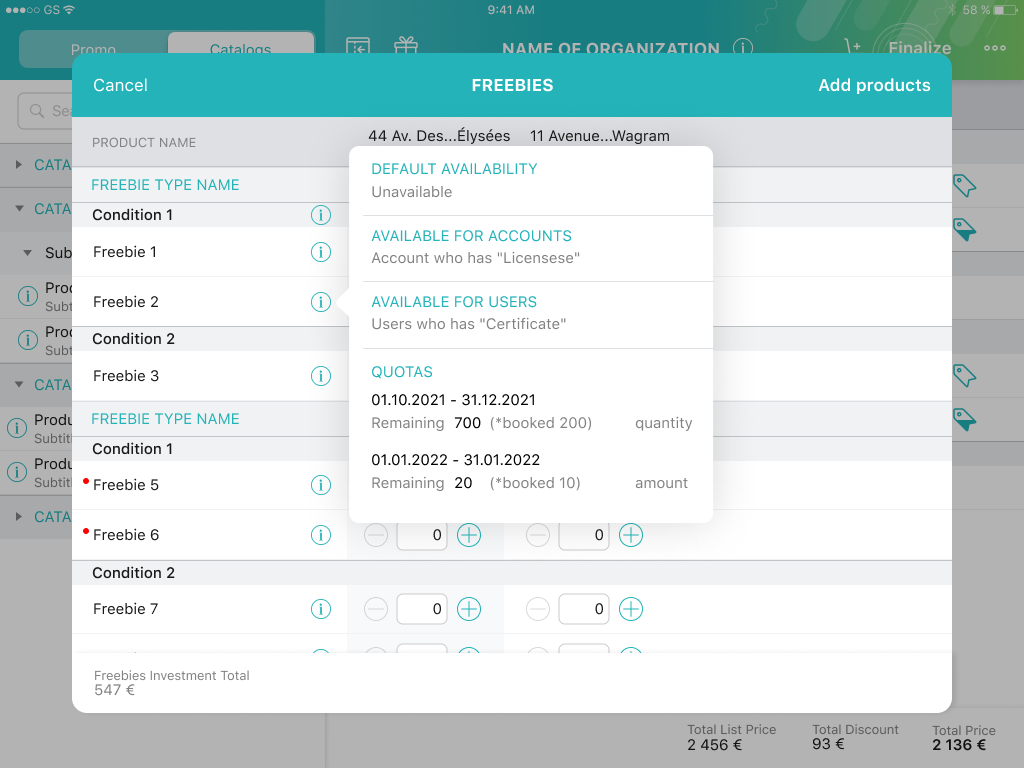
The sales reps can keep track of the quota usage (as well as product availability) with the help of info icons. Product quota information is available in catalogs and promos on the left side and for products added to the cart, including freebies.
| Info icons are displayed by default, even if no quota or product availability is configured. In addition, administrators can configure informational icons using the SDK. |
-
If there is no delivery in orders, in the catalogs and promotions on the left side, the product info icon displays a quota that matches today.
-
If the sales rep has already created deliveries, the product info icon displays all booked and used quotas in orders both on the left side and the cart or freebie window.
Quotas are searched when a sales rep adds a product, specifies its quantity, and creates delivery dates. If successful, a Quota Usage record is created.
The Quota Usage record relates the suitable quota to the order and stores information about the quantity or amount of booked or used products. If a sales rep updates or removes a product from the delivery, the appropriate Quota Usage record will also be updated or deleted.
-
In CT Mobile, quotas and Quota Usage records will automatically recalculate when products and deliveries are added or removed.
-
In Salesforce, click Recalculate to calculate the number of remaining products or their quota values.
When a sales rep saves the order, the system validates the product cart, and in case of any errors, notifies the sales rep. The order will only be finalized once any errors have been resolved, and a mobile user cannot add new quotas or edit Quantity, Amount, and Status on the corresponding Quota Usage records if the Stage is Finalized on the Delivery Line Item in that order.
Look at the info icons with quota and product availability for the products in the cart:
Here is an example of info icons with quota and product availability for freebies:
Checking Quotas on Bundles
Quotas are checked on bundles depending on the value of the Calculate Price On value of the bundle:
-
If Calculate Prices On = Header, quota is checked for the header product and is applied for the whole bundle.
-
If Calculate Prices On = Components, quota is checked for both header and components and validates both header and components of the bundle.
See also: