Delivery Management
Delivery Management is a convenient tool for splitting the product deliveries per date according to the Account strategy and the available time slots.
| If you use customer ERP + Salesforce CRM, you can inherit the delivery settings from ERP. |
CT Order and Delivery Relationship
When tapping the Add Cart button on the selected CT Order, the user can specify preferred delivery dates and the number of deliveries.
-
By default, the user cannot specify more than 19 deliveries. You can reduce the number of deliveries on the appropriate Limit Setting record.
-
The delivery date range can be specified in the appropriate Limit Setting record.
-
If only one delivery address is available, the Add Address field will be filled out. If several addresses are available, select the corresponding one.
-
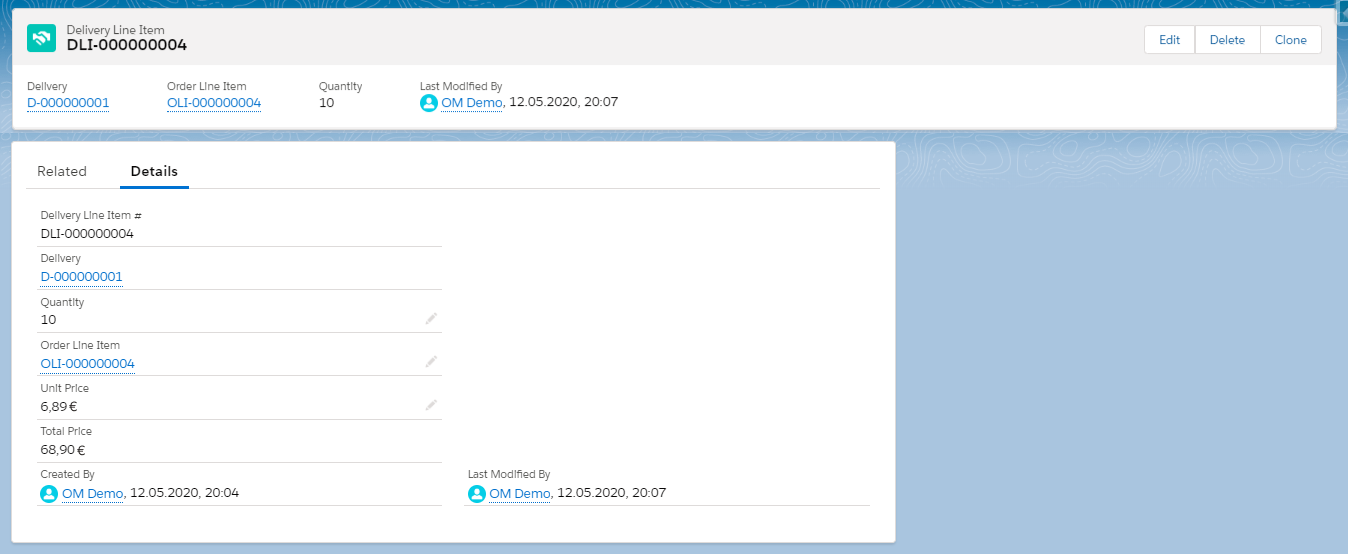
For each delivery, the Delivery record with the date of delivery and the Delivery Line Item record with the quantity of CT Products will be created.
You can add Deliveries to the CT Order layout.
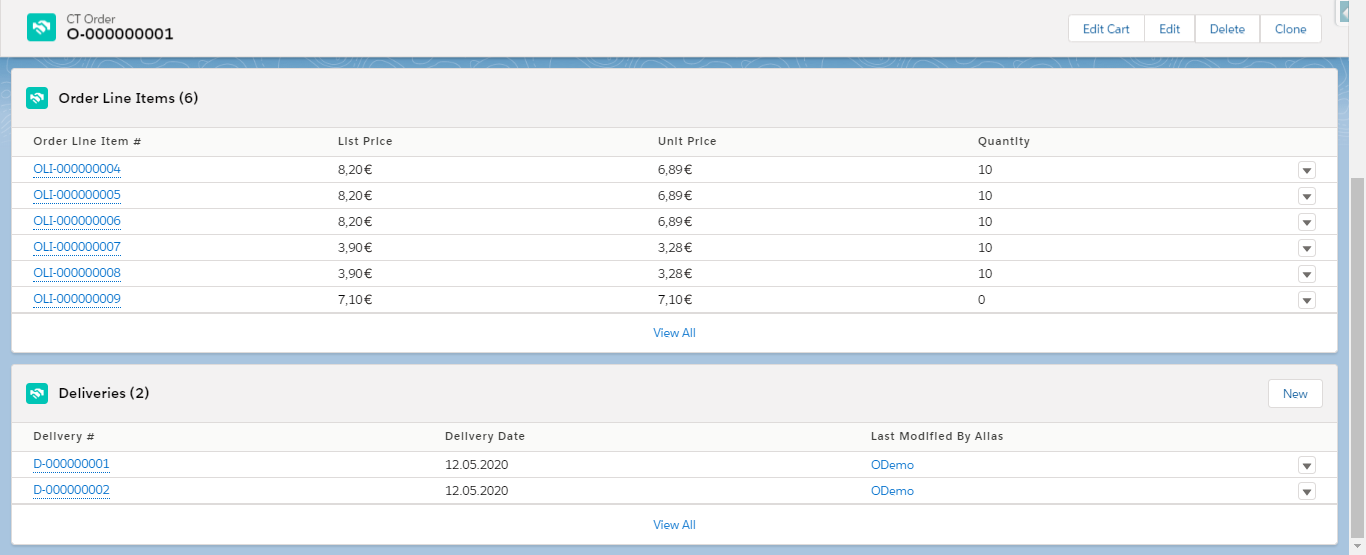
Optionally, specify the Delivery layout if you want to monitor records.
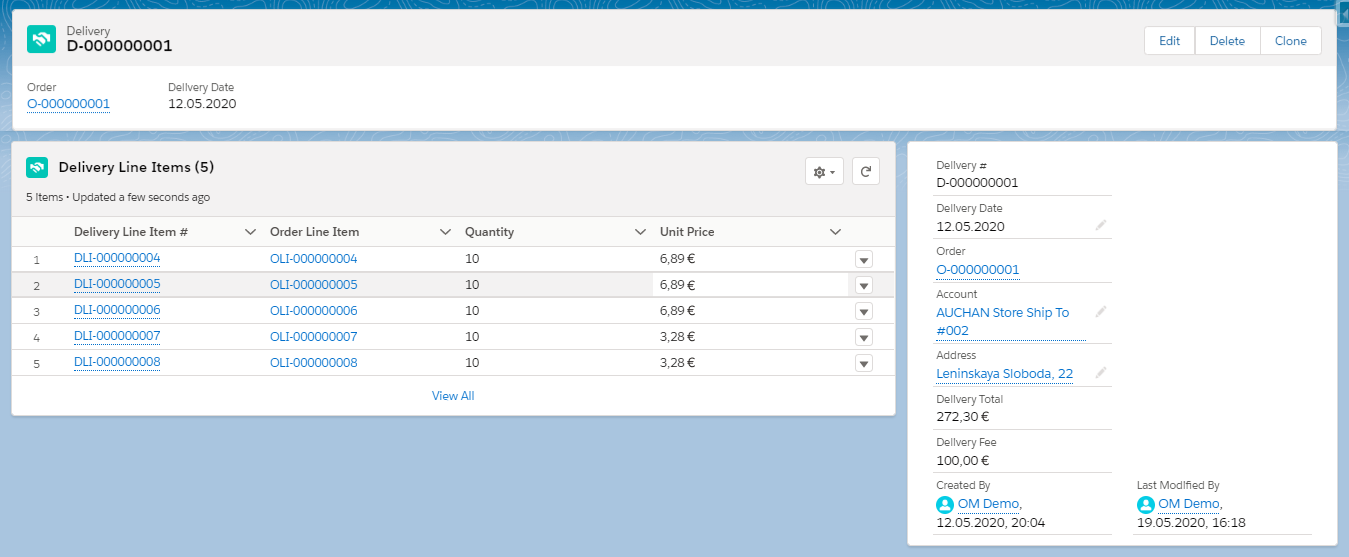
Optionally, specify the Delivery Line Item layout if you want to monitor records.
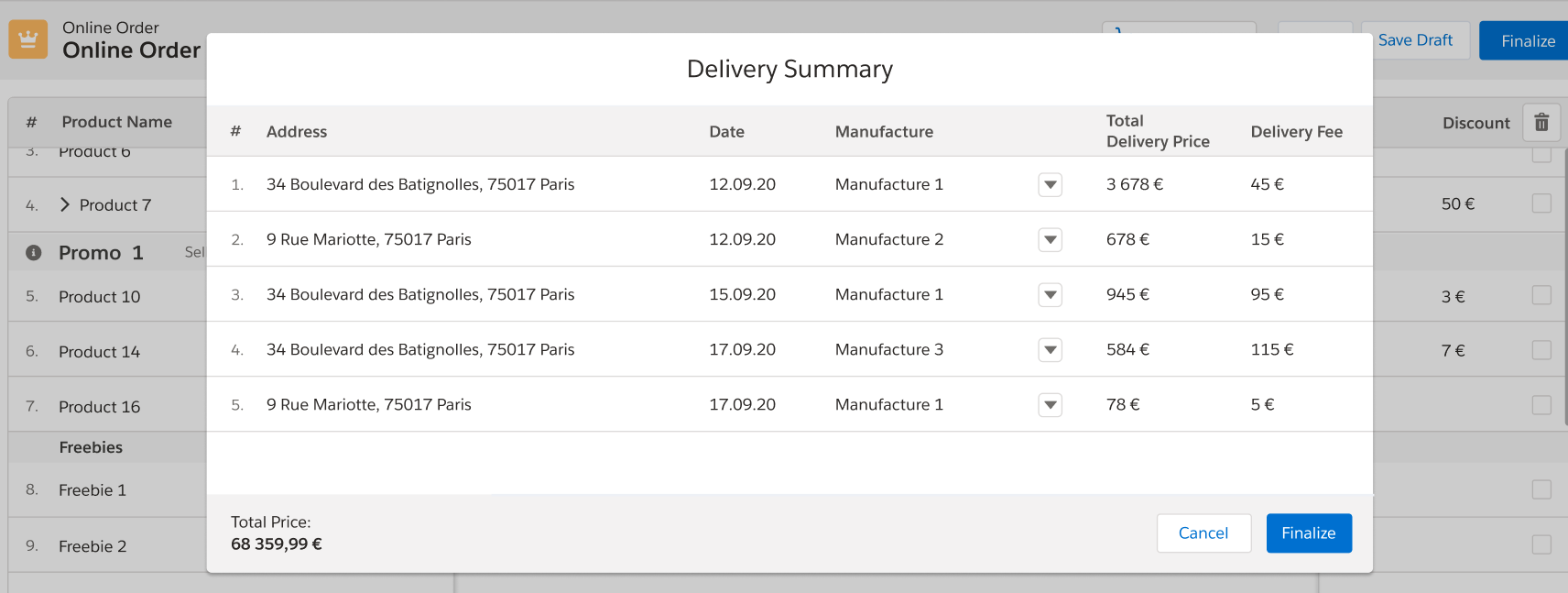
Delivery Summary
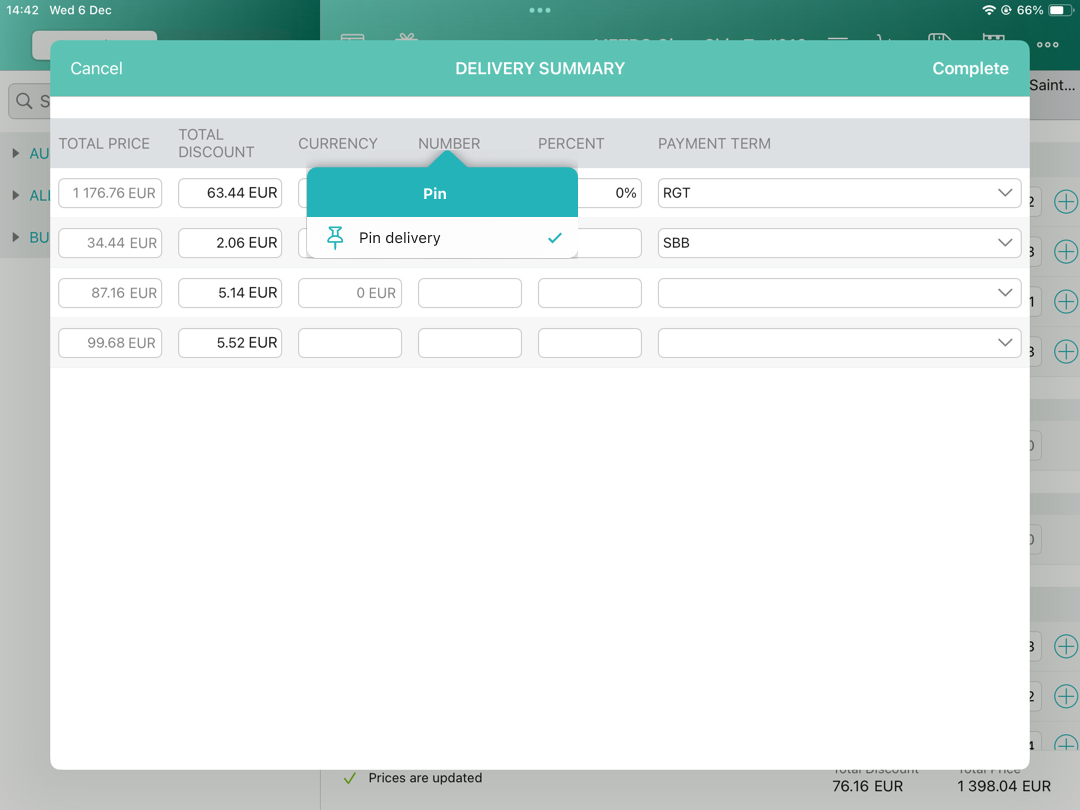
The Delivery Summary pop-up is used to review and edit (if needed) the delivery information. It will be displayed if:
-
The Settings record with the Layout Setting record type is configured and contains at least one field to display.
-
All validations are passed successfully (no errors in order).
-
For Salesforce users
-
For CT Mobile iOS users
| Available for the instances with the enabled Web Service. |
If the Delivery Summary pop-up is configured, the Finalize button on the order screen in Salesforce will not be blocked. Click the Finalize button to open the configured Delivery Summary window.
-
Fields with the Currency, Lookup, or Text data type are available for editing if specified.
-
The fields with the Picklist data type cannot be edited.
-
Click Finalize button in the Delivery Summary popup to finish the order.
-
If changes in the Delivery Summary popup affected quotas and limit rules, clicking the Finalize button in the Delivery Summary pop-up will open the order screen with highlighted errors.
-
If changes in the Delivery Summary popup affected freebies, clicking the Finalize button in the Delivery Summary pop-up will open the order screen with highlighted errors.
-
Tap the  icon to open the configured Delivery Summary window.
-
Fields with the Currency, Number, Percent, or Text data type are available for editing if specified.
-
Tap the
 icon in to get the valid prices. The invalid prices will be highlighted in red color.
 -
Tap any column and then tap Pin delivery to pin it as the first column.
Order Split
The Order Split feature is used for distributing products between multiple deliveries. This allows your company to create deliveries that meet logistic and financial conditions and requirements and make the order taking process more efficient and apparent. The split rules are commonly based on the following conditions:
-
How company delivers products: from different warehouses, different suppliers, different types of products, etc.
-
How company bills customers.
The Split Logic
The Order Split logic affects the following objects:
-
Order
-
Order Line Item
Any field on the Order Line Item or its parent objects that cannot be changed by an external logic, such as formulas, rollup-summary fields, process builder, apex, etc., can be used as criteria for splitting products between deliveries during order taking. -
Delivery
-
Delivery Line Item
To set up Order Split, create a Settings record with the Split Settings record type.
-
When a product is added to order cart, the system defines which deliveries should be created according to the values in the Split Fields and Split Parameters Path fields.
-
The system creates required Deliveries and Delivery Line Items for each Order Line Item record.
-
All child products in a bundle inherit the parent’s split criteria and hence are distributed to their parent’s product delivery.
-
Freebies are split the same way as paid products.
-
-
If you remove a product from order cart, the corresponding Delivery Line Item record will also be deleted. If no Delivery Line Item exists for a delivery, the delivery will be cancelled.
After the order finalization, the actual Delivery Line Item records and deliveries will be updated after changing products and their quantity in the cart.
Process Path
The following steps must be performed by the administrator in order to configure order deliveries:
| A representative should have at least permission to read records and all fields of the Settings object. Users with the manager role can also have permission to edit records. |
-
Add the custom Address object if needed.
A representative should have permission to read the custom Address object. Users with the manager role can also have permission to edit Address records.
-
Create the Settings record with the Object Setting record type for an instance.
-
Create the Settings record with the Address Setting record type.
-
Add the address lookup on the Delivery object. A representative should have permission to create, edit, and delete the Delivery and Delivery Line Item records.
-
Optionally, create and set up the Settings record with the Limit Settings record type for an Order record type.
-
Set up Promotions and promotion delivery dates.
-
A representative should have permission to read the Promotion object. Users with the manager role can also have permission to edit Promotion records.
-
If the delivery dates specified on the Promotion record are out of the delivery dates in the Limit Settings record, the order delivery with the products of this promotion cannot be done.
-
-
Create and set up a Sales Organization.
-
Set up the Order management. A representative should have permission to create, edit, and delete the CT Order and Order Line Item records.
The setup is complete. The representative can create an order and add deliveries.
See also: