Adding a Condition (2.3)
For the newly created Calculation Type record, you will need to specify the conditions to calculate discounts for products in order.
-
On the created Calculation Type page, click New in the Conditions section:
-
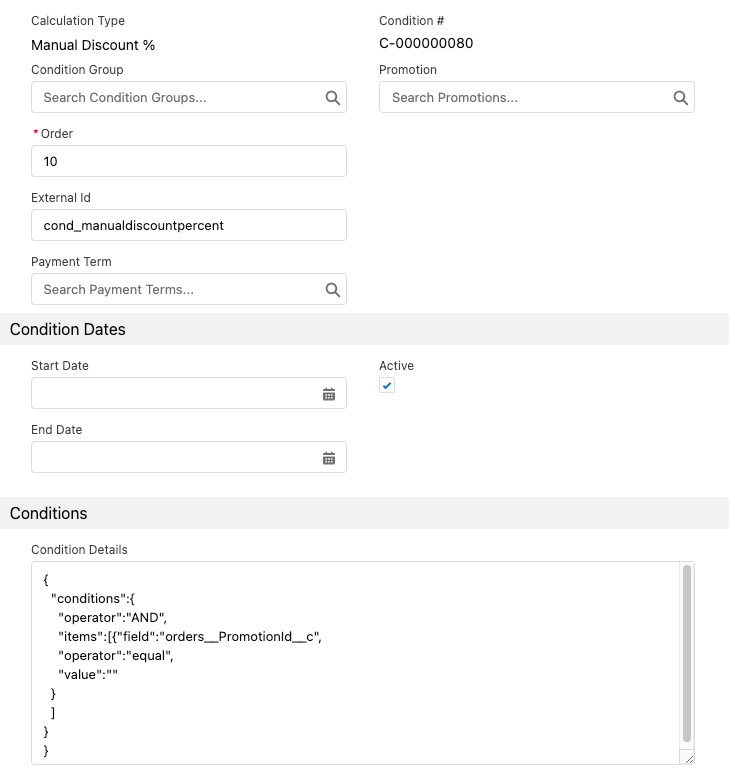
Enter the following:
-
Order: 10.
The field is responsible for the order in which Conditions of Calculation Type are applied. Since we only use one Condition in the workshop, you can specify any value in this field. -
Active: set the checkbox
-
Condition Details: add this JSON, which contains the condition that discount will be applied for the product, which is not a promotional product:
In the field key, you may either specify orders__PromotionId__r.orders__ExternalId__c or orders__PromotionId__c, depending on whether your products have External Id. { "conditions":{ "operator":"AND", "items":[{"field":"orders__PromotionId__c", "operator":"equal", "value":"" } ] } } -
Discount Rate Location: Condition Record.
-
Calculation Method: Basic.
-
Discount Rate Source Field (%): ManualDiscountPercent__c.
-
-
Click Save.
The Condition is created.