How to Configure Totals Panel Setting
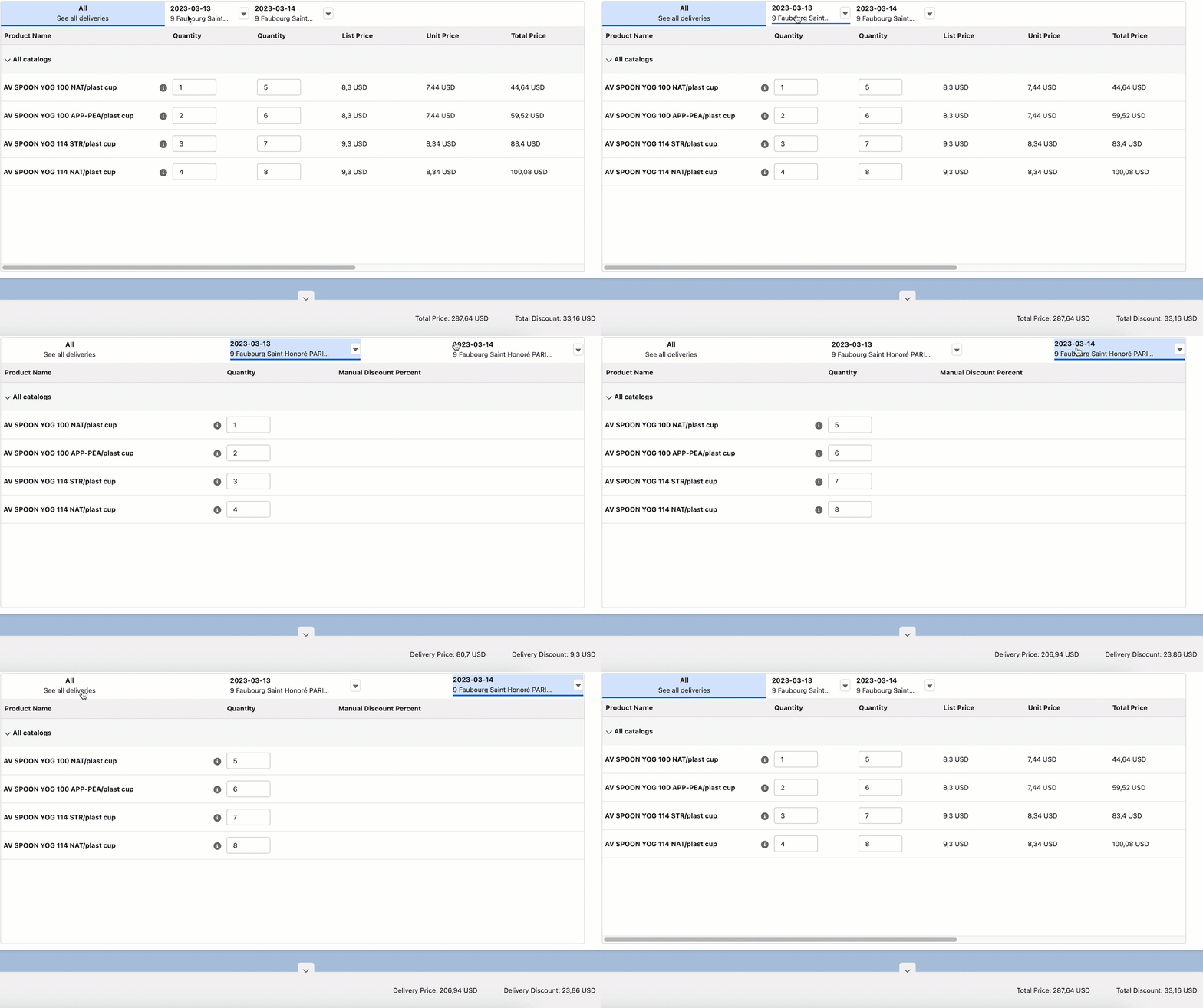
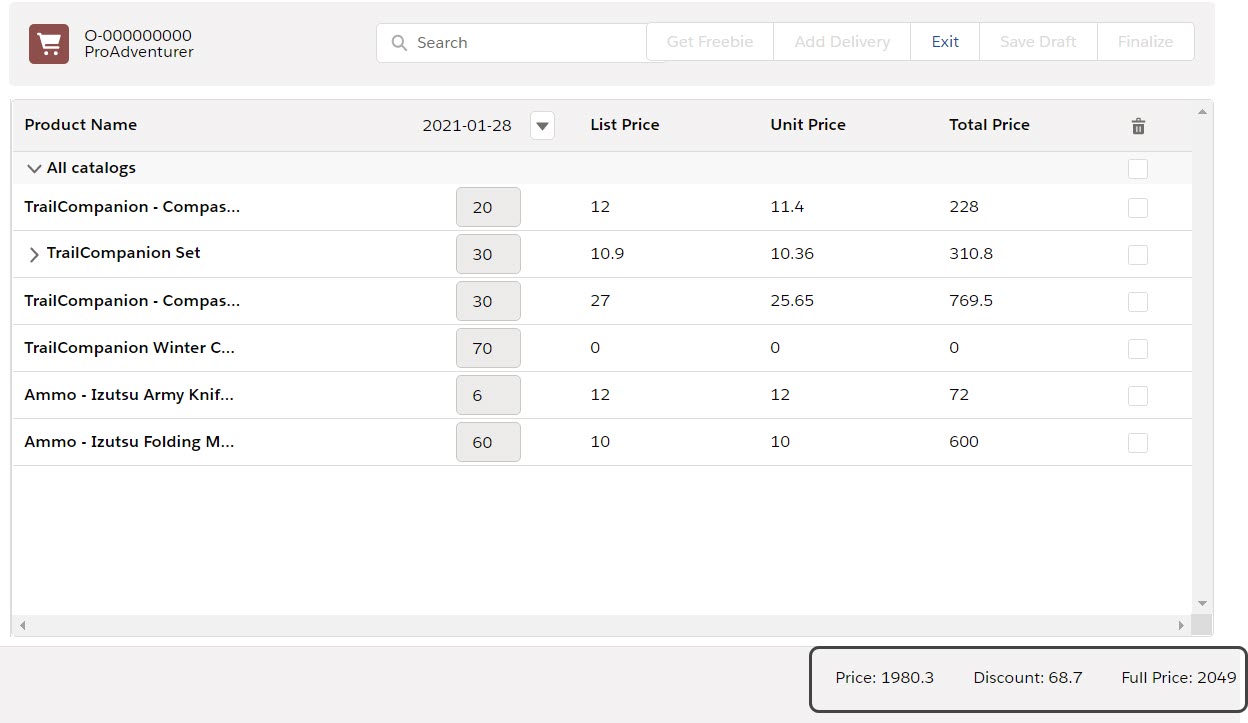
The Totals Panel default displays the Total Price and Total Discount fields. You can adjust the panel using the dedicated setting record type:
-
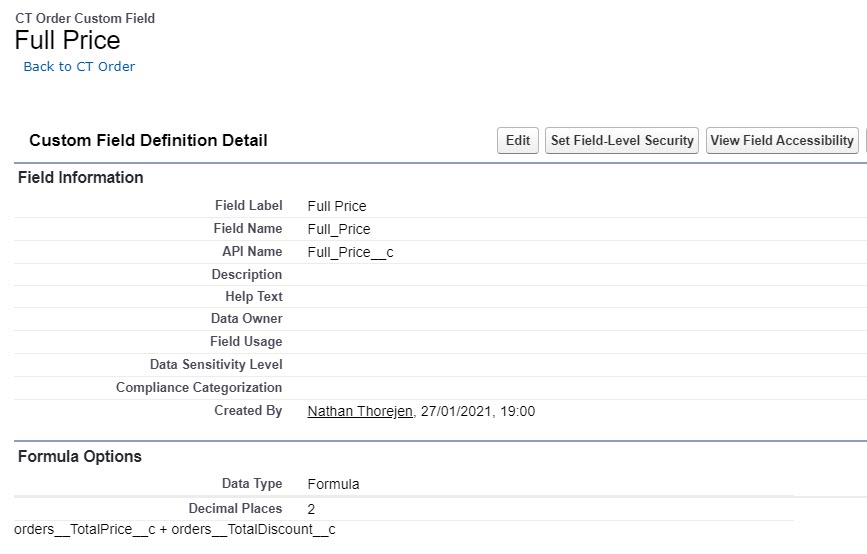
Create a custom field on the CT Order object you want to add to the Totals Panel. For example, let’s create a formula field that will show the total price excluding the discounted amount:
-
Go to Settings and click New.
-
In the New Settings window, select Totals Panel Setting.
-
Configure the setting as follows:
-
Leave the Sales Organization field empty, if you want to apply the setting across all Sales Organizations.
-
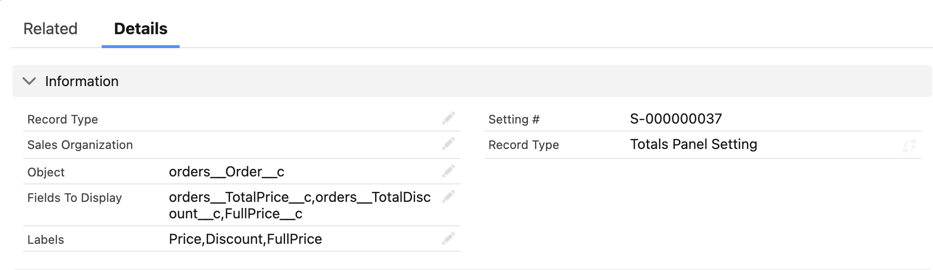
Set orders__Order__c as the Object.
-
Specify Fields To Display: orders__TotalPrice__c,orders__TotalDiscount__c,Full_Price__c.
You need to specify default fields here too if you want to use them as this setting overrides the default layout setting for the panel. The maximum number of displaying fields is 4. -
Specify Labels for each field in the order corresponding to order in the Fields To Display list: Price,Discount,Full Price.
-
-
Click Save.
The Totals Panel is configured.
You can also configure the Totals Panel to display Total Price and Total Discount per each delivery:
-
Create a custom field on the CT Order object you want to add to the Totals Panel. For example, let’s create a formula field that will show the total price excluding the discounted amount:
-
Go to Settings and click New.
-
In the New Settings window, select Totals Panel Setting.
-
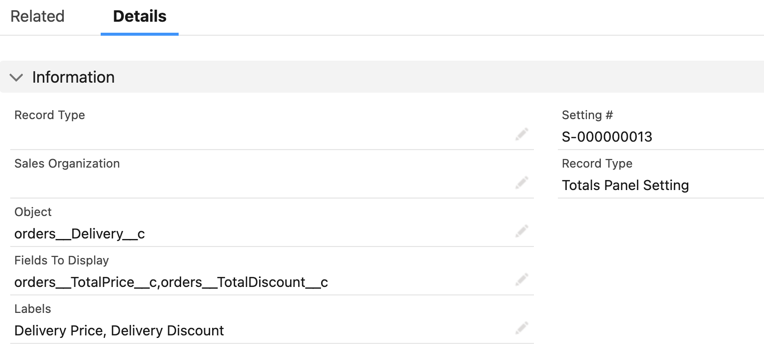
Configure the setting as follows:
-
Leave the Sales Organization field empty, if you want to apply the setting across all Sales Organizations.
-
Object: orders__Delivery__c.
-
Fields To Display: orders__TotalPrice__c,orders__TotalDiscount__c.
-
Labels: Delivery Price, Delivery Discount.
-
-
Click Save.
Now you can click on desired delivery tab to view its price and discount. To view total order price and discount, click the All tab.