Price Tag
The Price Tag functionality provides the user with detailed information about the price, applied and available discounts, and their limits for each product.
-
Price tags are available for online and offline orders.
-
Set up the Settings record with the Layout Setting record type for the Order Line Item object to activate price tags in the order cart.
-
Click the Price Tag icon next to the product in the order cart to display information in the pop-up.
| Default price tag logic is not applied to freebies. Use Price Tag SDK to display additional information for each product added to the cart, including available freebies for the reached discount per product. |
Click on the Price Tag icon to review the info:
-
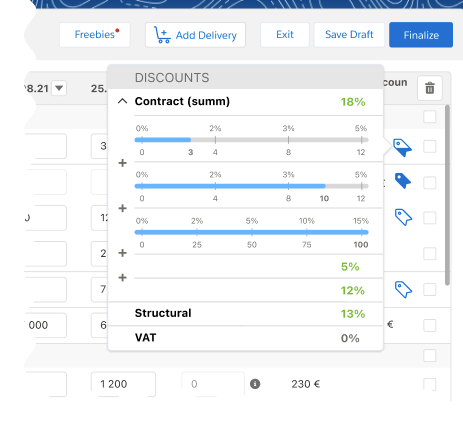
Price tags display one or more applied conditions on the discount scale with the current product quantity and the reached level of discounts.
-
Several conditions are displayed when Apply Condition Type is AllNoZero on the appropriate Calculation Type record.
-
All levels with the required product quantity are presented on the scale.
-
The discount scale is available for conditions with the Level Record value in the Discount Rate Location field.
-
-
If there are more than one delivery in the order, and a discount is defined for a delivery, they will be displayed in price tag the following way:
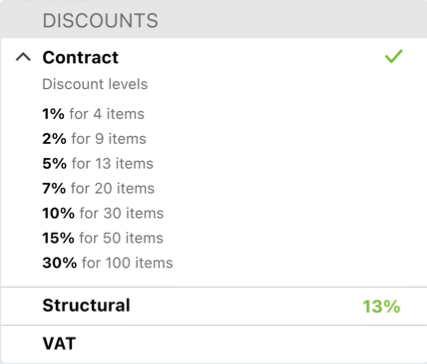
This Price Tag display is triggered if the following conditions are met:
-
In Calculation Type object, the Level Based On field is set to Delivery Line Item.
-
In Condition object, the Discount Rate Location field is set to Level Record.
-
There are more than one delivery created for the order.
Calculation Types with Field Search Based On set to Delivery Line Item will be ignored and excluded from the Price Tag logic.
-
-
Price tags display only the calculated value, but there is no information about whether it is a discount or a tax.
-
If the same calculation type is specified more than once in the pricing procedure, it only appears once in the price tag.
-
The Price tag icon may be displayed in different ways.
Price Tag Icon Description –
The icon is absent for freebies. The Price Tag icon will be displayed only on the bundle header or its components, depending on the value in the Set Quantity On field on the Product record.

An empty icon is displayed if there is at least one condition with discount levels for the Order Line Item record, but the discount level has not been reached.

A half-empty icon is displayed if there is a condition with discount levels and one of the intermediate discount levels has been applied.

A filled icon is displayed in one of the following cases:
-
No matching conditions for the Order Line Item record.
-
The discount on matching conditions is calculated on the Condition records.
-
The Order Line Item record has reached the highest level on a matching condition with discount levels.

The checkmark icon is displayed when several Delivery Line Items are tied to one Order Line Item and different levels were applied in the conditions.
-
See also: