Configuring Order and Order Line Item Mapping
| By default, these settings are already configured after installing the CT Order package. |
To create an order and successfully process products added to the cart, the following settings should be configured:
| If the mapping setting (global or for a selected Sales Org) for at least one of these objects is not found, the order creation attempt will result in an error. |
Order Mapping
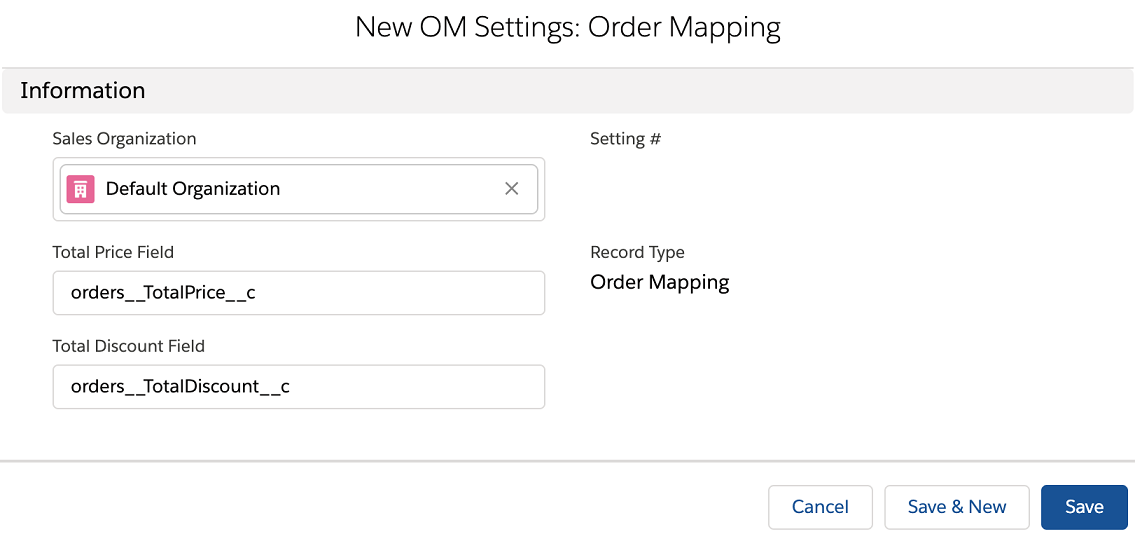
Configure the Order Mapping record:
-
Go to Settings and click New.
-
In the New Settings window, select the Order Mapping record type.
-
Configure the settings as follows:
-
Select a Sales Organization, for which you configure the mapping.
-
Enter field API names from the corresponding fields of the Order Line Item record for the Total Price and Total Discount fields.
-
-
Click Save.
The setup is complete.
Order Line Item Mapping
Create the Order Line Item Mapping record:
-
Go to Settings and click New.
-
In the New Settings window, select the Order Line Item Mapping record type.
-
Configure the settings as follows:
-
If required, select a Sales Organization, for which you configure the mapping. If no Sales Organization is defined for an OM Setting record, it will be applied globally to all records without configured Sales Organization.
-
Enter the field API name for the List Price field from the Price Book Line Item record.
-
Enter field API names from the corresponding fields of the Order Line Item record for other fields.
You can reuse the package Quantity field if the Number (18,0) format is suitable for your organization. You can also create a custom Quantity field with the required measurement specifications. 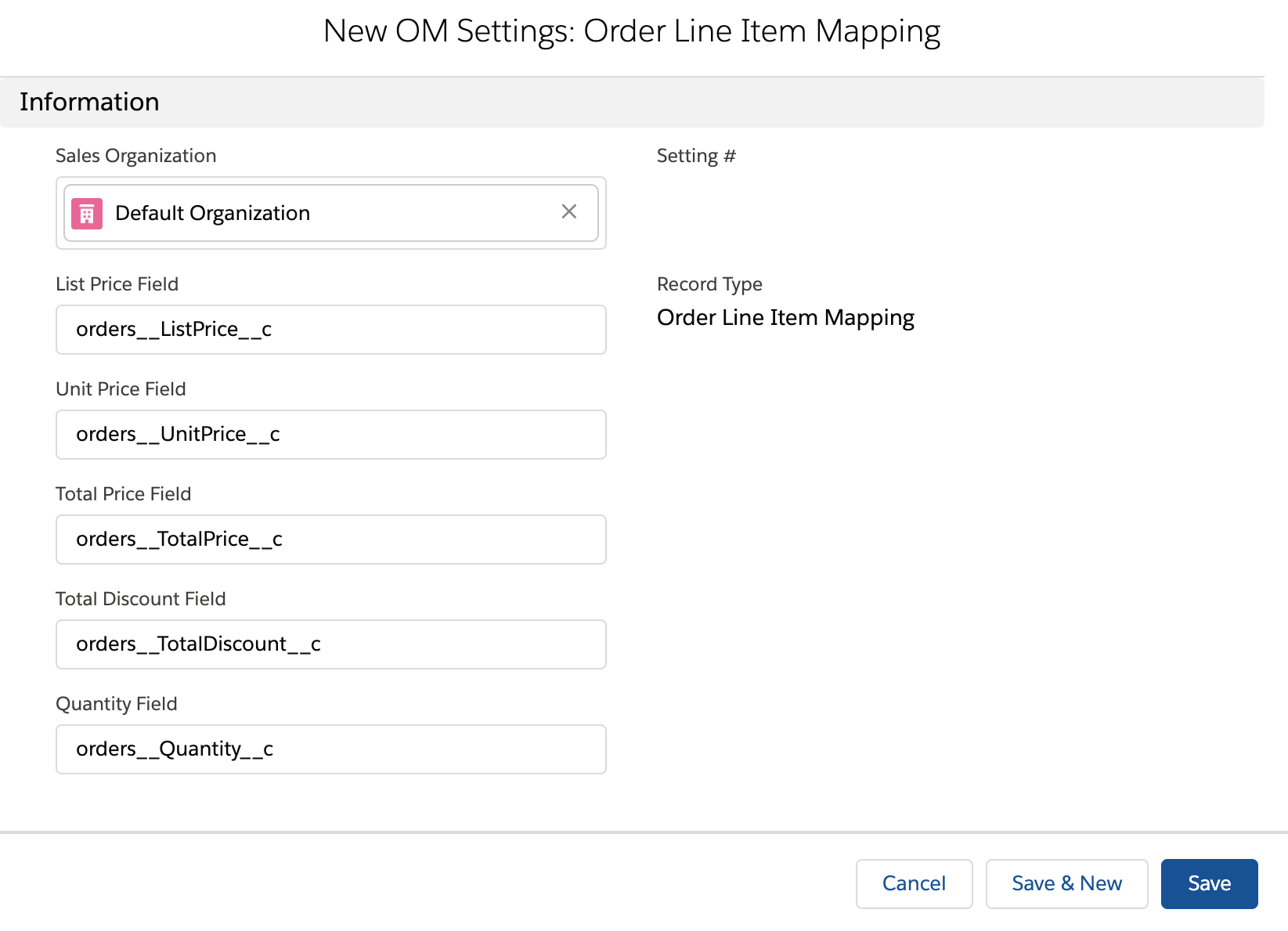
-
-
Click Save.
The setup is complete.