Adding a Price Book Line Item (1.0)
If you created a new CT Price Book, you will need to manually add CT Price Book Line Items.
| If no CT Price Book Line Item is found for a CT Product, the CT Product will not be added to the list of products for delivery on the CT Order page. |
-
Do one of these:
-
Go to CT Price Books tab and click on the desired CT Price Book.
-
Go to CT Product tab and click on the desired CT Product.
-
-
In the Price Book Line Items section, click the New button.
-
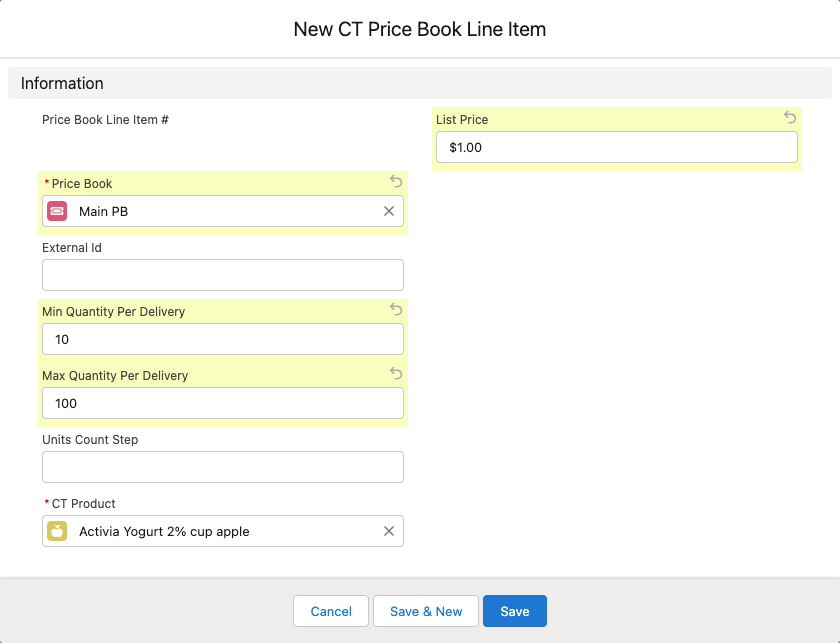
Complete the form as follows:
-
Select the Price Book you created.
-
Set up Minimum and Maximum Quantity Per Delivery.
-
Set up Units Count Step. For example, if you set it as 10, this product can be added in quantity of 10, 20, 30 etc.
-
Enter a List Price for a CT Product.
-
Select CT Product from the list of available products.
This field should be added to the page layout manually after you create the lookup to the product object in your system. -
Select the Active checkbox to use the specified List Price for the product in the order cart.
If you add multiple CT Price Book Line Items for a single product within the CT Price Book, only one can be active at a time. If you try to activate one more, the warning will be displayed. However, you can add and activate different list prices for a product in different Price Books.
-
-
Click Save.
Add more Price Book Line Items:
-
one for a sour cream product;
-
two for milk products.