7. Create an Order
Let’s create an order with a discount for the selected client’s account:
-
Go to CT Orders and click New.
-
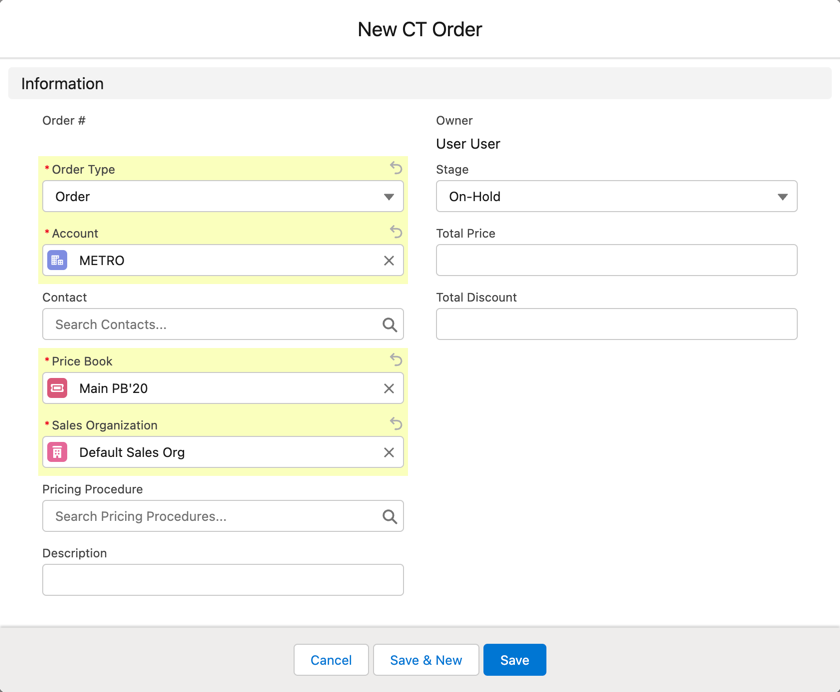
Complete the form as follows:
-
Order Type: Order.
-
Account: METRO.
-
Price Book: select the price book you created earlier.
-
Sales Organization: Default.
-
Stage: On-hold.
-
-
Click Save.
-
On the CT Order tab, click on the newly created order.
-
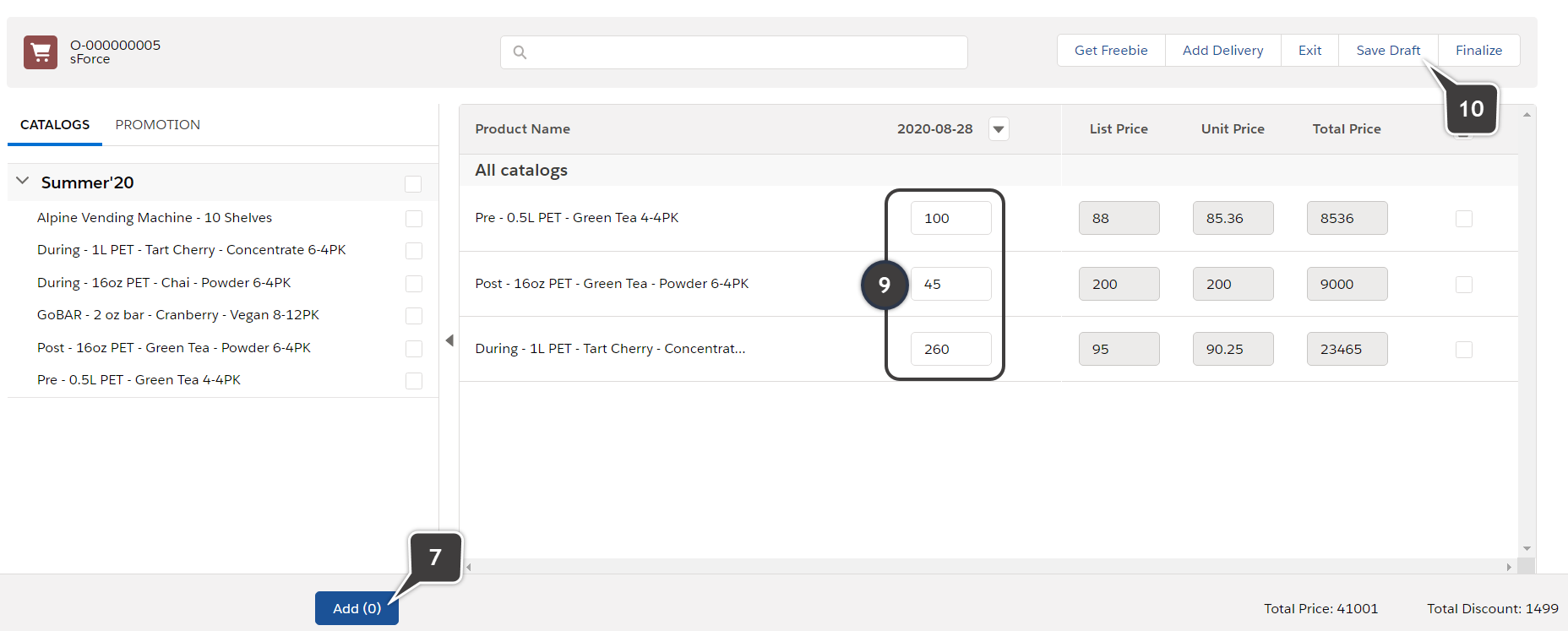
On the selected CT Order page, click Edit Cart.
-
Expand the catalog on the left side and select some products.
-
Click Add.
-
Fill out the Delivery window.
-
Set the different amounts of items for each product to check the discount by the levels.
-
Click Finalize.
Congratulations! You created your first order in your organization. Now, you can apply advanced functions of CT Orders: