Salesforce Winter '20 Release: Critical Updates
Salesforce has announced two critical updates to be released at the beginning of 2020. The administrator of the CT CPG package must perform additional configuration for the current profiles before the update is released, otherwise, the CT CPG package proper functioning will be impossible.
Announced critical updates
Require Customize Application permission for direct read access to custom settings |
Currently, users without Customize Application permission can read custom settings using different APIs that are provided by Salesforce. Following the “secure by default” approach, read access for users without Customize Application permission will be revoked with this update. System Administrator needs to perform the actions that are described in this article to allow access to custom settings to non-admin CT CPG users (via profiles or permission sets). |
3 January 2020 |
Require Customize Application permission for direct read access to custom metadata types |
Currently, users without Customize Application permission can read unprotected custom metadata types using different APIs that are provided by Salesforce. Following the “secure by default” approach, read access for users without Customize Application permission will be revoked with this update. System Administrator needs to perform the actions that are described in this article to explicitly grant access to custom metadata types to non-admin CT CPG users (via profiles or permission sets). |
17 February 2020 |
You can allow direct read access to Custom Settings and Custom Metadata Type by editing:
-
Profile settings
-
Permission Set settings
For the first option, you will need to configure each profile separately, or you can edit a permission set and assign it to all users you want to grant read access to.
|
After updating the permissions configuration, launch full synchronization on devices with installed CT Mobile to include the changes. |
Impacted functionality
The following features will be blocked:
-
Targeting functionality
-
Activity Detailing
-
Joint Visits
Recommended actions
To avoid possible issues, we recommend you to perform a test configuration for your package before the automatic updates take place. The update can be manually activated and rolled back after testing.
Follow the instructions below to set up desired profiles and check proper package functioning.
-
Use the sandbox environment to perform testing.
-
If you encounter any issues, please, address them to Salesforce support immediately.
Grant permissions to Custom Settings
Via Profile settings
To set up permissions for direct read access to custom settings for a profile:
-
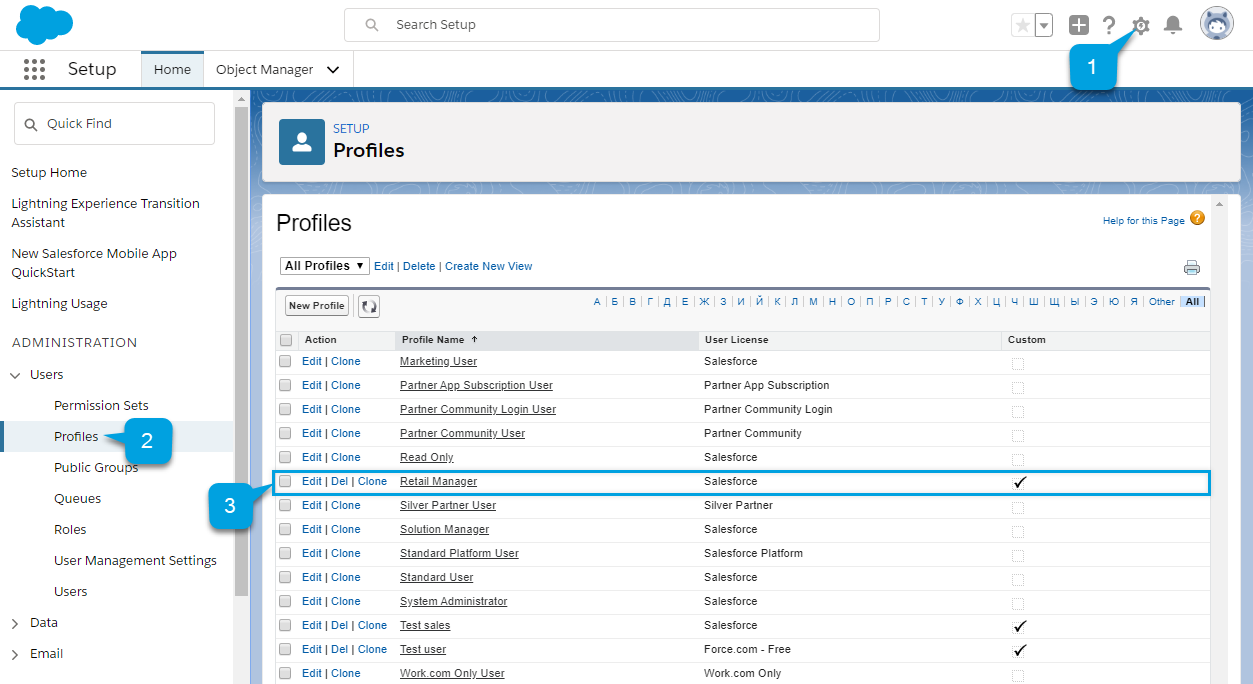
Go to Setup (1) → Users → Profiles (2).
-
Click Edit (3) next to a profile you want to configure.
-
Go to the Enabled Custom Setting Definitions Access section.
-
Click Edit.
-
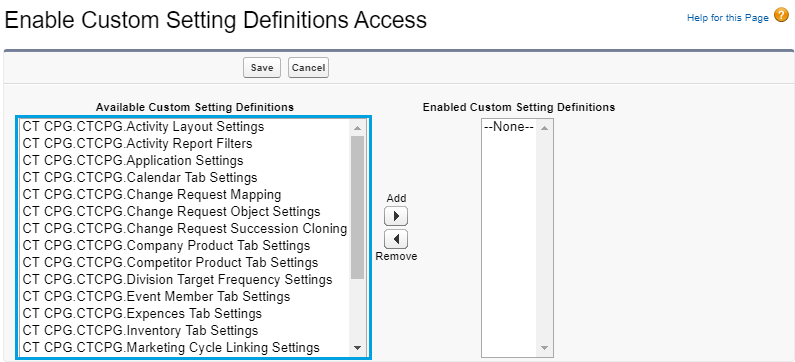
Select the following Available Custom Setting Definitions from the list:
-
All package custom setting definitions with the CT CPG prefix.
-
All project-specific custom setting definitions (any additional non-package custom settings added by the company’s admin).
-
The _Digital Signature Settings _custom setting definition (if the Documents Module is used on your project).
-
-
Click Add
-
Click Save.
Via Permission Set Settings
To set up permissions for direct read access to custom settings for a permission set:
-
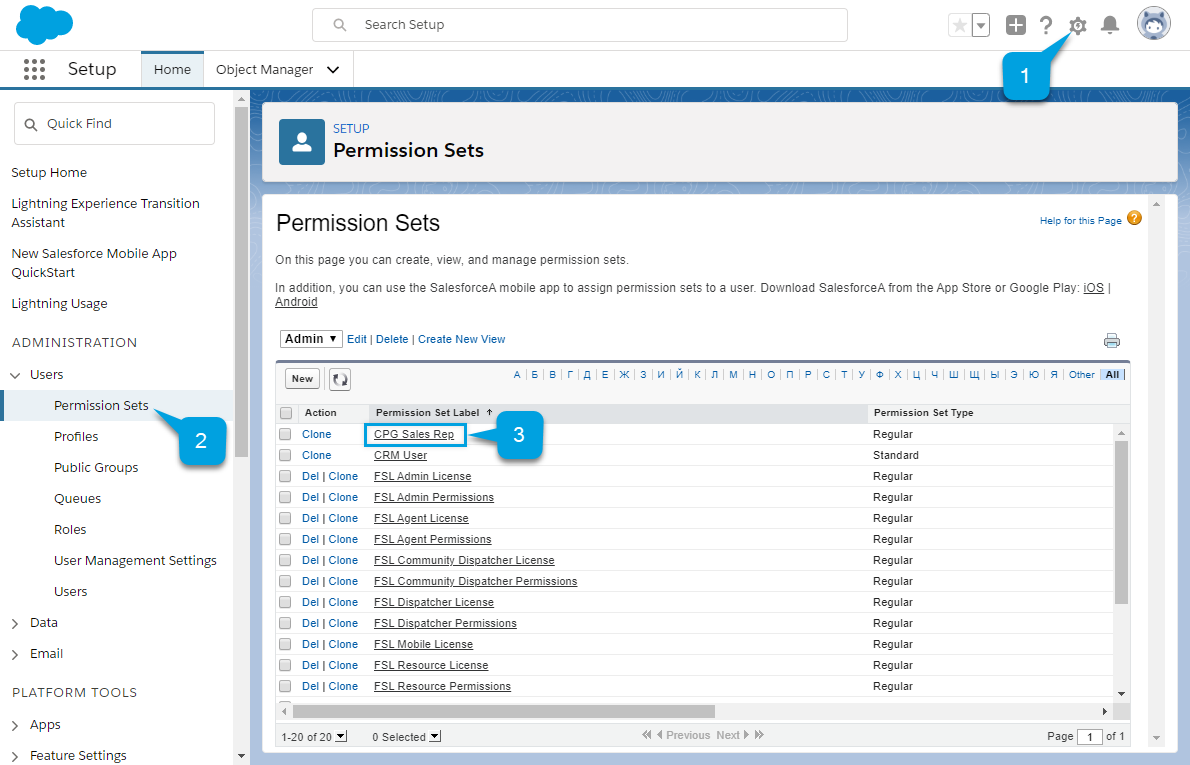
Go to Setup (1) → Users → Permission Sets (2).
-
Select a permission set which you want to configure (3) or create a new permission set.
-
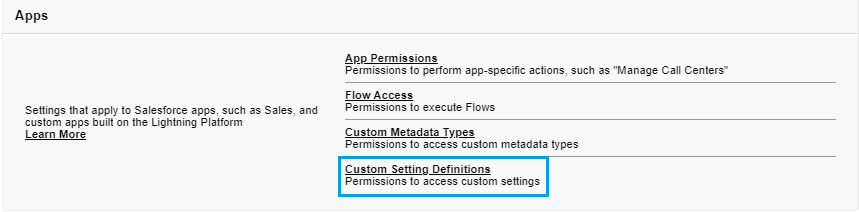
On the Permission Set Overview page that opens, scroll to the Apps section, and click Custom Settings Definitions.
-
On the next page, click Edit next to the Custom Settings Definitions.
-
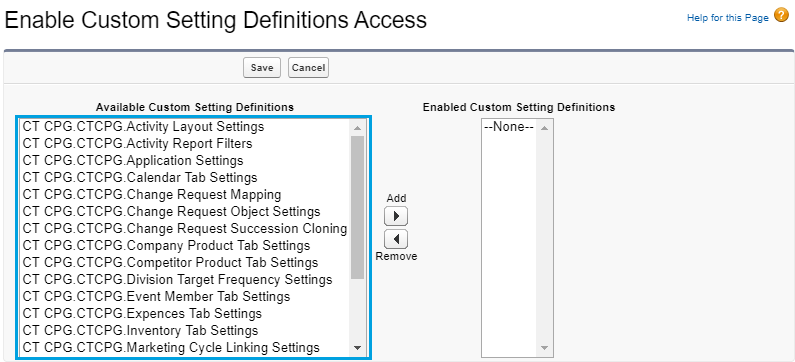
Select the following Available Custom Settings Definitions from the list:
-
All package custom setting definitions with the _CT CPG _prefix.
-
All project-specific custom setting definitions (any additional non-package custom settings added by the company’s admin).
-
The _Digital Signature Settings _custom setting definition (if the Documents Module is used on your project).
-
-
Click Add.
-
Click Save.
The selected setting will be applied.
Assign the newly configured permission set to the required users.
Grant permission to Custom Metadata Type
Via Profile settings
To set up permission for direct read access to custom metadata types for a profile:
-
Go to Setup (1) → Users → Profiles (2).
-
In the list of profiles, select a profile you wish to configure (3).
-
Go to the Enable Custom Metadata Type Access section.
-
Click Edit.
-
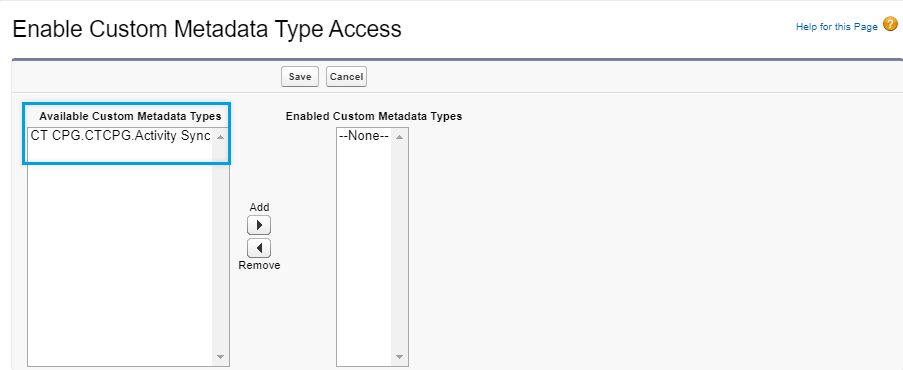
Select the following Available Custom Metadata Types:
-
Package metadata types with the CT CPG prefix: CT CPG Solution.CTCPG.ActivitySync.
-
All project-specific metadata types (any additional non-package metadata types).
-
-
Click Add
-
Click Save.
Via Permission Set settings
To set up permission for direct read access to custom metadata types for a permission set:
-
Go to Setup (1) → Users → Permission Sets (2).
-
Select a permission set (3) which you want to configure or create a new permission set.
-
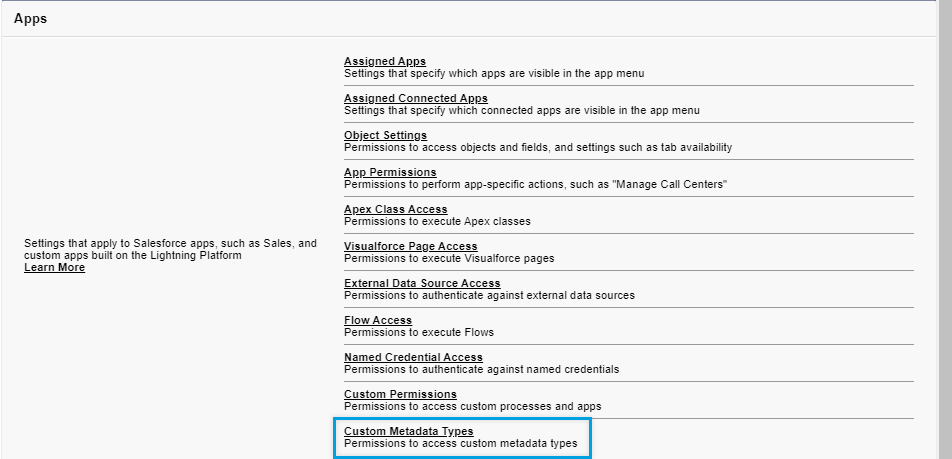
On the Permission Set Overview page that opens, scroll to the Apps section, and click Custom Metadata Types.
-
On the next page, click Edit next to the Custom Metadata Types.
-
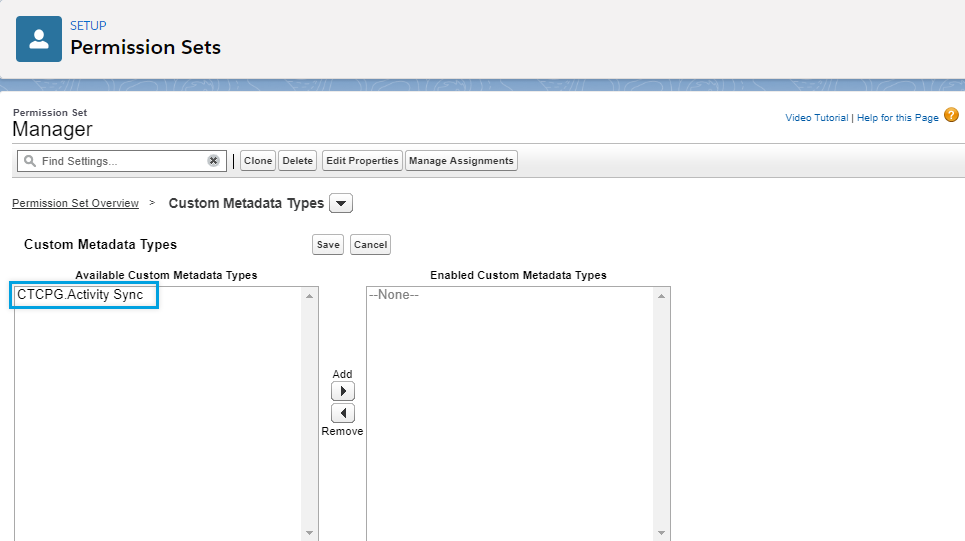
Select the following Available Custom Metadata Types:
-
Package metadata types with the CT CPG prefix: CT CPG Solution.CTCPG.ActivitySync.
-
All project-specific metadata types (any additional non-package metadata types).
-
-
Click Add.
-
Click Save.
Selected Custom Metadata Type will be enabled Assign the newly configured permission set to the required users.