Create Targeting Lists
-
target Account and Contact records that a user should visit during the marketing cycle period;
-
use a filter to find untargeted records or to find records that should be removed from targets.
Specify Target Accounts and Contacts
To target Account and Contact records:
-
Go to the Accounts tab.
-
Select a list view.
-
Select all records that should be targeted.
-
In the Lightning Experience, click the Mass Manage Account Targets button. In Salesforce Classic, use the Manage Targets button.
-
In the Targeting Management window, select the Account category and click the Add as targets button.
Categories will be available if the Enable Category selection is allowed. 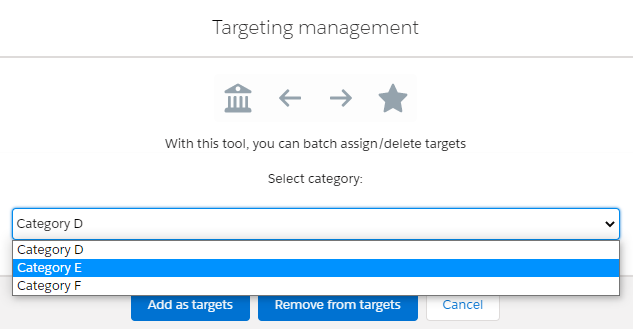
-
Go to the Contacts tab and repeat steps 2–5.
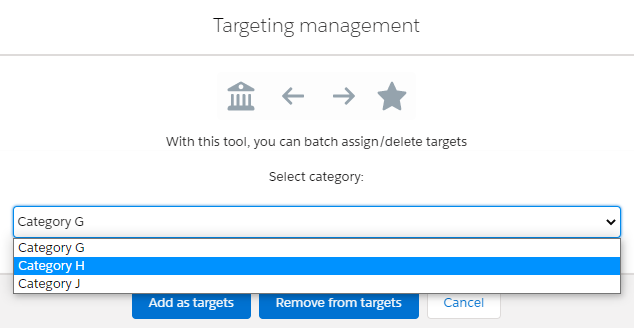
The selected records are targeted. For selected Account and Contact records, the Target Frequency records will be created.
-
The corresponding Marketing Detail Tracking record will be related to the Target Frequency record.
For example, the Account record with the division category D will be linked to the created Marketing Detail Tracking record with the assigned division category D.
-
The Marketing Detail Tracking record with the Call Rate record type is segmented with the Account/Contact reference to the client.
Filtering Target Records
To find untargeted records:
-
Go to the Accounts (Contacts) tab and click the funnel icon to show filter settings.
-
Click Add Filter.
-
Select Is Target in Field.
-
Select equals in Operator.
-
Enter false in Value.
-
-
Click Save.
Now, the untargeted records are displayed.
Remove Target Account and Contacts
To target Account and Contact records:
-
Go to the Accounts tab.
-
Select a list view and use the filter to find targeted records, or manually select the required records.
-
In the Lightning Experience, click the Mass Manage Account Targets button. In Salesforce Classic, use the Manage Targets button.
-
Click the Remove from targets button.
-
Click OK in the confirmation message.
-
Go to the Contacts tab and repeat steps 2–5.
Records are removed from targets.