Create an Activity Sync
To create an Activity Sync:
-
Go to Setup → Custom Code → Custom Metadata Types.
-
Click Manage Records next to Activity Sync.
-
Click New to create a new Activity Sync.
-
Fill in the required fields.
-
Read the description of each parameter here.
-
If you want to link activities with a specific type, set up global actions.
-
-
Click Save.
The setup is complete. Get familiar with the Activity Sync examples.
One-way synchronization
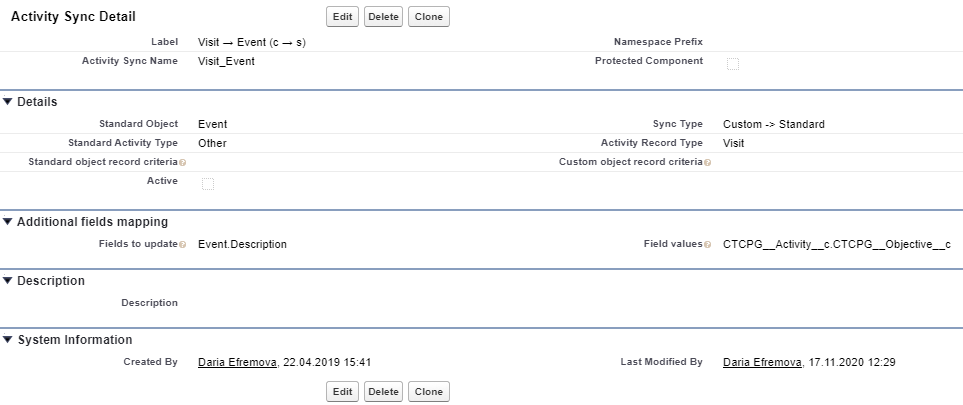
When creating an Activity object record with the Visit record type:
-
a standard Event record will be created with the Other value in the Type field.
-
the value from the Objective field will be copied to the Description field of the newly created Event record.
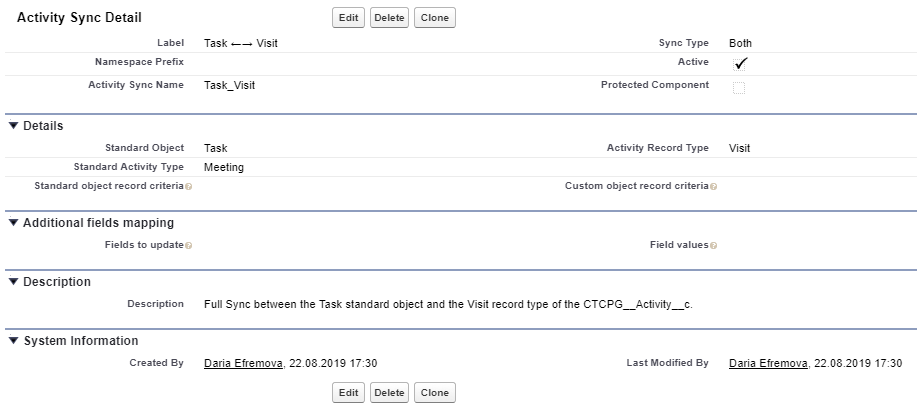
Both-ways synchronization using the Standard Activity Type field
When creating a Task record with the Meeting type, the CT CPG Activity record with the Visit record type will be created.
|
The Status will be selected according to the Calendar Settings. |
When creating a CT CPG Activity record with the Visit record type, the Task record with the Meeting type will be created:
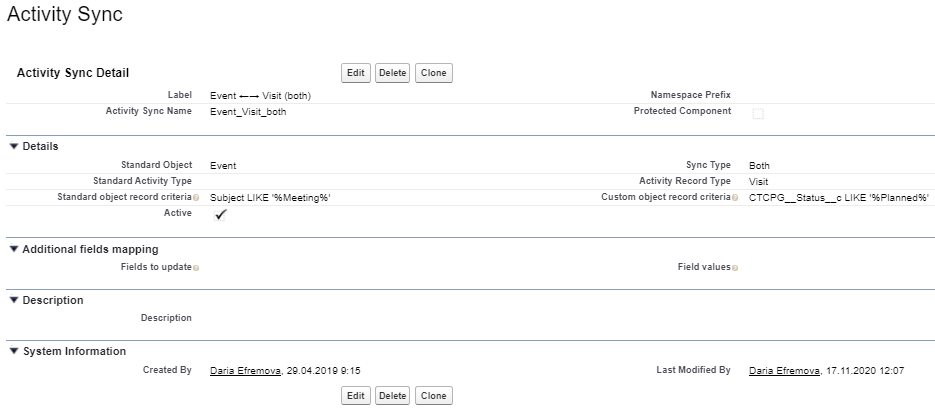
Both-ways synchronization using Standard and Custom object record criteria
When an Event record with the Subject name is created, the CT CPG Activity record with the Visit record type is created.
|
The Status will be selected according to the Calendar Settings. |
When a CT CPG Activity record with the Visit record type and with the Planned status is created, the Event record is created.