Calendar Settings: Customize Context
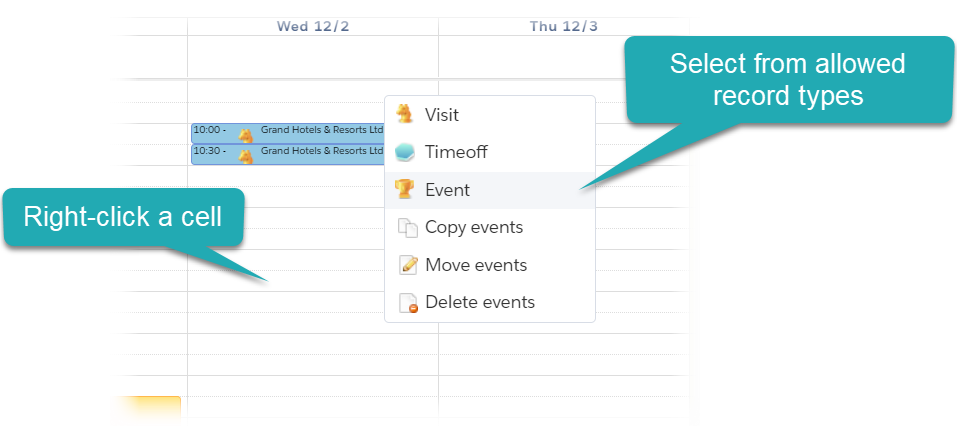
In this section, specify the available CT CPG Activity record types when a user right-clicks to create a CT CPG Activity record on the Calendar grid on the Table View, Hierarchy View, and/or Employees Calendar tab.
To set up click actions and available CT CPG Activity record types:
-
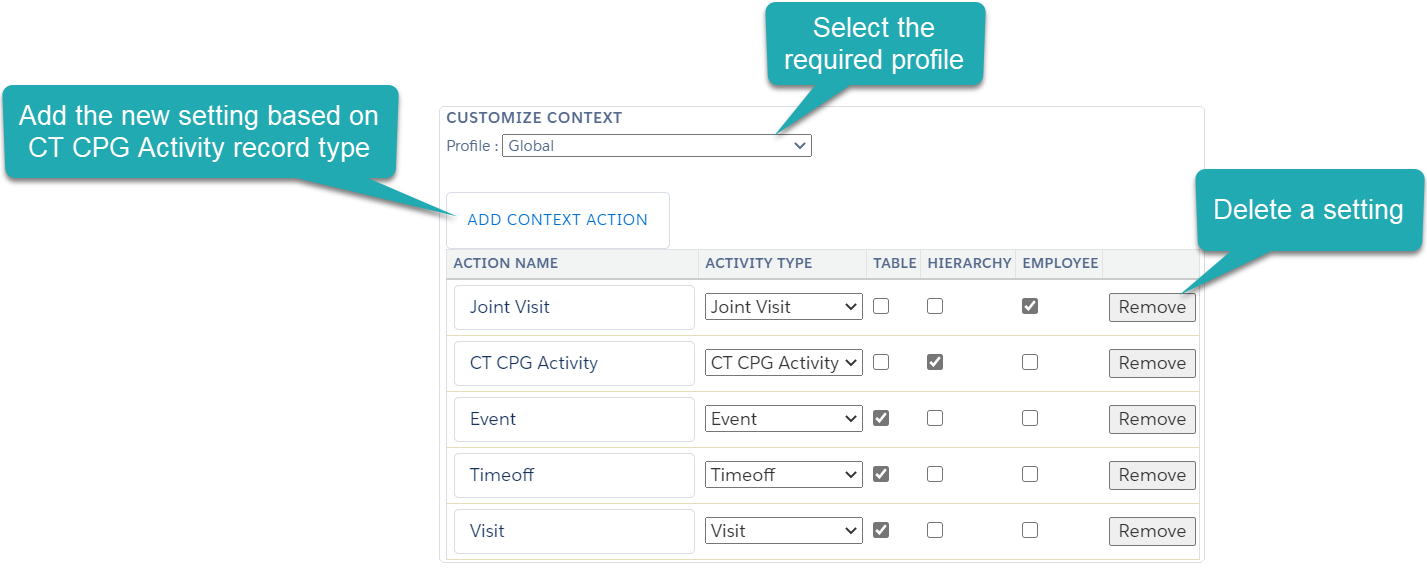
On the Calendar: Settings tab, in the Customize Context section, select a profile. If you do not have any configured profiles, the Global setting will be displayed in the field and will be applied to all non-configured profiles.
-
Click the Add Context Action button to add a new setting line.
-
Specify the following:
-
In the Action Name field, enter the name for the CT CPG Activity type. For example, you can use labels of the corresponding record type, such as Event or Visit.
-
In the Activity Type field, select the CT CPG Activity record type.
-
Select the Table, Hierarchy, and/or Employee checkbox to have the ability to create a CT CPG Activity record of the selected record type on the selected Table View, Hierarchy View, and/or Employees Calendar tab.
Record types added as a context action are available by left-clicking regardless of the selected checkboxes.
Set the Disable Left Click checkbox to restrict the creation of the CT CPG Activity by a left-click. Users will then be able to create the CT CPG Activity records only with specific record types and only by a right-click.
-
-
Click Save.
The setup is complete.
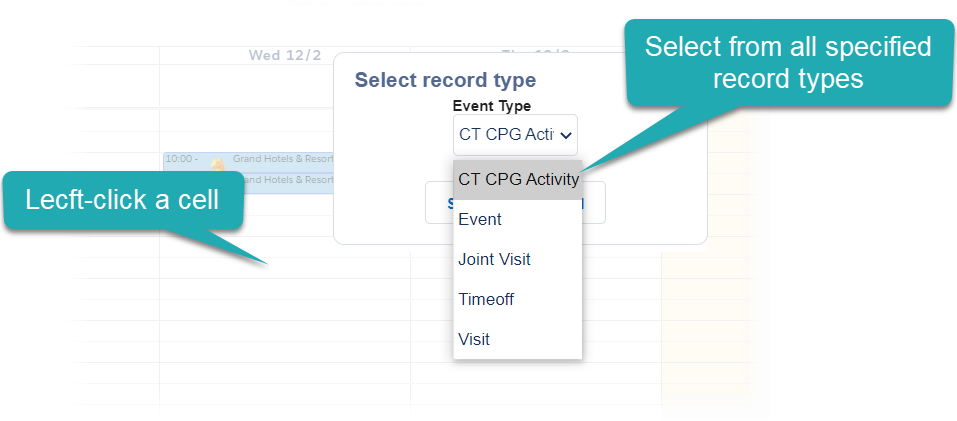
When a user left-clicks on the Calendar grid of the Calendar tab, all added record types are available to select.
When a user right-clicks on the Calendar grid of the specific Calendar tab, only allowed record types are available to select.
| If the Mass Actions are enabled, the available actions will be displayed too. |