Work with the Activity Report Page
On the Activity Report page:
-
manage data in the specific field sets;
-
open the appropriate activities and use filters to display only matched ones;
-
manage the tracked CT Products via Visit:
-
within the active Marketing Cycle, the corresponding records fill out the CT Product tabs and the Special Trackings tab;
-
assign Inventories to Accounts to track them;
-
-
Add participants and check expenses via Event;
-
As a manager for a Joint Visit.
-
select the representative’s activities to link them to the Joint Visit;
-
fill out the report for the representative.
-
Add an Event Member
There are two ways to add participant(s) to the Activity with the Event record type.
On the Activity Report Page
To add participants to the event:
-
Open the required Activity Report page for the Activity with the Event record type.
-
On the Event Members tab, click Add event member.
-
Fill in the fields.
Participants are added.
On the Contacts tab
Previously, add the Add selected to event button to the Contacts tab:
Add Button to the Layout
To add the button to the Contacts tab:
-
Go to Setup → Contact → Search Layouts for Salesforce Classic.
-
Click Edit next to List View.
-
In the Custom Buttons section, move Add selected to event to Selected Buttons.
-
Click Save.
The button is added.
Add Participants
To add Contacts as participants to the Activity record with the Event record type:
-
Go to the Contacts tab.
-
Select a list view.
-
Select the required contacts.
-
Click the Add selected to event button.
-
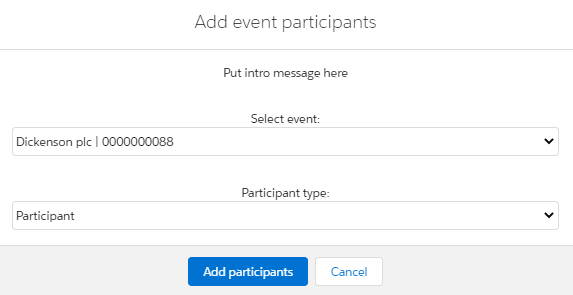
In the window, select the Activity record and the type of the added Contact records.
-
Click Add participants.
Participants are added.