Assign Inventories to Accounts
Specify clients to whom you wish to rent Inventories by creating the Inventory record that ties the required Account records with CT Product records of the Inventory record type. Multiple Inventory records can be assigned for the same Account record, and vice versa.
To assign a CT Product record of the Inventory record type as the Inventory record to the Account record, go to the Accounts tab.
| The Inventories related list should be available on the Account page layout. |
The assigned Inventory records will be displayed on the Inventory tab of the Activity Report page for the corresponding Account record.
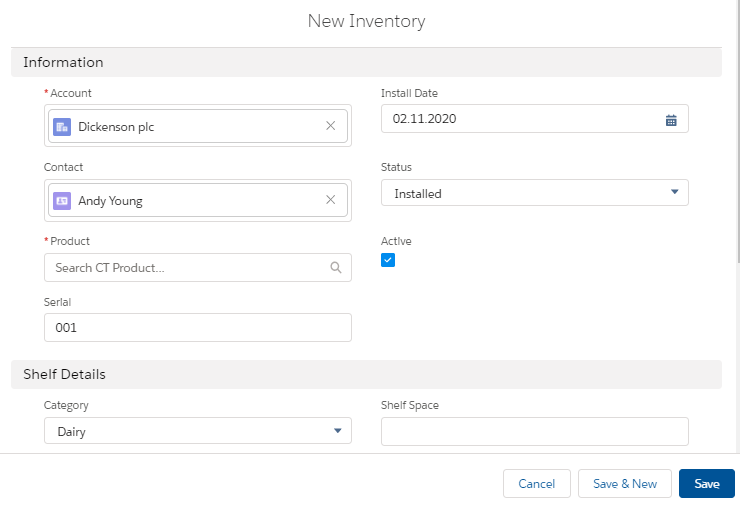
To assign a CT Product record of the Inventory record type as the Inventory record to the Account record:
-
Go to the Accounts tab and click the required Account record.
-
In the Inventories section, click New.
-
Fill in the required fields.
Read the description of each parameter here. -
In the Product filed, select CT Product with the Inventory record type.
-
Set Active to use the Inventory record.
-
Specify Installed Date, Status, and other parameters.
-
-
Click Save.
The inventory is assigned. The new Inventory record is displayed in the Inventories related list on the corresponding Account record.