Configure CT Product Tabs
Add the related tabs for tracking CT Products during the Activity on the Activity Report page for the Visit record type. The following tabs are available:
-
Company Products
-
Competitor Products
-
POS Material
On each tab, the CT Products with the corresponding record type can be managed.
To display the required CT Product tab:
-
Map the CT Products related tab and the Activity Report page for the corresponding Activity record type via the appropriate custom setting.
-
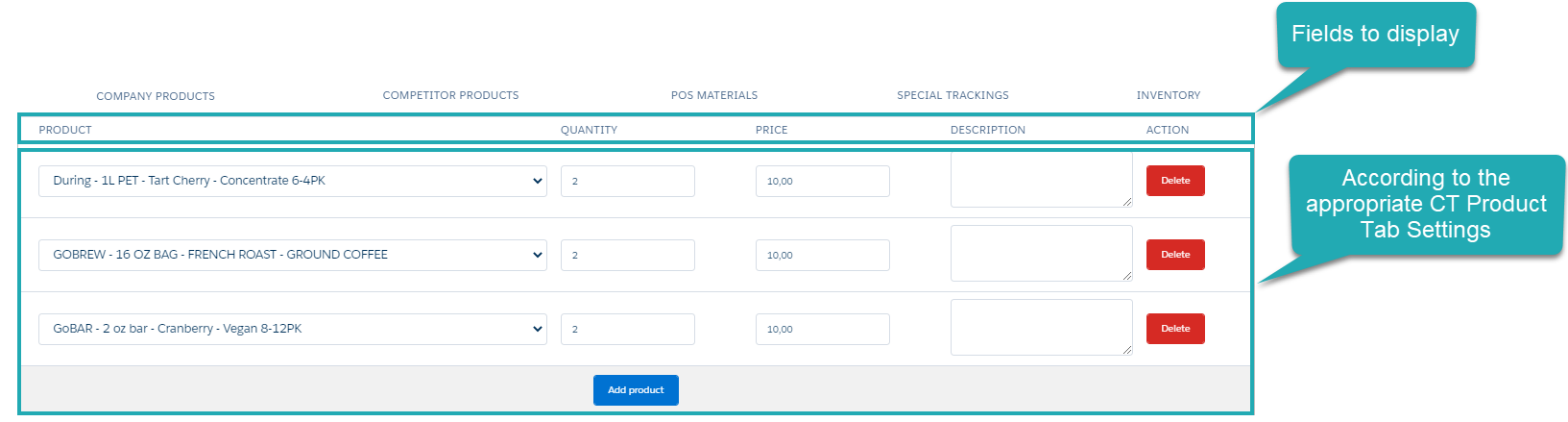
Customize fields to display on the CT Product tab.
-
Create new CT Product records that can be added to the Activity record and displayed on the Activity Report page:
-
company products
-
competitor products
-
POS materials
-
In case of using marketing cycles, the CT products will be automatically added on the corresponding CT Product tab after Activity record creation if:
-
The Start Date of the Activity record is within the period of the active Marketing Cycle record.
-
The User division is the same as the Marketing Cycle division.
-
The Account division category is the same as the division category specified for the record of Marketing Detail Tracking of the record type based on available CT Products.
-
The activity inking is enabled for the appropriate Activity record type and the active Marketing Cycle.
Manage CT Product Tab Settings Records
To display the CT Product tab on the Activity Report page:
-
Go to Setup → Custom Code → Custom Settings.
-
Click Manage next to one of the below custom settings:
-
Company Product Tab Settings to customize displaying of the Company Products tab with the CT Product records of the Company Product record type
-
Competitor Product Tab Settings to customize displaying of the Competitor Products tab with the CT Product records of the Competitor Product record type
-
POS Material Tab Settings to customize displaying of the POS Materials tab with the CT Product records of the POS Material record type
-
-
Specify a new record for the specific user/profile, or edit the record for the whole Salesforce organization.
Read the description of each parameter: Company Product Tab Setting, Competitor Product Tab Setting, POS Material Tab Setting.
-
specify the user/profile
-
specify the required Activity record type
-
specify the lookup to the CT Product object
-
specify the API name of the field set to display:
-
Company Product Tab → CTCPG__CompanyProductTab
-
Competitor Product Tab → CTCPG__CompetitorProductTab
-
POS Material Tab → CTCPG__POSMaterialTab
-
-
set active
-
-
Click Save.

The setup is complete.
Customize Fields to Display on the CT Product Tab
To customize fields to display non the CT Product tab:
-
Go to Setup → Object Manager → CT CPG Activity Data → Field Sets.
-
Click one of the following field sets:
-
Company Product Tab to set up fields to display on the Company Products tab;
-
Competitor Product Tab to set up fields to display on the Competitor Products tab;
-
POS Material Tab to set up fields to display on the POS Material tab;
-
-
On the page layout editor, drag-n-drop or remove fields to display.
-
Click Save.
The setup is complete.