Create an Assortment
Use assortments based on the clients' business size, contracts, loyalty, or other attributes to promote your lists of products for different types of clients.
-
Create a new assortment that represents the list of available products as a unit.
-
Add CT Products to the assortment:
-
the same products can be used in more than one assortment;
-
the Assortment record and CT Product records should be active.
-
Create an Assortment
To create an assortment:
-
Go to the Assortments tab and click New.
-
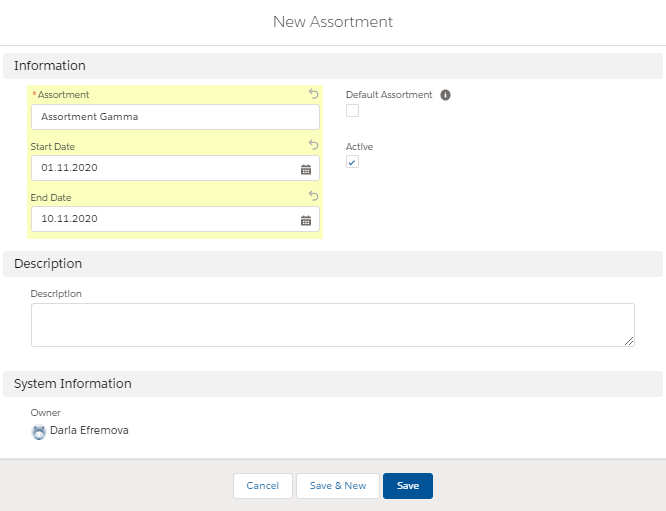
Fill in the assortment parameters, such as:
Read the description of each parameter here. -
Enter the Assortment name;
-
Specify the Start Date and End Date of the assortment promotion;
-
Set Default Assortment to use this record as default for all Accounts without personal assortments;
-
Set Active.
-
-
Click Save.
The setup is complete. Now, add products to the new assortment.
Add CT Products to Assortment
To add a product to the assortment:
-
Go to the Assortments tab and click on the required Assortment record.
-
On the Related tab, click New in the Assortment Products section.
-
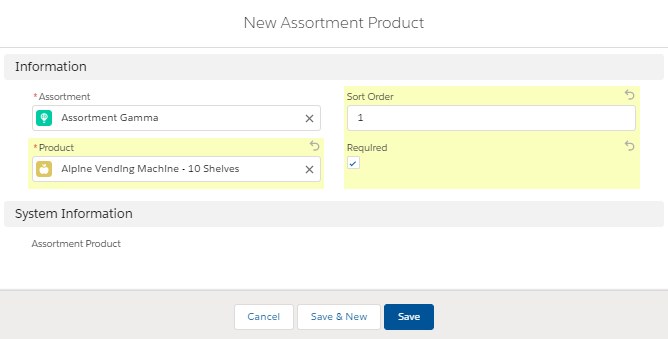
Specify parameters:
Read the description of each parameter here. -
In the CT Product picklist, select the required product.
-
In the Sort Order field, enter a number of the product position in the assortment.
-
Set Required if needed.
-
-
Click Save.
The assortment is created.