Configure an Expenses Tab
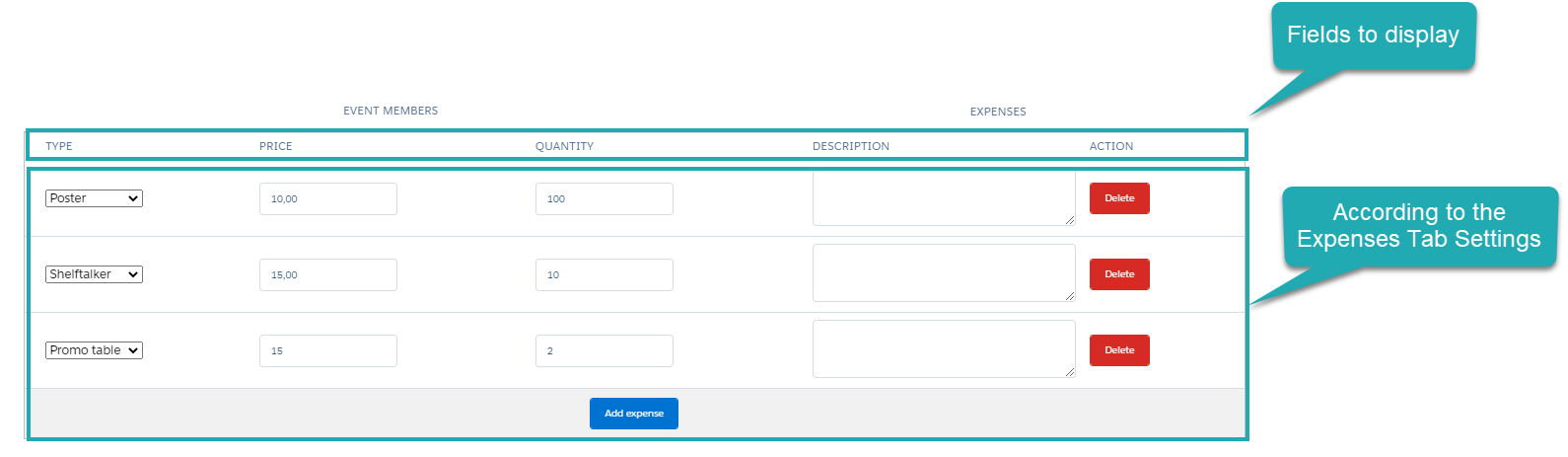
Add the Expenses tab for managing participants and their role during the Activity on the Activity Report page for the Event record type.
-
Map the Expenses tab and the Activity Report page for the corresponding Activity record type via the appropriate custom setting.
-
Customize fields to display on the Expenses tab.
Manage Expenses Tab Settings Records
To display the Expenses tab on the Activity Report page:
-
Go to Setup → Custom Code → Custom Settings.
-
Click Manage next to Expenses Tab Settings.
-
Specify a new record for the specific user/profile or edit the record for the whole Salesforce organization.
Read the description of each parameter here.
-
specify the user/profile
-
specify the required Activity record type
-
specify the API name of the Expenses Tab field set to display: CTCPG__ExpenseTab
-
set active
-
-
Click Save.

The setup is complete.
Customize Fields to Display on the Expenses Tab
To customize fields to display on the Expenses tab:
-
Go to Setup → Object Manager → CT CPG Activity Data → Field Sets.
-
Click one of the Expenses Tab field set.
-
On the page layout editor, drag-n-drop or remove fields to display.
-
Click Save.
The setup is complete.