Sync Logs
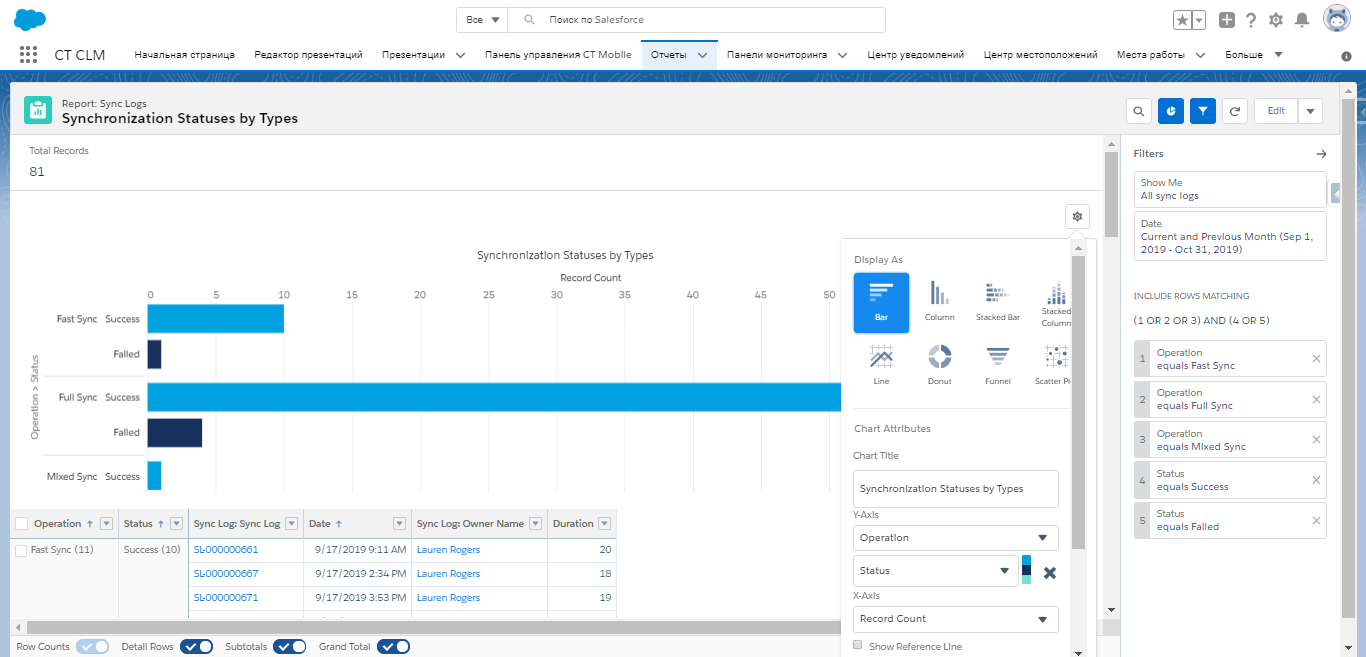
Enable sync logs and configure the appropriate reports for efficient management of synchronization statistics: average synchronization duration, the ratio of succeeded synchronizations to failed, and many more.
Sync Log Records
The Sync Log record is created for each synchronization and each operation, such as login, create, etc., after the synchronization completion or interruption due to sync errors.
| For more information, refer to Sync Log. |
For example, if you performed the successful fast synchronization with the insert operation of Account and Contact records and the update operation of the User record, the following Sync Log records per each operation will be created:
-
The summary Sync Log record for the selected synchronization type:
-
Operation: Fast Sync
-
Status: Success
-
Date
-
Duration
-
Description: Part 1 from 1
-
The number of transmitted records
-
The number of errors occurred.
-
-
The summary Sync Log record has the attachment which stores the text file with the sync logs:
-
Name: syncSingle.log
-
ParentId which stores the ID of the summary Sync Log record
-
Description: Part 1 from 1.
-
-
The Sync Log record with the insert operation of Account record:
-
Operation: Insert
-
Status
-
Object Name: Account
-
Date
-
Duration
-
The number of transmitted records for the object
-
The number of errors that occurred
-
Failed messages
-
Failed IDs.
-
-
The Sync Log record with the insert operation of the Contact record.
-
The Sync Log record with the update operation of the User record.
Enable Sync Logs
To enable and configure Sync Logs:
-
Select the required profile in the Location picklist.
General Settings will be applied to all profiles without individual settings. -
In the Support and logs section, activate the Enable Sync logs switch.
-
In the Debug Level picklist, select the logging level:
-
None. Logging is disabled.
-
Error. A log entry is created only in case of occurred synchronization error.
-
All. Each synchronization is logged as a separate entry irrespectively of whether it contains errors or not.
Enabling the All option for a long time will result in an overflow of the data storage at Salesforce and a significant increase in the CT Mobile synchronization time. 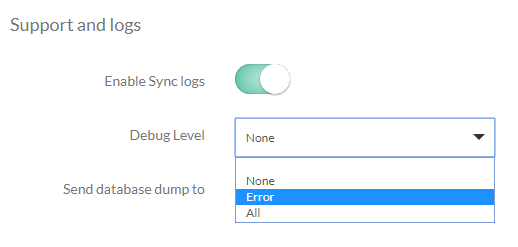
-
-
Click Save.
The sync log functionality is enabled.
Sync Log Reports
CT Mobile package is preconfigured with reports Average Synchronization Duration and Synchronization Statuses by Types. By default, the reports are stored in the Sync Log Reports folder.
To open a Sync Log report:
-
Click the
 button
in the upper left corner and select Reports.
button
in the upper left corner and select Reports. -
Select the All Folders filter (or any other suitable filter) to display the folder list.
-
Select the Sync Logs Reports folder.
-
Select a report from the list.
The selected report opens.
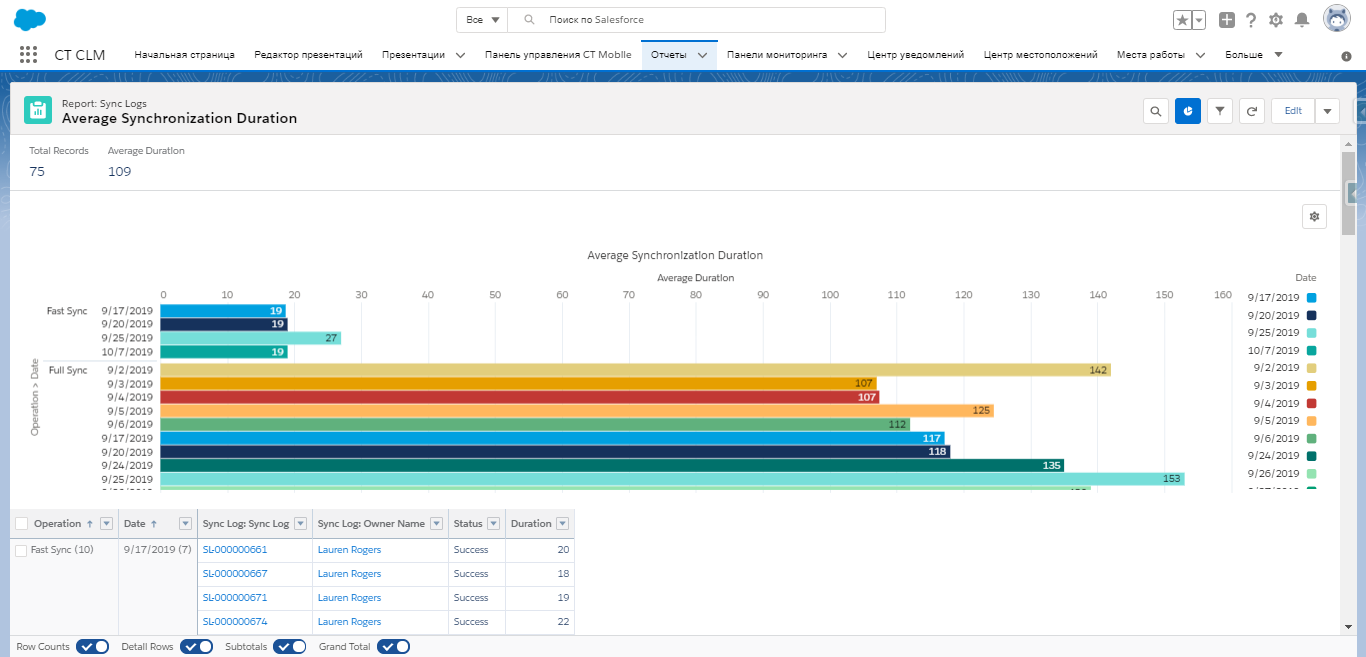
You can adjust the configuration of default reports according to your needs or create your specific reports by using the standard Salesforce functionality.
| For more information about reports, refer to Salesforce Help: Reports. |