Application Editor
| Before the CLM presentation creation, read Requirements and Media File Formats and set up remote sites. |
The Application Editor is intended to create CLM presentations with the Application record type. The CLM presentation is based on HTML code, PowerPoint, or PDF. Each slide can be formed based on templates with placeholders and widgets.
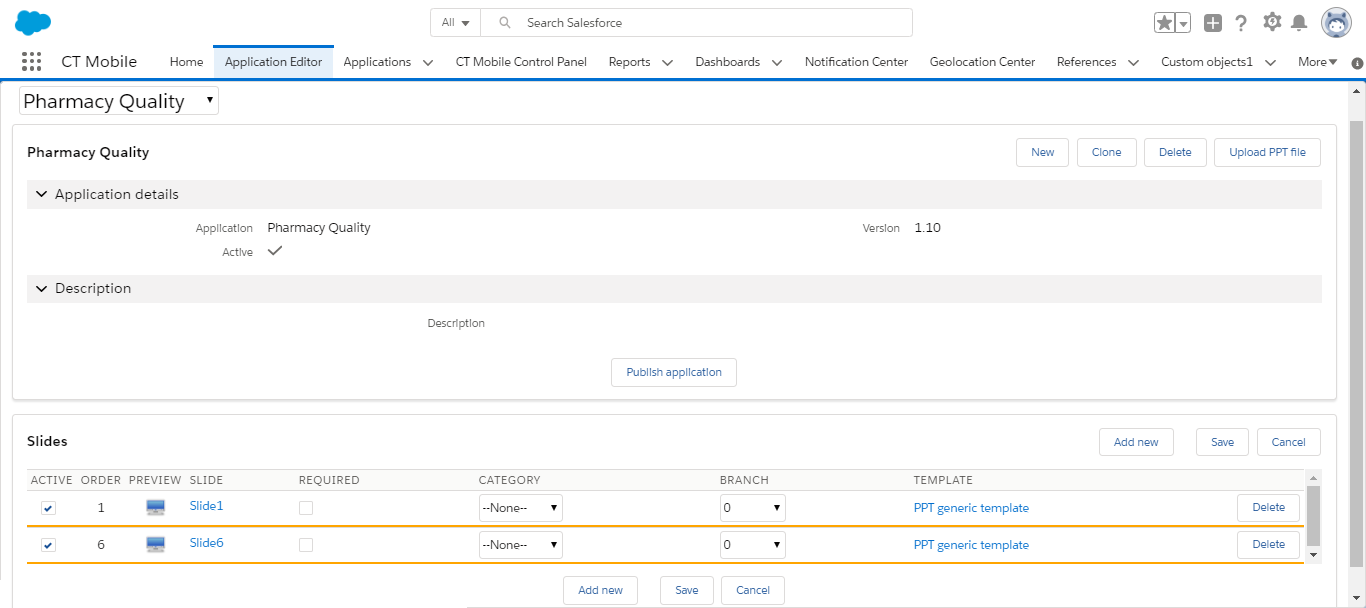
Create a CLM Presentation
To create the new CLM presentation with the Application record type:
-
Go to the Application Editor tab and click New.
-
In the New Application window, select the Application record type.
-
Specify fields:
-
Enter the CLM presentation name.
-
Set Active to make the CLM presentation available for users.
-
Select the Slide reordering enabled checkbox if you plan to create a custom scenario.
-
Check the required boxes to track actions and collect statistics in the Application Stats record.
Read the description of each parameter here. 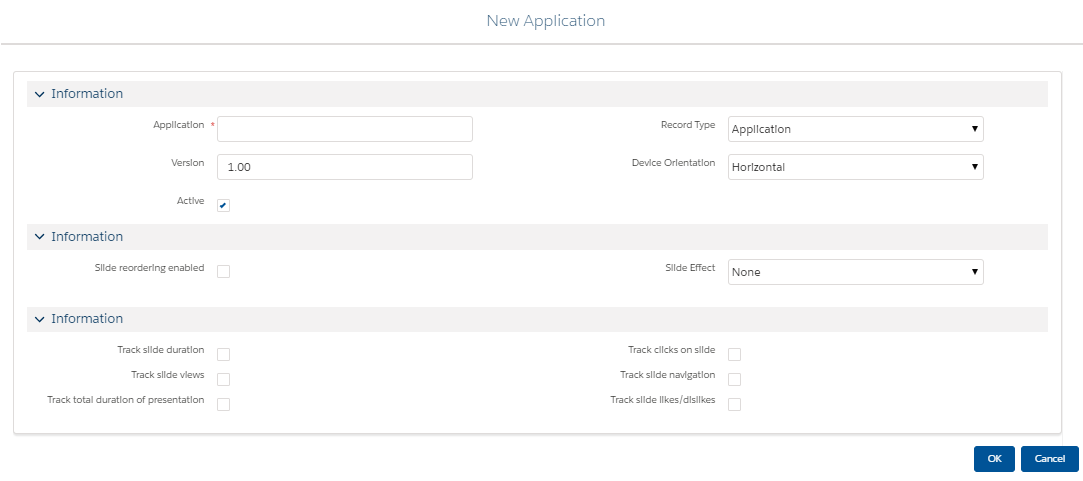
-
-
Click OK.
The new CLM presentation record is created.
| Also, you can create a CLM presentation from the Application tab. Click New, select the Application record type, specify all required fields, and click Save. |
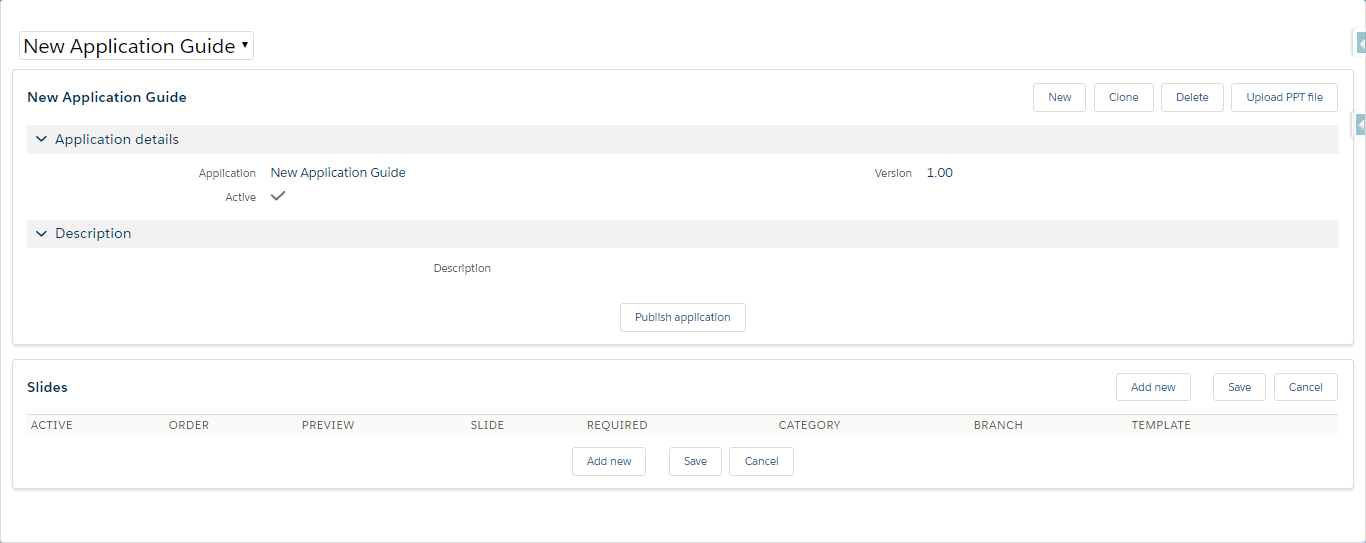
Add Slides to the CLM-presentation
Add slides to CLM presentations:
-
Manually create slides using one of the options below.
-
specify templates with placeholders and widgets;
-
add markup for a slide.
-
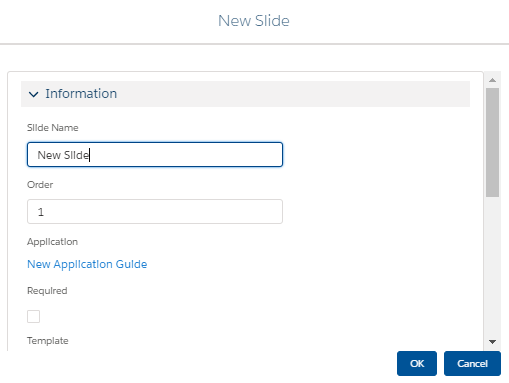
-
Create a CLM presentation from PowerPoint by clicking the Upload PPT file button;
-
Create a CLM presentation from PDF by clicking the Upload PPT file button.
The Application Editor creates slides of the CLM presentations by taking screenshots of PDF pages and ppt(x) slides. If a PDF or ppt(x) file contains any interactive elements, such as videos, gifs, and links, they will not be available in the converted CLM presentation. -
Create a CLM presentation from JPEG/JPG by clicking the Upload PPT file button.
Publish a CLM presentation after creation.