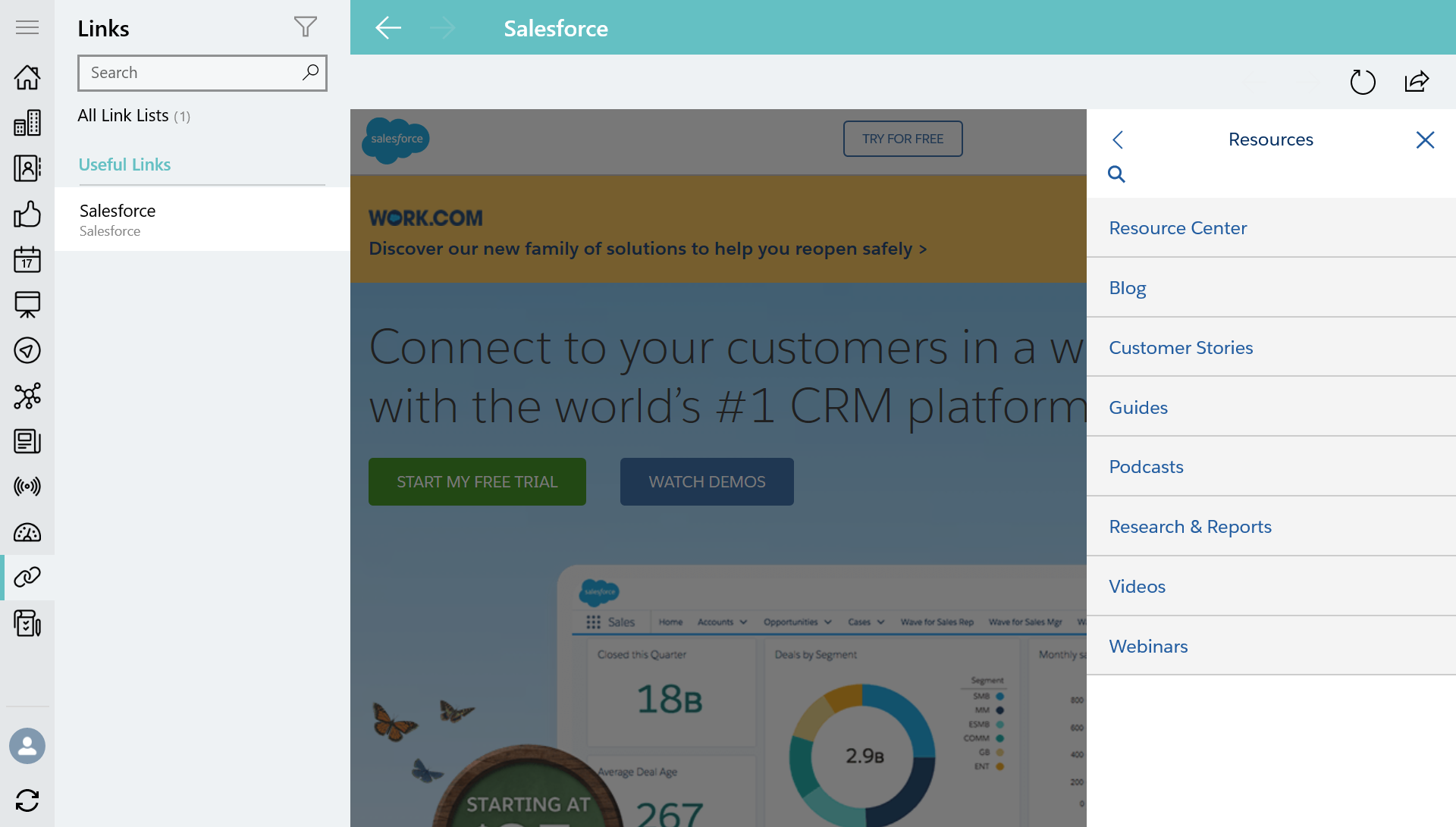
Links
The Links module allows a mobile user to work with external links from the CT Mobile app.
Adding Links to the Menu
To add the Links module to the app menu:
-
Go to CT Mobile Control Panel: App Menu tab.
-
Select the required profile in the Location picklist.
General Settings will be applied to all the profiles without individual settings. -
Click the
 button to open the Add menu item tool.
 -
Select the LinkList item.
-
Click Add to close the Add menu item tool.
-
Click Save.
The setup is complete.
Add a Link
To add a new link to the Links module:
-
Go to CT Mobile Control Panel: App Menu tab.
-
Select the required profile in the Location picklist.
General Settings will be applied to all the profiles without individual settings. -
Select the Links item.
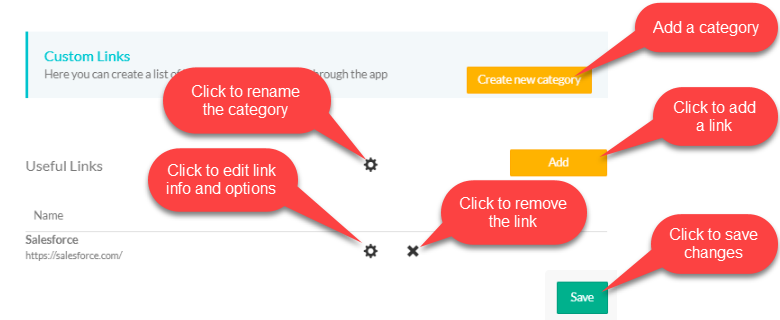
On the right sigh of the screen, the links settings appear.
-
Click the Create new category button to open the link editor.
-
Enter Link Name, Description, URL.
-
Enable Navigation to navigate a site within the mobile application.
The number of links within a category is unlimited. 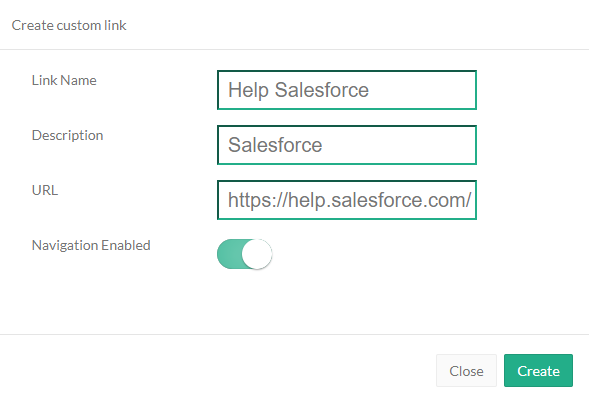
-
-
Click Save.
The link is added and will be available in the Links module of the mobile application. You can configure links.
| If a salesforce.com, CT Mobile attempts to send the session code in order to avoid repeated authorization in Salesforce. |