OAuth 2.0
Since CT Mobile1.3, the Login screen is implemented with the OAuth 2.0 protocol and standard Salesforce UI. Using the valid access token, users authorize the mobile application to access data.
To learn more about OAuth 2.0 user-agent flow, please click here.
Session Expiration
After logging in, a user establishes a session with the CT Mobile app.
A user can log in to Salesforce using up to 5 mobile devices concurrently. If a user logs in to Salesforce using a 6th mobile device, they will receive a message indicating that 'already 5 login sessions exist' and the oldest app session will be logged out.
By default, the session timeout value is set to 2 hours. The following actions within the application may trigger the session expiration effect:
-
Initializing any synchronization process.
-
Accessing dashboards.
-
Downloading files.
-
Chatter activities (likes and new posts).
When a mobile user performs one of the actions above:
-
If there is no internet connection.
The info message reports that the internet connection failed. The action cannot be done, but the mobile user can still work in the CT Mobile app in offline mode.
-
If there is an internet connection and the access token is valid. All offline and online features of the mobile application are available to the mobile user.
-
If the Salesforce password was changed, the mobile user continues to work with the CT Mobile app and also can perform synchronization. A new password is not required.
-
-
If there is an internet connection and the access token is not valid, the mobile user will be forced out from the CT Mobile app to the login screen. The database will be intact. To continue working with the mobile application, the mobile user should log in again.
If another user logs in on the same device, the CT Mobile app warns that the previous user’s database will be reset.
Session Settings
It is possible to change the session expiration timeout or to remove the limit.
-
Go to Setup → Security → Session Settings.
-
Specify Timeout Value and other parameters.
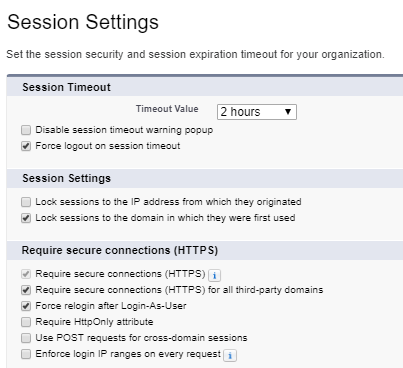
The setup is complete.
The session settings can also be configured for each profile.
-
Go to Setup → Users → Profiles and click the appropriate profile.
-
Go to the Session Settings section and set the timeout value up.
The individual profile settings override general session settings. 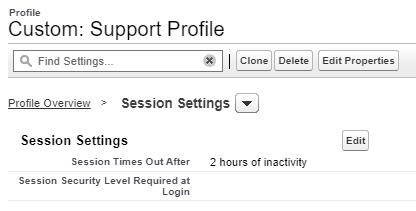
The setup is complete.
Revoke Access
The administrator can revoke the access token of the selected user. In this case, the user’s session will be forcibly logged out and the user should enter their credentials on the Login screen.
To revoke access:
-
Go to Setup → Users → Users → click the user’s name.
-
In the Oauth Connected Apps section, revoke access to the CT Mobile app.

The access token is revoked.