Download CLM Presentations as PDF
Use the Download as PDF button to quickly save several CLM presentations in PDF format. Each CLM presentation will be saved as a single PDF file with a slide per page. The PDF file format: ApplicationName (ApplicationVersion).pdf. The created PDF will be saved in the Owned by Me section on the Files tab.
Add Button to the Layout
To add the button to the Applications tab:
-
Go to Setup → Application → Search Layouts for Salesforce Classic.
-
Click Edit next to List View.
-
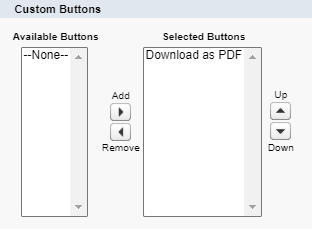
In the Custom Buttons section, move Download as PDF to Selected Buttons.
-
Click Save.
The button is added.
Create PDF
To create PDF files with CLM presentations:
-
Go to the Applications tab.
-
Open the required list view.
-
Select CLM presentations to convert into PDF.
-
Click the Download as PDF button.
The CLM presentations are converted into PDF files and available in the Owned by Me section on the Files tab.