Creating Plain CLM Presentation from PowerPoint
The Application Editor allows the creation of CLM presentations from PowerPoint files.
-
Supported files: .ppt with files, .ppt(x) with files.
-
Embed fonts in a CLM presentation to be sure that the fonts, special characters, layout, and styling of the document won’t change while sharing.
-
The size of the CLM presentation must not exceed 25 MB.
The maximum size of a .pdf or .ppt(x) file is increased up to 75 MB. -
Slides animation from converted .ppt files is not supported.
-
If a .ppt(x) file contains any interactive elements, such as videos, gifs, and links, they will not be available in the converted CLM presentation.
-
Violation of converted slides' proportion is possible when other than iPad format slides are used in the source document.
To convert a PowerPoint file to CLM-presentation:
-
Go to Application Editor.
-
Select a plain CLM presentation from the picklist in the upper left corner, or click New to create a new CLM presentation with the Plain Application record type, or click Clone to add a new CLM presentation identical to the selected one.
-
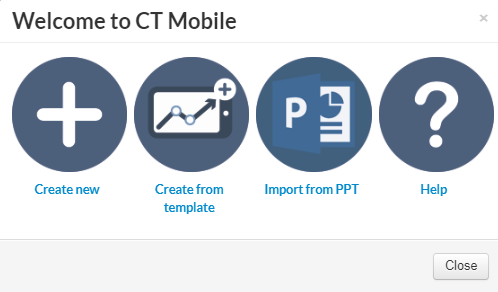
Click Import from PPT.
-
In the Import PPT window, click Browse, select the PowerPoint file, and click Upload.
The CLM presentation limit is 25 slides. In the case of exceeding the limit, a warning will be displayed. The PowerPoint file will not be uploaded. 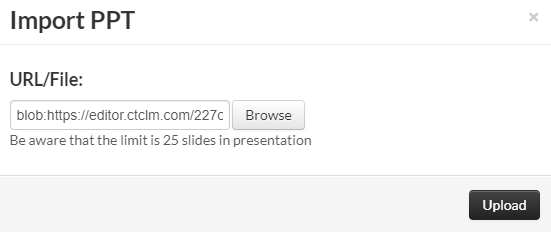
-
Wait a minute and slides converted from the PowerPoint file will be displayed. In the CT Mobile menu, click Save.
Also, you can upload the PowerPoint by clicking Import PPT in the CT Mobile menu.
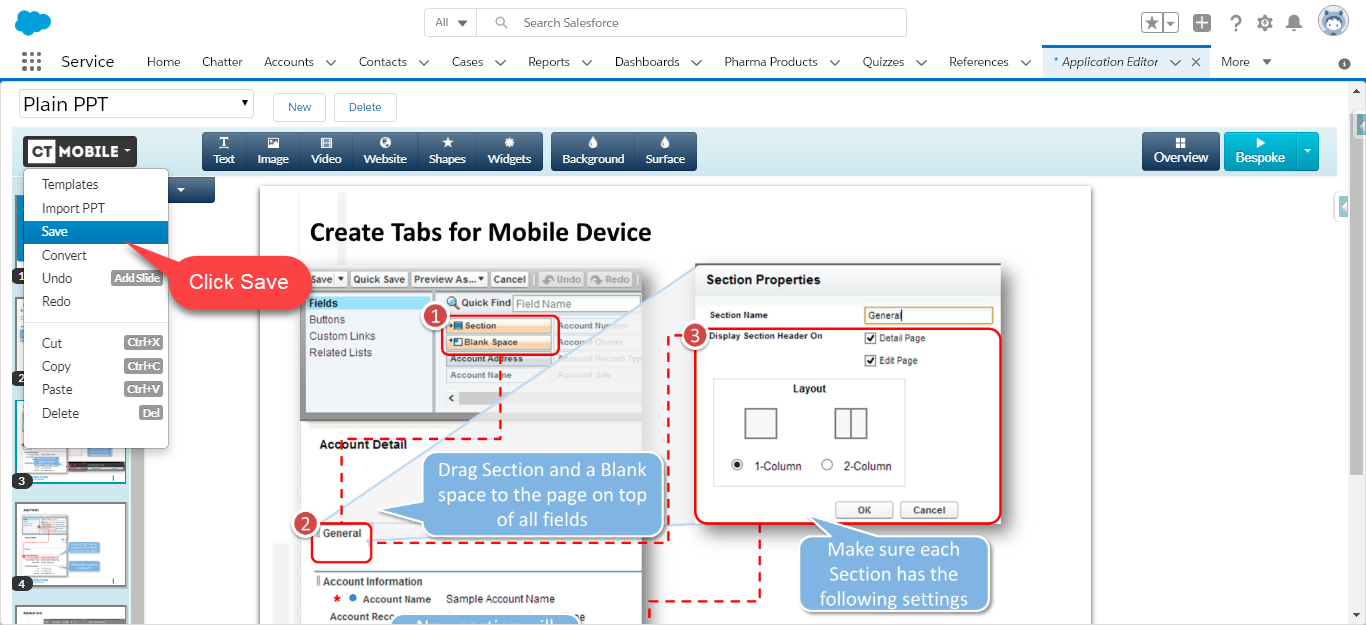
The CLM presentation is created.
CLM presentation should be activated. If a CLM presentation should be available for Remote Detailing, check tthe Available for Remote Detailing field and set up Remote Detailing. Renew slides, wait 2-3 minutes, and publish the CLM presentation. Perform fast or mixed synchronization on the mobile device to download the CLM presentation.
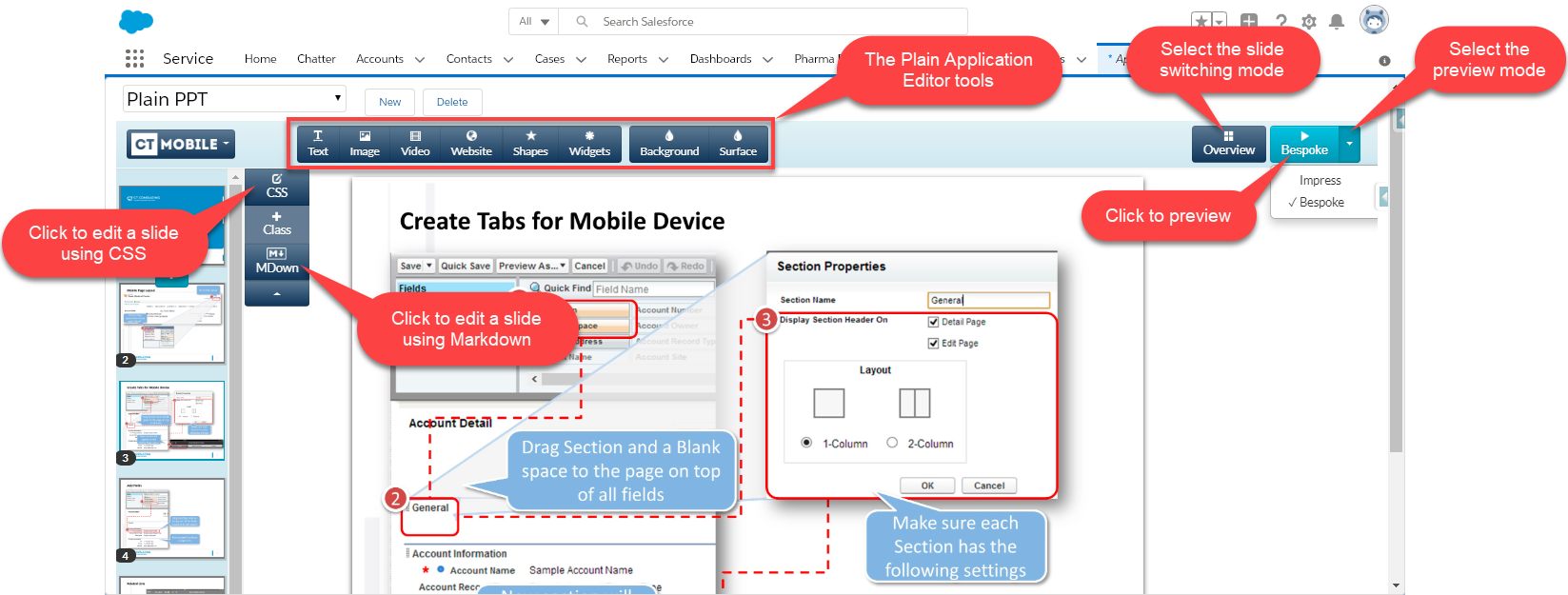
You can customize CLM presentations with the Plain Application Editor tools.
-
Select and click Impress to view the CLM presentation with the impress.js framework. Click the right/left side to switch slides, or use key arrows and a spacebar.
-
Select and click Bespoke to view the CLM presentation with the bespoke.js framework. Use key arrows and a spacebar to navigate.