Remote Detailing Launch: Salesforce Side
In Salesforce, launch a CLM presentation on the Application or Activity record.
On Application Record
A presenter can invite participants by sending the invite link from Salesforce.
| Only the Remote Detailing meeting can be started from the Application record. |
-
The Remote Detailing and Self Detailing buttons in Salesforce Classic are no longer supported.
-
In the Lightning Experience, tap the Remote Detailing button on an Application record to create a new Activity record with an invite link.
Add the Remote Detailing button
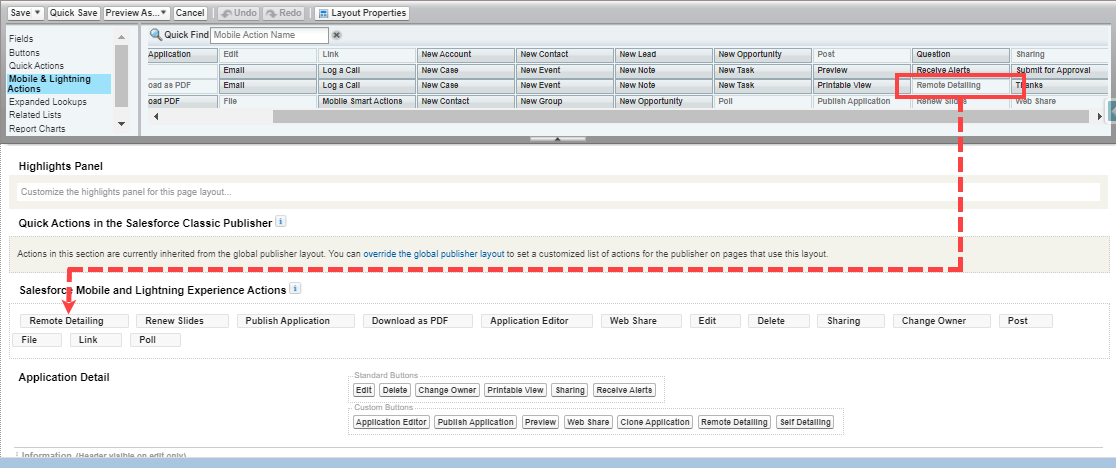
To add the button to generate an invite link on the Application object page layout:
-
Go to Setup → Object Manager → Application→ Page Layouts.
-
Open the appropriate page layout.
-
Go to the Mobile & Lightning Actions section.
-
Drag and drop the Remote Detailing button on the page layout.
-
Click Save.
The Remote Detailing button is added.
Launch the Remote Detailing session
To launch the Remote Detailing meeting:
-
Click the Remote Detailing button on the Application record page.
-
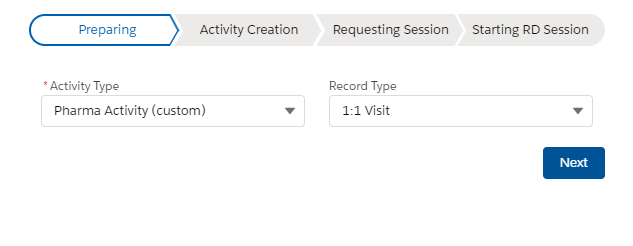
On the Preparing stage, create a new Activity record by selecting the Activity object, selecting a record type, and clicking Next.
-
The Activity Type field contains only Activity objects available for the current user;
-
The Record Type field contains record types for the selected Activity object if these record types are available for the current user.
-
-
In the next stages:
In case of any errors, the error message will be displayed at the appropriate stage. -
Activity Creation: the new Activity record of the selected record type will be created.
-
Requesting RD Session: the invite link generation.
-
Starting RD Session: launch of the Remote Detailing meeting.
-
After all stages, the Remote Detailing meeting opens in the new tab.
-
Click the Presenter Login button to join as a presenter. If you logged in as a guest, click the Log out button.
-
Enter your username and an e-mail (optionally) and click Join to enter as a participant.
On Activity Record
A presenter can invite participants by sending the invite link that is stored in the specified custom field on the Activity record in Salesforce.
| Specify the desired record type of the Activity object in the Apex trigger to launch the Remote Detailing or Self Detsiling meeting. Optionally, specify a Salesforce workflow to send an email/SMS/etc. to the contact of the Activity record after generating an invite link for this record. |
Add the custom field for the invite
To add a custom field on the Activity page layout:
-
Go to Setup → Object Manager → click an Activity object → Fields & Relationships.
-
Click New.
-
Create a field with the URL data type. The API name can be, e.g., RDLink__c.
Specify the API name of the field in the Link Field on the CT Mobile Control Panel: Presenter tab. -
Click Save.
-
Go to the Page Layout section.
-
Open the appropriate page or mobile layout.
-
Drag and drop the field from step 3 to the layout.
-
Click Save.
The field is created.
Launch the Remote Detailing session
To launch the Remote Detailing meeting:
-
Create a new Activity record.
-
Click th Applications button.
-
In the Applications window, select the available CLM presentations for the Remote Detailing meetings.
You can specify the IDs of CLM presentation(s) as a default value for the ApplicationIds__c field or create your custom process to populate the ApplicationIds__c field. -
After a while, the specific field will be populated with the invite link, for the Remote Detailing or Self Detailing meeting, according to Remote Detailing Setup.
For the Remote Detailing meeting click the invite link in the specific field:
-
Click the Presenter Login button to join as a presenter. If you logged in as a guest, click the Log out button.
-
Click the invite link. Enter your username and an e-mail (optionally) and click Join to enter as a participant.
For the Self Detailing meeting, copy the invite link and send it to the participant.
Error Handling
Errors may occur during creating an Activity record for a Remote Detailing meeting.
When a user adds CLM presentations to the Activity record, an error occurs if:
-
at least one CLM presentation is not found on a server
-
at least one CLM presentation is not active
-
at least one CLM presentation is not available for remote detailing
In this case, the Oops! Renew slides for the applications you selected and recreate the activity message will be displayed. The user will receive an email in the following format:
REMOTE DETAILING NOTIFICATION

Failed to create RD link for the Activity: <link to activity>

Renew slides for the application(s) and recreate the activity:

<links to applications>
When a user launches the Remote Detailing meeting, an error occurs if:
-
the user does not have permission to do so. The RD is not enabled for this profile message will be displayed.
-
the user has no permission to read the following CLM presentations. During the Remote Detailing meeting, the user will see allowed CLM presentations, and Remote Detailing notifies the user of the list of hidden CLM presentations.
-
CLM presentations for this meeting are no more available for Remote Detailing. During the Remote Detailing meeting, the user will see CLM presentations available for Remote Detailing, and Remote Detailing notifies the user of the list of hidden CLM presentations.
-
CLM presentations are no more active. During the Remote Detailing meeting, the user will see only active CLM presentations, and Remote Detailing notifies the user of the list of hidden CLM presentations.