List Views
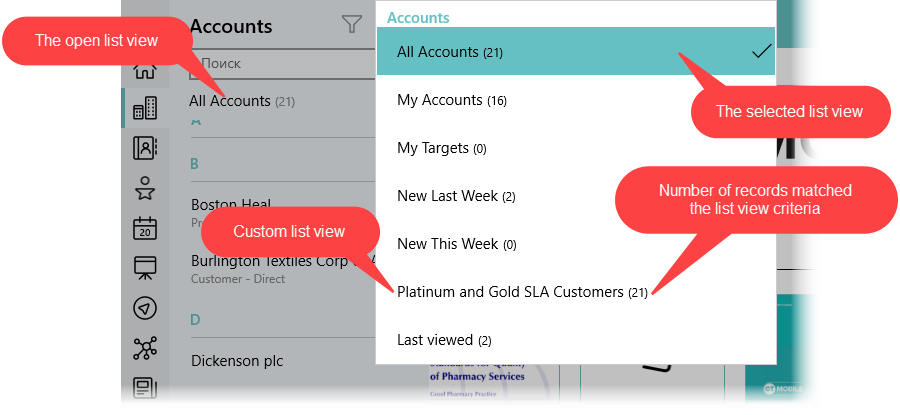
A list view allows you to see a filtered list of records in the CT Mobile app.
List Views
The list views are pulled from Salesforce and available in:
-
offline objects, such as Accounts, Contacts, Opportunities, etc.
-
reference fields, for example, for Accounts, Contacts, Opportunities, etc.
-
the Routes module for the Activity objects
-
the Nearby Accounts module for Account, Activity, and Contact objects
-
the Calendar module for Activity and Account objects
-
the Applications module (if list views are created)
Some list views in CT Mobile do not come from Salesforce:
-
All{Object Name}
-
Last viewed
-
Values are displayed based on the Last Viewed Date field retrieved from Salesforce. When a user opens a record in the CT Mobile app, the value in the Last Viewed Date field of this record is also changed, but this change will not be sent into Salesforce.
-
-
My{Object Name}
-
This week
-
Today
List views are displayed above records in the left menu.
-
The last selected list view of one of the offline objects or modules will be displayed the next time a user opens the corresponding offline object (including reference fields) or module. The logic does not affect the list view display in the Calendar module.
-
After the first synchronization, the Accounts tab will be displayed in the Calendar module. Then, the last selected list view will be displayed the next time a user opens the Calendar module.
-
Records (regardless of case) are displayed in the list views if they match the filter criteria, for example,Record and RECORD. The counter of records next to the list view name is only displayed if there are fewer than 5 000 records downloaded on the device. Otherwise, the counter is not shown.
Detailed List View
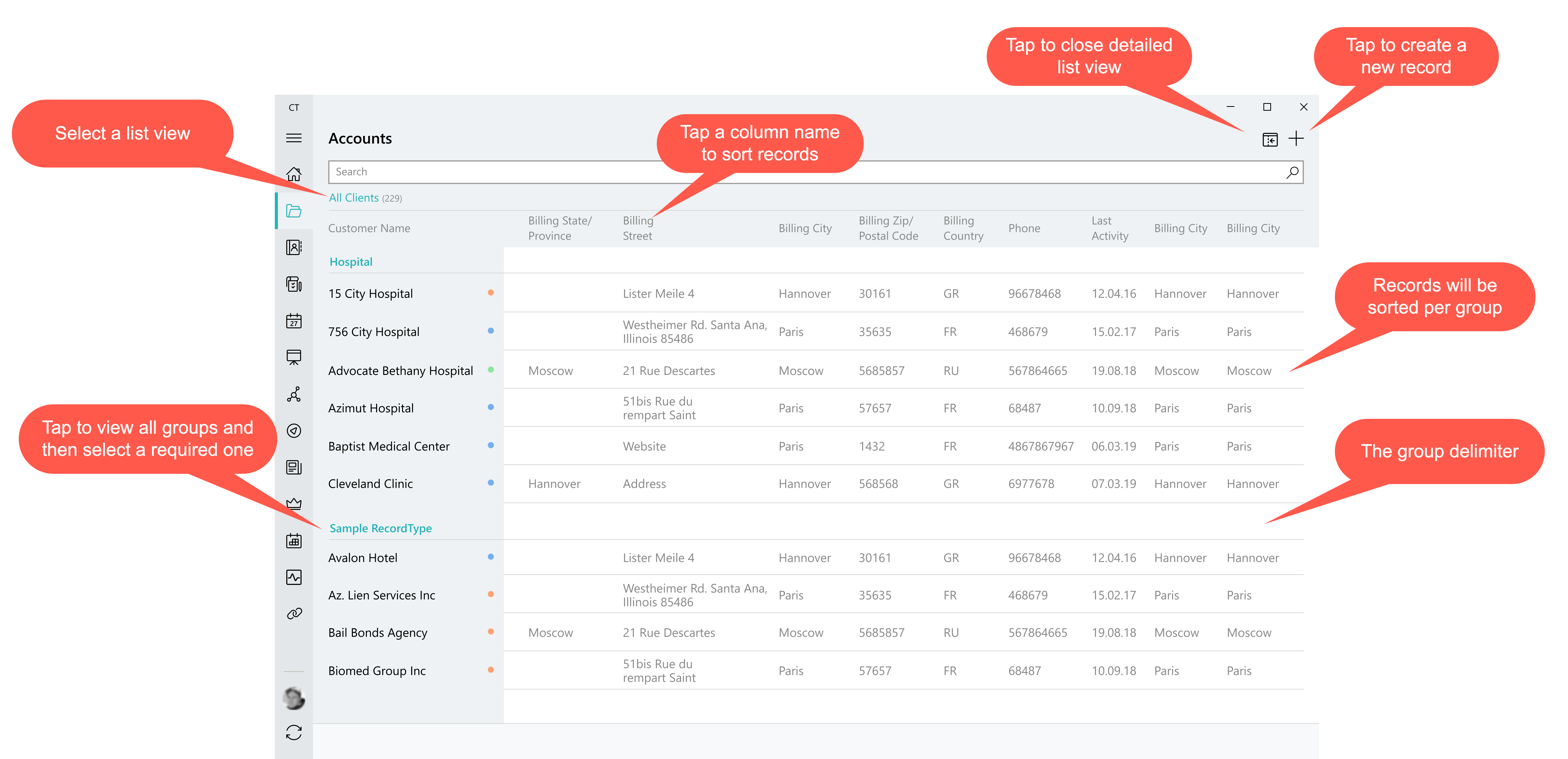
Tap  to maximize the list view display:
-
create and delete records if permission is granted;
-
the created or opened record will be displayed in the standard view with the left record list;
-
sort records by tapping the column name.
-
Records will be sorted in the alphabetic order regardless of the case;
-
Records will be sorted within groups if specified;
-
-
search records by their title and subtitle from the compact layout and by fields from the search layout;
-
the last selected list view will be saved and displayed the next time a user opens the corresponding offline object.