Creating a Template
CT Presenter allows creating several slides based on one template.
-
You can use widgets to make slides look and feel different. To use widgets, it is needed to add placeholders where they would be located.
-
Templates support an unlimited number of placeholders.
To create a template:
-
Go to Applications and select a CLM presentation.
-
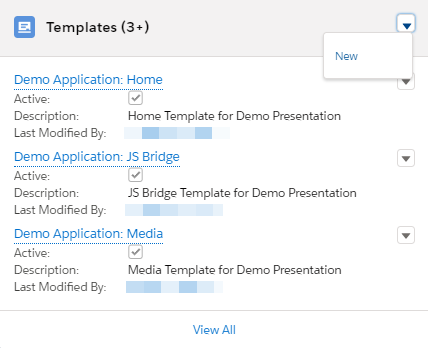
Click New in the Templates section.
-
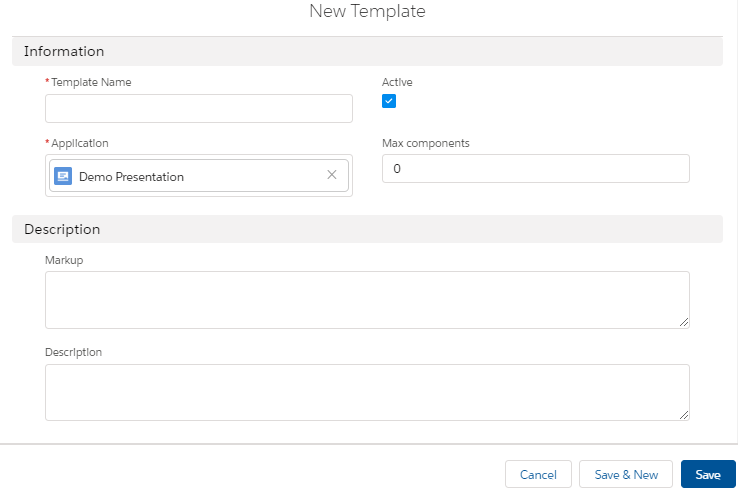
Fill in the required fields and enter the HTML code in the Markup field.
The full description of template attributes is available here. -
To activate JS Bridge in the HTML code, enable the JS Bridge library.
-
The template name should include the CLM presentation name, e.g., e-Detailing2: Test Template, where e-Detailing2 is the name of the CLM presentation.
-
-
Click Save or Save & New to create another slide.
The template is created.