Remote Detailing 2.0: UI for Presenter
| Available since CT Mobile package v. 3.63. |
A presenter can launch the CLM presentation from Salesforce or the CT Mobile app.
| Read Detailing: F.A.Q.] to check supported browsers, recommended bandwidth, and CLM-presentations features availability. |
Start a Remote Detailing session
To start the meeting:
-
Click the invite link to start the CLM presentation.
-
Click the Presenter Login button at the top right corner of the screen.
-
If you enter participant details and click Join, you can log out on the next screen and re-enter as the presenter. Also, you can return to the CT Presenter site and join the meeting by entering the Meeting ID.
-
If you start the Remote Detailing meeting from the CT Mobile app, you do not need to re-enter as the presenter. The CLM presentation will be launched in the new app window.
-
You’re logged in and the meeting is started. In case of the first login, grant the requested permissions.
Manage a Remote Detailing meeting
Main Screen
|
When you started the meeting, the meeting screen is opened. Now, participants can join the meeting.
|
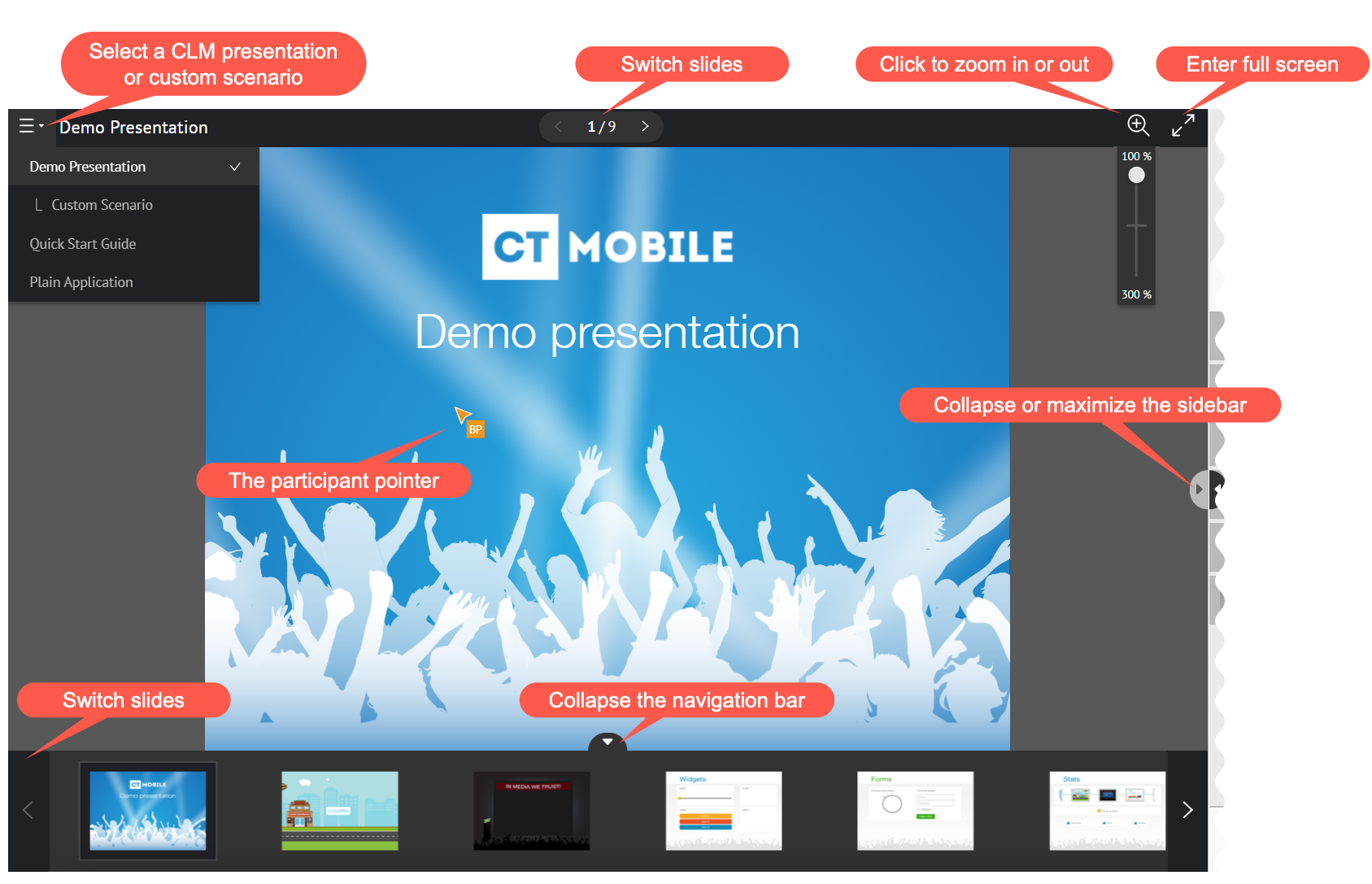
Sidebar
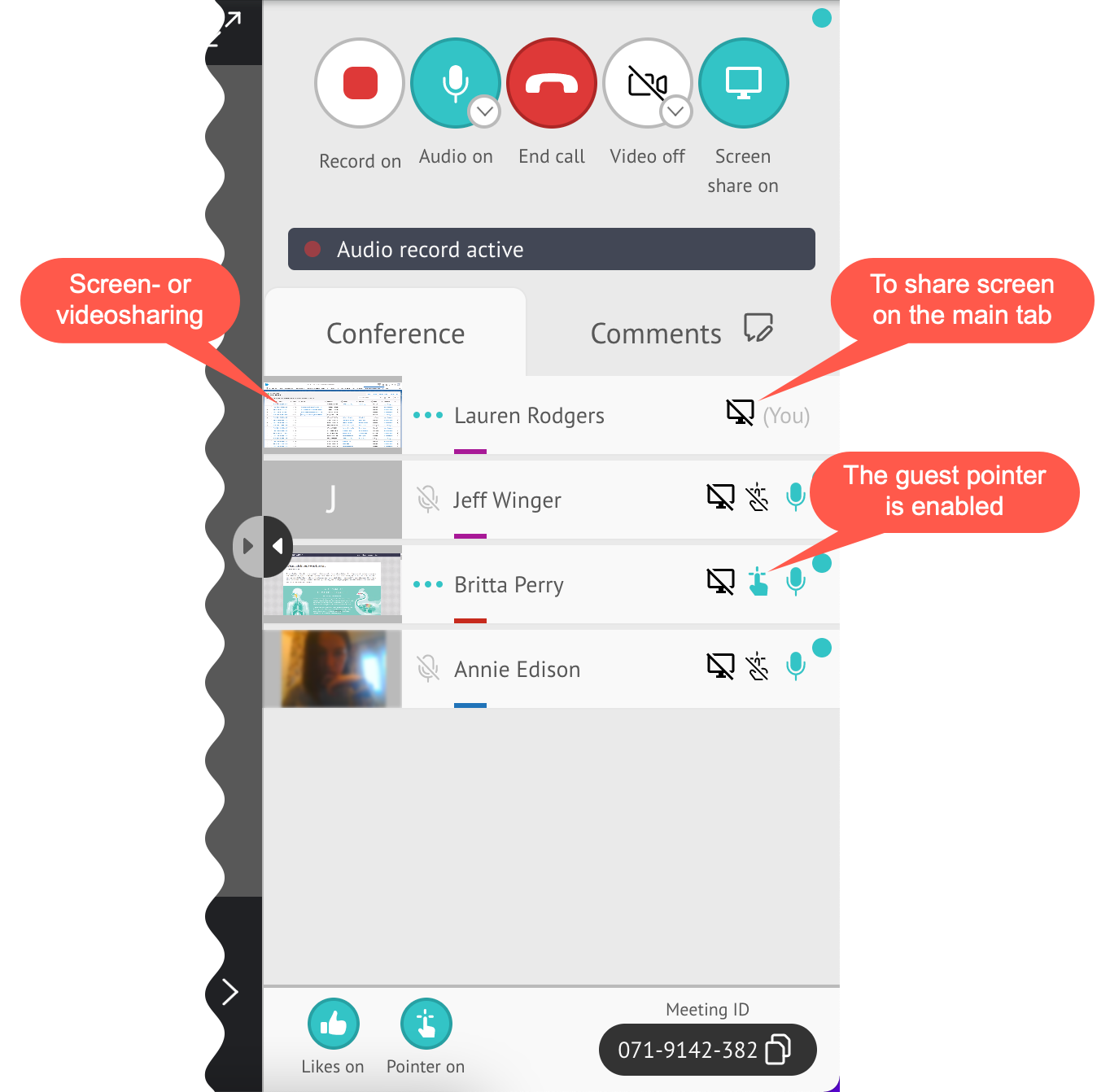
The sidebar has the Conference tab to manage the Remote Detailing meeting, select audio and video options, and enable participant actions.
If specified, the Comments tab will be displayed and all users can leave a comment. The red dot on the tab indicates the unread messages. Record on If allowed, click to record the audio of the meeting.
Audio/Video On/Off
Screen Share On/Off
End Call Click to leave the meeting. If the meeting may be restarted, you can launch it again. Likes On/Off Enable the ability to like or dislike slides for participants.
Pointer On/Off Click to enable the presenter pointer display on participants' screens. Manage Participants
|
|
Finish a Remote Detailing session
Click End call to finish the meeting.
-
All participants forcibly leave the meeting.
-
Allow the repeated meeting on the CT Mobile Control Panel: Presenter tab to have the ability to restart the finished meeting.
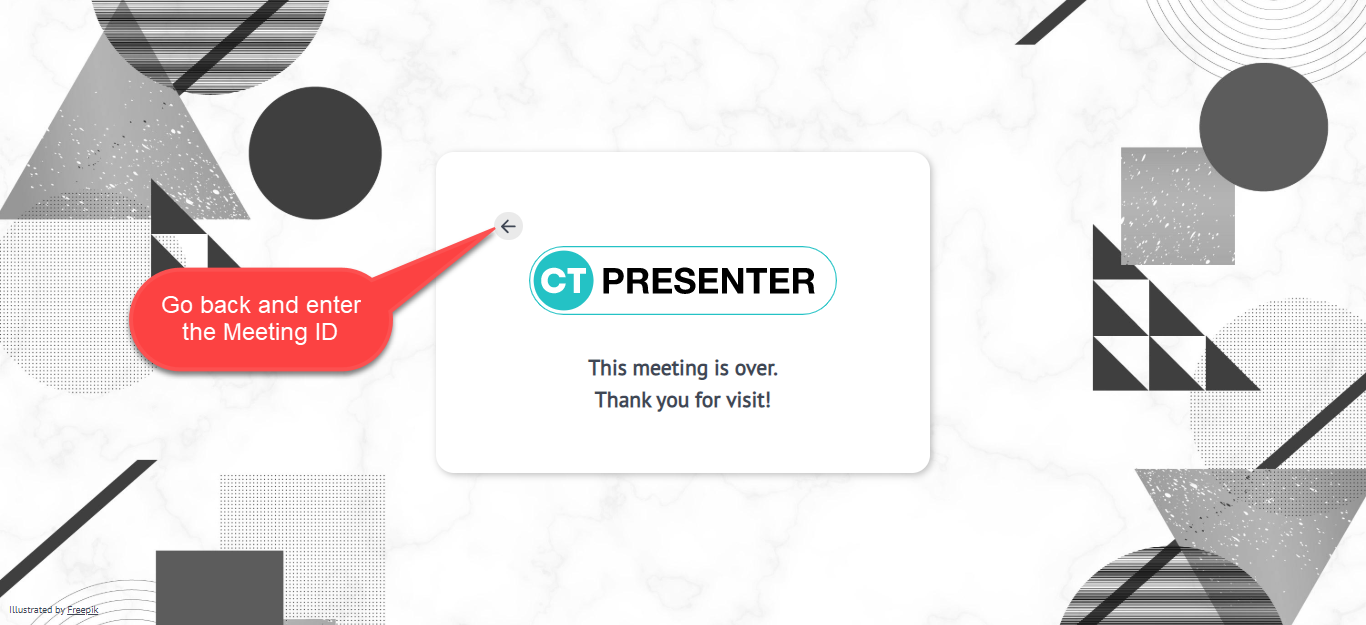
You can enter the Meeting ID and join as a participant in another Remote Detailing meeting.